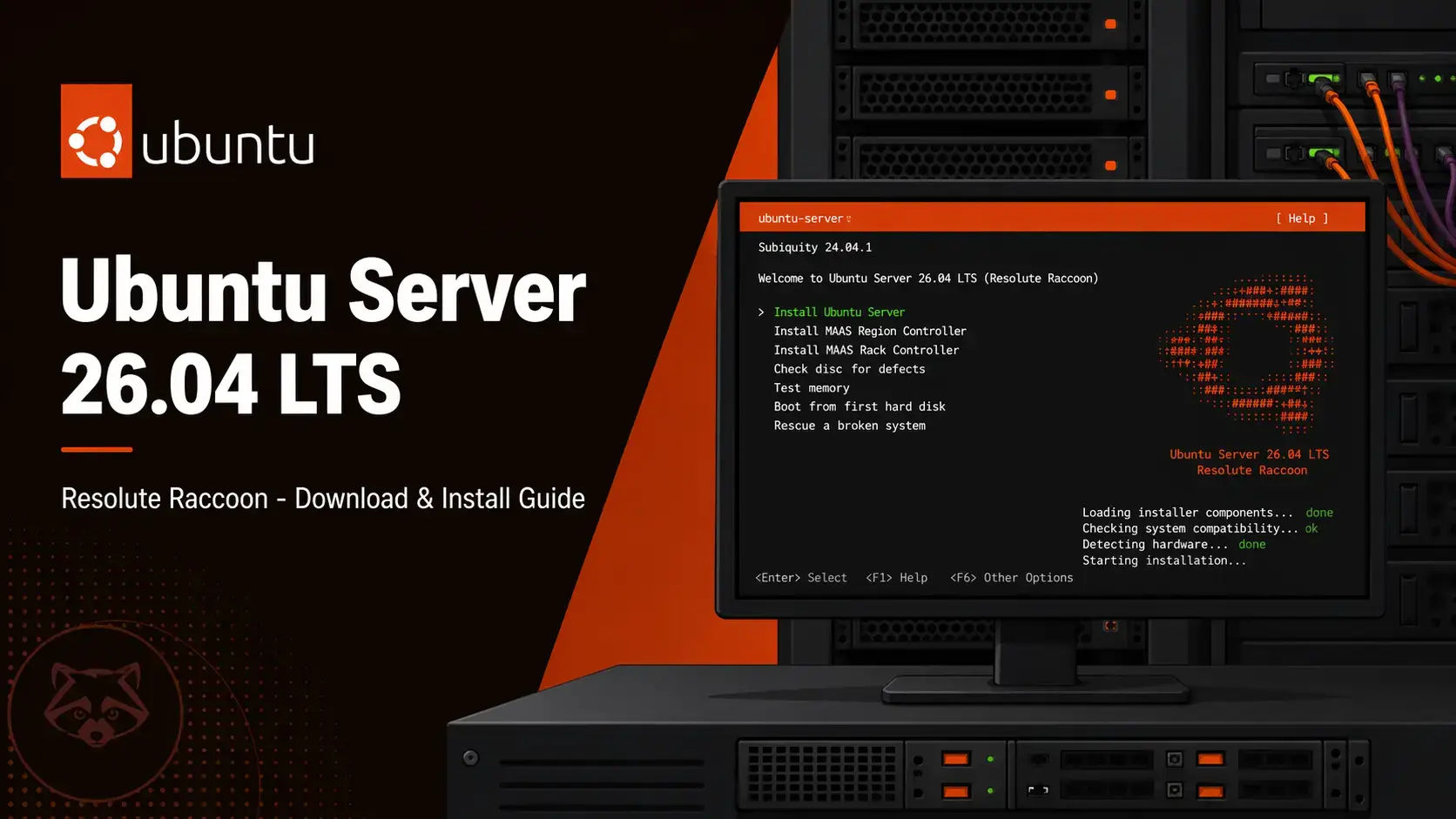
 Ubuntu Server 26.04 LTS Resolute Raccoon is available to download now from Canonical’s official release server. This is a long-term support release with free security updates until April 2031. Below you will find direct ISO links for Server AMD64 and ARM64, cloud image links, SHA256 verification steps, system requirements, and a step-by-step install walkthrough for the Subiquity text installer.
Resolute Raccoon
No desktop interface. Text-based installer. Built to run 24/7 on servers, VPS instances, and home labs. Free to use. Supported until April 2031.
Which ISO Should You Download?
Ubuntu Server 26.04 comes in two main ISOs plus dedicated cloud images. Here is how to choose.
| Edition | Who It’s For | Size | Notes |
|---|---|---|---|
| Server AMD64 Recommended | Standard servers, VPS installs, home lab machines, and most cloud providers (bare metal) | ~2.7 GB | Uses Subiquity text installer. No desktop environment included. |
| Server ARM64 ARM | ARM-based servers, Raspberry Pi 4/5, Ampere Altra servers, ARM development boards | ~2.9 GB | Same Subiquity installer. Use only on ARM64 hardware. |
| Cloud Images | AWS, Azure, Google Cloud, Oracle Cloud, DigitalOcean, and other managed cloud platforms | Provider-supplied | No ISO needed. Launch directly from your cloud provider dashboard or via cloud-images.ubuntu.com. |
| Ubuntu Desktop | Personal computers and laptops that need a full graphical interface | ~5.9 GB | See our Ubuntu Desktop 26.04 download guide. |
Official Download Links
All links point directly to releases.ubuntu.com, Canonical’s official release server.
Size: ~2.9 GB
Format: Provider-ready images
ubuntu-26.04-live-server-.How to Verify Your Download (SHA256)
Always verify your ISO before writing it to USB or booting it on a server. This confirms the file downloaded completely and was not corrupted in transit.
SHA256SUMS file to the same folder as your downloaded ISO.Run the checksum in a terminalOn Linux or macOS:
sha256sum ubuntu-26.04-live-server-amd64.iso
On Windows (PowerShell):
Get-FileHash ubuntu-26.04-live-server-amd64.iso -Algorithm SHA256
System Requirements
Ubuntu Server has much lower hardware requirements than the desktop edition because it runs no graphical interface.
- CPU: 1 GHz 64-bit processor
- RAM: 1 GB
- Storage: 2.9 GB
- Network: Ethernet (recommended for server use)
- CPU: 2-core 64-bit processor
- RAM: 2-4 GB depending on workload
- Storage: 20+ GB SSD for room to grow
- Network: Wired ethernet, static IP recommended
How to Install Ubuntu Server 26.04
The Subiquity installer is text-based but straightforward. Here is what to expect from start to finish.
First Steps After Installing
Once you log in for the first time, run these three commands to get your server into a clean, secure baseline state.
sudo apt update && sudo apt upgrade -y
This pulls the latest security patches and package versions. Run this immediately after every fresh install.
sudo ufw allow OpenSSH
sudo ufw enable
UFW is Ubuntu’s built-in firewall. The first command allows your SSH connection through before you enable it, so you do not lock yourself out. Always allow SSH first.
ip a
This shows your network interfaces and IP addresses. Note the IP under your main ethernet interface (usually named eth0 or ens3). You will need it to connect via SSH from another machine.
Free. Open source. Supported until April 2031.
Frequently Asked Questions
What is the difference between Ubuntu Desktop and Ubuntu Server?
Ubuntu Desktop includes a graphical interface (GNOME) and a full app suite designed for everyday use on a personal computer. Ubuntu Server has no graphical interface. Everything is managed through the command line. It is designed to run continuously as a web server, database host, file server, or other backend service. The server edition uses fewer resources because it does not run a desktop environment.
Can I install a desktop environment on Ubuntu Server 26.04 later?
Yes. After installing Ubuntu Server, you can add a desktop environment at any time using the terminal. The most common choice is to run: sudo apt install ubuntu-desktop. This installs the full GNOME desktop. However, most server use cases do not need a desktop, and adding one increases resource usage and the attack surface.
What is the live-server ISO and how does it differ from the older alternate installer?
The live-server ISO uses Subiquity, which is Canonical’s modern text-based installer. It replaced the older Debian-style alternate installer starting with Ubuntu 20.04. Subiquity runs faster, supports automated installs via cloud-init, and handles LVM and ZFS storage configurations more cleanly. There is no longer a separate alternate ISO for Ubuntu Server.
What are the minimum system requirements for Ubuntu Server 26.04?
The minimum requirements are a 64-bit processor, 1 GB of RAM, and 2.5 GB of disk space. In practice, a usable server installation with room to grow needs at least 20 GB of disk space and 2 GB of RAM, depending on what services you plan to run.
Does Ubuntu Server 26.04 support cloud deployments?
Yes. Canonical publishes official Ubuntu Server 26.04 images for AWS, Azure, Google Cloud, Oracle Cloud, and other providers. These images include cloud-init pre-configured so your cloud provider can inject SSH keys, hostname settings, and startup scripts automatically. You can find the full index at cloud-images.ubuntu.com.
How do I access my Ubuntu Server remotely after installing it?
During installation, Subiquity offers to install OpenSSH Server. If you selected that option, SSH is ready immediately after the system reboots. Connect from another machine using: ssh your-username@server-ip-address. If you did not install SSH during setup, you can add it afterward by running: sudo apt install openssh-server.
Is Ubuntu Server 26.04 LTS suitable for a VPS?
Yes. Ubuntu Server is one of the most widely used operating systems on VPS providers including DigitalOcean, Linode, Vultr, and Hetzner. Most VPS control panels offer Ubuntu Server 26.04 LTS as a one-click install option directly, meaning you may not need to download the ISO at all for cloud use. The ISO is primarily needed for bare-metal installs.
More Ubuntu 26.04 guides: Ubuntu Desktop 26.04 Download · Ubuntu Server 26.04 Manual(PDF) · How to Upgrade to 26.04 · Ubuntu 26.04 New Features