 You can install Wine on Ubuntu using the native APT package manager from the official Ubuntu repositories, or by adding the dedicated WineHQ repository to access the absolute latest release branches.
Wine (which stands for “Wine Is Not an Emulator“) is a powerful compatibility layer that translates Windows instructions into Linux commands on the fly, allowing you to run Windows applications and games directly on Linux without the performance overhead of virtualization or the inconvenience of dual-booting.
Note that there is no official Snap or Flatpak package for standard Wine. Because Wine requires deep integration with your system’s libraries and filesystem to effectively map Windows dependencies, sandboxed container formats like Snap and Flatpak are not well-suited for it.
This guide provides step-by-step terminal instructions for installing and configuring Wine on Ubuntu 26.04, 24.04, and 22.04 LTS. We cover the default Ubuntu repository, the official WineHQ repository (including Stable, Development, and Staging branches), required 32-bit architecture commands, and clean system uninstallation.
If any of these steps fail on your system, please drop a comment below or contact us and we will help you get it resolved.
APT & WineHQ Setup Walkthroughs
Configure the Wine compatibility layer on your system. Learn how to add official WineHQ repositories, enable 32-bit application support, and initialize your virtual Windows environment.
Choosing the correct installation source dictates how recent your Wine dependencies will be. If you simply need to run an older, established Windows application, the default repository is often fine. However, gamers and users of frequently updated software usually prefer the official WineHQ repository. Review the comparison grid below to select the option that best fits your requirements.
Wine Installation Methods Compared
Review the installation choices below to evaluate update frequency, stability, and setup complexity.
| Method | Source repository | Update Frequency | Best For |
|---|---|---|---|
| Ubuntu Default APT | Official Ubuntu Universe | Frozen at release time (infrequent) | Older Windows tools, maximum system stability. |
| WineHQ Stable | dl.winehq.org | Regularly updated stable releases | General daily use, modern software, general gaming. |
| WineHQ Staging | dl.winehq.org | Frequent (includes experimental patches) | Gamers needing specific graphical patches or fixes. |
Prerequisite: Enable 32-Bit Architecture
Regardless of whether you choose the Ubuntu repository or the WineHQ repository, you must enable 32-bit architecture on your system. A massive portion of Windows software (including installers for 64-bit applications) relies on 32-bit dependencies, and Wine will fail to execute them without this support.
Open your terminal and run the following command to inform your package manager that it is allowed to download and install 32-bit libraries:
sudo dpkg --add-architecture i386
Method 1: Install Wine via the Default Ubuntu Repository
If you prefer to stick to software distributed directly by Ubuntu, you can install the version of Wine frozen in the default Ubuntu Universe repository. This is the fastest method, as it requires no third-party repository configurations or external GPG keys.
Update your APT repository indexes to fetch the latest available package definitions (including the new 32-bit libraries you just enabled):
sudo apt update
Install the Wine metapackage, which will automatically pull in both the 64-bit and 32-bit components required to run the environment:
sudo apt install wine64 wine32 -y
Method 2: Install Wine via the Official WineHQ Repository
For users who want access to the latest compatibility fixes and better gaming support, the official WineHQ repository is the recommended route. This method involves downloading a security key, adding a repository tailored to your specific Ubuntu version, and selecting a release branch.
First, create the keyrings directory if it does not already exist, and download the official WineHQ GPG security key to ensure your packages are authentic and untampered with:
sudo mkdir -pm 755 /etc/apt/keyrings
sudo wget -O /etc/apt/keyrings/winehq-archive.key https://dl.winehq.org/wine-builds/winehq.key
Download the repository sources file corresponding to your specific Ubuntu version. Execute the command that matches your operating system:
For Ubuntu 26.04 (Resolute):
sudo wget -NP /etc/apt/sources.list.d/ https://dl.winehq.org/wine-builds/ubuntu/dists/resolute/winehq-resolute.sources
For Ubuntu 24.04 (Noble):
sudo wget -NP /etc/apt/sources.list.d/ https://dl.winehq.org/wine-builds/ubuntu/dists/noble/winehq-noble.sources
For Ubuntu 22.04 (Jammy):
sudo wget -NP /etc/apt/sources.list.d/ https://dl.winehq.org/wine-builds/ubuntu/dists/jammy/winehq-jammy.sources
Refresh your local package index to recognize the newly added WineHQ repository:
sudo apt update
Finally, install the WineHQ branch that best fits your needs. Stable is recommended for most users, while Staging includes experimental patches favored by the gaming community.
To install the Stable branch:
sudo apt install --install-recommends winehq-stable -y
To install the Staging branch:
sudo apt install --install-recommends winehq-staging -y
To install the Development branch:
sudo apt install --install-recommends winehq-devel -y
How to Configure Wine (winecfg)
After Wine is installed, you must initialize the virtual Windows environment (known as the Wine prefix). This process generates the hidden ~/.wine directory in your home folder and creates the virtual C: drive structure that Windows applications expect.
Run the following command in your terminal as your normal user (do not use sudo, or you will create permission issues in your home directory):
winecfg
During initialization, you may be prompted to install Wine Mono (.NET framework support) and Wine Gecko (HTML rendering). Click Install on these prompts. Once finished, the graphical Wine configuration window will appear, allowing you to set the default Windows version (Windows 10 is the recommended default) and map custom drives.
You can also verify your installed version of Wine at any time by running:
wine --version
Wine Interface Screenshots
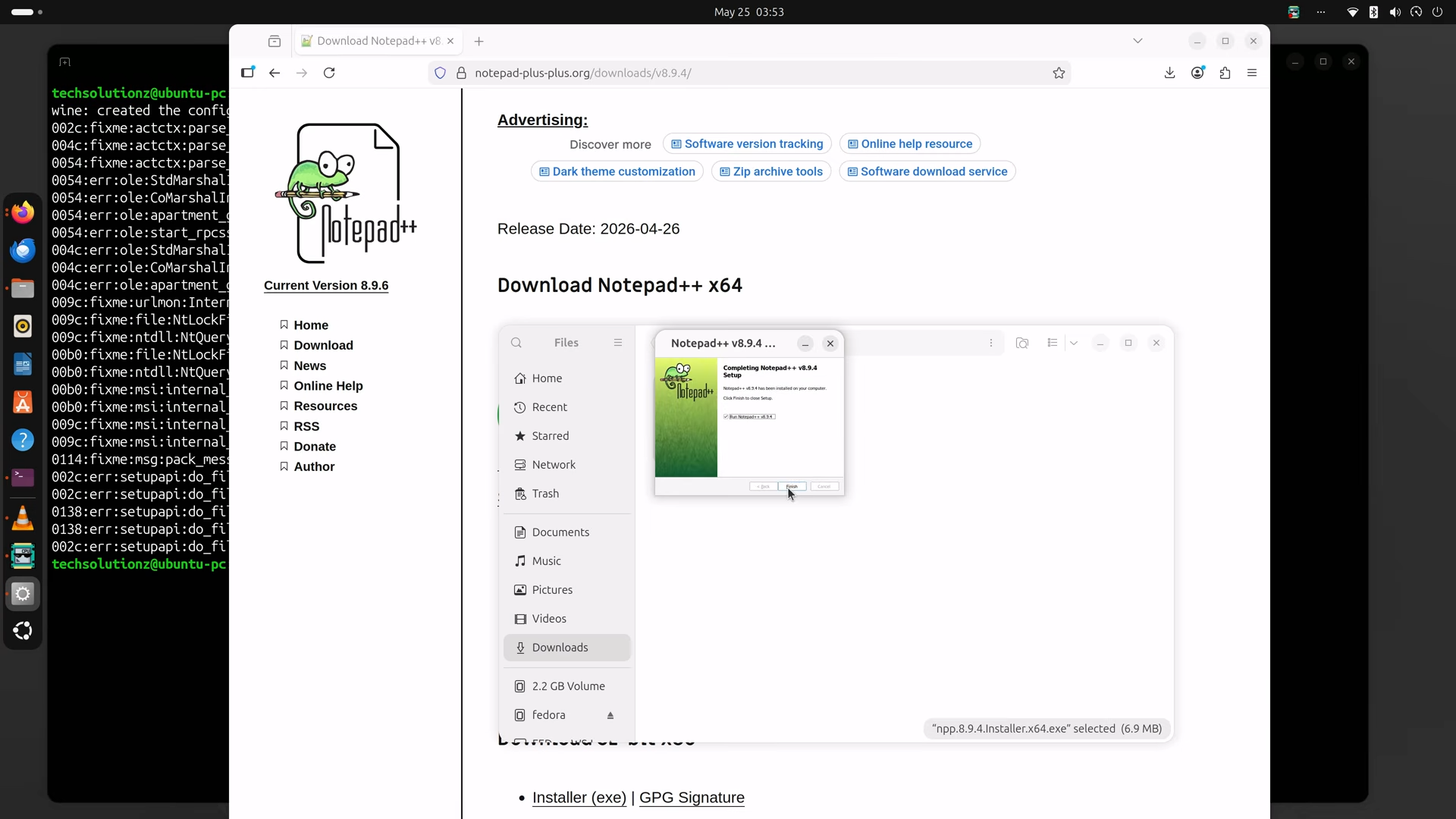
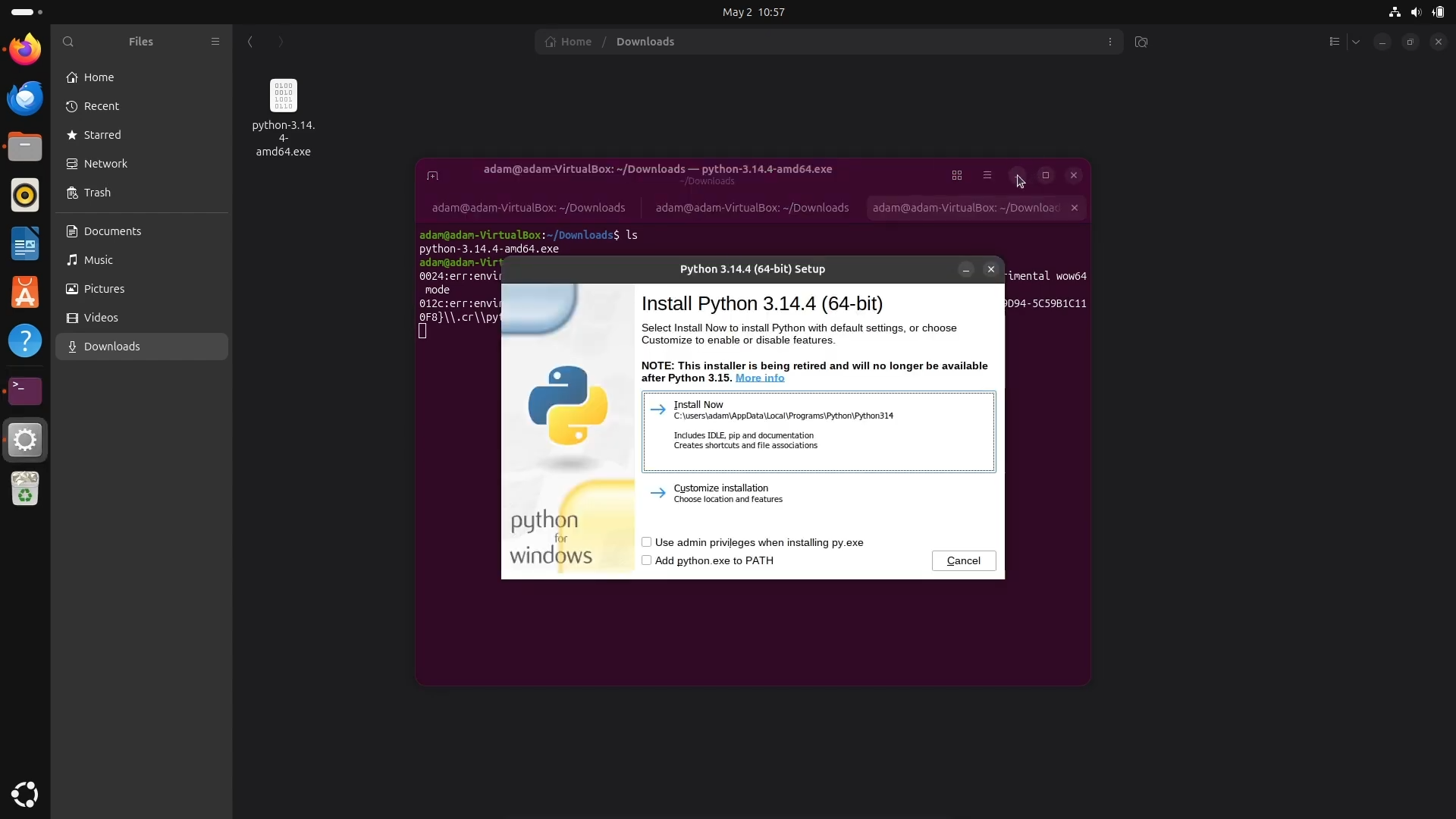
Below are screenshots of the Wine configuration environment running on the Ubuntu desktop, displaying the virtual drive mapping and Windows version selection settings:
-
- Notepad++ on ubuntu via wine from How to Install Wine on Ubuntu 26.04 – Complete Guide
-
- Python installed via wine on ubuntu from How to Install Wine on Ubuntu 26.04 – Complete Guide
-
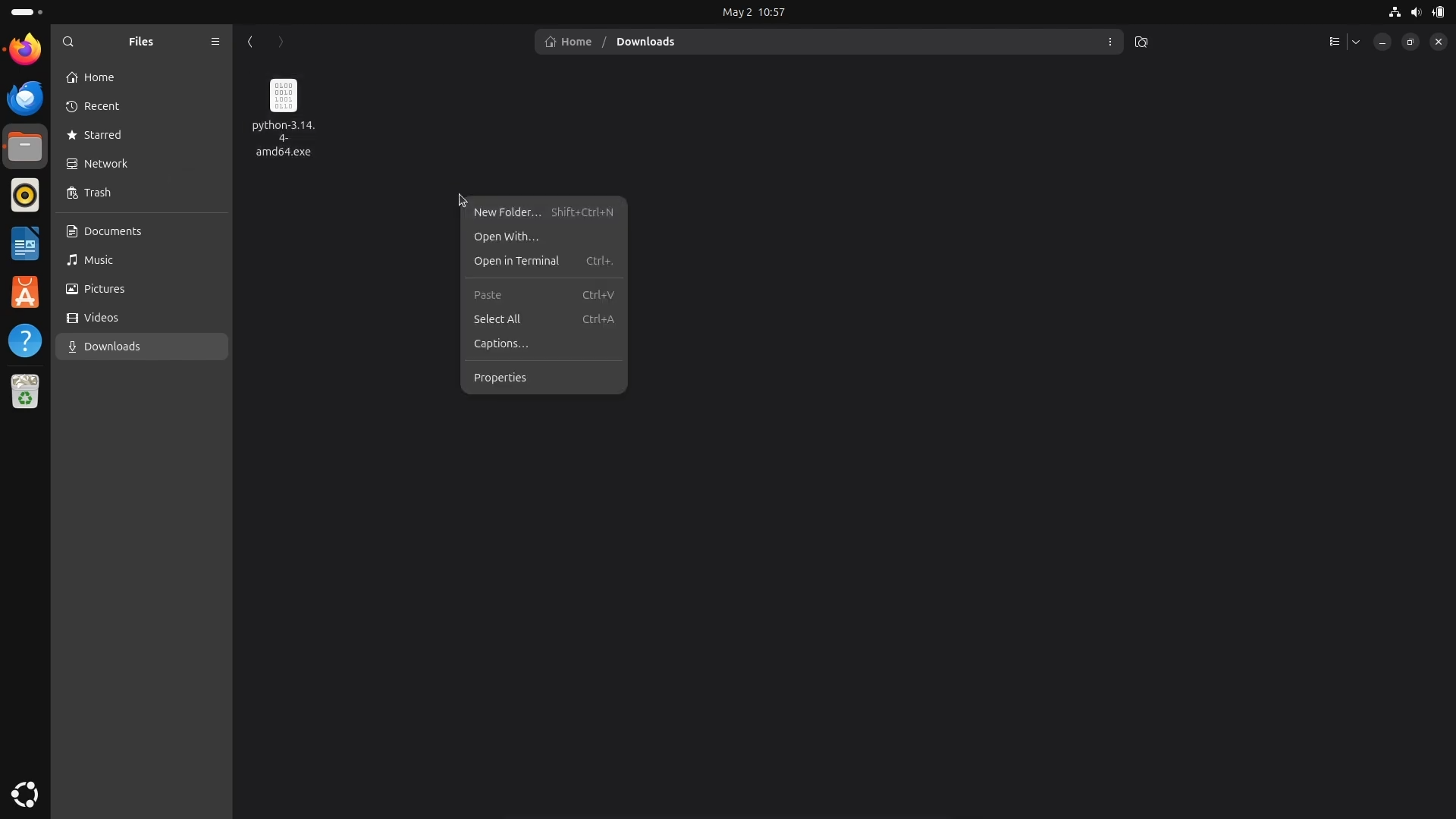
- Screenshot of python.exe file on ubuntu from How to Install Wine on Ubuntu 26.04 – Complete Guide
Video Tutorial
If you prefer a visual walkthrough, watch the following video demonstrating how to install and configure Wine on Ubuntu 26.04 LTS.
How to Completely Uninstall Wine
If you want to remove Wine, follow the cleanup instructions below that correspond to your active installation format. These steps purge the binaries, remove repository sources, and delete your local virtual Windows environment (the `C:` drive).
Remove the Wine application using your package manager.
If you installed from the Ubuntu Default Repository:
sudo apt remove wine wine64 wine32 -y
sudo apt autoremove --purge -y
If you installed from WineHQ:
sudo apt remove winehq-stable winehq-staging winehq-devel -y
sudo apt autoremove --purge -y
To completely revert your system, delete the WineHQ repository file, the GPG key, and the hidden Wine directory (which contains all installed Windows apps):
sudo rm /etc/apt/sources.list.d/winehq-*.sources
sudo rm /etc/apt/keyrings/winehq-archive.key
sudo apt update
rm -rf ~/.wine
Use the links below to access the official application database and community documentation to troubleshoot specific Windows programs:
Frequently Asked Questions
Find quick answers to the most common questions regarding Wine capabilities and compatibility on Linux.
Is there an official Snap or Flatpak package for Wine?
No, there is no official Snap or Flatpak package for the standard Wine application. Because Wine acts as a compatibility layer requiring deep filesystem and library integration, sandboxed formats like Snap and Flatpak are not well-suited for it. You should use the APT package manager or the official WineHQ repository instead.
How do I enable 32-bit architecture for Wine on Ubuntu?
Most Windows applications require 32-bit libraries to run. You can enable 32-bit architecture on Ubuntu by opening your terminal and running: sudo dpkg --add-architecture i386.
What is the difference between winehq-stable and winehq-devel?
The winehq-stable package provides the most thoroughly tested and reliable version of Wine, recommended for most users. The winehq-devel package contains newer, developmental features that are still undergoing testing, which may help if you are trying to run a very recent Windows application.
How do I configure my Wine environment after installing it?
Once Wine is installed, you can initialize the environment and open the configuration menu by running: winecfg in your terminal. This will create the necessary hidden directories and allow you to set your virtual Windows version.
Can I run any Windows application using Wine?
While Wine supports a vast number of Windows applications and games, not everything works perfectly. Software with complex DRM, aggressive anti-cheat systems, or deeply embedded driver requirements may fail to launch or experience missing features.
More Ubuntu 26.04 guides: How to install Steam on Ubuntu · How to install Steam Link on Ubuntu · Best Linux Websites on the web · How to install PlayOnLinux