 Some of the best microsoft office alternatives for ubuntu are LibreOffice, OnlyOffice, and Google Docs. Because Ubuntu does not run native Windows applications, opening or editing docx, xlsx, or pptx files requires a compatible office suite that can translate these formats without shifting layouts or dropping fonts.
This guide covers 16 office suites verified for Ubuntu 26.04 LTS. They are grouped into three categories: full desktop offline suites, web-based collaborative editors, and lightweight specialty tools. Each desktop editor includes the exact terminal installation command so you can set up your office apps right away.
Top Pick From Each Category
- Offline Desktop: OnlyOffice – native OpenXML file formats, modern ribbon layout, and the highest formatting fidelity with Microsoft Word files
- Web & Collaborative: Google Docs – real-time multi-user document creation, cloud storage, and reliable browser compatibility
- Lightweight Specialty: AbiWord – very low memory usage, responsive startup, and perfect for quick document typing on older hardware
Desktop Offline Suites
These suites run directly on your Ubuntu hardware without requiring an active internet connection. They offer full feature parity with standard office tools, local file management, and system desktop integration.
Best For: Default office tasks, offline open-source editing, and native format document work
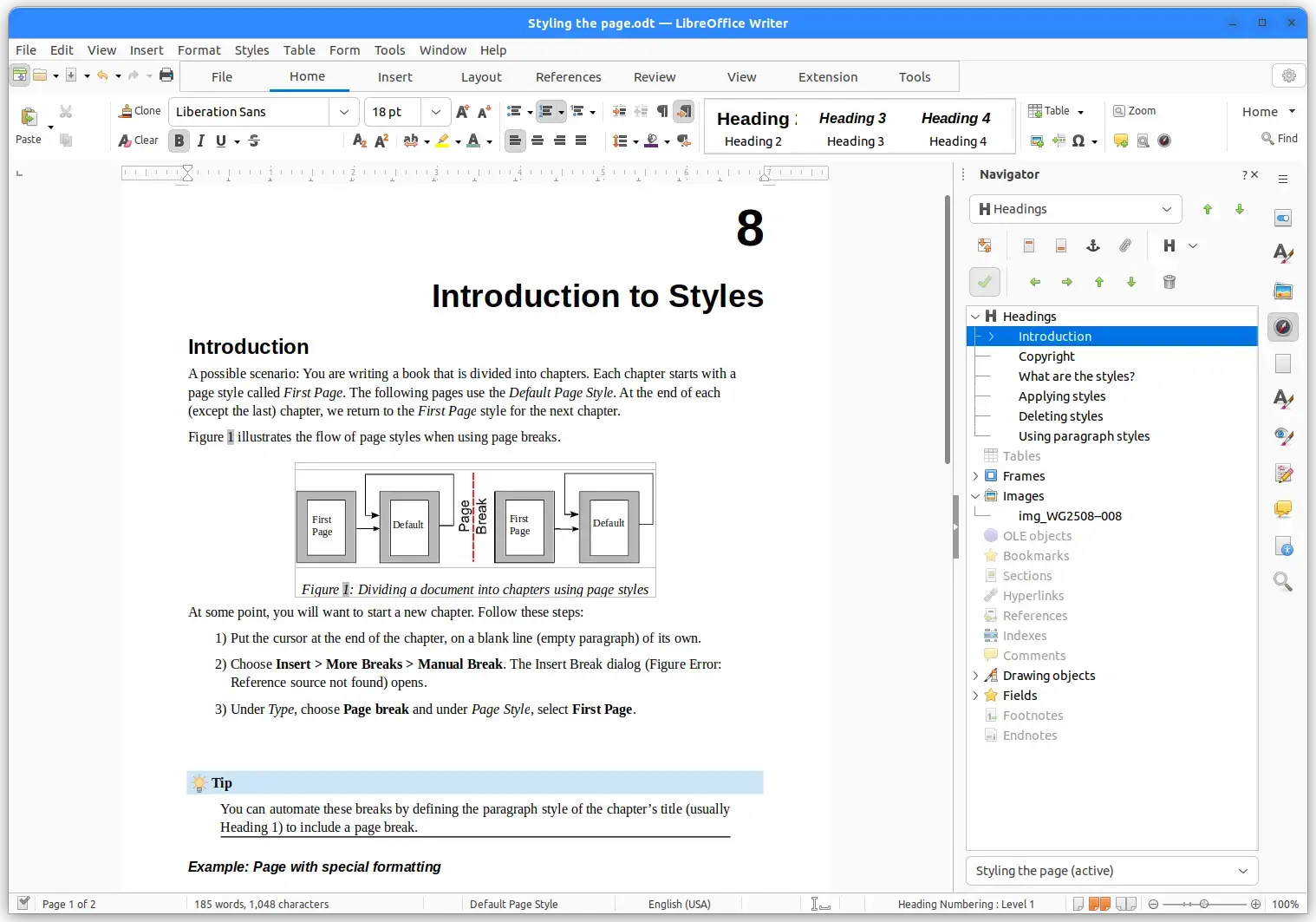
Why Choose It? LibreOffice is the default office suite pre-installed on most Ubuntu installations. Developed by The Document Foundation, it includes Writer (word processor), Calc (spreadsheets), Impress (presentations), Draw (vector graphics), Math (formulas), and Base (database). It uses OpenDocument Format (ODF) natively but reads and writes Microsoft Office files reliably. While the traditional menu layout is different from MS Office’s ribbon, you can toggle a tabbed notebook interface in the settings.
- File Formats: Native OpenDocument Format (.odt, .ods, .odp) with reliable docx/xlsx/pptx support
- Extensibility: Large catalog of plugins for templates, grammar checkers, and bibliographic database sync
- No Cost: Free open-source code with no subscriptions or data tracking
Quick Tip: To switch LibreOffice to a Microsoft Office style ribbon layout, navigate to View > User Interface and select “Tabbed” or “Groupedbar Compact”.
Install Command:
Best For: High formatting accuracy with MS Office files, modern ribbon layout, and multi-document tabs
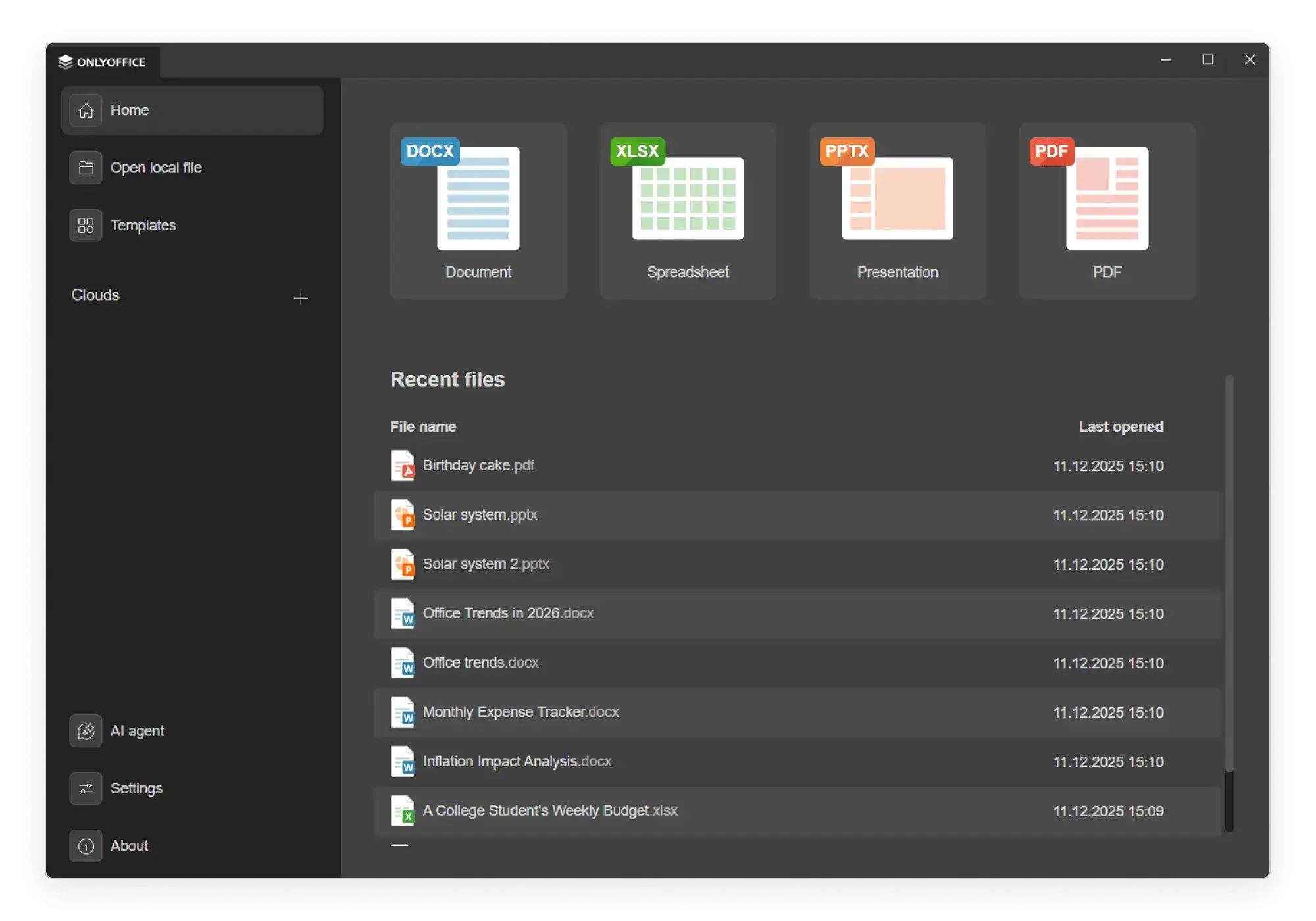
Why Choose It? OnlyOffice uses Office Open XML (OOXML) file types natively, meaning it writes directly to docx, xlsx, and pptx without using conversion wrappers. This gives it the highest formatting accuracy among all open-source suites on Ubuntu. The desktop app has a tabbed ribbon layout similar to Microsoft Word, and it runs Word, Excel, and PowerPoint alternatives within one clean interface window.
- Native Formats: No conversion translation needed for MS Office files, preserving layouts, margins, and graphics
- Tabbed UI: Open document files, spreadsheets, and slides as separate tabs in a single desktop frame
- Cloud Sync: Simple integration links to Nextcloud, ownCloud, and Seafile servers
Quick Tip: Use OnlyOffice if your daily work involves opening document templates created in Microsoft Word. It has fewer formatting shifts than other tools.
Install Command:
Best For: Familiar ribbon interface, PDF form editing, and fast local file performance
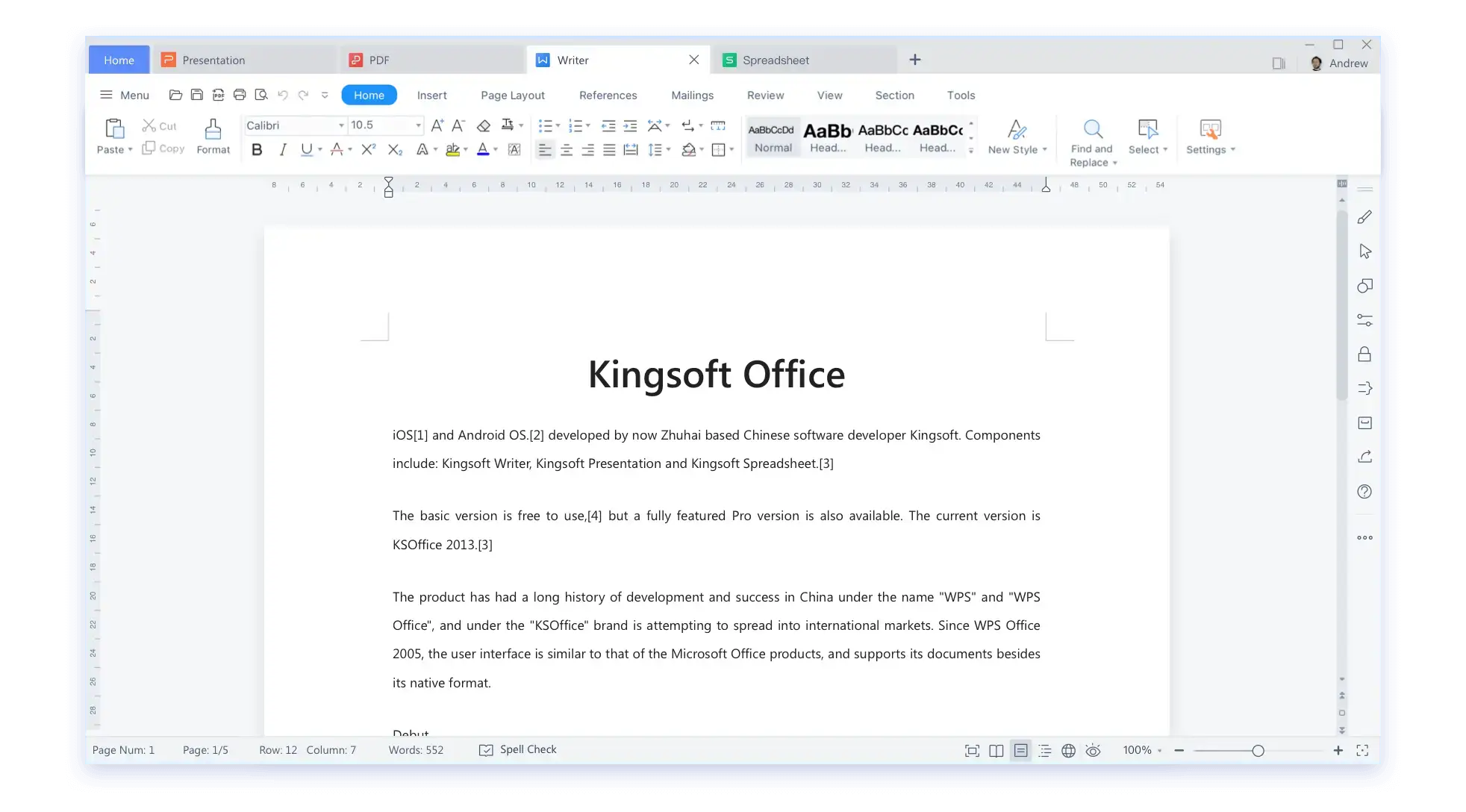
Why Choose It? WPS Office (developed by Kingsoft) is a proprietary suite that matches the layout of Microsoft Office. It has high performance on Linux and includes a dedicated PDF editor with form filler tools alongside Writer, Presentation, and Spreadsheet modules. The layout is familiar and supports multi-tab navigation, making it simple to manage multiple projects at once.
- Familiar UI: The ribbon toolbar matches MS Office design choices closely
- PDF Editor: Advanced built-in tools for editing text and signing PDF files
- Cloud backup: Built-in 1GB cloud vault space for storage backup
Quick Tip: WPS Office may show font error messages on startup if standard Windows fonts are missing. Check our Troubleshooting section for the command to install Microsoft fonts.
Install Command:
Best For: Choosing between ribbon or menu interfaces, precise presentation designs, and light memory usage
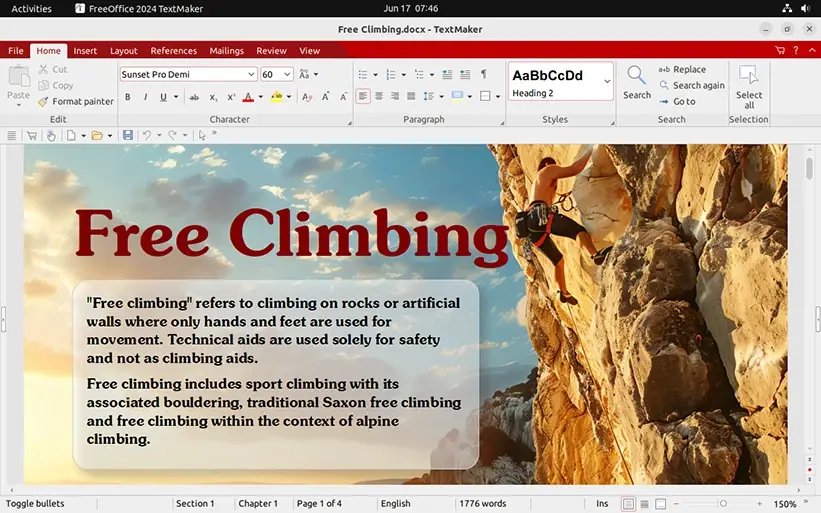
Why Choose It? FreeOffice is a free, closed-source subset of SoftMaker Office, developed in Germany. It includes TextMaker, PlanMaker, and Presentations. It stands out because it lets you choose between a modern MS-style ribbon interface or a traditional menu-and-toolbar layout during setup. The apps respond quickly and load faster on limited hardware than heavier Java-dependent tools.
- Layout Toggle: Easily switch the interface layout to match classical menu bars or modern ribbon zones
- Performance: Written in C++ for quick startup and lower CPU resource consumption
- Format Fidelity: High-quality rendering of DOC, XLS, and PPT files
Quick Tip: Use FreeOffice if you switch between touchscreen tablets and traditional laptop screens. Its ribbon layouts feature a spacious finger touch mode setting.
Install Command:
sudo dpkg -i softmaker-freeoffice*_amd64.deb
Best For: Classic office layouts, older file formats, and familiar menu toolbars
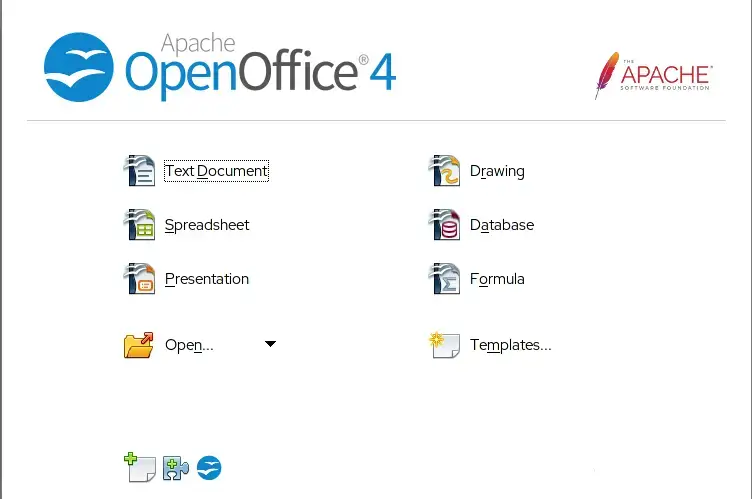
Why Choose It? Apache OpenOffice is the legacy code base that LibreOffice originally branched from. Managed under the Apache Foundation, it offers Writer, Calc, Impress, Draw, Math, and Base. Because development has slowed in recent years, OpenOffice keeps a classical menu layout unchanged since the late 2000s. It remains useful for users who need a fixed workspace that does not change with constant feature updates.
- Classic Interface: A familiar menu-and-toolbar view that does not feature modern ribbons
- System Support: Low resource footprint makes it usable on older Linux distributions
- Familiarity: Operates exactly like historical versions of Sun OpenOffice
Quick Tip: Most Ubuntu users are better served by LibreOffice due to more active updates. Choose Apache OpenOffice if you specifically need an older, stable interface layout.
Install Command:
sudo apt purge libreoffice* && sudo dpkg -i en-US/DEBS/*.deb
Best For: KDE Plasma desktop integration, sidebar-heavy UI, and basic vector graphics integration
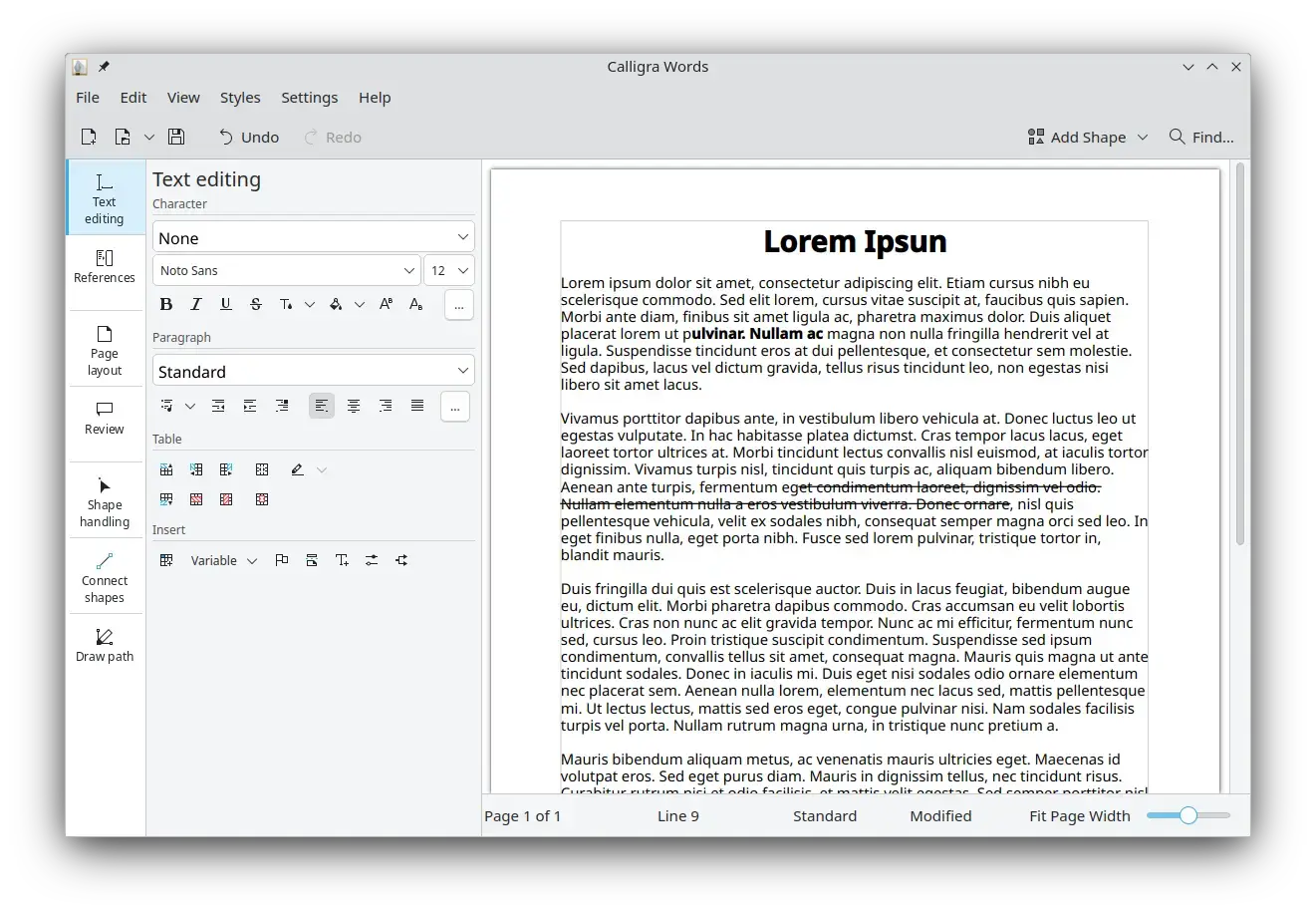
Why Choose It? Calligra is an open-source office suite built by the KDE community. It includes Words (documents), Sheets (spreadsheets), Stage (presentations), Karbon (vector drawing), and Plan (project management). Calligra separates itself by using a sidebar-oriented interface designed for modern widescreen monitors, keeping formatting controls on the right side rather than the top toolbar.
- Widescreen Design: Sidebar controls optimize screen space on modern monitors
- KDE Native: Blends clean visual integration with Qt libraries on KDE environments
- Integrated Vector Drawing: Directly insert vector assets from Karbon into documents
Quick Tip: Use Calligra if you are running Kubuntu or a Plasma workspace. It runs without loading heavy GTK dependencies in the background.
Install Command:
Web & Collaborative Suites
These suites operate inside your web browser or connect to cloud instances. They are optimized for real-time collaborative editing, remote work, and cross-device document access.
Best For: Real-time collaboration, cloud storage backup, and browser-first word processing
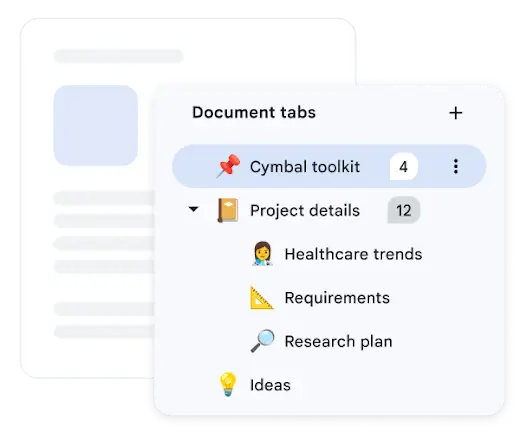
Why Choose It? Google Docs, alongside Google Sheets and Slides, is one of the most familiar tools for real-time document collaboration. It does not require any local installation, running cleanly inside Firefox, Chrome, or Brave. It saves work to Google Drive automatically and makes it easy to share editing links. Because it renders fonts via Google’s web services, it maintains format consistency across different computers.
- Multi-user Editing: Smooth real-time co-authoring with track changes and comments
- Offline Mode: Optional extension allows document editing without an internet connection
- Integration: Simple export options to PDF, EPUB, and Microsoft Office formats
Quick Tip: Turn on “Google Docs Offline” settings inside your Google Drive menu if you need to access files when internet access is unavailable.
Best For: Complete formatting accuracy with Word/Excel, corporate OneDrive access, and ribbon layout familiarity
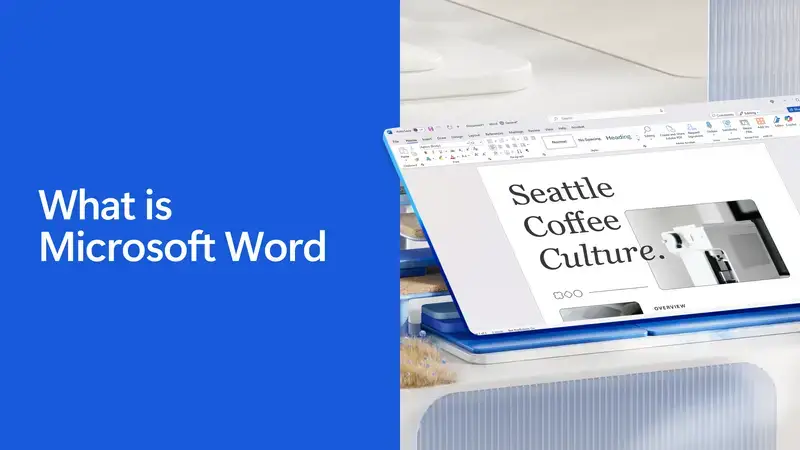
Why Choose It? While Microsoft does not support Linux desktop apps, its free browser-based versions of Word, Excel, and PowerPoint run well on Ubuntu. Since these apps run on Microsoft’s servers, formatting, complex layouts, tables, and presentation designs display exactly as they do in the desktop versions. They save changes automatically to your OneDrive storage account.
- Microsoft Fonts: Accesses standard Microsoft Office font libraries directly
- Fidelity: The most reliable way to edit Word or Excel files online when Microsoft formatting matters
- OneDrive Sync: Directly access corporate shared folders or folders synced via Microsoft Teams
Quick Tip: Pin the Microsoft 365 login site to your web browser sidebar, or check out our Lightweight section to build a desktop shortcut window.
Best For: Secure document creation, encrypted cloud collaboration, and privacy-focused teams
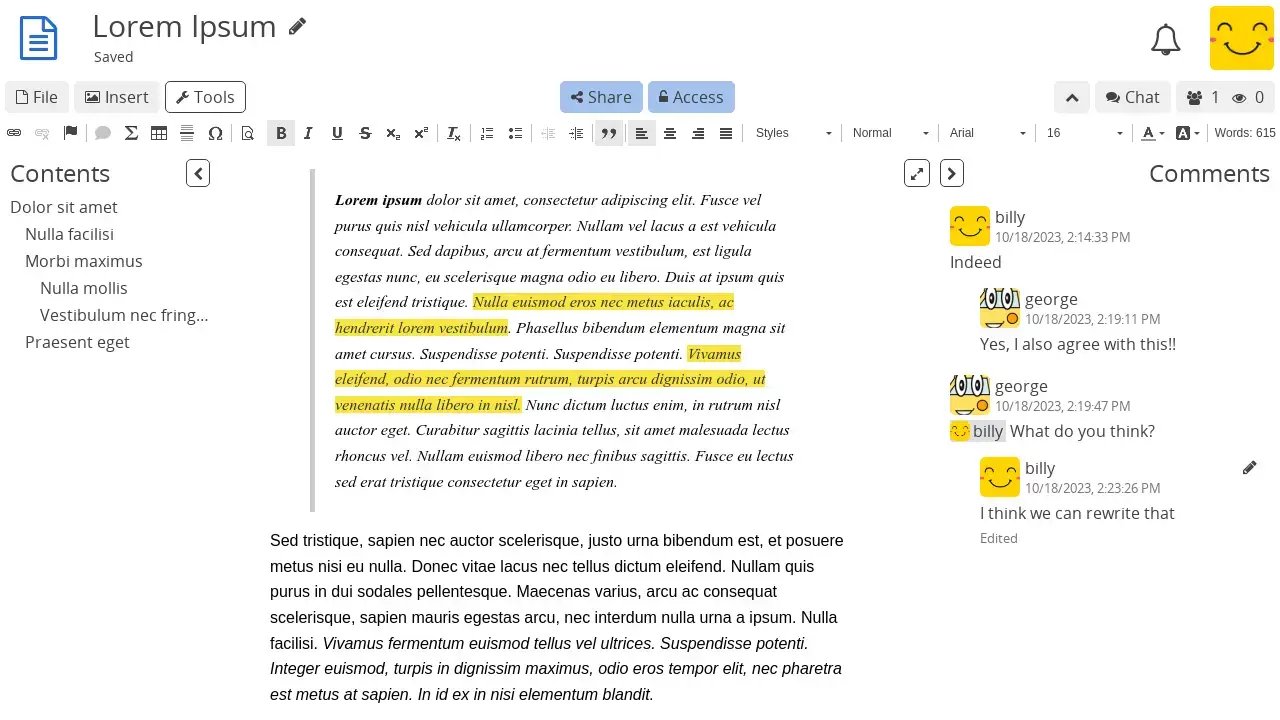
Why Choose It? CryptPad is a privacy-first web-based collaboration platform. It offers Rich Text documents, Spreadsheets, Presentations, Kanban boards, whiteboard sheets, and forms. Unlike Google Docs, CryptPad encrypts all data in the browser before sending it to the server. The server operators cannot read your documents, which helps protect private team files.
- End-to-End Encryption: Documents are secured locally in the browser before syncing online
- No Registration Required: Create and share documents anonymously without providing an email address
- Self-Hostable: Easily deploy CryptPad on your own server using Docker
Quick Tip: Make sure to download a backup key file if you create a CryptPad account. Because the service is encrypted, there is no email password recovery option if you lose access.
Best For: Documents rendered on your server, cloud storage connections, and LibreOffice format compatibility
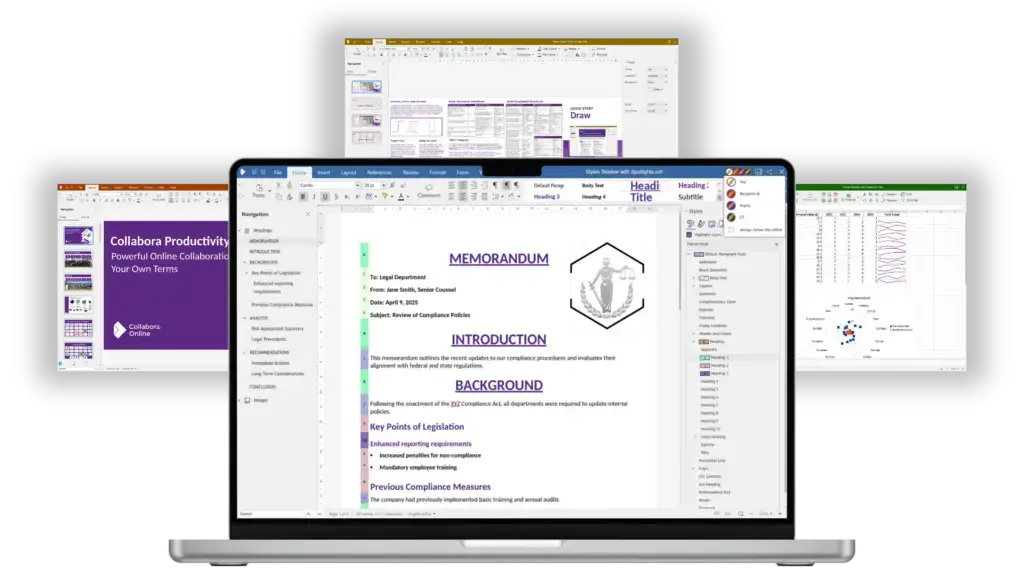
Why Choose It? Collabora Online is built on the LibreOffice core engine. It lets you run a fully collaborative cloud office suite on your own server. Because it renders document layouts server-side, it displays ODF and Microsoft format layouts accurately in any standard browser. It is a popular self-hosted choice for enterprise document management on Linux.
- LibreOffice Engine: High rendering compatibility for ODF (.odt, .ods) and OOXML (.docx, .xlsx) files
- Integration support: Designed to connect directly with Nextcloud, ownCloud, and Seafile
- Document security: Documents stay on your server, sharing only visual display data with user browsers
Quick Tip: Use the free Collabora Online Development Edition (CODE) Docker image to test the platform on a home server before deployment.
Best For: Clean web editors, collaborative office projects, and other Zoho apps
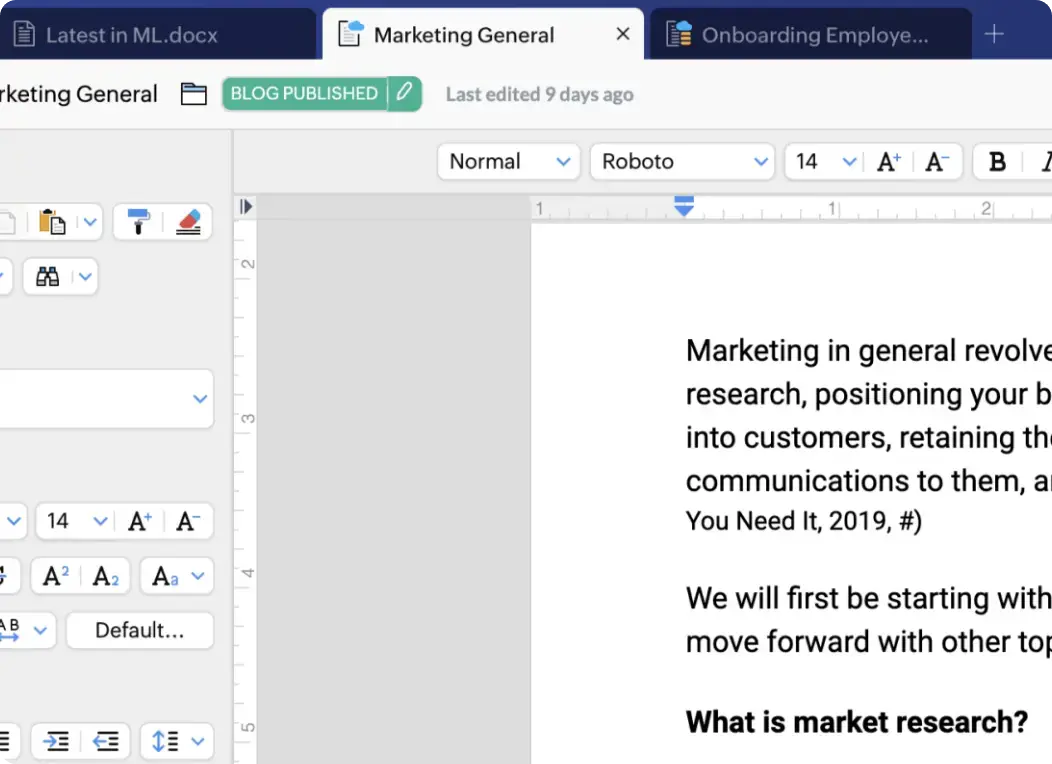
Why Choose It? Zoho Office Suite includes Zoho Writer, Sheet, Show, and Notebook. It offers a clean web-based editor interface. Zoho Writer stands out with advanced writing features like built-in readability analytics and focus modes, helping users structure documents efficiently. It is a capable browser-based alternative for users seeking a tool outside the Google or Microsoft ecosystems.
- Readability Analytics: Evaluates word usage and layout complexity in real-time
- Offline Mode: Edit synced documents locally in the browser when offline
- Zoho Integration: Directly syncs data tables with Zoho CRM and marketing panels
Quick Tip: Use Zoho Writer’s focus layout tools if you need to compile long-form reports without sidebars or status bars distracting your workspace view.
Best For: Self-hosted cloud offices, direct Nextcloud file sync, and team document collaboration
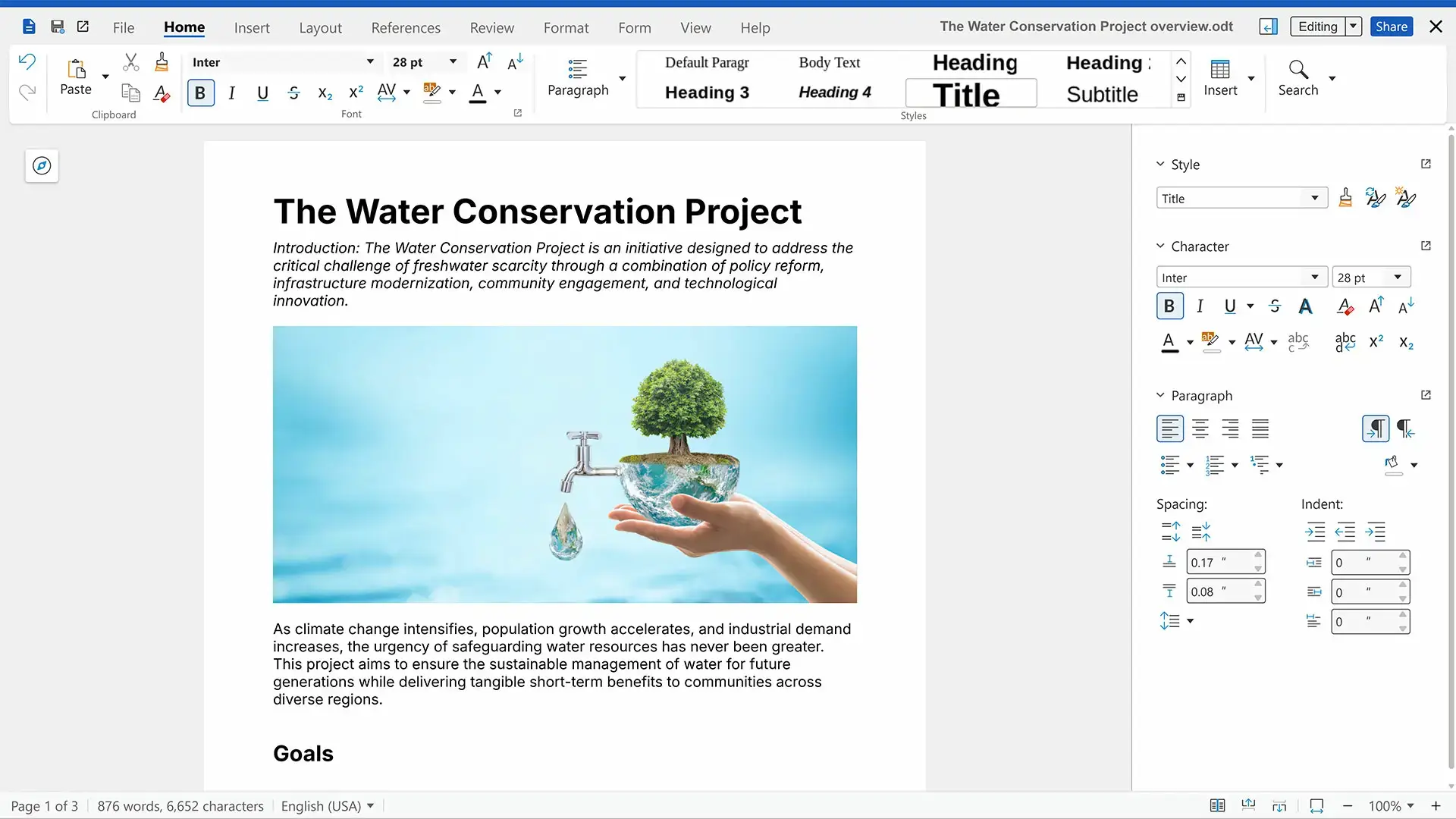
Why Choose It? Nextcloud Office is the official collaborative suite integrated into the Nextcloud cloud storage server platform. Using Collabora Online technology under the hood, it lets you edit documents, spreadsheets, and presentations directly in the Nextcloud web interface. This provides a self-hosted alternative to Google Docs, keeping your data on your own hardware.
- Nextcloud Integration: Edit files directly inside Nextcloud without downloading them
- Collaborative Edit: Co-author files with team members sharing access permissions
- Offline Backup: Nextcloud desktop clients sync modified files automatically
Quick Tip: Ensure your server has sufficient CPU and memory resources if hosting Nextcloud Office for multiple users. Rendering document pages server-side increases load.
Lightweight & Specialty Editors
These applications are designed for older hardware, fast document startup, or specific development tasks. They focus on low resource consumption rather than full desktop suite features.
Best For: Legacy laptops, rapid document drafting, and low-RAM setups
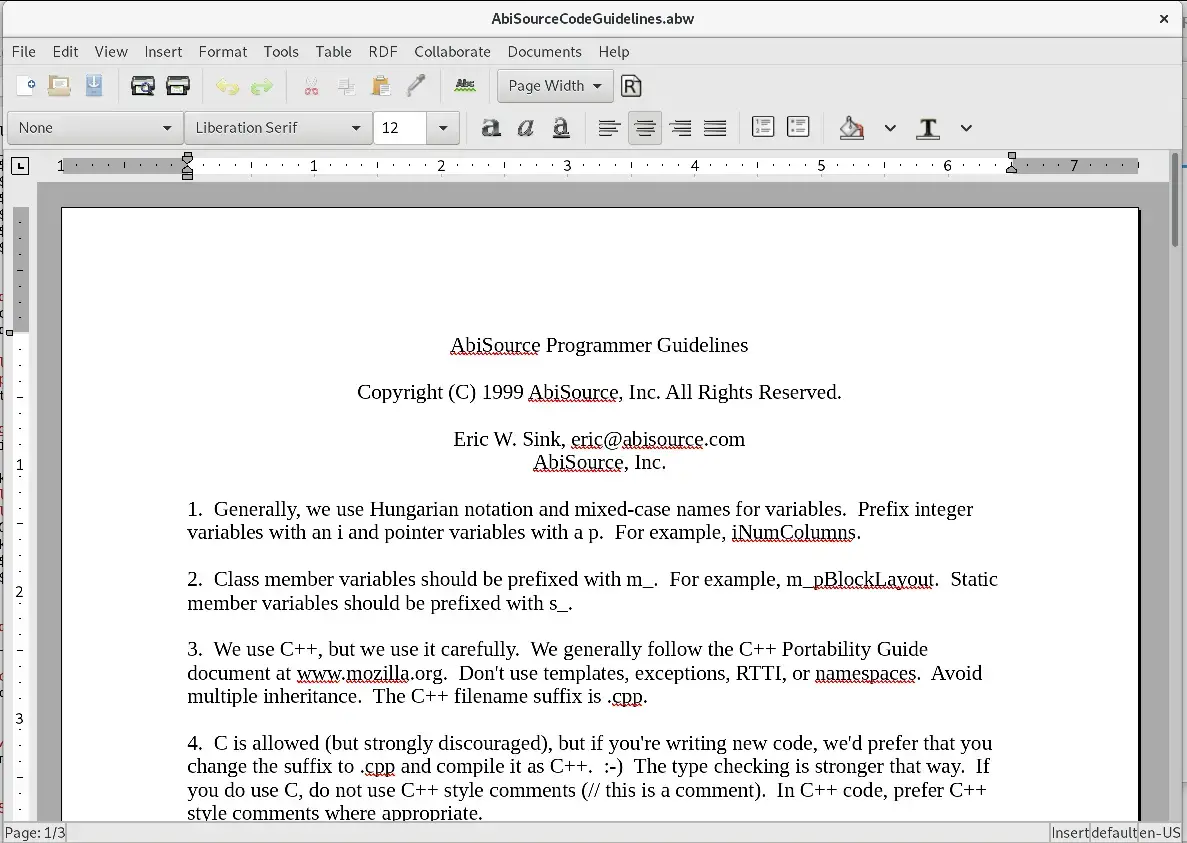
Why Choose It? AbiWord is a lightweight word processor. It loads almost instantly and uses very little system RAM. It provides full formatting control, tables, lists, and images. It is well suited for quick note-taking, text files, and editing basic documents on legacy machines where LibreOffice starts up slowly.
- Startup Speed: Minimal resource usage enables instant loading on older CPUs
- Compatible: Imports and exports RTF, HTML, OpenDocument, and DOCX files
- Plugins: Expandable with extensions for web translation and dictionary lookups
Quick Tip: AbiWord focuses solely on word processing. Use it as a writing environment if you do not need spreadsheet or slide modules.
Install Command:
Best For: Complex calculation scripts, large spreadsheets, and low memory systems
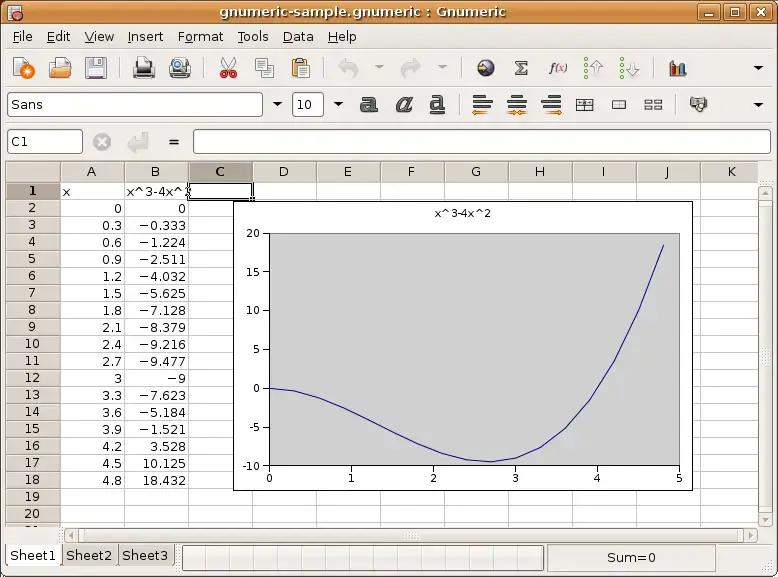
Why Choose It? Gnumeric is a fast open-source spreadsheet editor built for the GNOME desktop. It handles calculations quickly, processing data formulas with higher mathematical accuracy than many large office suites. It is capable of opening and editing complex MS Excel spreadsheets without consuming significant memory resources.
- Calculations: Fast math engine handles large data grids easily
- Low Overhead: Uses minimal RAM and starts up instantly on older processors
- Excel Import: Reads and writes standard .xls and .xlsx sheet documents
Quick Tip: Use Gnumeric if you need to open spreadsheets containing thousands of rows of data on systems with limited memory.
Install Command:
Best For: Real-time meeting notes, collaborative brainstorming, and quick document drafting
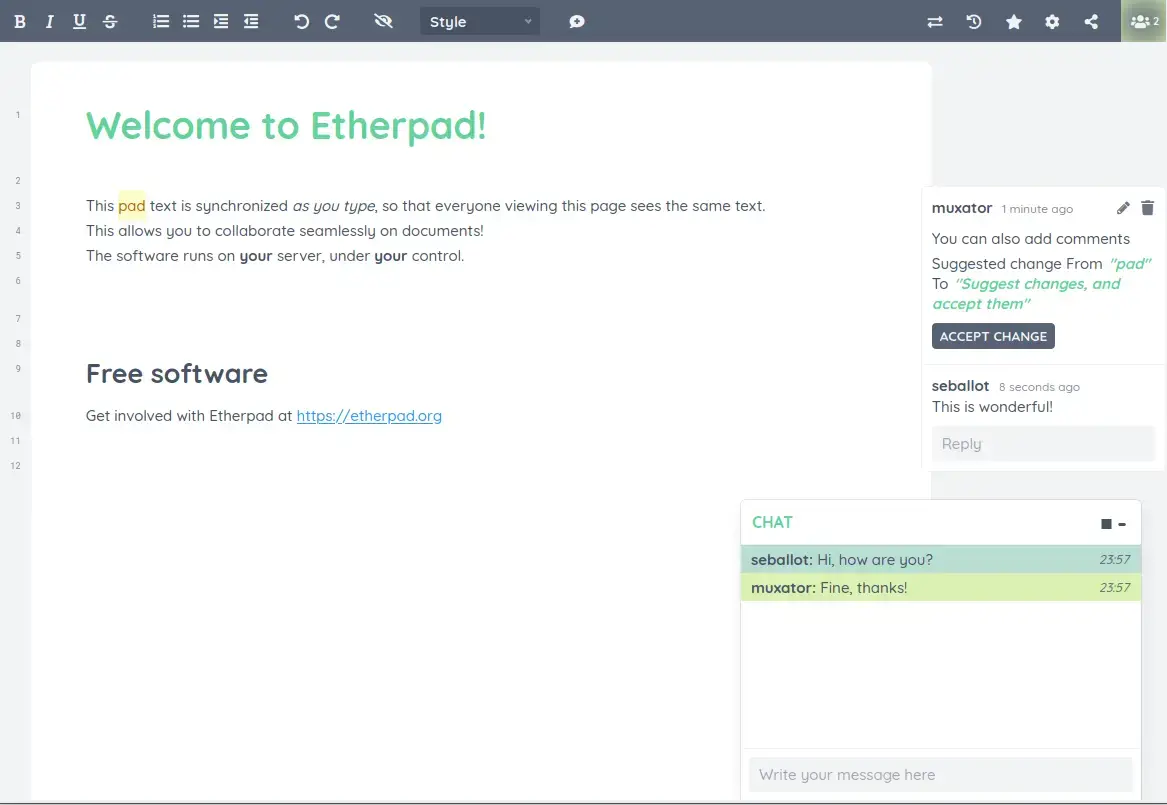
Why Choose It? Etherpad is a collaborative real-time editor. It operates inside a web browser and is designed for joint text editing. It tracks modifications by color-coding each editor’s input and features a timeline playback tool to view how documents were compiled step-by-step. Users can run instances on public servers or install the software locally.
- Real-time writing: Changes display instantly across user screens as they are typed
- Color tracking: Each user has a unique color highlighting their document inputs
- Version playback: Replay document history from start to finish
Quick Tip: Use public Etherpad sites for fast team notes without requiring registration or user login steps.
Install Command:
sudo apt install nodejs npm && git clone https://github.com/ether/etherpad-lite.git && cd etherpad-lite && bin/run.sh
Best For: Desktop shortcuts, independent app windows, and fast access to Microsoft 365 Web Apps
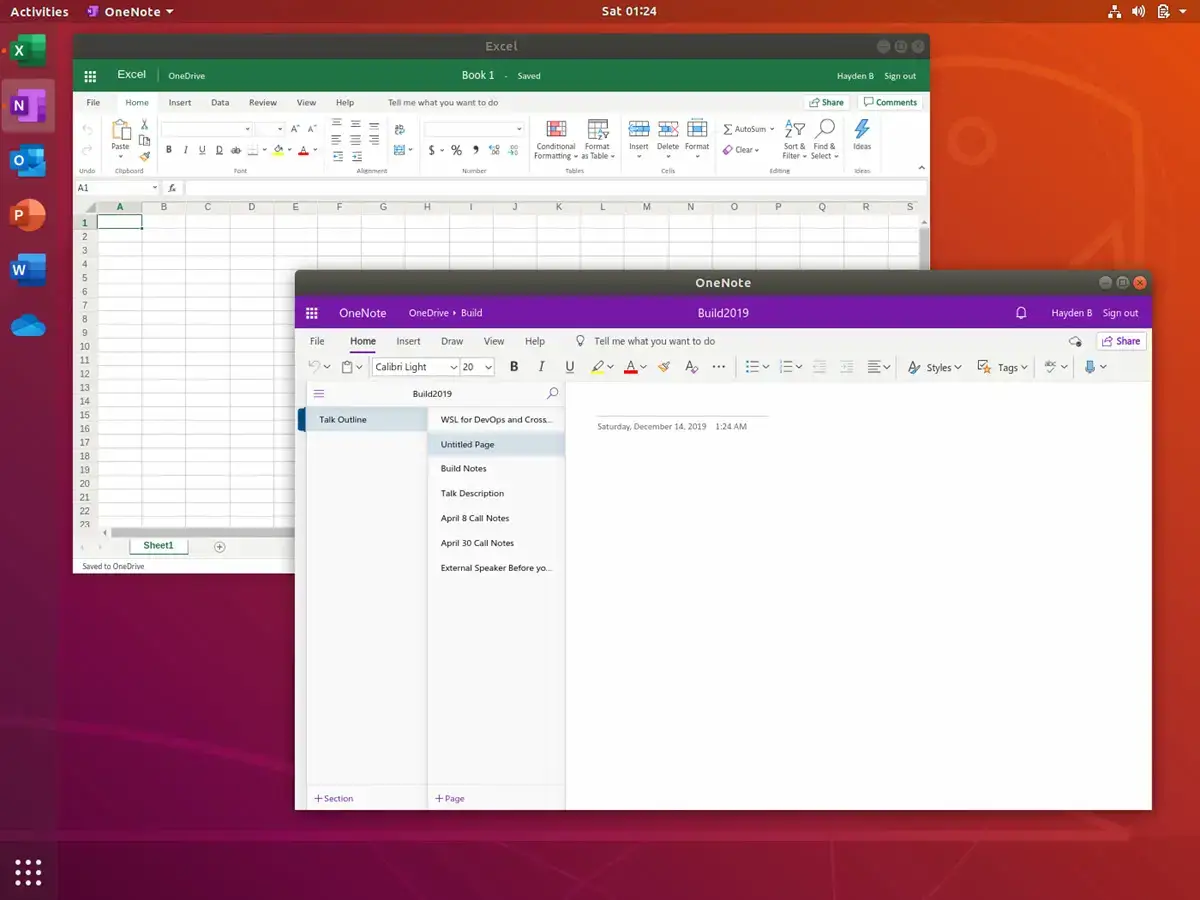
Why Choose It? These wrappers are simple desktop container packages that display Microsoft’s 365 Web Apps inside their own windows. They provide launchers in your Ubuntu application dashboard, letting you search for and start Word or Excel directly. By separating web documents from your primary browser tabs, they improve work organization on the desktop.
- Dedicated Frame: Launches Microsoft Web Apps in clean desktop windows without browser tab clutter
- Taskbar Integration: Pin Microsoft Word, Excel, and PowerPoint shortcuts to the Ubuntu dock
- Simple Install: Usually distributed as community .deb, AppImage, or source releases
Quick Tip: Use these wrappers to isolate your Microsoft login credentials from your daily web browser sessions.
Install Command:
sudo apt install ./ms-365-electron_*_amd64.deb
Office Suite Comparison Table
| Office Suite | Category | Primary Format | Offline Capability | Collaboration | Licensing |
|---|---|---|---|---|---|
| LibreOffice | Desktop Offline | ODF (.odt) | Yes (Native) | No | MPL 2.0 (FOSS) |
| OnlyOffice | Desktop Offline | OOXML (.docx) | Yes (Native) | Yes (Connectable) | AGPL-3.0 (FOSS core) |
| WPS Office | Desktop Offline | OOXML (.docx) | Yes (Native) | Yes (Cloud link) | Proprietary Free |
| SoftMaker FreeOffice | Desktop Offline | OOXML / Proprietary | Yes (Native) | No | Proprietary Free |
| Apache OpenOffice | Desktop Offline | ODF (.odt) | Yes (Native) | No | Apache 2.0 (FOSS) |
| Calligra Suite | Desktop Offline | ODF (.odt) | Yes (Native) | No | GPL-2.0+ (FOSS) |
| Google Docs | Web & Collaborative | Web Format | Yes (With extension) | Yes (Real-time) | Proprietary Web |
| Microsoft 365 Web | Web & Collaborative | OOXML (.docx) | No | Yes (Real-time) | Proprietary Web |
| CryptPad | Web & Collaborative | Web Format (Encrypted) | No | Yes (Encrypted real-time) | AGPL-3.0 (FOSS) |
| Collabora Online | Web & Collaborative | ODF / OOXML | Yes (Host-dependent) | Yes (Real-time) | MPL-2.0 (FOSS) |
| Zoho Office Suite | Web & Collaborative | Web Format | Yes (With setting) | Yes (Real-time) | Proprietary Web |
| Nextcloud Office | Web & Collaborative | ODF / OOXML | Yes (Sync-client) | Yes (Real-time) | AGPL-3.0 (FOSS) |
| AbiWord | Lightweight Specialty | RTF / .abw | Yes (Native) | No | GPL-2.0+ (FOSS) |
| Gnumeric | Lightweight Specialty | .gnumeric / .xlsx | Yes (Native) | No | GPL-2.0 or GPL-3.0 |
| Etherpad | Lightweight Specialty | Plain Text / HTML | No | Yes (Real-time) | Apache 2.0 (FOSS) |
| Unofficial MS Wrapper | Lightweight Specialty | OOXML (.docx) | No | Yes (Real-time) | Wrapper FOSS |
Which Office Suite Is Right for You?
Choose OnlyOffice Desktop Editors. Since it uses OOXML natively as its internal file format, layouts, fonts, and designs remain aligned without document conversion shifts.
Use LibreOffice. It is pre-installed on Ubuntu, includes strong offline desktop tools, and does not require logins, accounts, or subscriptions to access your local files.
Stick with Google Docs or Microsoft 365 Web Apps. They offer real-time multi-user editing directly in your browser with reliable version history tracking.
Choose CryptPad. Its browser-based encryption protects documents and spreadsheet tables before they sync online.
Install AbiWord and Gnumeric. They start up instantly on legacy processors and use minimal system resources compared to heavy multi-module suites.
Add Nextcloud Office or Collabora Online to your server setup. This allows you to host private collaborative document workspaces on your own server.
Troubleshooting & Compatibility Configuration
Running office applications on Linux sometimes introduces layout offsets or font replacement issues. Use the configuration steps below to install essential Microsoft fonts, configure document formats, and optimize web app settings.
If your documents show missing font errors, layout shifts, or offline loading failures, apply the following setup guides in your terminal:
1. Install Standard Microsoft Fonts (Arial, Times New Roman, Calibri)
Ubuntu does not bundle patented commercial fonts by default. Run the command below to download and install the TrueType core font package:
After installation finishes, close and restart LibreOffice or OnlyOffice to load the newly installed Microsoft font files.
2. Fix Word Document Margins and Layout Shifts in LibreOffice
If text alignments shift when opening MS Word files, configure LibreOffice to save document styles in Microsoft’s format automatically. Navigate to Tools > Options > Load/Save > General. Under the Default File Format settings, change the Document Type to “Text Document” and set Always Save As to “Word 2007-365 (*.docx)”.
3. Grant Host File Access Permissions to Snap and Flatpak Office Suites
If you installed OnlyOffice or WPS Office as a Snap or Flatpak package and it cannot access files stored on external USB drives, run the terminal connection overrides below:
sudo snap connect onlyoffice-desktopeditors:removable-media
sudo snap connect wps-office:removable-media
Frequently Asked Questions
What is the best Microsoft Office alternative for Ubuntu?
OnlyOffice and LibreOffice are the two best alternatives. OnlyOffice is the best choice if you need maximum file compatibility with Microsoft Word, Excel, and PowerPoint documents, as it uses Office Open XML formats natively. LibreOffice is the best choice for users who want a fully open-source, feature-rich offline editor that comes pre-installed on Ubuntu.
How do I install Microsoft Office fonts on Ubuntu?
You can install core Microsoft fonts like Arial, Times New Roman, and Calibri by running the terminal command: sudo apt update && sudo apt install ttf-mscorefonts-installer. This downloads and installs the Microsoft TrueType core fonts package on your system.
Can I run official Microsoft Office desktop apps natively on Ubuntu?
No, Microsoft does not provide native Linux desktop versions of Word, Excel, or PowerPoint. However, you can run Microsoft 365 Web Apps through any web browser, use unofficial web wrappers that integrate these web apps into your desktop, or use compatibility layers like Wine for older Office versions.
Is WPS Office safe to use on Ubuntu?
WPS Office is a proprietary office suite developed by Kingsoft. It is safe from malware when downloaded from the official WPS website or official snap store. However, because its source code is closed, privacy-focused users who prefer fully transparent software often choose LibreOffice or OnlyOffice instead.
What is the difference between LibreOffice and OnlyOffice?
LibreOffice uses OpenDocument Format (ODF) natively and has a traditional menu-driven desktop interface. OnlyOffice uses Microsoft’s Office Open XML format (.docx, .xlsx, .pptx) natively and features a tabbed ribbon interface similar to modern Microsoft Office. OnlyOffice also offers stronger built-in real-time collaboration.
What is the most lightweight office suite for older Ubuntu machines?
AbiWord (word processor) and Gnumeric (spreadsheet editor) are the most lightweight choices. They use significantly less memory and CPU than LibreOffice or OnlyOffice, making them ideal for older hardware or minimal desktop environments.
More Ubuntu software guides: Best Web Browsers for Ubuntu · Best Video Editors for Ubuntu · Ubuntu Keyboard Shortcuts · Share Ubuntu Files with Windows · Best Gui System Software for Ubuntu