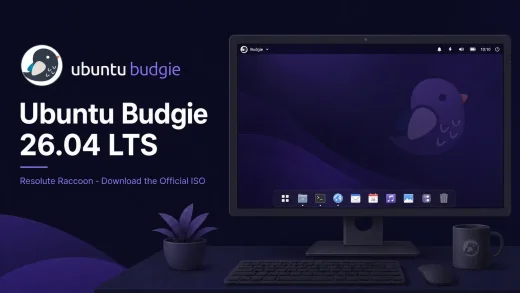
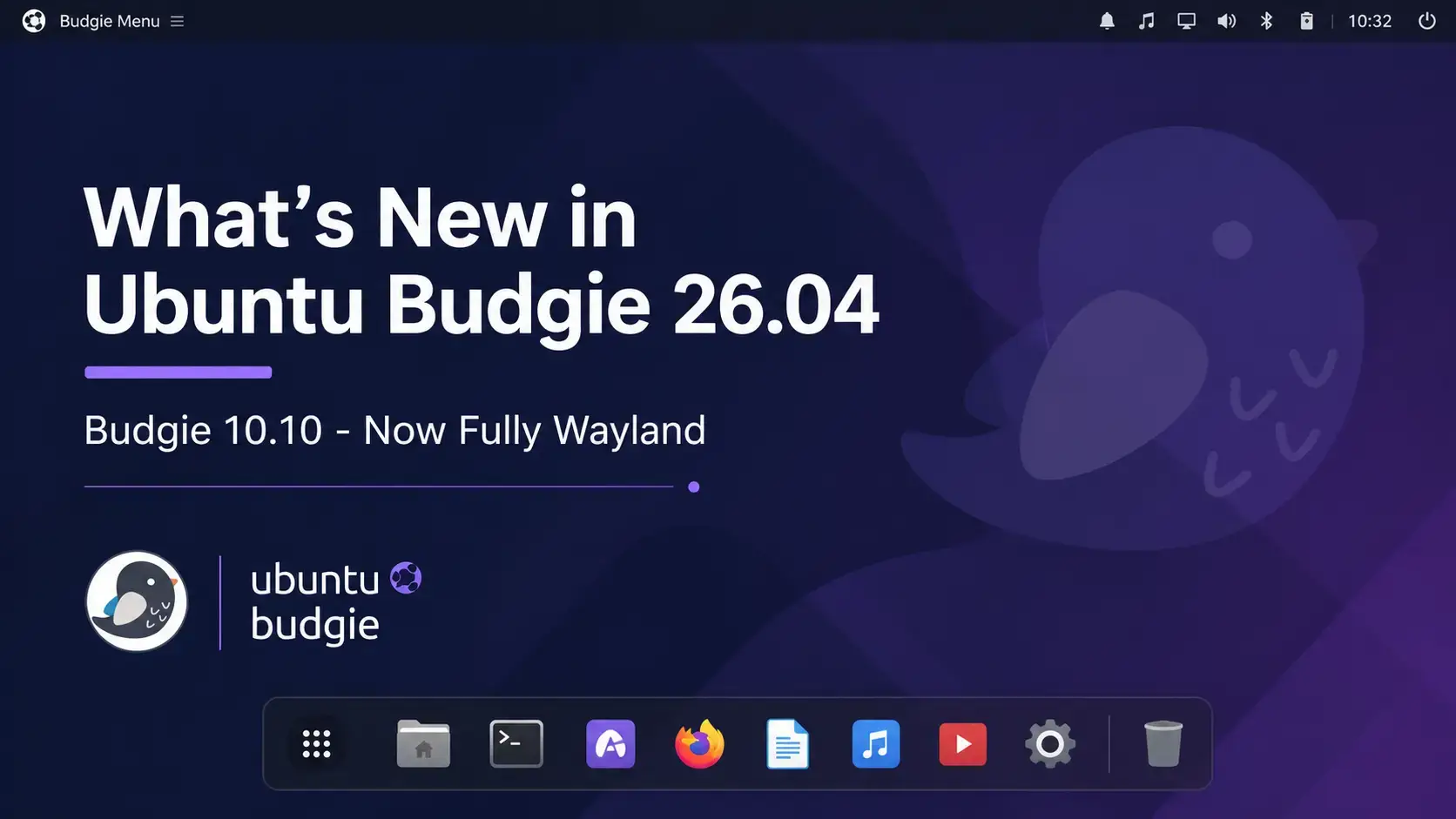
 Ubuntu Budgie 26.04 LTS Resolute Raccoon ships Budgie Desktop 10.10.2 on the labwc Wayland compositor with no X11 session at all. This is the first Ubuntu Budgie LTS to be fully Wayland-native, which closes out a decade of Budgie 10 development. Below is a complete breakdown of every change worth knowing about since Ubuntu Budgie 24.04 LTS. Official release notes are on ubuntubudgie.org.
Resolute Raccoon
Budgie Desktop 10.10.2. Wayland-only. No X11 session. Every change since Ubuntu Budgie 24.04 LTS, explained plainly.
The Big Picture – Budgie Goes Fully Wayland
Ubuntu Budgie 26.04 is a landmark release for one specific reason: it is the first Ubuntu Budgie LTS with no X11 session at all. The login screen no longer offers an X11 option. Every time you start Ubuntu Budgie 26.04, you are on Wayland.
This is not a hasty move. The upstream Buddies of Budgie project spent several years rebuilding Budgie 10 around Wayland protocols, culminating in Budgie 10.10. Ubuntu Budgie 26.04 ships Budgie 10.10.2 – a point release that adds stability fixes on top of that Wayland-first redesign. The result is a desktop that looks and feels like the Budgie users already know, running on a significantly more modern foundation.
labwc – The Compositor Powering It All
In a Wayland desktop, the compositor handles everything that was previously split between the X server and the window manager. labwc is the compositor Ubuntu Budgie 26.04 uses. It is built on the wlroots library, which has become the standard foundation for most non-GNOME, non-KDE Wayland desktops.
The Ubuntu Budgie team built a dedicated bridge that connects Budgie’s settings to labwc’s configuration. When you change a keyboard shortcut, a theme, or a window behavior in Budgie’s settings panel, that bridge translates it into what labwc needs. You do not have to edit compositor config files manually.
labwc supports multiple focus modes, including sloppy focus – where the window under your cursor gets focus without needing a click. Users who prefer this style from older X11 setups will find it available in 26.04.
Connecting or disconnecting a monitor is handled more reliably. Output loss events – where a display suddenly goes dark or disconnects – are handled more gracefully, with windows moving to the remaining screen rather than disappearing.
Suspend, resume, and display re-appearance are more stable than in the pre-Wayland releases. This was a major pain point in early Wayland compositors and has been specifically improved in the labwc version shipping with 26.04.
The recommended tool for managing displays under labwc is wdisplays. It gives you a graphical interface for arranging monitors, setting resolutions, and configuring scaling – replacing the older X11 display tools.
Budgie Desktop Services – Persistent Display Memory
One practical complaint with early Wayland desktops was that monitor layouts would sometimes reset after a reboot or suspend cycle. Ubuntu Budgie 26.04 addresses this with a new component called Budgie Desktop Services.
This service runs in the background and holds onto your display configuration – monitor positions, scaling factors, output assignments – so they survive across sessions. You set up your monitors once, and they stay that way. Budgie Desktop Services is also designed to become a core part of Budgie 11 as the project moves forward.
Desktop Layout Changes
The default Budgie layout has been refined for the 26.04 release. Nothing dramatic – it still looks like Budgie – but several things are arranged differently or work better than they did in 24.04.
Crystal Dock is now enabled and fully configured out of the box. In previous releases it was available but not active by default. The 26.04 version includes Wayland-specific fixes and improved startup sequencing so it appears reliably every session.
The top bar has been updated for the 26.04 layout. App favourites are now built directly into the Applications Menu. Power options – shutdown, restart, suspend – are accessible directly from the menu rather than requiring a separate panel button.
Showtime – the desktop clock overlay – has moved from a standalone panel applet to a Raven widget. This makes it part of the side panel rather than something floating on the desktop, which fits better with the overall layout approach in 26.04.
The application menu now sizes correctly across different screen resolutions and scaling factors. On high-DPI displays or when using fractional scaling, the menu previously could appear too small or too large. That is fixed in 26.04.
New Screencast Applet
Ubuntu Budgie 26.04 introduces a Screencast applet that lives in the panel. This is the main new applet shipping with this release and it replaces the need to open a separate recording application for basic screen capture tasks.
Redesigned Login Screen
Ubuntu Budgie 26.04 switches to SDDM with a custom Ubuntu Budgie greeter theme. The login experience has been improved in several practical ways beyond just the visual design.
Each user account on the machine can display a different wallpaper at the login screen. When you select your account, the background changes to that user’s chosen wallpaper.
The password input field now focuses automatically when the login screen appears. You no longer need to click it first before typing your password. Small improvement, but noticeable every single day.
The greeter now supports full translation. Users running Ubuntu Budgie in a language other than English will see the login screen properly localized rather than falling back to English for certain elements.
The login screen can be customized using the slickSDDM-customize tool. This lets you adjust the greeter appearance without editing configuration files directly.
Daily Usability Improvements
Budgie Desktop 10.10.2 includes a set of refinements that improve the day-to-day experience without changing what the desktop fundamentally looks like. These are the kinds of fixes that users notice after a few days, even if they do not immediately identify what changed.
| What Changed | What It Means |
|---|---|
| Icon Tasklist app matching | Java applications and snaps now group and pin correctly in the taskbar. Previously these could appear as separate unrelated entries. |
| Show Desktop toggle | Windows now restore correctly when you toggle Show Desktop a second time. In 24.04, some windows would not return to their previous positions. |
| Screenshot save path memory | The screenshot tool now remembers the last folder you saved to. You no longer have to navigate back to your preferred save location every time. |
| Panel popover behavior | Applet popovers – the small panels that open from panel icons – now close correctly when focus moves away from them. In earlier releases they could stay open and block input. |
| Qt6 application theming | Applications built with Qt6 that support kcolorscheme now follow the Budgie color theme correctly instead of displaying mismatched system colors. |
| Nemo default icon size | The file manager (Nemo) uses a slightly larger default icon size. The difference is subtle but makes the file browser easier to scan at normal viewing distances. |
Accessibility and Input
Ubuntu Budgie 26.04 adds two meaningful improvements for users who need more control over how the screen looks and how the mouse behaves.
Screen magnification is now built into the desktop. You do not need to install a separate accessibility tool. This is useful for users with low vision and for anyone who occasionally needs to zoom into part of the screen.
Adaptive mouse acceleration is now enabled by default. This means the pointer speed scales with how fast you physically move the mouse – slow movements stay precise, fast movements cover more ground. Previously you had to enable this manually.
Default Application Changes
One default application swap is worth knowing about before you upgrade.
Applets – What’s In, What’s Out
Ubuntu Budgie 26.04 ships a broad range of Wayland-ready applets. Three notable applets from previous releases are not included because they depend on X11 features that no longer exist in this release.
Fuzzy Clock · Kangaroo
Network Manager · Quicknote
Recently Used · VisualSpace
DropBy · Workspace Switcher
WeatherShow · Wallstreet
Showtime (as Raven widget)
Screencast applet (new)
Requires XEmbed / X11 system tray protocol
Relies on X11 window decoration access
Replaced by Wayland-native keyboard handling
Desktop Icons – A Different Approach
Ubuntu Budgie 26.04 uses budgie-desktop-view for desktop icons instead of nemo-desktop. The change is required for Wayland compatibility – the approach that nemo-desktop used to draw icons on the desktop does not work under Wayland compositors.
budgie-desktop-view supports icon selection, context menus, drag-and-drop reordering, and both auto-arranged and manual icon layouts. The one deliberate limitation: you cannot create new files or folders directly from the desktop by right-clicking an empty area. This restriction is intentional and is part of what makes the implementation work correctly under Wayland.
Free to download. Clean Wayland desktop. 3-year support included.
Known Issues
Ubuntu Budgie 26.04 is an LTS release and is stable for everyday use. There are some known rough edges related to the Wayland transition that are worth knowing about before you upgrade.
Some graphical admin tools that launch with elevated permissions may fail to open a window under Wayland if they do not use pkexec. The workaround is an xhost-based command. labwc is intentionally strict about this, and affected tools are tracked on the Ubuntu Budgie community forum.
Cursor orientation, scaling, and screen redraw can be inconsistent in virtual machines. QEMU/KVM gives the best results. VirtualBox works but runs without GPU acceleration, so video and animations will feel slow. GNOME Boxes is not recommended.
Applications that use the old system tray protocol (XEmbed) cannot display their tray icons in Ubuntu Budgie 26.04. This includes some older closed-source apps. Check whether a Wayland-compatible version of any tray-dependent apps exists before upgrading.
The Ubuntu Budgie team tracks current issues on the Ubuntu Budgie Discourse forum. If something is not working as expected after upgrading, that is the best place to check for a known fix or workaround.
What Comes Next – Budgie 11
Ubuntu Budgie 26.04 ships Budgie 10 in its final form as an actively developed desktop. With Budgie 10.10, the upstream Buddies of Budgie project has declared this branch complete and moved into maintenance mode. Bug fixes and security updates will continue, but new features are going into Budgie 11.
Budgie 11 is a full rewrite designed to be compositor-agnostic from the start – meaning it can run on labwc, Wayfire, Sway, or other compositors. Ubuntu Budgie 26.04 is the foundation that connects where the project has been with where it is going. The three years of support give users a stable base while that next generation of the desktop develops.
Frequently Asked Questions
What is new in Ubuntu Budgie 26.04?
Ubuntu Budgie 26.04 ships Budgie Desktop 10.10.2 on the labwc Wayland compositor with no X11 session. Key changes include Crystal Dock enabled out of the box, a new Screencast applet for panel-controlled recording, a redesigned SDDM login screen with per-user wallpapers, VLC replacing Parole as the default media player, built-in screen magnification, adaptive mouse acceleration, and a new service layer that remembers your monitor layouts between sessions.
Does Ubuntu Budgie 26.04 still support X11?
No. Ubuntu Budgie 26.04 removed the X11 session entirely. The desktop runs on Wayland only, using the labwc compositor. Older applications that were built for X11 still work through XWayland, a compatibility layer that runs automatically in the background. Most everyday apps are unaffected.
What is labwc and why does it matter?
labwc is a Wayland compositor based on the wlroots library. It handles window drawing, input, and display output. In Ubuntu Budgie 26.04, a dedicated bridge translates Budgie’s settings into labwc configuration, so things like keyboard shortcuts, theming, and window behavior work as expected without workarounds. labwc is known for being stable and predictable, which made it the right choice for a long-term support release.
What happened to Budgie 10 now that 26.04 is out?
Budgie 10 is now in maintenance mode. The Ubuntu Budgie team and upstream Buddies of Budgie are focused on Budgie 11, which is under active development. Budgie 10.10 completes the Wayland transition for the 10.x line. Ubuntu Budgie 26.04 is the last LTS built on Budgie 10 and will receive security updates until April 2029.
What is the Screencast applet in Ubuntu Budgie 26.04?
The Screencast applet is a new panel addition that lets you record your screen without opening a separate application. You can record the full screen or just a selected area, enable audio capture, and start or stop recording from the panel. The applet also shows the current recording duration while it is active.
Will my X11 applications still work in Ubuntu Budgie 26.04?
Most of them will. XWayland is installed by default and handles X11 applications transparently. The apps most likely to have issues are those that talk directly to the X server itself – some older screen recorders, some remote desktop clients, and certain system tray tools that use the XEmbed protocol. The budgie-carbon-tray-applet, for example, is not included in 26.04 because it depends on XEmbed.
How is the login screen different in Ubuntu Budgie 26.04?
Ubuntu Budgie 26.04 uses SDDM with a custom Ubuntu Budgie greeter theme. The new greeter supports per-user wallpapers, so each account on the machine can show a different background at login. The password field now focuses automatically when the screen appears, session selection behavior is improved, and the greeter can be customized using the slickSDDM-customize tool.
More Ubuntu Budgie 26.04 guides: Ubuntu Budgie 26.04 Download · Upgrade to Ubuntu Budgie 26.04 · Ubuntu Budgie 26.04 Wallpapers · Kubuntu 26.04 Download · Xubuntu 26.04 Download