Readers like you help support Ubuntu Free. When you make a purchase using links on our site, we may earn an affiliate commission. All opinions remain our own.
Ubuntu Server runs the modern cloud. From containerized microservices to lean staging stacks, Ubuntu is the default operating system for developers because of its long-term support (LTS) predictability, massive package ecosystem, and comprehensive documentation. But running production-grade Ubuntu does not require paying enterprise cloud rates.
Whether you are deploying Docker containers, launching a WordPress site, hosting a WireGuard VPN, or running personal automation scripts, you need a cheap VPS that delivers dedicated resources without throttling your CPU. We tested the top budget VPS providers in 2026 to see how they handle Ubuntu Server workloads, evaluating NVMe disk performance, pure root access, template availability, and overall value.
| Provider | Starting Price | Base Specs | Best Use Case | Direct Link |
|---|---|---|---|---|
| Hostinger | $4.99/mo | 1 vCPU, 4GB RAM, 50GB NVMe | Best Overall & Docker | View Deal |
| A2 Hosting | $2.99/mo | 1 vCPU, 1GB RAM, 20GB NVMe | Cheapest Entry Tier | View Deal |
| InMotion | $9.99/mo | 4 vCPUs, 8GB RAM, 160GB SSD | Heavy Compute & RAM | View Deal |
| Liquid Web | $5.00/mo | 1 vCPU, 2GB RAM, 40GB SSD | High Availability & SLA | View Deal |
| Bluehost | $46.99/mo | 4 vCPUs, 4GB RAM, 100GB NVMe | Fully Managed Teams | View Deal |
5 Cheap Ubuntu VPS Providers to Try in 2026
1. Hostinger VPS (Best Overall Value for Ubuntu Developers)
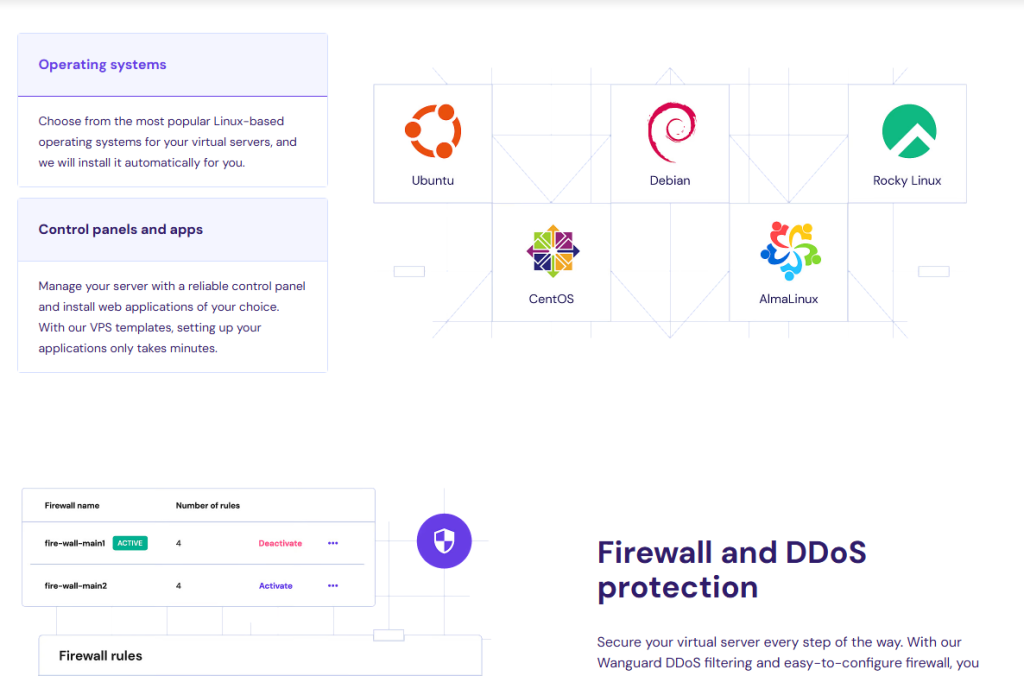
Hostinger delivers the strongest balance of price, raw hardware specs, and management tools in the budget VPS space. Built on dedicated virtualization (KVM), their instances give you complete control over your server environment, making it effortless to run modern container setups on Ubuntu Server.
Key Ubuntu Features:
- ⚡ NVMe Disk Speed: Fast NVMe arrays ensure fast package installs via APT and quick database queries.
- 🌍 Global Locations: Deploy instances across the US, UK, France, Germany, Brazil, India, or Singapore.
- 🔒 Web Firewall & Snapshots: Set up firewall rules in the web console and take manual snapshots before major upgrades.
- 🐧 1-Click Application Images: Pre-built images for Ubuntu 22.04 LTS, Ubuntu 24.04 LTS, and turnkey Docker stacks.
- 💾 High Bandwidth: 4TB to 32TB monthly data allowance to handle significant traffic without surprise fees.
Why It Works for Ubuntu: Their custom hPanel dashboard removes the friction of server management. You get emergency browser-based terminal access (VNC) and fast operating system re-installs if you ever make an error in a configuration file.
Cheapest plan starts at: $4.99/mo*
Ubuntu Admin Tip: 💡 Choose the “Ubuntu with Docker” template during server setup. It provisions a clean Ubuntu LTS release with Docker Engine and Docker Compose pre-installed, saving you manual terminal setup time.
2. A2 Hosting VPS (Lowest Entry Price for Small Projects)
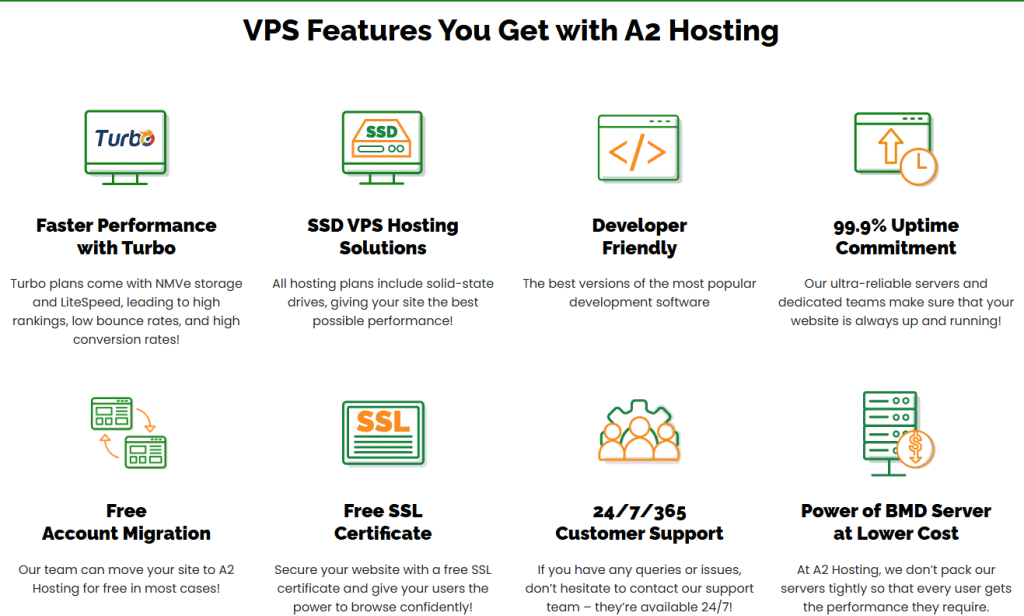
A2 Hosting remains one of the most accessible starting points for budget hosting. Their entry-level unmanaged tier gives you clean terminal access for less than the cost of a coffee, making it a great pick for small cron jobs, test scripts, or learning system administration on a live IP.
Key Ubuntu Features:
- ⚡ Solid Storage: High-speed NVMe storage on Turbo tiers keeps file read-write operations snappy.
- 🔒 Server Protection: Imunify360 security suite and automated network protection keep your server secure.
- 🌱 Hardware Expansion: Scale memory and storage up to 32GB RAM and 500GB SSD as requirements grow.
- 🎛️ Root Control: Full unmanaged root access over SSH for complete operating system flexibility.
- 🐧 Clean OS Images: Minimal Ubuntu Server installations without unwanted background services.
Why It Works for Ubuntu: It offers bare-metal control at shared hosting prices. You can configure your own Nginx or Apache server and manage services directly from the command line.
Cheapest plan starts at: $2.99/mo*
Ubuntu Admin Tip: 💡 Select the unmanaged Ubuntu LTS plan to keep memory overhead to a minimum. A lean Ubuntu installation runs comfortably on entry-level RAM when you stick to CLI administration.
3. InMotion Hosting VPS (Best for High RAM Workloads)
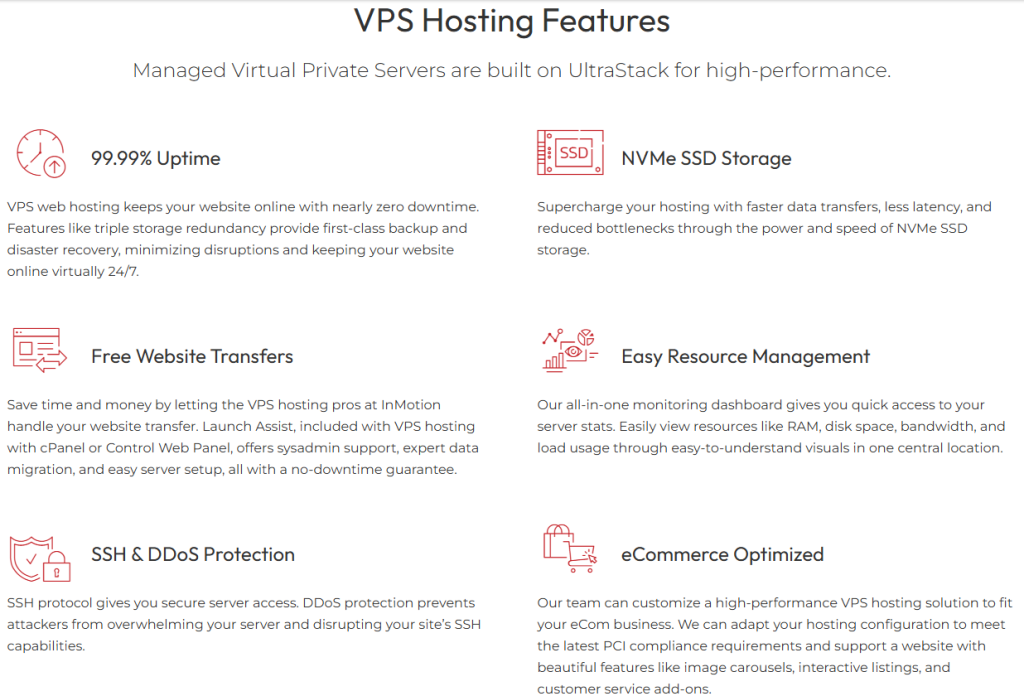
If you run memory-hungry applications like GitLab runners, databases, or multi-app Docker environments, entry-level 1GB or 2GB VPS plans will quickly run out of memory. InMotion Hosting targets this problem by offering large resource baselines right from their entry tier.
Key Ubuntu Features:
- 🚀 High Base Specifications: Entry plans start with 4 vCPUs, 8GB RAM, and 160GB SSD storage.
- 🔒 Automated Protection: Real-time DDoS mitigation, automated snapshot routines, and free dedicated IPs.
- 🌐 Low Latency Routes: High-speed direct network routes across US and EU data centers.
- 🎛️ Server Administration: Native SSH key management, web-based resource monitoring, and full sudo access.
- 📦 App Ready: System configuration optimized for containerized apps and high web traffic.
Why It Works for Ubuntu: With 8GB of RAM on the entry plan, your Ubuntu installation has enough breathing room to run databases, web servers, and caching layers side-by-side without slowing down.
Cheapest plan starts at: $9.99/mo*
Ubuntu Admin Tip: 💡 Take advantage of InMotion’s automated snapshot utility before executing major release upgrades (`sudo do-release-upgrade`) so you can roll back your system in seconds if packages conflict.
4. Liquid Web VPS (Best for Enterprise Reliability & Uptime)
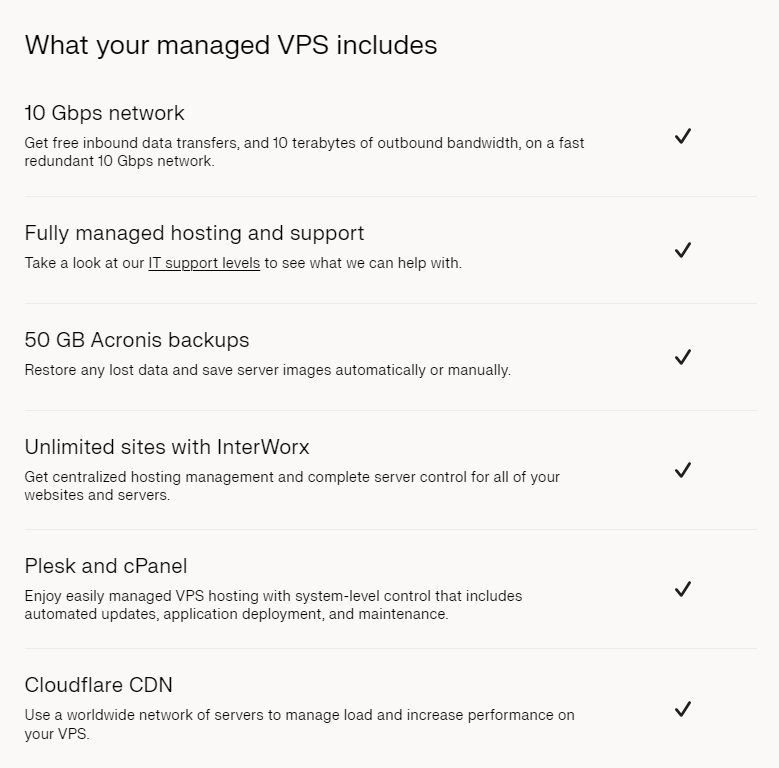
Liquid Web is an established name in enterprise infrastructure. While their fully managed hosting commands premium rates, their entry Cloud VPS instances provide high-grade server hardware, fast network backbones, and a 100% network uptime guarantee at an accessible monthly cost.
Key Ubuntu Features:
- ⚡ Dedicated Muscle: High-performance compute options ranging from 1 to 16 vCPUs and scalable SSD storage.
- 🌐 100% Network SLA: Hardware and power backed by one of the strictest uptime guarantees in the industry.
- 🔒 ServerSecure: Hardware-level firewalls, proactive threat monitoring, and automated security safeguards.
- 📈 High-Throughput Pipes: Up to 10TB of bandwidth to keep busy web applications running smoothly.
- 🐧 Native Ubuntu Environment: Pure root access with direct routing to official Ubuntu APT download mirrors for fast updates.
Why It Works for Ubuntu: If your Ubuntu server powers a revenue-generating website, API, or client project where server downtime costs real money, Liquid Web provides enterprise-grade stability on a sensible budget.
Cheapest plan starts at: $5.00/mo*
Ubuntu Admin Tip: 💡 Set up off-server backups inside the Liquid Web control panel. Storing disk backups on separate storage protects your data even if you make an error during manual configuration.
5. Bluehost VPS (Best Managed Option for Teams & Agencies)
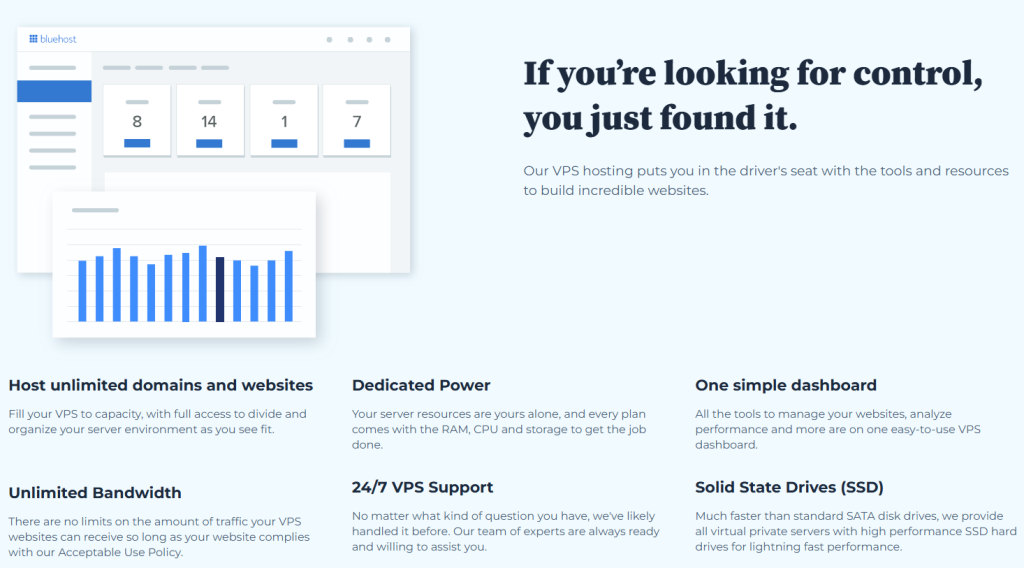
Bluehost sits at a significantly higher price tier than the other hosts on this list. While it is not a budget choice in the literal sense, it deserves consideration for businesses and agencies that want dedicated virtual resources paired with round-the-clock technical management and cPanel licensing included.
Key Ubuntu Features:
- ⚡ Compute Power: Multi-core processing paired with DDR5 RAM options and fast NVMe storage arrays.
- 💾 Scalable Allocations: Starts at 4 vCPUs, 4GB RAM, and 100GB NVMe storage with instant tier upgrades.
- 🌐 Unmetered Traffic: Predictable throughput handling traffic spikes without unexpected bandwidth penalties.
- 🔒 Isolated Security: Includes a free dedicated IP address, SSL certificates, and managed firewall rules.
- 🐧 Managed Layer with Root Access: A turnkey control panel overlay with underlying terminal access available when needed.
Why It Works for Ubuntu: This plan is built for users who want dedicated server power for client sites without having to troubleshoot server software crashes or configure DNS records manually in the terminal.
Starting price: $46.99/mo*
Ubuntu Admin Tip: 💡 Use the included dedicated IP address to configure custom reverse DNS (rDNS) records in your dashboard. This ensures emails sent from your server bypass spam filters.
How to Set Up and Secure Your Ubuntu VPS in 5 Minutes
Once your server is provisioned, log into your terminal and run through this setup checklist to secure your server before deploying software:
Step 1: Connect to Your Server via SSH
Open your local terminal (Linux/macOS) or PowerShell (Windows) and log in using your server IP address:
ssh root@your-server-ip
Step 2: Update the Package Index
Make sure your system has the latest package lists and security patches applied:
sudo apt update && sudo apt upgrade -y
Step 3: Create a Dedicated Administrative User
Avoid working as the root user. Add a personal administrative user with sudo privileges:
adduser devuser
usermod -aG sudo devuser
Step 4: Secure the Firewall (UFW)
Ubuntu includes the Uncomplicated Firewall (UFW). Always allow SSH before turning on the firewall to avoid locking yourself out:
sudo ufw default deny incoming
sudo ufw default allow outgoing
sudo ufw allow OpenSSH
sudo ufw allow 80/tcp
sudo ufw allow 443/tcp
sudo ufw enable
Step 5: Install Your Base Stack
Install the essential packages needed for your workload, such as Nginx, Git, or curl:
sudo apt install nginx git curl -y
How to Scale Your Ubuntu VPS
When resource demands grow, scaling your server vertically requires only a few minutes:
- Monitor Resource Limits: Run
htoporfree -hin your terminal to see if your system is hitting RAM or CPU limits. - Select Your Upgrade: Open your provider dashboard (such as Hostinger hPanel or InMotion Account Hub) and choose your new CPU and RAM tiers.
- Apply the Upgrade: Most modern cloud hosts apply resource changes with a quick virtual server reboot. Confirm your new RAM pool by running
free -m.
Troubleshooting Common Ubuntu VPS Issues
High Memory or CPU Usage: Install htop to identify runaway processes using sudo apt install htop, then sort by memory or CPU usage.
SSH Connection Refused or Timed Out: Verify that SSH is running using sudo systemctl status ssh. If you enabled UFW and forgot to allow port 22, log in via your host web console (VNC) and run sudo ufw allow OpenSSH.
Storage Space Full: Check which directories are consuming disk space by running df -h and du -sh /* 2>/dev/null | sort -h.
Frequently Asked Questions
Why use Ubuntu Server for a VPS instead of other Linux distros?
Ubuntu Server provides the largest community documentation, official software packages, and container ecosystem support of any Linux distribution. With predictable 5-year LTS support windows, you get enterprise-level stability without unexpected software breaks.
How much RAM does Ubuntu Server need?
A bare, headless Ubuntu Server installation idles at around 150MB to 250MB of RAM. A 1GB to 2GB VPS plan works well for static sites, personal blogs, and lightweight web apps. If you plan to run WordPress with a database or multiple Docker containers, choose an instance with at least 4GB of RAM.
Can I install a graphical desktop interface (GUI) on an Ubuntu VPS?
Yes. While Ubuntu VPS images come headless by default to conserve memory, you can install a lightweight desktop environment like XFCE and access it via remote desktop by running sudo apt install xfce4 xfce4-goodies xrdp.
What is the difference between managed and unmanaged Ubuntu VPS hosting?
An unmanaged VPS gives you direct root access to the operating system. You configure firewalls, install software, and handle maintenance yourself. A managed VPS includes administrative support from the host to handle software updates, backups, and security patches.
Continue Reading: Top Linux Distros Guide | The Best Software for Ubuntu