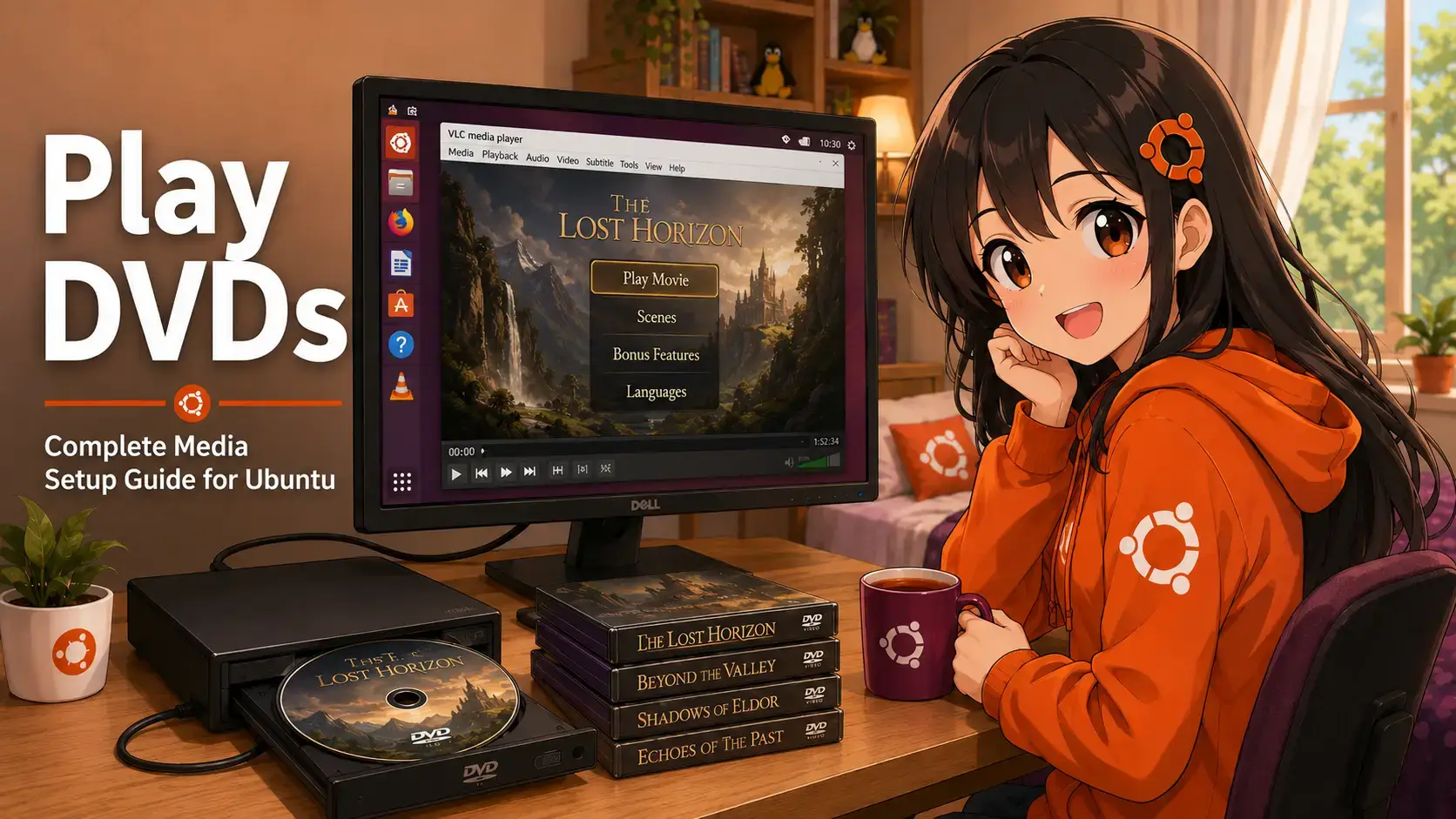
 To play commercial and encrypted DVDs on Ubuntu, the most reliable approach is to enable the multiverse repository, install the libdvd-pkg helper to set up libdvdcss2 decryption, and use a media player like VLC. Since commercial DVDs use copy protection, Ubuntu cannot play them out of the box due to legal restrictions on decryption software in some regions. This guide walks you through configuring your system to watch DVD movies smoothly.
Set up CSS decryption, configure optical drive access permissions for sandboxed media players, and resolve hardware-level region lock issues.
If you insert a retail DVD movie into your Ubuntu system, you will likely encounter playback errors or a blank screen. This happens because commercial discs are encrypted using the Content Scramble System (CSS). Due to legal regulations regarding DRM bypass software in various countries, Ubuntu does not ship the required decryption libraries. Fortunately, you can install the necessary tools in a few steps using the terminal.
Step 1. Enable the Multiverse Repository
Ubuntu restricts certain software to specific repositories. The packages required for DVD compilation and decryption are located in the multiverse repository. While this repository is often enabled by default on Ubuntu Desktop, it is best to verify and activate it explicitly.
Open your terminal (Ctrl+Alt+T) and execute the following commands to add the repository and refresh your system’s package list:
sudo add-apt-repository multiverse
sudo apt update
Step 2. Install and Configure libdvdcss2 Decryption
To play CSS-encrypted DVDs, the system requires the libdvdcss2 library. Rather than supplying this precompiled library directly, Ubuntu provides a helper package called libdvd-pkg. This package automatically fetches the official decryption source code, compiles it locally, and installs the library on your machine.
Install the necessary reading libraries along with the core compilation package:
sudo apt install libdvdnav4 libdvdread8 libdvd-pkg -y
Note: During the installation process, a text-based terminal prompt will appear asking for confirmation to configure automatically. Press Tab to highlight Yes, and press Enter to proceed.
Once the packages are downloaded, trigger the script that builds the decryption library:
sudo dpkg-reconfigure libdvd-pkg
Follow the terminal prompts. Confirm the download of the source packages by selecting Yes. The installation is complete once the command finishes and returns you to the standard terminal prompt.
Step 3. Install and Configure Your Media Player
With the decryption libraries ready, you need a player that handles DVD menus and audio channels. The default video player in Ubuntu, Totem (GNOME Videos), can play DVDs using GStreamer codecs but frequently struggles with interactive menus. The most reliable player for DVD playback is VLC Media Player. However, you must choose the correct installation method to avoid permission blocks.
Option A: Install VLC via APT (Recommended)
Installing VLC from the native Ubuntu repositories is the recommended method. Because APT packages run directly on the host system without sandboxing, VLC can automatically locate the compiled libdvdcss2 library and read the physical optical drive without extra adjustments.
sudo apt install vlc -y
Option B: Install VLC via Snap (Requires Manual Permissions)
If you install VLC through the Ubuntu Software / App Center, you will likely receive the Snap version. Snaps run in isolated sandboxes. By default, a sandboxed application is blocked from accessing physical hardware like your DVD drive. If you prefer to keep the Snap package, you must manually grant access by connecting the system interfaces.
Open your terminal and run the following two commands to link your physical optical drive and removable media folders to the VLC Snap container:
sudo snap connect vlc:optical-drive
sudo snap connect vlc:removable-media
Step 4. Open and Play the DVD
Once your decryption libraries and player are configured, you can launch your disc. Insert your DVD into the optical drive, wait for the system to detect it, and use the following steps to start playback:
1. Launch VLC Media Player from your application menu.
2. Click Media in the top menu bar and select Open Disc (or press Ctrl+D).
3. Under the **Disc** tab, select the **DVD** option.
4. Verify that the **Disc Device** path matches your optical drive. In most cases, it defaults to /dev/sr0 or /dev/dvd.
5. Click **Play** at the bottom of the window. The DVD menu should load, allowing you to select chapters, audio tracks, or play the movie directly.
Since most modern laptops and desktop PCs lack an internal disc drive, you are likely using an external USB DVD drive. These drives are plug-and-play in Ubuntu and map to the same `/dev/sr0` path. However, external drives are highly sensitive to power delivery. If the drive spins up and immediately stops, or fails to read the disc directory, connect it to a high-power USB port (typically marked in blue or with a power symbol) or use a double-headed USB Y-cable to draw power from two ports simultaneously.
For a broader view of other media applications available on your system, take a look at our guide on the Best Media Players for Ubuntu which compares the performance and layout of various video and music suites.
If your optical drive spins up but VLC reports a read failure, or if it reads some discs but rejects others, you are likely experiencing a device path error or a hardware region lock. Run through these steps to restore access:
Check if Ubuntu has detected your hardware by listing your block devices in the terminal:
lsblk
Look for a device listed with the type `rom` (often named `sr0`). If your drive is listed as `sr0`, your path in VLC should be `/dev/sr0`.
Newer optical drives enforce region codes at the hardware level. If your drive region does not match your disc, the drive will lock up. Use the `regionset` utility to review and assign the correct code:
sudo apt install regionset -y
sudo regionset /dev/sr0
The utility will display your current region. If it is unset or incorrect, follow the prompts to enter your local region code (for example: Region 1 for North America, Region 2 for Europe and Japan). Note that hardware drives only allow you to change the region code a limited number of times (typically 5 times) before locking permanently.
Sometimes libdvdcss caches invalid encryption keys, causing play failures on subsequently loaded movies. Wipe the local key cache to force a fresh decryption attempt:
rm -rf ~/.dvdcss/
Frequently Asked Questions
Why won’t my commercial DVD play on Ubuntu out of the box?
Commercial DVDs are encrypted with Content Scramble System (CSS) copyright protection. Ubuntu does not include decryption libraries like libdvdcss2 by default due to licensing and legal restrictions in certain countries. You must install these libraries manually to enable playback.
How do I install the CSS decryption library on Ubuntu?
You can install the decryption library by running sudo apt install libdvd-pkg in your terminal. Once the package is installed, run sudo dpkg-reconfigure libdvd-pkg to download, compile, and install the required libdvdcss2 library.
Why does the VLC Snap version fail to read my DVD?
The Snap version of VLC runs in a sandboxed container for security, which blocks access to physical hardware like your optical drive by default. To fix this, you must run sudo snap connect vlc:optical-drive to grant VLC access to your DVD drive.
What is a DVD region lock and how do I fix it?
If your drive is locked to a different region, install the regionset utility by running sudo apt install regionset. Then, insert a DVD and run sudo regionset /dev/sr0 in your terminal, following the prompts to set the correct region code for your drive.
Is it legal to install libdvdcss2 on Ubuntu?
The legality of libdvdcss2 depends on your local copyright laws. In some jurisdictions (like the United States under the DMCA), bypassing DVD copy protection mechanisms can be restricted. You should verify your local regulations before installing decryption software.
How do I find the correct device path of my DVD drive?
In most Ubuntu installations, the first physical DVD/CD drive is mapped to the device path /dev/sr0. A symbolic link named /dev/dvd or /dev/cdrom is also typically created to point to /dev/sr0.
Can I play Blu-ray discs on Ubuntu using these steps?
No. Blu-ray discs use a different and more complex encryption standard (AACS and BD+). Bypassing Blu-ray protection requires separate decryption keys, the libaacs library, and additional configuration. While these DVD steps allow DVD playback, Blu-rays are not supported out of the box by this configuration.
More Ubuntu guides: Best Media Players for Ubuntu · Ubuntu Keyboard Shortcuts · Share Ubuntu Files with Windows · Ubuntu Desktop 26.04 Download · Ubuntu 26.04 New Features · Upgrade to Ubuntu 26.04 LTS