Three Ways to Install Ollama, Compared
Ollama is the program that downloads AI models and runs them on your own machine. There are three ways to install Ollama on Ubuntu, and they all work the same on 26.04 and 24.04. Pick one, then follow that section only.
| Method | Source | Runs as a service | How you update it | Best fit |
|---|---|---|---|---|
| Install script | ollama.com | Yes, set up for you | Run the script again | Almost everyone on a desktop |
| Manual tarball | ollama.com | No, you set it up | Download and extract again | Servers, or if you will not pipe a script to a shell |
| Docker | Docker Hub | Docker restarts it | docker pull |
You already run Docker, or want it kept separate |
Method 1: Install Ollama with the Official Script
This is the one to use unless you have a reason not to. Ollama is the tool that downloads models, loads them into memory and gives you somewhere to type.
This script asks for your password because it installs a system service. If you prefer to read a script before running it, open the install script in a browser first. That is a reasonable habit with any piped installer.
When it finishes, confirm it worked:
A version number means you are ready. Yours may be higher than 0.34.0, which is the release current at the time of writing. An error instead means the service did not start, and the troubleshooting section below covers that.
Method 2: Install Ollama from the Tarball
Some people will not pipe a script from the internet straight into a shell, and on a server that caution is reasonable. This gets you the same binary without running anyone’s script.
Download and extract it into /usr:
The tarball gives you the binary but no background service. Create the user and the service yourself. First the account Ollama will run as:
Then create /etc/systemd/system/ollama.service with this in it:
Load it and switch it on:
Method 3: Run Ollama in Docker
Docker keeps Ollama and every model out of your system directories. If you already run Docker, this is the tidiest option. If you do not have it yet, our Docker install guide for Ubuntu covers that first.
For a machine with no dedicated graphics card:
With an NVIDIA card, add --gpus=all. This needs the NVIDIA Container Toolkit installed, otherwise Docker will not pass the card through:
With Docker, every command in the next section runs inside the container. Put docker exec -it ollama in front of them, so ollama run llama3.2 becomes docker exec -it ollama ollama run llama3.2. The same prefix works for any model, including the large ones such as llama4:16x17b.
Control the Ollama Background Service
Ollama does not only run when you type a command. The install script sets it up as a background service that starts with your computer and waits on port 11434. Most guides never mention this, and it is why people find Ollama using memory when they thought it was closed.
Check what it is doing:
Active: active (running) means it is working. enabled means it will come back after a reboot. Press q to exit the status view.
The three commands worth knowing:
The last one stops it launching at boot without uninstalling anything. Use it if you only run a model occasionally and would rather have the memory back the rest of the time.
If something goes wrong, the service keeps a log. This is far more useful than guessing:
Which Models Can I Run?
Ollama is the engine, not the model. Once it is installed, what you can actually run depends on memory — graphics card memory if you have one, system memory if you do not. A model has to fit before it can answer.
Match your machine to a row, then use the command in the last column. If you pick something too big you get a clear error, not a crash, and the troubleshooting section covers it.
| Your machine | Model size | What to expect | Try this |
|---|---|---|---|
| 8 GB RAM, no graphics card | 1B to 3B | A few words per second. Fine for short questions and tidying text. | llama3.2:1b |
| 16 GB RAM, no graphics card | 3B to 8B | Usable but not snappy. Good enough to work with. | llama3.2 |
| Graphics card, 8 to 12 GB | 7B to 8B | The sweet spot. Fast replies, genuinely useful answers. | mistral |
| Graphics card, 16 to 24 GB | 13B to 32B | Noticeably better reasoning and code. | qwen3 |
| Workstation, 48 GB and up | 70B and the big mixture models | The headline models. Check the download size first. | llama4:16x17b |
Ollama publishes a download size for every model, and that is a fact you can check. It does not publish a memory requirement, so the guidance above is exactly that — guidance, based on how these sizes behave in practice. Treat a row as a starting point, not a specification.
The Families Worth Knowing
These are the four most asked about. All of them install the same way, with ollama run followed by the name.
The general purpose default, and the family with the widest range of sizes. Our guide to installing Llama on Ubuntu covers every version and its download size. Start with ollama run llama3.2.
Known for showing its working on reasoning and maths problems, which makes it slower to answer but easier to check. Try ollama run deepseek-r1.
A small European model with a reputation for being quick and light on resources. A good fit for a laptop with a modest graphics card. Try ollama run mistral.
Alibaba’s family, with strong coding variants and an unusually wide spread of sizes. Try ollama run qwen3.
To see what you have already downloaded, run ollama list.
To find something else, use Ollama’s model search rather than guessing at names. You can filter by what a model can actually do — vision for reading images, tools for calling other programs, thinking for step-by-step reasoning — and sort by popular or newest. It does not show download sizes on the results page, so open a model to check its size before you pull it.
Add a Browser Chat Interface with Open WebUI
The terminal works, but it has no conversation history, no way to switch models mid-chat and no file uploads. Open WebUI adds all of that in a browser tab, and it talks to the Ollama you already installed.
Docker is the method the project recommends. If you do not have it yet, our Docker install guide for Ubuntu covers it.
Then open http://localhost:3000 and create a local account. That account lives on your machine, not on anyone’s server.
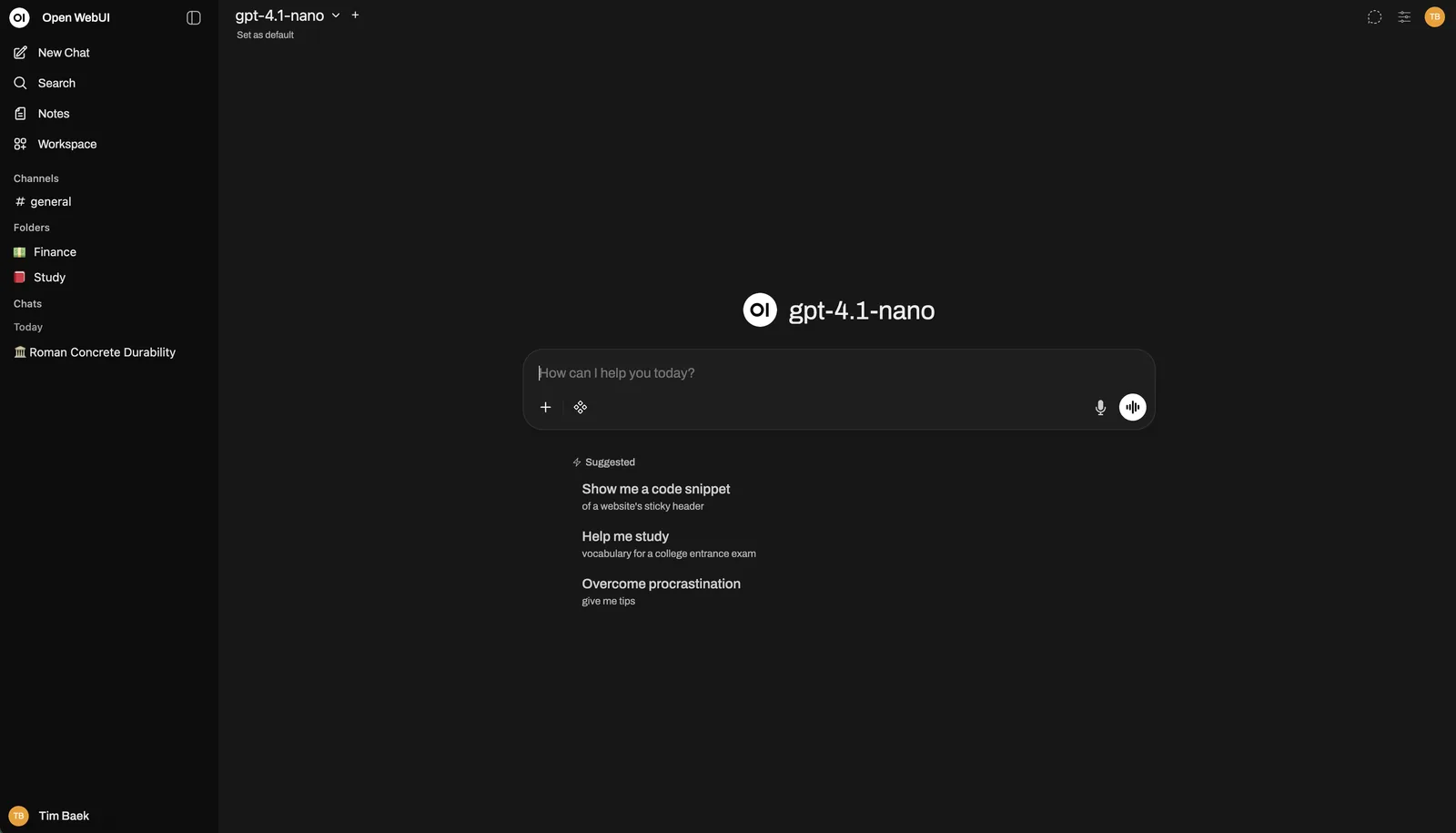
The Open WebUI chat screen. This is the project’s own demo image, so the model name shown at the top is theirs. Yours will list whichever models you pulled.
The container serves on 8080 internally, which is why the Docker flag reads 3000:8080. Older guides show 3000:80, which gives you a blank page. If you install with pip or uv instead of Docker, the interface runs on 8080 directly, not 3000.
Prefer to skip Docker? Open WebUI also installs as a Python package. It supports Python 3.11 and 3.12, and it does not yet support 3.13, which is the most common reason this method fails on a current Ubuntu.
Use Ollama With Your Coding Tools
Ollama can act as the engine behind the coding assistants you already use. The ollama launch command sets them up for you, so you do not have to work out environment variables or edit a config file. It needs Ollama 0.15 or newer, so any current install has it.
Run it with nothing after it to see what it supports:
Or name the one you want and skip the menu:
ollama launch wires a coding tool up to Ollama. It does not install that tool for you. Claude Code, for example, is a separate install: curl -fsSL https://claude.ai/install.sh | bash.
To choose the model yourself rather than taking the default, add --model:
Add --config instead if you want to set the integration up now and start it later.
These tools read your source files. Cloud models need no download, which makes them an easy pick here, but a tag ending in :cloud runs on Ollama’s servers, so your code goes with it. Choose a local tag if that matters to you. The privacy section below covers the distinction.
If you would rather wire it up by hand, these tools mostly speak the same protocol, so pointing one at http://localhost:11434 works too. ollama launch just saves you doing it.
Watch the Install Instead
If you would rather see the steps than read them, this walkthrough covers the same Ollama install on Ubuntu from start to finish.
Video: How to Install Ollama on Ubuntu Linux. The commands on this page are current, so check them against the video if anything has moved on.
Does Any of This Leave Your Machine?
Not when you run a local model. Once the files are downloaded, Ollama reads them from your disk and generates text on your own hardware. You can unplug from the internet entirely and it keeps working.
There is one exception worth knowing about, because it is easy to trip over by accident.
Ollama also offers cloud models, which run on Ollama’s servers rather than yours. They are marked with a :cloud suffix, as in model:cloud. They use the same ollama run command, so the only visible difference is the tag. If privacy is the reason you are here, avoid any tag ending in :cloud. Ollama’s model search page has a Cloud filter, which is the quickest way to see exactly which models these are.
Everything in this guide uses local tags. Nothing above sends your prompts anywhere.
Update Ollama and Your Models
Two separate things update here, and people miss the second. Updating Ollama does not update the models you already downloaded.
If you used the install script or the tarball, run the same command again. It replaces the binary in place and keeps your models:
On Docker, pull the new image and recreate the container. Your models live in the named volume, so they survive:
Models get revised too. Pulling a tag you already have fetches the newer build of it:
Uninstall Ollama
Removal depends on how you installed. Models are the gigabytes, and some removal steps take them with you without warning.
Most of the time you do not want Ollama gone, you want the disk space back. Delete individual models instead:
Stop the service and remove its definition first:
Ollama’s own documentation tells you to delete a path it works out with a shell trick. That trick is fragile and it is pointing rm -r at a folder you never see. Run which ollama first and use the real path. On a standard install it is /usr/local/bin/ollama, so the library folder is /usr/local/lib/ollama.
Now the account Ollama runs as, and its home folder. That folder holds every model you downloaded, so this is the step that reclaims the gigabytes and the step you cannot undo:
The du -sh line is there on purpose. It tells you how much you are about to delete before you delete it.
If you ever ran Ollama as yourself rather than as the service, there is a second copy of your models in your own home folder. Check before you assume the space is back:
Simpler, because everything lives in the container and its volume. Removing the volume deletes every model:
When It Does Not Work
Most of what goes wrong produces one of these exact messages. Find yours below.
Error: could not connect to ollama app, is it running?
The command works but the background service is not running, usually after a reboot where the service was disabled. Start it, then check it stays up:
Error: listen tcp 127.0.0.1:11434: bind: address already in use
Ollama is already running, so a second copy cannot claim the same port. This usually means the service is up and you also typed ollama serve by hand. You do not need to. Close the manual one and use ollama run instead. To see what is holding the port:
ollama: command not found
Your shell has not picked up the new path yet. Open a new terminal window. If it still fails, the install did not finish, so run the install command again and watch for errors this time.
Error: model requires more system memory than is available
You asked for a model that will not fit. This is the most common wall people hit, because the headline models need far more memory than a typical desktop has. Llama 4 Scout is the usual culprit. Drop to a smaller model and it will work:
Other Things That Go Wrong
These have no single error message, just a symptom.
The model is too big for your graphics card, so your computer is falling back on slower memory. Try the next size down. A small model that answers quickly beats a large one that crawls.
Run the same ollama pull command again. It resumes rather than restarting. If it keeps failing at the same point, check you have the free disk space the model needs.
The container cannot reach Ollama. Confirm Ollama is running with ollama list, and check you included the --add-host flag from the command above.
Open a new terminal window so your shell picks up the updated path. If it still fails, the service did not start. Check it with systemctl status ollama.
Frequently Asked Questions
Is Ollama free to use on Ubuntu?
Yes. Ollama is open source and costs nothing to download or run, and the models in its library are free to pull. The only real cost is disk space, electricity and the hardware you already own. The one exception is a model tagged :cloud, which runs on Ollama’s servers rather than yours.
Where does Ollama store its models on Ubuntu?
In /usr/share/ollama/.ollama/models when it runs as the background service, which is the normal setup after the install script. If you ever ran Ollama as your own user instead, there is a second copy in ~/.ollama. Set the OLLAMA_MODELS environment variable if you want them on a different drive.
Do I need a graphics card to run Ollama?
No. Ollama runs on the processor alone, and a small model of 1B to 3B parameters is genuinely usable that way. Expect a few words per second rather than instant replies. A graphics card makes it far faster, but it is not required to get started.
What is port 11434, and can I change it?
It is the port the Ollama background service listens on. By default it binds to 127.0.0.1, so only your own machine can reach it. To change it, run systemctl edit ollama.service and add Environment=”OLLAMA_HOST=0.0.0.0:11434″ under [Service], then reload and restart. Ollama does not ask for a password, so only open it to the network on one you trust.
Should I use the install script or Docker?
Use the install script on a desktop. It sets up the background service for you and updating means running the same command again. Choose Docker if you already run Docker or want Ollama and its models kept out of your system directories. Choose the tarball on a server, or if you would rather not pipe a script into a shell.
Install Ollama, pull a model that fits your hardware, and you have a private assistant that keeps working with the network unplugged.
More Ubuntu guides: Install Llama on Ubuntu · Best Open Source AI Tools for Ubuntu · Install Docker on Ubuntu · Excellent Code Editors for Ubuntu