To install Fotocx on Ubuntu 26.10, run sudo apt install fotocx. On Ubuntu 26.04 LTS, use the developer’s .deb package, and on 24.04 LTS use the AppImage. Fotocx is the new name for Fotoxx, a free photo editor and photo collection manager.
This guide covers each install method, the first run, updates, troubleshooting and removal. If you get stuck, leave a comment or contact us.
Before you begin
Ubuntu 26.10, 26.04 LTS or 24.04 LTS with internet access.
A 64-bit Intel or AMD PC for the .deb and AppImage.
A user account with sudo access for the APT and .deb methods.
Open a terminal with Ctrl+Alt+T and check your Ubuntu release and processor type:
Terminal
lsb_release -rs
dpkg --print-architecture
The first line shows your release, such as 26.04. The second should say amd64. If you need more detail, see how to check your Ubuntu version. Then pick your method:
Your release
Install with
Fotocx version
Ubuntu 26.10
APT, from Ubuntu’s universe repository
26.8
Ubuntu 26.04 LTS
Developer’s .deb package
26.8.1
Ubuntu 24.04 LTS
Developer’s AppImage
26.8.1
The AppImage is built to run on any recent distribution, so it is also an option on 26.04 and 26.10.
Step 2 Install Fotocx for your release
Ubuntu 26.10: install with APT
Terminal
sudo apt update
sudo apt install fotocx
APT installs Fotocx with its dependencies and keeps it updated with the rest of your system.
Ubuntu 26.04 LTS: install the .deb package
Download the package from the developer’s site, then let APT install it so the dependencies come with it:
Terminal
cd ~/Downloads
wget https://kornelix.net/downloads/downloads/fotocx-26.8.1-x86_64.deb
sudo apt install ./fotocx-26.8.1-x86_64.deb
If a newer version is listed on the Fotocx downloads page, use that file name instead.
Ubuntu 24.04 LTS: run the AppImage
The AppImage is a single file that runs without installing anything:
Terminal
cd ~/Downloads
wget https://kornelix.net/downloads/downloads/fotocx-26.8.1-appimage
chmod +x fotocx-26.8.1-appimage
Do not use sudo apt install fotoxx on 24.04. It installs version 20.08 from 2020.
Step 3 Open Fotocx and index your photos
For the APT and .deb installs, open the app grid and search for Fotocx, or start it from a terminal:
Terminal
fotocx
For the AppImage, run it from the Downloads folder:
Terminal
~/Downloads/fotocx-26.8.1-appimage
On first start, Fotocx asks which folders hold your photos, then builds an index of them. A large collection takes a while the first time. The index and thumbnails use about 2% of your photo storage, and your photos stay where they are.
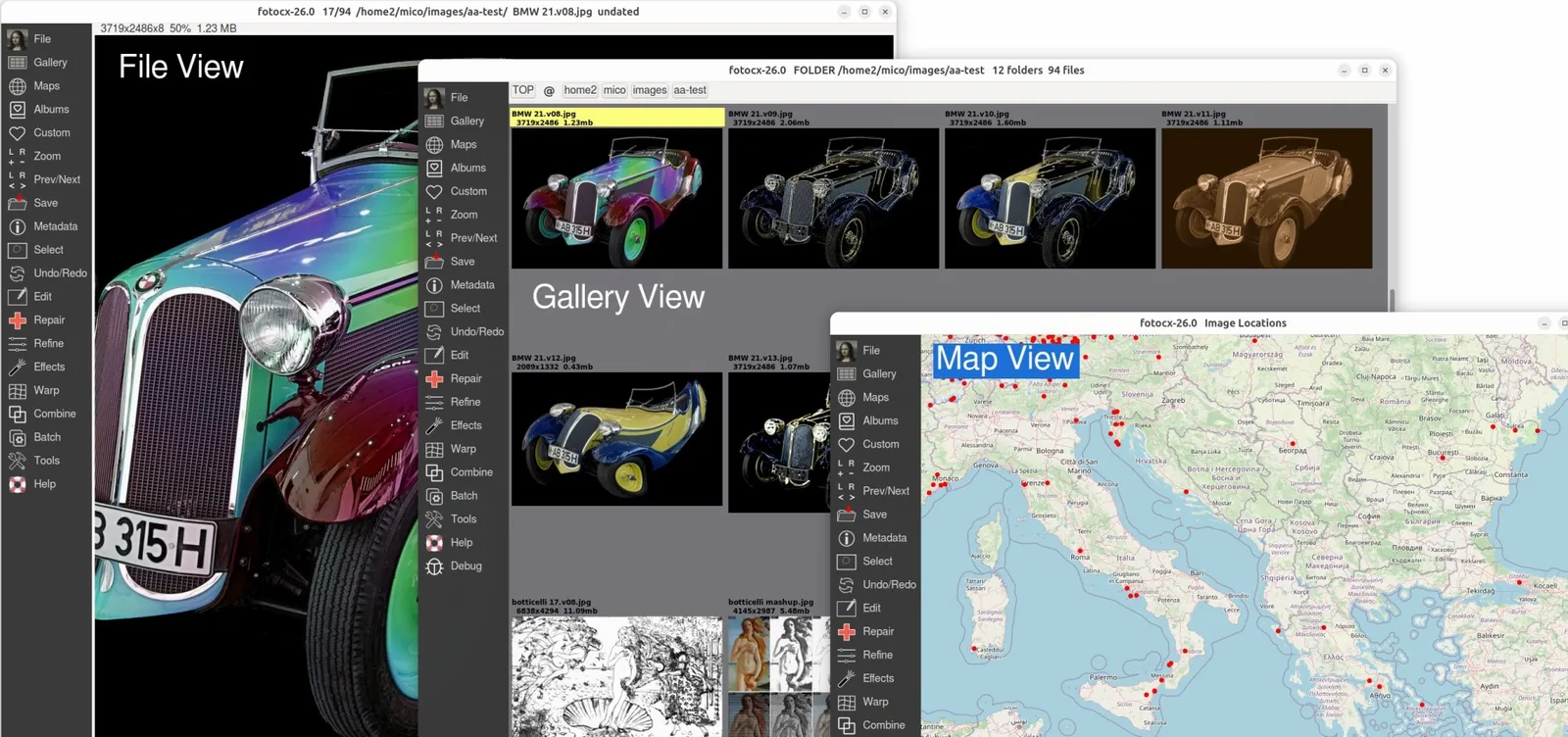
Fotocx file view, thumbnail gallery and photo map. Image: kornelix.net
Add the AppImage to the App Menu
The developer provides a small script that copies the AppImage to ~/.local/bin/fotocx and adds a menu entry with an icon. Create the folders it copies into first, then run it next to the AppImage:
The script extracts the AppImage into a temporary squashfs-root folder in Downloads and deletes it when done. Fotocx then appears in the app grid. If it does not, log out and back in.
Update Fotocx
On Ubuntu 26.10, Fotocx updates with your normal system updates:
Terminal
sudo apt update
sudo apt upgrade
The .deb and AppImage do not update themselves. When a new version appears on the downloads page, download it and repeat Step 2. For the AppImage, delete the old file afterwards and run the menu script again if you use it.
Troubleshooting
1 Unable to locate package fotocx
The fotocx package exists only on Ubuntu 26.10 and newer. On 26.04 or 24.04, use the .deb or AppImage from Step 2. On 26.10, the error usually means the universe repository is off. Turn it on and try again:
An error naming libjxl0.11 means you are on Ubuntu 24.04. Use the AppImage instead. An error naming libjpeg-turbo8 means you are on 26.10, where sudo apt install fotocx is the right method. Clear the half-installed package before switching:
Terminal
sudo apt remove fotocx
3 An old Fotoxx opens instead of Fotocx
Ubuntu 24.04 can still install the 2020 fotoxx package, which has a separate command and menu entry. Remove it:
Terminal
sudo apt remove fotoxx
Its old settings in ~/.fotoxx are not used by Fotocx. Delete that folder if you no longer need it.
4 The AppImage does not start
Run it from a terminal so you can see the error. If it says permission denied, run chmod +x on the file again. If it mentions FUSE, start it without mounting:
Yes. The developer renamed Fotoxx to Fotocx in 2024. Its settings folder moved from ~/.fotoxx to ~/.fotocx at the same time.
Why is fotocx missing from the Ubuntu 24.04 and 26.04 repositories?
Ubuntu 26.04 dropped the old fotoxx package, and the renamed fotocx package first arrived in Ubuntu 26.10. Ubuntu 24.04 only has fotoxx 20.08 from 2020. Use the developer’s .deb on 26.04 and the AppImage on 24.04.
Is Fotocx free?
Yes. Fotocx is free to download and use, with no paid version or account.
Can Fotocx edit RAW photos?
Yes. Fotocx opens camera RAW files and edits them in deep color. You can save the results as JPEG, PNG, TIFF or JPEG XL.
Will uninstalling Fotocx delete my photos?
No. Removing the app and its ~/.fotocx folder deletes only the program, its settings, index and thumbnails. Your photos and any edited versions saved beside them stay where they are.