



It is often regarded as one of the best web browsers for Ubuntu because it supports restricted video and audio formats (media codecs), syncs corporate work profiles, and supports standard browser extensions.
This step-by-step terminal guide covers all three setup methods in detail, compares their features, and provides simple commands to fix update conflicts on Ubuntu 24.04 and 26.04 LTS.
If you run into any issues during the installation, please leave a comment below or contact us directly for support. Our team is always ready to help you get it running.
APT & Flatpak Guides
Set up the Microsoft Edge Browser on your Ubuntu computer. Compare the native software repository method, manual package downloads, and secure container options, then run the verified terminal commands.
Quick CLI Setup Cheatsheet
If you are an experienced user looking for the fastest terminal commands, copy and paste the scripts below for your preferred setup method:
curl -fsSL https://packages.microsoft.com/keys/microsoft.asc | gpg --dearmor | sudo tee /usr/share/keyrings/microsoft-edge.gpg > /dev/null
echo "deb [arch=amd64 signed-by=/usr/share/keyrings/microsoft-edge.gpg] https://packages.microsoft.com/repos/edge stable main" | sudo tee /etc/apt/sources.list.d/microsoft-edge.list
sudo apt update && sudo apt install microsoft-edge-stable -y
sudo apt purge microsoft-edge-stable -yflatpak install flathub com.microsoft.Edge -y
flatpak uninstall com.microsoft.Edge -yChoosing the right packaging format determines how security updates are pushed to your desktop and the level of sandbox security applied to browser processes. Review the comparison matrix below to determine which setup matches your workflow.
Microsoft Edge Installation Methods Compared
Review the table below to compare the packaging formats, version details, and isolation features of the installation choices.
| Method | Version Age | Auto-Updates | Isolation (Sandbox) | Best For |
|---|---|---|---|---|
| Official APT Repo | Latest official stable release directly from Microsoft | Yes (via standard apt upgrade) | No (native execution) | Default recommended setup for most desktop users seeking native performance and seamless system integration |
| Manual DEB | Latest official stable release at the time of download | Yes (installs APT repo cron job automatically) | No (native execution) | Quick offline setup or simple manual one-time installations |
| Flatpak (Flathub) | Latest stable release (community-maintained container) | Yes (via flatpak update) | Yes (isolated sandboxing) | Users prioritizing security isolation, sandbox control, or running on non-standard architectures |
Method 1: Install Microsoft Edge via the Official APT Repository
Setting up the official Microsoft software source (repository) is the best method for most desktop users. By adding Microsoft’s secure updates list directly to your computer, your system will check for browser updates automatically. Every time a new version is released, your Ubuntu computer will install it alongside regular system updates.
Import the official Microsoft security signing key to your system keyring. This ensures that any software packages downloaded from the repository are verified and authentic:
curl -fsSL https://packages.microsoft.com/keys/microsoft.asc | gpg --dearmor | sudo tee /usr/share/keyrings/microsoft-edge.gpg > /dev/null
Register the stable Edge repository in your software sources list, telling APT to use the GPG key installed in the previous step:
echo "deb [arch=amd64 signed-by=/usr/share/keyrings/microsoft-edge.gpg] https://packages.microsoft.com/repos/edge stable main" | sudo tee /etc/apt/sources.list.d/microsoft-edge.list
Update the local database of available packages and run the installation script for the stable build of Microsoft Edge:
sudo apt update && sudo apt install microsoft-edge-stable -y
Method 2: Install Microsoft Edge via Manual DEB Download
If you prefer to skip manual setup steps, you can download the installer file directly from Microsoft’s package servers. When you run this package on your system, Ubuntu automatically configures all the settings and adds the update repository in the background, keeping your browser up to date automatically.
Use the terminal downloader to fetch the latest stable Microsoft Edge package for 64-bit systems directly from Microsoft’s servers:
wget https://packages.microsoft.com/repos/edge/pool/main/m/microsoft-edge-stable/microsoft-edge-stable_current_amd64.deb
Deploy the package using APT, which will resolve and download any required system packages automatically. This installation process will also register Microsoft’s GPG key and add an automatic update source to your system:
sudo apt install ./microsoft-edge-stable_*.deb
Method 3: Install Microsoft Edge via Flatpak
If you want to keep your browser activity isolated from your main system files, you can install the Flatpak version. This container method keeps the application, its settings, and its files separated from the rest of your computer, which is excellent for safety and testing.
If Flatpak is not yet set up on your Ubuntu desktop, run the command below to install the Flatpak backend and add the official Flathub catalog repository:
sudo apt update
sudo apt install flatpak -y
sudo flatpak remote-add --if-not-exists flathub https://dl.flathub.org/repo/flathub.flatpakrepo
Install the sandboxed stable package of Microsoft Edge from the Flathub catalog remote repository:
flatpak install flathub com.microsoft.Edge -y
Installing Pre-Release Channels (Beta & Dev)
For software developers testing web designs or users who want to try experimental features, Microsoft offers Beta and Dev versions alongside the Stable browser. Because these versions are hosted on the same software list we added in Method 1, you do not need to configure any extra settings or download new security keys.
The Beta build is updated every four weeks and provides a highly stable preview of upcoming version changes. Install it using the following command:
sudo apt update && sudo apt install microsoft-edge-beta -y
The Dev build is updated weekly and contains the latest engineering features directly from the development team. Install it using the following command:
sudo apt update && sudo apt install microsoft-edge-dev -y
If you are using the terminal to test websites or automate processes, you can launch each independent channel or query its exact build version string using these CLI execution scripts:
- Launch Stable:
microsoft-edge - Launch Beta:
microsoft-edge-beta - Launch Dev:
microsoft-edge-dev
To query the active build version metadata for verification, run the execution command with the version flag:
# Query Stable build version
microsoft-edge --version

# Query Beta build version
microsoft-edge-beta --version

# Query Dev build version
microsoft-edge-dev --version
Post-Installation: Profile Synchronization & Telemetry Settings
Once you launch Microsoft Edge from your desktop applications grid, you can customize your environment and sync account data to match your business or personal configurations.
If you use Microsoft Edge on other systems, you can sync passwords, favorites, history, and extensions by logging into your account on Ubuntu. This includes support for regular Microsoft Accounts (Live Accounts) as well as Microsoft Entra ID (previously Azure Active Directory) corporate profiles. Simply click on the profile icon in the top-right corner of the Edge toolbar, select “Sign in to sync data,” and follow the authentication prompts.
By default, Microsoft Edge is configured to send diagnostic telemetry and usage data back to Microsoft. To optimize your system privacy, you can easily disable this reporting feature by adjusting the built-in browser configuration settings:
- Open Microsoft Edge and click on the three horizontal dots menu button in the top-right corner, then open the Settings panel.
- Navigate to the Privacy, search, and services tab in the left-hand sidebar menu options.
- Scroll down to the Diagnostics and feedback section header.
- Toggle off the switch for Send optional diagnostic data about how you use the browser, websites you visit, and crash reports.
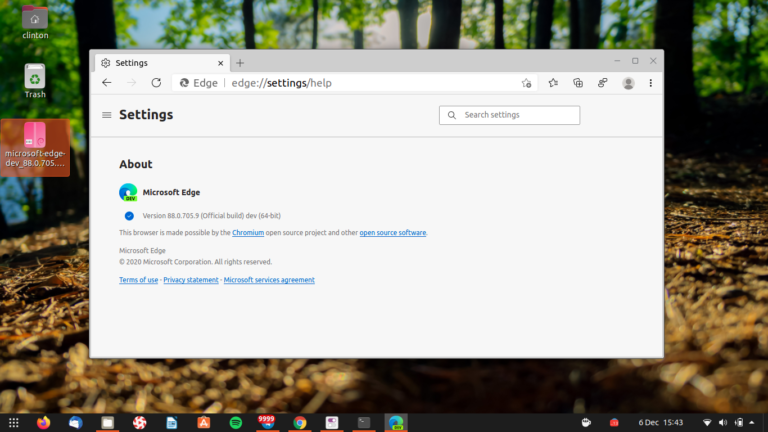
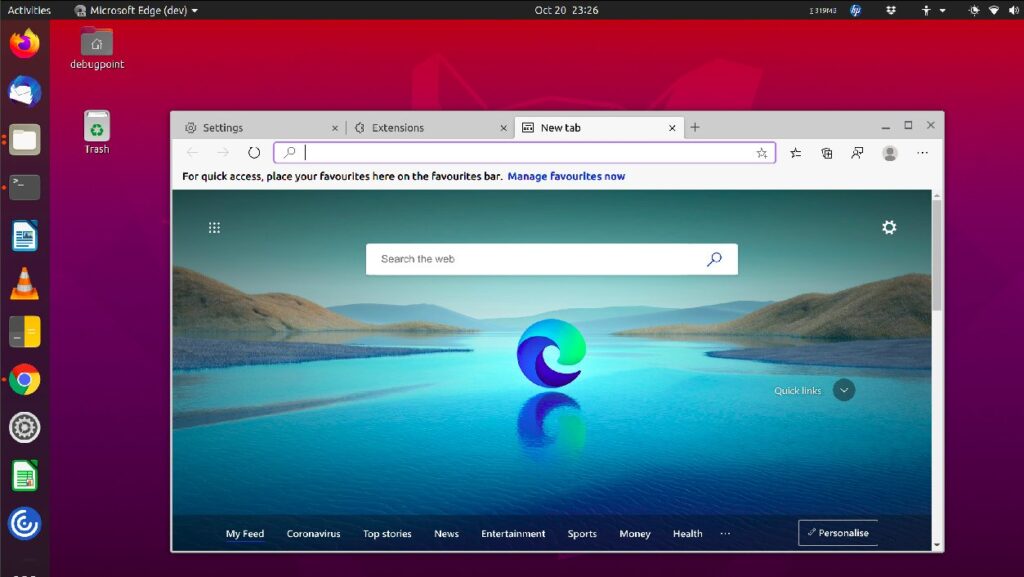
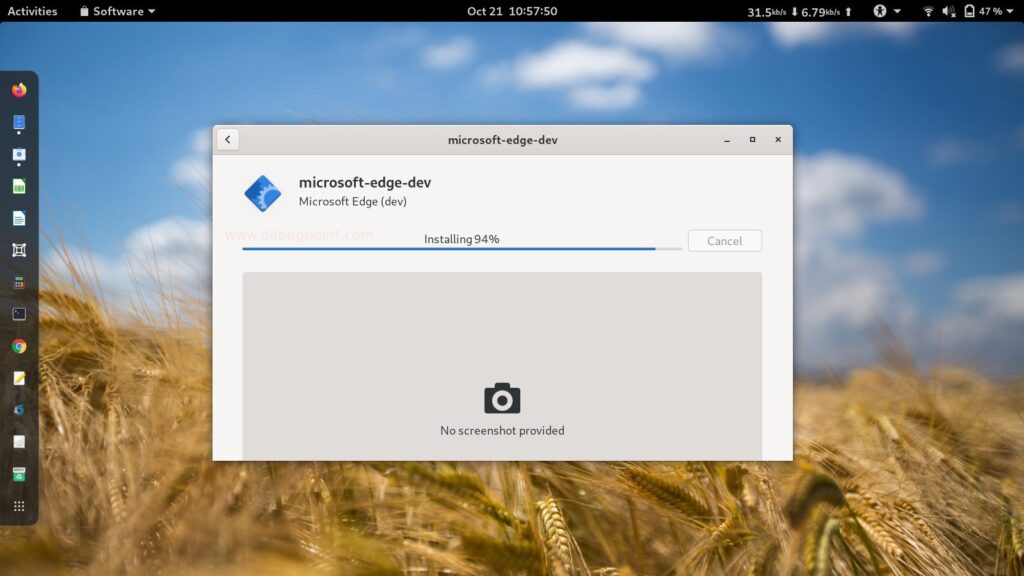
Microsoft Edge Screenshots
Troubleshooting Microsoft Edge on Ubuntu
If you experience issues with repository conflicts or graphics rendering errors after setting up the browser, review the verified resolution steps below.
If you installed Microsoft Edge by downloading the manual DEB file and also registered the repository manually via Method 1, your system will report a duplicate repository warning when running updates (e.g., target configured multiple times). This happens because both installations create independent sources list files that point to the same server URL.
To resolve this warning, delete the duplicate sources list created by the DEB installer, while retaining your clean manually-configured list file:
sudo rm -f /etc/apt/sources.list.d/microsoft-edge-stable.list
After cleaning up the duplicate file, refresh your package index list to verify the warning has disappeared and resume standard package operations:
sudo apt update
When running the Flatpak version of Microsoft Edge on machines with older graphics drivers or hybrid GPU setups, you might encounter rendering glitches, lagging tabs, or a blank screen. This is caused by GPU sandboxing restrictions inside the container.
To resolve these GPU issues, you can grant the container permission to access the GPU socket directly, bypassing restrictive sandboxing limitations. Run the following command in your terminal:
flatpak override --user --device=dri com.microsoft.Edge
If hardware-level compatibility glitches continue, you can force the browser to run in software rendering mode by setting the disable GPU compositor flag inside the Flatpak environment:
flatpak override --user --env=disable-gpu=1 com.microsoft.Edge
How to Uninstall Microsoft Edge from Ubuntu
If you need to remove the browser or revert changes made to your software sources, select the commands matching your original installation method.
To remove Microsoft Edge stable, beta, or dev builds, along with the imported repository signing key and sources lists, run these clean purge scripts in your terminal:
sudo apt purge microsoft-edge-stable microsoft-edge-beta microsoft-edge-dev -y
sudo rm -f /etc/apt/sources.list.d/microsoft-edge.list /etc/apt/sources.list.d/microsoft-edge-stable.list
sudo rm -f /usr/share/keyrings/microsoft-edge.gpg
sudo apt update
If you installed Microsoft Edge using Flatpak, remove the application package and clean up any unused sandbox runtimes with the following scripts:
flatpak uninstall com.microsoft.Edge -y
flatpak uninstall --unused -y
To delete all stored user profiles, browsing histories, caches, and cookies remaining on your computer system, execute the following commands in the terminal:
# Delete configuration directories for the native installation
rm -rf ~/.config/microsoft-edge ~/.config/microsoft-edge-beta ~/.config/microsoft-edge-dev
rm -rf ~/.cache/microsoft-edge ~/.cache/microsoft-edge-beta ~/.cache/microsoft-edge-dev

# Delete configuration directories for the Flatpak installation
rm -rf ~/.var/app/com.microsoft.Edge
Frequently Asked Questions
Is Microsoft Edge natively supported on Linux and Ubuntu?
Yes. Microsoft official packaging lists include full native desktop builds of Microsoft Edge for Linux. It runs on the Chromium engine and is compiled specifically for 64-bit Linux environments (amd64 architecture).
How do I update Microsoft Edge on Ubuntu?
If you installed the browser via the official APT repository or downloaded the manual DEB package, Microsoft Edge will automatically update when you run your system package manager upgrades (using sudo apt upgrade or the Ubuntu Software Updater tool). If you installed via Flatpak, updates are handled by running flatpak update in your terminal.
Can I sync my business Microsoft Entra ID or corporate login settings on Ubuntu?
Yes. Microsoft Edge supports full account profile synchronization on Linux. You can sign in using regular personal Microsoft Accounts (Live Accounts) as well as corporate/education Microsoft Entra ID (formerly Azure Active Directory) credentials to synchronize bookmarks, saved passwords, histories, and browser settings.
How do I disable diagnostic usage data and telemetry reports?
You can disable telemetry by opening the Microsoft Edge Settings panel, navigating to the “Privacy, search, and services” tab, and scrolling down to the “Diagnostics and feedback” section. Turn off the toggle switch for sending optional diagnostic data to opt out of usage reporting.
What should I do if I get a duplicate repository warning when running update commands?
A duplicate repository warning occurs when both the manual DEB installer and your manual repository registration create entries pointing to the same Microsoft package sources. You can easily fix this warning by deleting the automatically generated sources list file (microsoft-edge-stable.list) located in your /etc/apt/sources.list.d/ directory, leaving your manually configured list file (microsoft-edge.list) active.
More Ubuntu web browser guides: Tangram · LibreWolf · Zen Browser · qutebrowser · Falkon Browser · GNOME Web · Vivaldi Browser · Brave Browser