

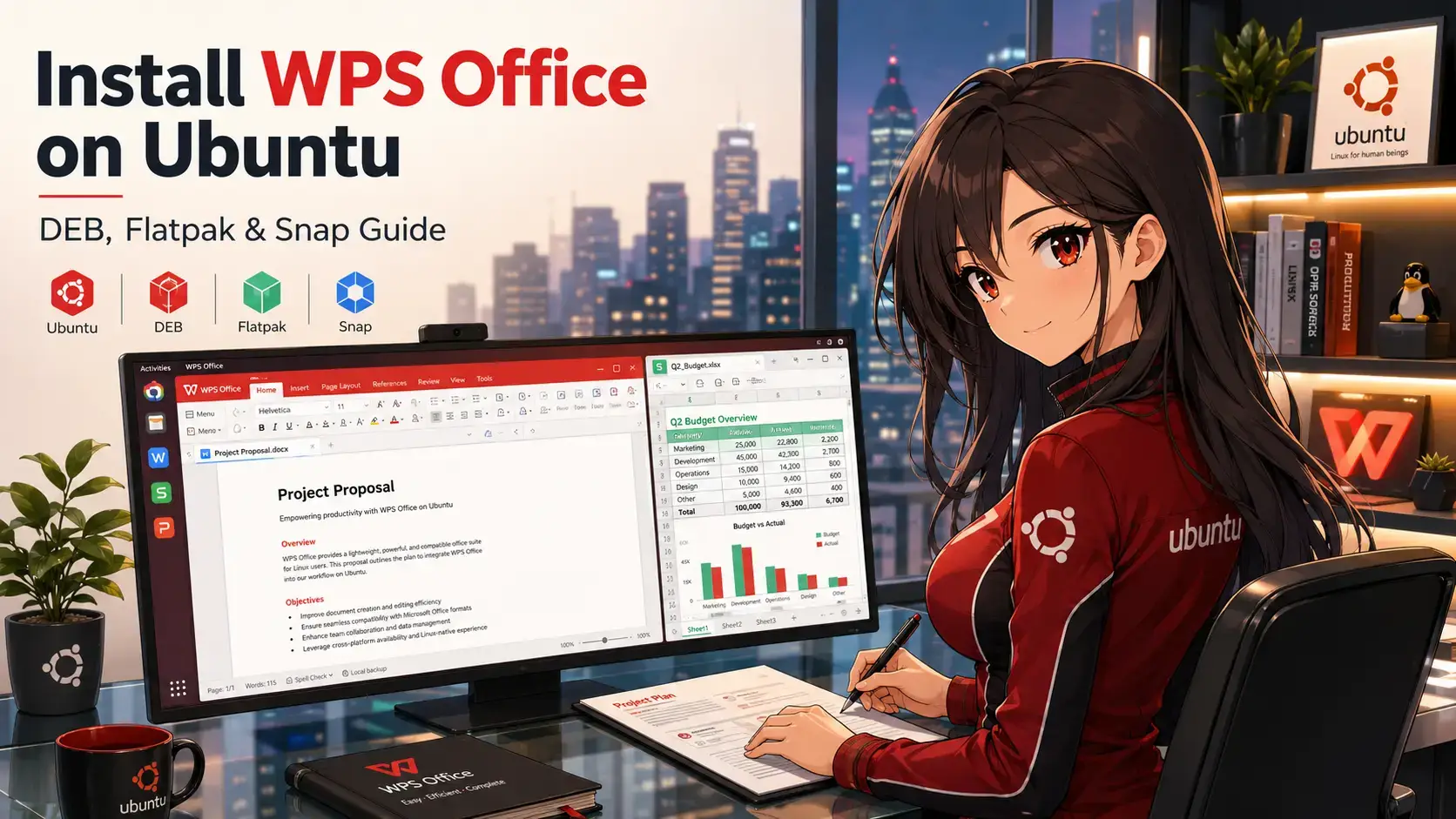

WPS Office is a highly compatible, proprietary office suite that serves as a direct alternative to Microsoft Office. It features a tabbed interface that lets you manage documents, spreadsheets, slides, and PDF editing from a single desktop application.
This guide provides complete, step-by-step terminal instructions for installing and configuring WPS Office on Ubuntu 26.04, 24.04, and 22.04 LTS. We cover native dependency configurations, sandbox permission overrides for the Flatpak edition, and practical steps to fix the common missing formula symbol font warnings.
If you run into issues during the installation, feel free to leave a comment below or contact us directly for troubleshooting assistance.
Native DEB & Flatpak Setup Guide
Configure the premier office productivity suite on your Ubuntu workstation. Fix missing equation symbols, resolve sandbox restrictions, and establish stable native printing services.
Selecting the right installation format determines how updates are delivered and whether the application can interface with local system folders, audio channels, and hardware printers. Compare the technical features below to determine the best method for your workspace.
WPS Office Installation Methods Compared
Review the comparison below to decide between native desktop integration and secure, isolated sandboxing.
| Method | Package Source | Updates Delivery | Sandboxing & Privacy | System Integration |
|---|---|---|---|---|
| Native DEB | Official Kingsoft CDN | Manual downloads and reinstallations | None (Full system permissions) | Excellent. Automatic printer detection and font loading. |
| Flatpak | Flathub (Community) | Managed via standard software center | Strict sandbox. Isolated user folders. | Good. Requires overrides to read system fonts. |
Method 1: Install WPS Office via Native DEB
The native Debian package (.deb) is the recommended installation method for Ubuntu systems. It installs files directly into system directories, avoiding sandboxing limitations, enabling seamless access to files on external partitions, and utilizing system-wide fonts. Follow these terminal instructions to download and install WPS Office.
Use curl or wget to retrieve the latest stable Debian installer from Kingsoft’s official CDNs:
wget https://pcfg.cache.wpscdn.com/wpsdl/wpsoffice/download/linux/11719/wps-office_11.1.0.11719_amd64.deb
Note: If you prefer to download using a web browser, visit the official WPS Office Linux Download Page and select the DEB option.
Deploy the downloaded installer using apt, which automatically resolves and retrieves the required native system dependencies:
sudo apt update
sudo apt install ./wps-office_11.1.0.11719_amd64.deb -y
Method 2: Install WPS Office via Flatpak
The Flatpak installation packages WPS Office inside an isolated container sandbox. This is ideal if you want to avoid adding third-party native files directly to your operating system libraries. The Flatpak version is maintained by community contributors on Flathub.
If Flatpak is not already configured on your machine, install the Flatpak service and add the Flathub store remote configuration:
sudo apt update
sudo apt install flatpak -y
sudo flatpak remote-add --if-not-exists flathub https://dl.flathub.org/repo/flathub.flatpakrepo
Execute the install command to build the isolated WPS container:
flatpak install flathub com.wps.Office -y
Warning: Flatpak builds dynamically fetch the package at install time. If you encounter a download error, it means the Flathub package configuration is broken due to updated upstream CDN paths. If this happens, use the native DEB package installation instead.
Because Flatpak isolation blocks the software from viewing host filesystems, you must manually grant the container read-only access to host system and local user font paths to render characters correctly:
flatpak override --user --filesystem=xdg-data/fonts:ro com.wps.Office
flatpak override --user --filesystem=/usr/share/fonts:ro com.wps.Office
Rebuild the internal Flatpak font cache to apply and verify the permission changes:
flatpak run --command=fc-cache com.wps.Office -fv
If your installation process is interrupted or throws package dependency errors (such as unmet dependencies on older Ubuntu versions), run the standard APT recovery commands to repair your local packages:
sudo apt --fix-broken install
This command instructs the package manager to scan your system configuration, fetch any missing prerequisite shared libraries, and finish configuring the WPS Office DEB package automatically.
System Integration & Font Fixes
When running WPS Office on Ubuntu, users frequently encounter a “missing formula symbol fonts” warning. The warning is caused because the equation editor inside WPS Office expects to find proprietary Microsoft Symbol, Wingdings, Webdings, and MT Extra fonts, which are not distributed with Linux systems due to licensing restrictions. Without these fonts, mathematical formulas and symbols will display as empty boxes or squares.
Install the standard TrueType Core Fonts package to resolve common font substitution warnings:
sudo apt update
sudo apt install ttf-mscorefonts-installer -y
Clone the community Git repository hosting the exact formula symbol fonts (Symbol, Wingdings, Webdings, MT Extra) expected by the WPS equation editor:
git clone https://github.com/jayknoxqu/wps-symbol-fonts.git
Move the symbol TrueType fonts (.ttf) into a system fonts directory and configure execution permissions:
sudo mkdir -p /usr/share/fonts/wps-office
sudo cp wps-symbol-fonts/*.ttf /usr/share/fonts/wps-office/
sudo chmod 644 /usr/share/fonts/wps-office/*.ttf
Tip: If you do not have root privileges, you can copy the `.ttf` files to your local user directory: mkdir -p ~/.local/share/fonts && cp wps-symbol-fonts/*.ttf ~/.local/share/fonts/.
Instruct the operating system to scan for the newly added fonts and update the font cache database:
sudo fc-cache -f -v
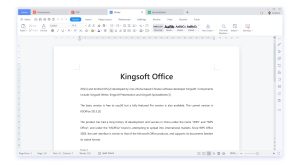
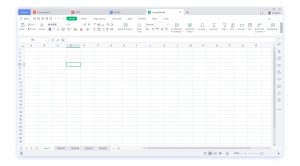
WPS Office Desktop Screenshots
View the layout of WPS Writer, Spreadsheets, and Presentation interfaces running natively on a dark-themed Ubuntu workstation:

Video Installation Walkthrough
Watch this video walkthrough showing the quick installation that most of you would prefer:

How to Cleanly Uninstall WPS Office
If you need to remove WPS Office from your system, choose the command block that corresponds to your installation method to remove the application binaries and purge configuration caches.
To remove the native installation, purge the packages and delete user profile configurations:
sudo apt purge wps-office -y
sudo apt autoremove --purge -y
To delete all saved document presets and template configs, execute the clean command:
rm -rf ~/.config/Kingsoft ~/.local/share/Kingsoft
To uninstall the Flatpak container, delete the package and clean local sandbox settings directories:
flatpak uninstall com.wps.Office -y
Wipe the container filesystem overlays folder completely:
rm -rf ~/.var/app/com.wps.Office
Refer to the following resources for community support and official documentation:
Frequently Asked Questions
Why does WPS Office show a “missing formula symbol fonts” error on Linux?
This error occurs because WPS Office relies on specific Microsoft symbol fonts (like Symbol, Wingdings, Webdings, and MT Extra) for its equation editor. These proprietary fonts are not packaged with Linux distributions by default. You can resolve this by installing the ttf-mscorefonts-installer package and cloning the community symbol fonts repository from GitHub into your local font directory.
How do I fix the missing fonts warning in the Flatpak version of WPS Office?
Flatpak applications run inside an isolated sandbox and cannot view local user fonts by default. You can fix this by running the terminal override command: flatpak override --user --filesystem=xdg-data/fonts:ro com.wps.Office, and then rebuilding the container font cache with: flatpak run --command=fc-cache com.wps.Office -fv.
Why does the WPS Office Flatpak installation sometimes fail with download errors?
The Flatpak package on Flathub is a community wrapper that uses an extra-data script to download the official installer directly from Kingsoft’s servers during installation. If Kingsoft updates their download link structure or blocks the connection, the Flatpak install will fail. In this case, downloading and installing the native DEB package directly is the most reliable option.
Is WPS Office for Linux free to use for personal and commercial purposes?
Yes, WPS Office for Linux is free to download and use for personal productivity. However, it is closed-source proprietary software. Commercial environments should review Kingsoft’s license agreements for compliance before enterprise deployment.
How do I cleanly uninstall WPS Office and purge its temporary settings?
Depending on your installation type: for DEB, run: sudo apt purge wps-office, and delete ~/.config/Kingsoft/; for Flatpak, run: flatpak uninstall com.wps.Office, and delete ~/.var/app/com.wps.Office/.
More office and app installation guides: Microsoft Office Alternatives · OnlyOffice for Linux Guide · Install LibreOffice on Ubuntu · Remmina Remote Desktop Client · Install AnyDesk on Ubuntu