



Rocket.Chat is an open-source, fully customizable communications platform designed for teams that require a high degree of data privacy.
Whether you need a secure alternative to Slack for your internal business operations or a highly scalable community chat server, Rocket.Chat provides end-to-end encryption, extensive third-party application integrations, and robust user management.
This guide provides step-by-step terminal instructions for installing and configuring Rocket.Chat on Ubuntu 26.04, 24.04, and 22.04 LTS.
We cover the recommended Docker Compose architecture for production environments, the simplified Snap deployment for rapid testing, and Desktop Client installations via Snap and Flatpak.
If you run into any issues, feel free to leave a comment below or contact us. We are always here to help.
Docker Compose, Snap, & Flatpak
Deploy your own self-hosted communication platform. Learn how to configure a production-ready Docker environment, spin up a Snap testing server, and install the native desktop client.
Choosing the right installation format matters for a chat server. Production environments need stability and flexible backups, while testing setups prioritize speed. Use the comparison grid below to pick the best option for your needs.
Rocket.Chat Installation Methods Compared
Review the deployment choices below to evaluate their intended use case, maintenance requirements, and architectural flexibility.
| Method | Source channel | Ubuntu Version Matrix | Sandbox isolation | Integration & Notes |
|---|---|---|---|---|
| Docker Compose (Official) | Docker Registry | 26.04: ✓ 24.04: ✓ 22.04: ✓ |
Containerized (Docker) | Recommended for production. Full control over MongoDB and backend services. |
| Snap Server (Snapcraft) | Snap Store | 26.04: ✓ 24.04: ✓ 22.04: ✓ |
Strict (Snap daemon) | Ideal for testing and rapid deployments. Includes built-in Caddy server for SSL. |
| Desktop Client (Snapcraft) | Snap Store | 26.04: ✓ 24.04: ✓ 22.04: ✓ |
Strict (Snap daemon) | End-user desktop client application to connect to an existing server. |
| Desktop Client (Flathub) | Flathub Container Registry | 26.04: ✓ 24.04: ✓ 22.04: ✓ |
Sandboxed (Flatpak) | Alternative client packaging provided by the community on Flathub. |
Method 1: Install Rocket.Chat via Docker Compose (Recommended)
Deploying Rocket.Chat with Docker Compose is the most secure approach. It separates your application runtime from the MongoDB database backend, ensuring that an update failure in one component does not break the other. You will need the Docker engine and the Compose plugin installed on your Ubuntu host.
If your server does not have Docker installed, the fastest way to acquire the official repositories is via the convenience script. Run the following command in your terminal:
curl -L https://get.docker.com | sh
Next, add your current user to the Docker group so you can execute commands without elevated privileges:
sudo usermod -aG docker $USER
Note: You must log out and log back in for the group permissions to take effect.
Create a dedicated folder in the /opt directory to house your configuration files securely, and navigate into it:
sudo mkdir -p /opt/rocketchat
cd /opt/rocketchat
Fetch the officially maintained compose.yml file directly from the Rocket.Chat GitHub repository:
sudo curl -L https://raw.githubusercontent.com/RocketChat/Docker.Official.Image/master/compose.yml -O
You can edit the compose.yml file to adjust the ROOT_URL and port mappings using your preferred text editor (such as nano). Once you are satisfied with the configuration, start the background services:
sudo docker compose up -d
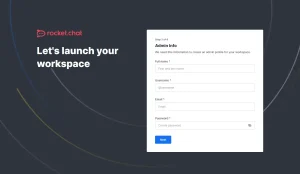
The initial startup sequence may take a few minutes as it initializes the MongoDB replica sets and unpacks the server assets. Once complete, you can access the web interface at http://localhost:3000 to begin the administrative setup wizard.
Method 2: Install Rocket.Chat Server via Snap (Testing)
If you want to spin up a quick instance of Rocket.Chat on an internal network, or if you prefer a system that manages its own updates and SSL certificates autonomously, the Snap package is incredibly convenient. Note that modifying underlying database structures within the snap container is difficult, so it is strictly recommended for testing environments rather than mission-critical infrastructure.
Open your terminal and execute the following command to download and install the bundled server environment:
sudo snap install rocketchat-server
If you have a domain name pointed to your server, you can enable the built-in Caddy integration to fetch a Let’s Encrypt SSL certificate automatically:
sudo snap set rocketchat-server caddy=enable
sudo snap set rocketchat-server https=enable
sudo snap set rocketchat-server siteurl=https://yourdomain.com
Restart the snap service to apply the configuration changes:
sudo systemctl restart snap.rocketchat-server
Method 3: Install the Rocket.Chat Desktop Client
If you already have a server running, or are joining an existing organization, you will need the desktop client. The client integrates with your Ubuntu notification system, supports multiple workspaces, and provides a much better experience than keeping a web browser tab open.
sudo snap install rocketchat-desktop
Once installed, launch the application from your desktop grid, enter your server’s URL, and log in with your account credentials.
If you prefer the Flatpak ecosystem over Snap, you can install the Rocket.Chat client from Flathub using the following command:
flatpak install flathub chat.rocket.RocketChat
To run the Flatpak client via terminal if it doesn’t appear in your desktop grid right away, use: flatpak run chat.rocket.RocketChat.
Interface Screenshots
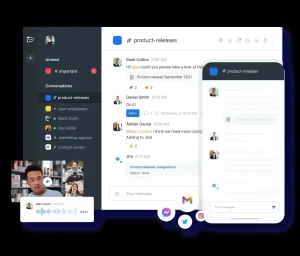
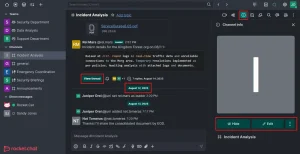
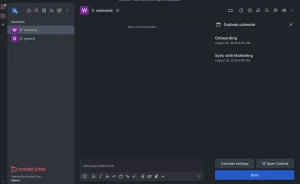
See what the Rocket.Chat interface looks like on the Ubuntu desktop.
Troubleshooting Common Issues
Below are common issues you might run into when installing Rocket.Chat on Ubuntu, along with their solutions.
If Rocket.Chat fails to start, it is often because another service on your Ubuntu host is already bound to port 3000. You will see a “bind: address already in use” error in the logs.
Solution: Edit the compose.yml file and map the host port to a different number (e.g., 3001) in the ports section:
ports:
  - "3001:3000"
Rocket.Chat relies on MongoDB replica sets. If the initial setup times out, the backend services will constantly restart and the web interface will not load.
Solution: You can check the Docker logs by running sudo docker compose logs -f. If the MongoDB container is failing to elect a primary node, destroy the broken setup with sudo docker compose down -v, ensure your system has sufficient RAM, and try bringing the stack up again.
Video Tutorial
If you prefer a visual walkthrough, watch the following video demonstrating the features of Rocket.Chat and explaining how the platform works:

How to Uninstall Rocket.Chat
If you want to remove your installation or uninstall the desktop client, follow the instructions for your original deployment method.
Navigate to your project folder, halt the active containers, and remove the project directory along with its stored data volumes:
cd /opt/rocketchat
sudo docker compose down -v
sudo rm -rf /opt/rocketchat
Use the following commands to safely remove the snap packages and purge their associated data.
To remove the Server:
sudo snap remove rocketchat-server
To remove the Desktop Client:
sudo snap remove rocketchat-desktop
If you installed the desktop client using Flatpak, remove it and its orphaned configuration data with the following command:
flatpak uninstall --delete-data chat.rocket.RocketChat
Executing the down -v command or removing the Snap package will permanently delete your MongoDB database and all uploaded files. Ensure you have proper backups configured if this is a production system.
Use the links below to access community forums, source code repositories, and official administration guides for Rocket.Chat:
Frequently Asked Questions
Common questions about deploying and maintaining the platform on Ubuntu.
Is Rocket.Chat available in the default Ubuntu repositories?
No, Rocket.Chat is not included in the standard Ubuntu repositories. You must install it using the official Docker Compose files or through the Snap Store.
Which Rocket.Chat installation method is recommended for production?
The Docker Compose method is officially recommended for production environments because it offers full control over the database migration process, version pinning, and network isolation.
Can I use the Snap package for a production server?
The Snap package is highly convenient and configures a Caddy web server automatically, but it is generally recommended for testing, development, or small-scale deployments due to limited configuration flexibility.
How do I access my new Rocket.Chat server once it is running?
Once the Docker Compose or Snap services are active, you can access the setup wizard by opening a web browser and navigating to http://localhost:3000 (or your server’s domain or IP address).
How do I install the Rocket.Chat Desktop client on Ubuntu?
The desktop application can be installed through the Snap Store by running sudo snap install rocketchat-desktop, or via Flathub using flatpak install flathub chat.rocket.RocketChat.
Related messaging guides: Install WeChat on Ubuntu · Install Signal on Ubuntu · Install Telegram on Ubuntu · Install WhatsApp on Ubuntu · Install Messenger on Ubuntu