 You can install the Tor Browser on Ubuntu using the official Tor Browser Launcher, the Tor Project official repository, Flatpak from Flathub, or a direct manual download.
Tor Browser is the most trusted web browser for privacy, routing your internet traffic through the decentralized Tor network to hide your location (IP address), block trackers, and bypass network censorship. While you can download the browser manually, Ubuntu supports installation tools that automate setup, handle background updates, and verify security signatures.
This guide provides step-by-step terminal instructions for all four installation methods, compares their features, and resolves common issues like key errors and security blocks on Ubuntu 24.04 LTS and 26.04 LTS.
If you run into any setup issues or have questions about configuring bridges for restricted networks, please leave a comment below or contact us directly for support. We are always here to help you browse securely.
Launcher, APT, Tarball & Flatpak Complete Guide
Set up the Tor Browser on Ubuntu Desktop. Learn how to configure the recommended Launcher, set up the official Tor Project repository, or run Flatpak apps and official manual downloads.
Choosing the right installation method affects how Tor Browser handles updates and secures your browsing. The recommended Tor Launcher validates security signatures automatically to keep your downloads safe. For advanced configurations, the official Tor Project repository provides packages directly from the vendor, while Flatpak apps isolate the browser from the rest of your system.
Tor Browser Installation Methods Compared
Use the comparison table below to compare sandboxing security, how updates are handled, and who maintains each version.
| Method | Sandboxed | Key Verification | Updates | Maintained By |
|---|---|---|---|---|
| Tor Launcher (APT) | Optional (AppArmor) | Automatic GPG Check | Browser Auto-Update | Ubuntu Package Team |
| Tor Project Repo | No | Official Archive Key | System Update (APT) | Tor Project Developers |
| Official Tarball | No | Manual GPG Check | Browser Auto-Update | Tor Project Developers |
| Flatpak | Yes (Bubblewrap) | Automatic GPG Check | System Auto-Update | Tor Project Wrapper (Flathub) |
Method 1: Install Tor Browser via Tor Launcher (Recommended)
The Tor Browser Launcher is the easiest and most secure way to install Tor Browser on Ubuntu. Available directly in Ubuntu’s default software sources, this tool automatically downloads the browser files, imports the official Tor Project developer keys, and verifies the files are genuine before opening the browser. This prevents you from running fake or modified versions while automatically adding application shortcuts to your desktop menu.
Update your local package database indices and install the official launcher helper package:
sudo apt update
sudo apt install -y torbrowser-launcher
Method 2: Install via Official Tor Project Repository (Native APT)
If you want to receive updates directly from the developers, you can add the official Tor Project repository (deb.torproject.org) to Ubuntu. This ensures you are always running the most up-to-date stable release of Tor and its tools directly from the source team.
Install prerequisite connection tools, create a secure directory for repository keys, and import the official Tor Project developer signing key:
sudo apt update && sudo apt install -y apt-transport-https curl gnupg
sudo install -d -m 0755 /etc/apt/keyrings
curl -fsSL https://deb.torproject.org/torproject.org/A3C4F0F979CAA22CDBA8F512EE8CBC9E886DDD89.asc | sudo gpg --dearmor -o /etc/apt/keyrings/torproject-archive-keyring.gpg
Add the repository address to your system’s software sources list, configuring it to use the security key downloaded in Step 1:
echo "deb [signed-by=/etc/apt/keyrings/torproject-archive-keyring.gpg] https://deb.torproject.org/torproject.org $(lsb_release -sc) main" | sudo tee /etc/apt/sources.list.d/torproject.list
Important Version Fallback Note: If you are running a brand-new release like Ubuntu 26.04 (Resolute Raccoon) and the upstream Tor Project repository configuration returns a 404 error during setup, the repository index may not yet be updated for the new codename. If this occurs, edit your sources file and replace resolute with the previous LTS release codename noble to successfully fetch packages.
Instruct Ubuntu to prioritize the official Tor Project repository over default Ubuntu sources so your system always installs the official package updates:
echo -e "Package: *\nPin: origin deb.torproject.org\nPin-Priority: 1000" | sudo tee /etc/apt/preferences.d/torproject
Update your local app lists and install the Tor package along with its automatic security key updater:
sudo apt update
sudo apt install -y tor deb.torproject.org-keyring torbrowser-launcher
Method 3: Install Tor Browser via Official Direct Download (Tarball)
If you want a portable installation or prefer not to use package managers, you can download Tor Browser directly from the official website. This method extracts the browser package to your local home directory, allowing it to run and manage its own updates independently. Since this download comes straight from the vendor, it is fully secure and supported directly by the Tor Project developer team.
Use the command line to download the latest stable release archive of Tor Browser for Linux AMD64 from the official distribution servers:
cd ~/Downloads
wget https://dist.torproject.org/torbrowser/15.0.14/tor-browser-linux-x86_64-15.0.14.tar.xz
Security Recommendation: Always verify the authenticity of your download. You can download the corresponding signature file (tor-browser-linux-x86_64-15.0.14.tar.xz.asc) and verify it using GPG against the Tor Project developer key before extraction.
Extract the downloaded `.tar.xz` file to unpack the browser files into a directory in your home folder:
tar -xvJf tor-browser-linux-x86_64-15.0.14.tar.xz
Navigate into the extracted directory and run the desktop registration script. This adds Tor Browser to your system applications menu so you can launch it easily:
cd tor-browser
./start-tor-browser.desktop --register-app
Method 4: Install Tor Browser via Flatpak (Flathub)
Flatpak runs Tor Browser inside a secure, isolated container. The Flatpak version of the Tor launcher downloads the browser and verifies its security keys automatically within its own sandbox. To install it, you first configure the Flatpak system tool, add the Flathub app store, and run the installation command.
Set up the Flatpak framework on Ubuntu and register the Flathub application store repository:
sudo apt update
sudo apt install -y flatpak
sudo flatpak remote-add --if-not-exists flathub https://dl.flathub.org/repo/flathub.flatpakrepo
Install the Tor Browser launcher wrapper from the Flathub repository:
flatpak install flathub org.torproject.torbrowser-launcher
Tor Browser Screenshot
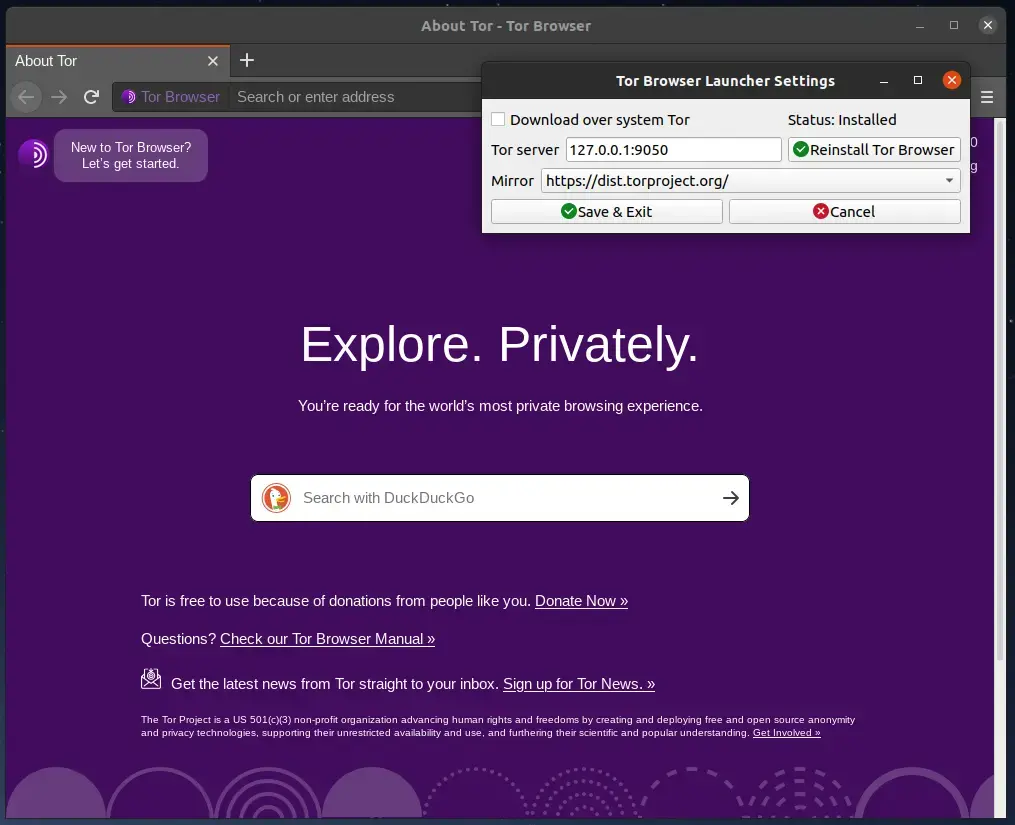
Tor Browser homepage with the DuckDuckGo as the default browswer
Troubleshooting Common Tor Browser Issues
If Tor Browser fails to open and displays a signature verification error, it usually means the local security keys have expired or the download servers changed. You can force the launcher to download fresh verification keys from public key servers using this command in your terminal:
gpg --homedir "$HOME/.local/share/torbrowser/gnupg_homedir" --refresh-keys --keyserver keyserver.ubuntu.com
Ubuntu uses a security tool called AppArmor that can sometimes block Tor Browser from running out of your local home directory. This can cause the browser to fail to open. You can allow Tor Browser to run by disabling folder namespace restrictions with this terminal command:
sudo sysctl -w kernel.apparmor_restrict_unprivileged_userns=0
If you added the Tor Project repository multiple times, you might see duplicate source warnings when updating your packages. Clean up the duplicate repository configuration files using the terminal:
sudo rm -f /etc/apt/sources.list.d/tor*.list
sudo apt update
How to Uninstall Tor Browser from Ubuntu
If you want to clean up your system, purge temporary browsing data, or revert custom repository registrations, use the terminal instructions below to completely remove Tor Browser packages and clear localized directory configurations.
1. For the Tor Browser Launcher (Method 1):
Remove the launcher helper app, refresh your package list, and delete all Tor files from your home directory:
sudo apt purge -y torbrowser-launcher
rm -rf ~/.local/share/torbrowser ~/.config/torbrowser
2. For the Official APT Repository Configuration (Method 2):
Uninstall the Tor packages, remove the repository configuration and priority settings, delete the security keys, and update your package lists:
# Remove packages
sudo apt purge -y tor deb.torproject.org-keyring torbrowser-launcher

# Clean up sources and preferences
sudo rm -f /etc/apt/sources.list.d/torproject.list
sudo rm -f /etc/apt/preferences.d/torproject
sudo rm -f /etc/apt/keyrings/torproject-archive-keyring.gpg

# Refresh indices
sudo apt update
3. For the Manual Tarball Installation (Method 3):
Remove the extracted browser directory and its desktop shortcut file:
rm -rf ~/Downloads/tor-browser
rm -f ~/.local/share/applications/start-tor-browser.desktop
4. For the Flatpak Package (Method 4):
Uninstall the Flatpak app wrapper and delete its sandboxed storage folders:
flatpak uninstall -y org.torproject.torbrowser-launcher
rm -rf ~/.var/app/org.torproject.torbrowser-launcher
Frequently Asked Questions
What is the recommended method to install Tor Browser on Ubuntu?
The recommended method is using the Tor Browser Launcher (torbrowser-launcher) from the official repositories. It automatically handles the download, verifies GPG signatures against the Tor Project official signing keys, builds launcher shortcuts, and maintains updates.
How do I install Tor Browser using the official Tor Project repository?
You can configure the official repository (deb.torproject.org) by importing the GPG archive key, writing the repository configuration file, setting APT preference pinning, and then running the package install command for the launcher or background service.
Why is there no official Snap package for Tor Browser?
The Tor Project does not officially maintain or recommend Snap packages for Tor Browser because security-sensitive software requires direct, verified release channels. Unofficial community packages can have lagging update cycles, leaving users exposed to security risks.
How do I update Tor Browser on Ubuntu?
If installed via Tor Browser Launcher or direct manual download, the browser automatically checks for, verifies, and downloads updates in the background upon launch. If installed via Flatpak, the system service manages automatic background updates.
How do I completely uninstall Tor Browser from Ubuntu?
You can remove Tor Browser by running the corresponding uninstall command (apt purge for launcher, deleting the extracted folders for manual install, or flatpak uninstall for Flatpak) and then purging the local configuration folders located in your home directory (~/.local/share/torbrowser and ~/.config/torbrowser).
More Ubuntu web browser guides: Opera Browser · Google Chrome · Chromium Browser · Firefox Browser · Brave Browser · Best Web Browsers