


Install Open WebUI on Ubuntu
To install Open WebUI on Ubuntu, run docker run -d -p 3000:8080 --add-host=host.docker.internal:host-gateway -v open-webui:/app/backend/data --name open-webui ghcr.io/open-webui/open-webui:v0.11.3 and open http://localhost:3000. It is free, it runs on your own machine, and it talks to the models you already have.
Open WebUI is a chat window in your browser that sits in front of Ollama, so you get saved conversations, model switching and file uploads instead of a terminal prompt. This guide covers the Docker install, the Python install for machines without Docker, connecting it to Ollama, and removing it cleanly. If a step does not work on your system, leave a comment below or contact us and we will help you sort it out.
What It Adds to Ollama
Ollama runs the model. Open WebUI is the window you talk to it through. Four things arrive with it that the terminal does not have.
Every chat is saved in a sidebar and you can reopen one from last week, rename it, or drop it in a folder. Close the terminal on an ollama run session and that conversation is gone.
A dropdown at the top of the chat changes which model answers the next message, keeping everything said so far. Ask a small fast model first, then hand the hard part of the same conversation to a bigger one.
Attach a PDF, a text file or a spreadsheet to a message and ask questions about it. The terminal can pipe a file in, but you have to know the command and you cannot follow up without piping it again.
Separate logins, each with their own chats, all sharing one machine’s models. Useful for a family computer or a small office box, and you decide who is allowed to sign up.
None of this replaces Ollama. Ollama keeps doing the downloading and the running, so the terminal commands you already know still work while Open WebUI is open. If you have not set that side up yet, start with our guide to installing Ollama on Ubuntu and come back with a model pulled.
Docker or Python?
Use Docker unless you have a reason not to. It is the method the project recommends, it is one command, and it does not care which Python your Ubuntu ships.
| Method | Address | Needs | Pick it when |
|---|---|---|---|
| Docker | localhost:3000 | Docker installed | Almost always. Updates and removal are one command each. |
| uv | localhost:8080 | The uv tool | You do not want Docker. It brings its own Python. |
| pip | localhost:8080 | Python 3.11 or 3.12 | You already run a supported Python and prefer it. |
Ports and requirements as published by Open WebUI.
Open WebUI supports Python 3.11 and 3.12 only. Ubuntu 26.04 ships 3.14. So a plain pip install open-webui on a fresh 26.04 machine either refuses to install or lands on a version it was never tested against. Ubuntu 24.04 ships 3.12 and is fine.
That is the whole reason Docker is the recommendation here rather than a preference. If you want the Python route on 26.04 anyway, use uv, which downloads a 3.11 of its own and leaves your system Python alone.
Install Open WebUI on Ubuntu
Three steps for the Docker route, and a fourth card if you are skipping Docker.
Step 1: Check Docker and Ollama are there
Both should answer before you go further. If Docker is missing, our Docker install guide for Ubuntu covers it, including adding yourself to the docker group so you are not typing sudo in front of everything.
mike@ubuntu:~$ docker --version
Docker version 28.3.2, build 578ccf6

mike@ubuntu:~$ ollama list
NAME                   ID              SIZE      MODIFIED
ministral-3:latest     8c4a1f9e2b77    6.0 GB    2 days ago
An empty ollama list is worth fixing now, because Open WebUI with no models installed looks exactly like Open WebUI that cannot reach Ollama. Pull something small first, for example ollama pull ministral-3:3b.
Step 2: Make a secret key
One command, and it saves you a problem later. This key is what your login is signed with:
mike@ubuntu:~$ openssl rand -hex 32
8f3c1d9a7b42e05c6ad18f93b7e2c4a5109d6f8b3e27c41a9d05b6e8f7a3c2d1
Copy the line it prints. Without a fixed key, Open WebUI makes a new one every time the container is recreated, which means you are logged out and have to sign in again the first time you update. Paste yours into the command in the next step.
Step 3: Start the container
Swap in your own key, then run it. The download is a few gigabytes and takes a minute or two:
docker run -d -p 3000:8080 \
  --add-host=host.docker.internal:host-gateway \
  -v open-webui:/app/backend/data \
  -e WEBUI_SECRET_KEY=paste-your-key-here \
  --name open-webui --restart always \
  ghcr.io/open-webui/open-webui:v0.11.3
Then open http://localhost:3000 in your browser. Each part of that command earns its place:
-p 3000:8080puts it on port 3000 for you. Inside the container it always runs on 8080.--add-hostis how the container reaches Ollama on your machine. Leave it out and you get an empty model list.-v open-webui:/app/backend/datakeeps your chats, account and settings in a Docker volume, outside the container, so updating does not touch them.:v0.11.3pins the version. The alternative is:main, which moves under you, so a pull that breaks something leaves you with no version number to go back to. Pin it, and change the number when you choose to.
Using an NVIDIA card? Add --gpus all and use the :cuda image instead. That is only needed for features Open WebUI runs itself, such as local document search. Your models are still Ollama’s job.
Step 4: Without Docker, use uv or pip
Skip this if Step 3 worked. The uv route brings its own Python 3.11, which is what makes it work on any Ubuntu release:
mike@ubuntu:~$ curl -LsSf https://astral.sh/uv/install.sh | sh
mike@ubuntu:~$ DATA_DIR=~/.open-webui uvx --python 3.11 open-webui@latest serve
On Ubuntu 24.04, where the system Python is 3.12, plain pip works too. Put it in a virtual environment so it does not mix with anything else:
mike@ubuntu:~$ python3 -m venv ~/openwebui
mike@ubuntu:~$ source ~/openwebui/bin/activate
mike@ubuntu:~$ pip install open-webui
mike@ubuntu:~$ open-webui serve
Either way it lands on http://localhost:8080, not 3000, and it runs in that terminal window. Close the window and it stops, so this route suits trying it out more than leaving it running.
Your First Run and Your Account
The first screen asks you to create an account, with a name, an email address and a password. That account exists only on your computer.
Nothing is registered anywhere, no email is sent, and there is no service checking the address is real. Your details go into a database file inside the Docker volume you created in Step 3, alongside your chats. You can type any email you like, as long as you remember it, because it is your username.
The first account created is the administrator. It controls settings and who else may sign up, and the sign-up screen closes itself once that first account exists. So make yours first, before anyone else on the machine opens the page.
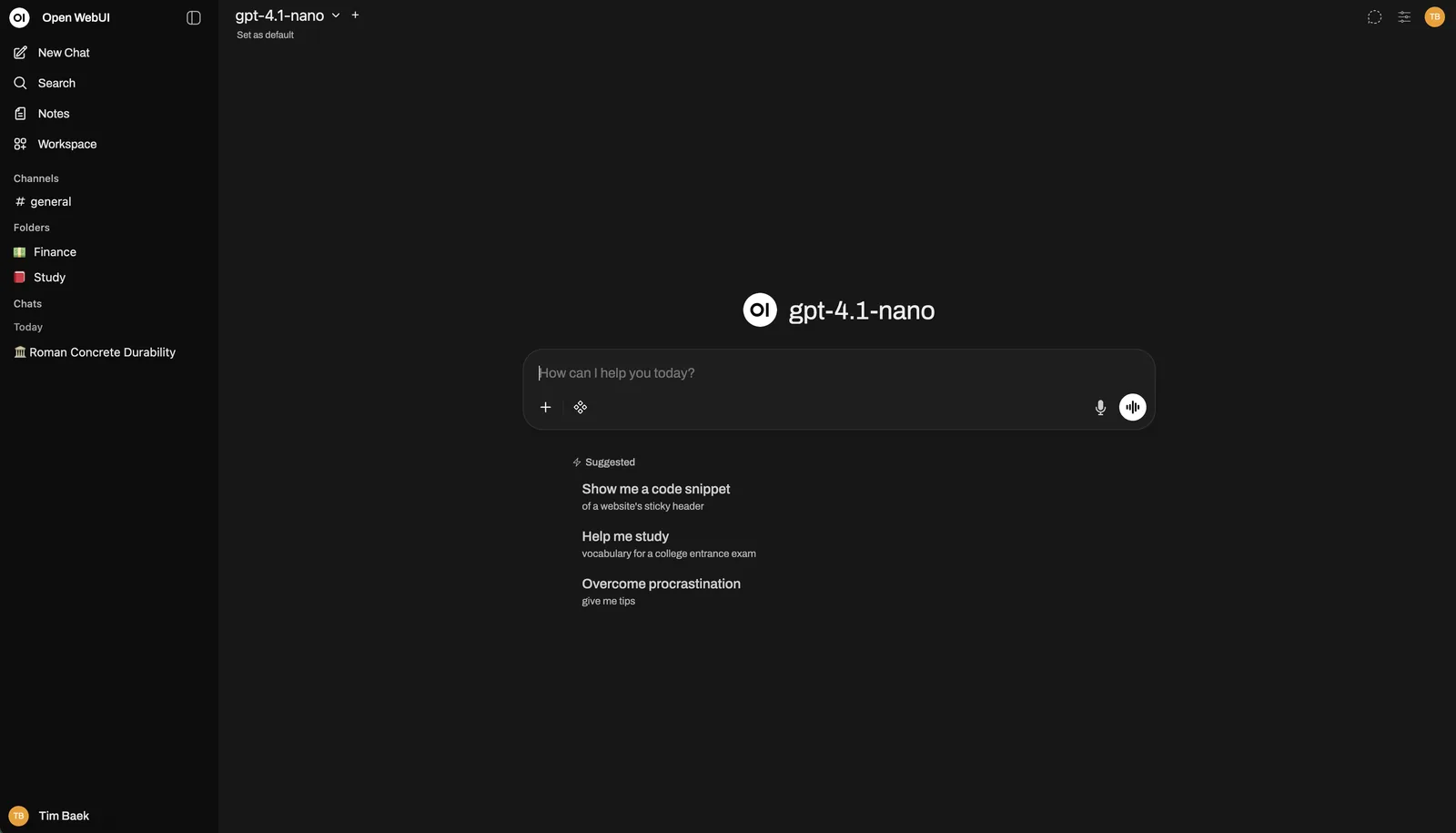

The Open WebUI chat screen.
Once you are in, the model dropdown sits at the top of the chat and lists everything ollama list shows. Pick one, type a message, and the answer is generated by your own machine. If that dropdown is empty, the next section is the one you need.
Connect It to Ollama
An empty model list is the most common thing to go wrong, and it is a networking problem rather than a broken install. The container has its own idea of what “this machine” means.
The --add-host=host.docker.internal:host-gateway flag from Step 3 is what teaches it, and Open WebUI then finds Ollama on its own. Three things break that, in order of how often they do.
Check what the container was started with, and if the flag is missing, remove it and run the Step 3 command properly. Your data is in the volume, so nothing is lost:
mike@ubuntu:~$ docker rm -f open-webuiOpen the settings, go to Admin Settings, then Connections, and set the Ollama address to http://host.docker.internal:11434. There is a button beside it that tests the connection and tells you straight away. The same value can be set at install time instead, with -e OLLAMA_BASE_URL=http://host.docker.internal:11434.
By default Ollama answers requests from your machine and nothing else, and a container counts as somewhere else. Open its service settings, add the line below, then save and restart:
mike@ubuntu:~$ sudo systemctl edit ollama

[Service]
Environment="OLLAMA_HOST=0.0.0.0"

mike@ubuntu:~$ sudo systemctl restart ollama
Know what this does before you do it. Ollama will now answer anything that can reach your machine on port 11434, not only the container. On a home computer behind a router that is fine. On a shared network, set a firewall rule for that port at the same time.
Still nothing? There is one more route, which swaps container networking for the machine’s own. Start it with --network=host and -e OLLAMA_BASE_URL=http://127.0.0.1:11434, dropping the -p flag. The page then answers on port 8080 rather than 3000, which catches people out.
With a connection working, every model you pull appears in the dropdown within a few seconds. Our guides to Mistral, Qwen, DeepSeek and Llama each cover which size to pick, and you can install several and switch between them inside one conversation.
When Something Else Fits Better
Open WebUI is a server with a web page in front of it, and that shape has a cost. If you want a program in your applications menu, one of these is a better fit.
| Tool | Shape | Source | Choose it when |
|---|---|---|---|
| Open WebUI | Browser page, Docker | Open source | You already run Ollama, or more than one person uses the machine. |
| Jan | Desktop app, no Docker | Open source | You want one program that downloads and runs models by itself. |
| LM Studio | Desktop app, no Docker | Closed source, free | You want the most polished interface and do not mind closed source. |
| AnythingLLM | Desktop app or Docker | Open source, MIT | Your main job is asking questions about your own documents. |
All four are actively developed and available for Linux. Jan ships a .deb, an AppImage and a Flathub package, LM Studio a .deb and an AppImage, AnythingLLM an installer script.
If you would rather not install Docker, one of the desktop apps above is less setup, because Docker is most of the work here. On 8GB, stay with a smaller model and Open WebUI runs fine on top of it.
Update and Remove It Cleanly
Both are short, and both turn on the same fact: your data is in the volume, not the container.
Check the releases page for the current version number, then pull it, throw the old container away and start a new one with the same command from Step 3. Keep the same key and the same volume name and you stay logged in:
mike@ubuntu:~$ docker pull ghcr.io/open-webui/open-webui:v0.11.3
mike@ubuntu:~$ docker rm -f open-webui
If the new version misbehaves, the way back is the old number in the same command. That is the whole reason for pinning rather than running :main.
Three commands: the container, the image, and the volume. The volume is the one people forget, and it is the one holding your chats and your account, so leaving it behind means a fresh install quietly logs you into your old data months later:
mike@ubuntu:~$ docker rm -f open-webui
mike@ubuntu:~$ docker image rm ghcr.io/open-webui/open-webui:v0.11.3
mike@ubuntu:~$ docker volume rm open-webui
That last command deletes your conversations and cannot be undone, so run docker volume ls first if you want to see what is there. Installed with uv or pip instead? Stop it with Ctrl+C, then delete ~/.open-webui and the virtual environment folder.
None of this touches Ollama or your models. They are installed separately and stay where they are.
Fix Common Problems
Four things account for most first attempts going wrong.
The model dropdown is empty
FIX Run ollama list first. Empty output means pull a model, not a connection fault.
An empty list and a broken connection look identical on screen. If ollama list shows models and the dropdown does not, work through Connect It to Ollama above, starting with the missing --add-host flag.
bind: address already in use
FIX Use a different port: -p 3001:8080, then open localhost:3001.
Port 3000 is popular with development servers, so something else may have it. Only the left hand number changes. The 8080 on the right is inside the container and must stay as it is.
ERROR: Could not find a version that satisfies the requirement open-webui
FIX Your Python is too new. Use the uvx --python 3.11 command from Step 4.
Open WebUI supports 3.11 and 3.12 and Ubuntu 26.04 ships 3.14, so this is expected rather than a fault on your machine. Check yours with python3 --version. The uv route brings a supported one with it and does not disturb the system Python, which several Ubuntu tools depend on.
You are logged out after an update
FIX Sign in again, and put the same WEBUI_SECRET_KEY in every future run command.
Your chats and your account are safe in the volume. Only the signed-in session broke, because a container started without a key generates a fresh one and last week’s session no longer matches it. Save your key somewhere you will find it, next to the run command.
Helpful Resources
Frequently Asked Questions
Do I need Ollama to use Open WebUI?
For a local setup, yes, something has to run the models and Ollama is the usual choice. Open WebUI can also connect to other services that speak the same interface, including paid ones, but then your text leaves your machine. Install Ollama first and pull at least one model before you start the container, so you can tell a working connection from an empty model list.
Is the account I create on Open WebUI stored online?
No. The name, email address and password you type on first run go into a database file in the Docker volume on your own computer. No email is sent, nothing is registered with anyone, and the address does not have to be real. The first account created becomes the administrator, and sign-up closes once it exists.
Why does Open WebUI show no models when Ollama is running?
The container cannot reach Ollama on your machine. Start it with the –add-host=host.docker.internal:host-gateway flag, then set the Ollama address in Admin Settings to http://host.docker.internal:11434 if it still does not find it. If that fails too, Ollama is only listening to itself, and setting OLLAMA_HOST=0.0.0.0 in its service settings fixes that.
Can I install Open WebUI without Docker?
Yes, through Python, and it runs on port 8080 rather than 3000. Open WebUI supports Python 3.11 and 3.12 only, and Ubuntu 26.04 ships a newer one, so use uv, which fetches a supported Python of its own: DATA_DIR=~/.open-webui uvx –python 3.11 open-webui@latest serve. On Ubuntu 24.04 plain pip works inside a virtual environment.
How do I remove Open WebUI completely?
Remove the container, the image and the volume: docker rm -f open-webui, then docker image rm, then docker volume rm open-webui. The volume is the important one, because it holds your account and every conversation, and a later reinstall will pick it back up if you leave it there. None of this affects Ollama or your models.
Is Open WebUI free and open source?
It is free, and the source is public under a BSD-style licence with one extra condition: the Open WebUI name and logo have to stay in place unless your deployment has fifty or fewer users, or you have written permission. Running it at home or in a small team costs nothing and changes nothing. Rebranding it for a large deployment is the case that needs a conversation with the project.
The models you already pulled, with saved conversations and a model picker in front of them.
Related guides: Install DeepSeek Harness on Ubuntu · Best Open Source AI Tools for Ubuntu · More AI guides for Ubuntu