


For most Ubuntu users, open Facebook messages in your browser, then install that page as a desktop-style web app if you want a launcher icon and separate window. Caprine is still an option if you specifically want an unofficial desktop app, but it should be treated with more caution because it is not made by Meta.
This keeps you on Facebook’s own website, works on current Ubuntu releases, and avoids trusting a third-party app with your login session.
Best Way to Use Facebook Messenger on Ubuntu
The best way to use Facebook Messenger on Ubuntu is to open Facebook messages in a modern browser and install it as a web app if your browser supports that feature.
This is the safest default because you are signing in through Facebook’s own website. You also get normal browser security updates, browser password manager support, and fewer problems when Meta changes how Messenger works.
Use the browser web app method first. Try Caprine only if you understand that it is an unofficial wrapper and you specifically want a separate desktop app experience.
How to install Methods for Facebook Messenger on Ubuntu
Method 1: Install Facebook Messenger as a Chrome Web App
If you use Google Chrome on Ubuntu, you can make Facebook messages behave more like a desktop app. It will open in its own window and can appear in your app launcher.
- Open Google Chrome.
- Go to https://www.facebook.com/messages/.
- Sign in to your Facebook account.
- Open the Chrome menu in the top-right corner.
- Choose Cast, save, and share, then choose Install page as app.
- Name it Facebook Messenger or Facebook Messages.
- Open it from your Ubuntu app launcher.
Note: If Chrome does not show the install option, create a normal browser bookmark instead. Facebook can change how installable its pages appear, but the web version still works through the browser.
Method 2: Install Facebook Messenger as an Edge Web App
Microsoft Edge also supports installing websites as apps on Linux. This is useful if you prefer Edge or if Chrome does not show the install option for your Facebook messages page.
- Open Microsoft Edge.
- Go to https://www.facebook.com/messages/.
- Sign in to Facebook.
- Open the Edge menu in the top-right corner.
- Choose Apps, then choose Install this site as an app.
- Confirm the app name.
- Launch it from Edge’s app page or from your Ubuntu app launcher.
Edge also lets you manage installed web apps from edge://apps. From there, you can open the app, create shortcuts, manage permissions, or uninstall it.
Method 3: Use Messenger in Firefox
Firefox works well for using Facebook messages in a normal tab. The main difference is that Firefox does not provide the same built-in install-as-app workflow as Chrome or Edge.
If Firefox is your main browser, the simple setup is to bookmark Facebook messages, allow notifications when prompted, and pin the tab if you keep Messenger open during the day.
Method 4: Install Caprine on Ubuntu
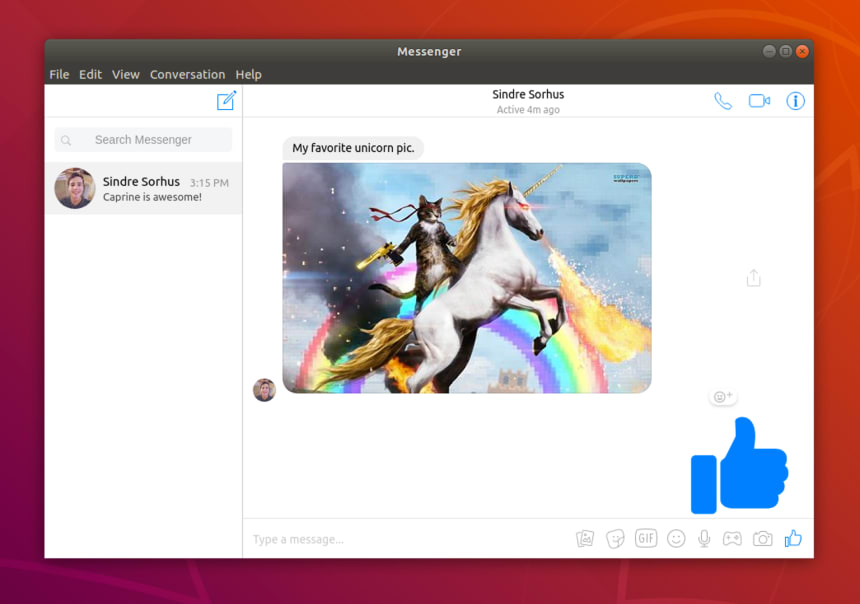

Caprine is an open-source, unofficial desktop app for Facebook Messenger. It can give you a separate app window, dark mode, notification support, and some privacy controls such as blocking typing indicators or seen receipts.
The important detail is trust. Caprine is not made by Meta, and the Flathub listing is marked unverified. That does not automatically mean it is bad, but it does mean ordinary users should not treat it like an official Facebook app.
If you choose Caprine, Flatpak is the better package route right now because the Flathub version is newer than the Snap listing.
sudo apt update
sudo apt install flatpak
flatpak remote-add --if-not-exists flathub https://flathub.org/repo/flathub.flatpakrepo
flatpak install flathub com.sindresorhus.Caprine
flatpak run com.sindresorhus.CaprineOptional: Install Caprine with Snap
The Snap package is easy to install, but it appears older than the current Flatpak route. Use it only if you prefer Snap and accept that difference.
sudo snap install caprineTo remove it later, run:
sudo snap remove caprineOptional: Use the Caprine AppImage
Caprine also offers AppImage builds through its GitHub releases. This can work, but you need to update it manually, so it is not the easiest path for most Ubuntu users.
- Download the current Linux AppImage from Caprine’s GitHub releases.
- Open Terminal in your Downloads folder.
- Make the file executable and run it:
cd ~/Downloads
chmod +x Caprine-*.AppImage
./Caprine-*.AppImage
Methods I Would Avoid
Messenger is tied to your Facebook account, so be careful with desktop apps that ask you to sign in. A small convenience gain is not worth risking a personal account.
| Method | Recommendation | Why |
|---|---|---|
| Browser web app | Use first | Uses Facebook’s own website and normal browser security updates. |
| Caprine Flatpak | Optional | Still maintained, but unofficial and unverified on Flathub. |
| Caprine Snap | Not first choice | The Snap listing appears older than the Flatpak option. |
| Unknown Messenger wrappers | Avoid | They may be abandoned, closed source, or unsafe for account login. |
Turn On Messenger Notifications
Messenger notifications on Ubuntu depend on both your browser settings and Ubuntu’s notification settings. If one of them blocks notifications, you may not see message alerts.
- Open Facebook messages in your browser or installed web app.
- When your browser asks for notification permission, choose Allow.
- Open Ubuntu Settings.
- Go to Notifications.
- Make sure notifications are enabled for Chrome, Edge, Firefox, or Caprine.
- If you use Do Not Disturb, turn it off while testing.
Troubleshooting Facebook Messenger on Ubuntu
Use facebook.com/messages instead of relying on messenger.com. Meta’s desktop web flow can change by region and account.
Clear Facebook cookies for that browser, disable strict blocking for the page while testing, then sign in again.
Allow notifications in the browser and check Ubuntu Settings. Also make sure Do Not Disturb is off.
Check Messenger secure storage from your phone or another signed-in session. Some encrypted chats need secure storage before they sync cleanly.
Update the Flatpak, then restart the app. If it still fails, use Facebook messages in the browser until Caprine catches up with Meta’s web changes.
Remove the old shortcut and install it again from Chrome or Edge. If the browser only creates a bookmark, use that until the install option appears again.
Privacy and Trust Note
Facebook Messenger is not a private-by-default Linux messaging tool. It is a Meta service, and your privacy depends on your Facebook settings, browser settings, account security, and how Messenger handles encrypted chats.
The browser web app method is not perfect, but it is the most reasonable default because you are using Facebook directly. With any third-party wrapper, you are adding another layer between your account and the service.
Practical advice: Use a strong Facebook password, enable two-factor authentication, review logged-in sessions, and avoid signing in through unknown Messenger apps or browser extensions.
Uninstall Facebook Messenger Apps from Ubuntu
If you installed Facebook messages as a web app, remove it from the browser that created it. In Chrome, you can manage installed web apps from chrome://apps. In Edge, use edge://apps.
If you installed Caprine with Flatpak, remove it with:
flatpak uninstall com.sindresorhus.CaprineIf you installed Caprine with Snap, remove it with:
sudo snap remove caprineFAQ
Can I install Facebook Messenger on Ubuntu?
Yes. The safest way is to use Facebook Messenger through your browser or install Facebook messages as a web app in Chrome or Microsoft Edge. There is no official native Messenger app for Ubuntu.
What is the best way to use Messenger on Ubuntu?
The best method for most Ubuntu users is the browser web app method. It uses Facebook’s own website, works on Ubuntu 24.04 and newer releases, supports normal browser notifications, and avoids giving your Facebook login to an unofficial desktop wrapper.
Is Caprine safe to use for Facebook Messenger on Ubuntu?
Caprine is an open-source unofficial Messenger desktop app, and it can still work. The trust issue is that it is not made by Meta and the Flathub listing is unverified, so it should be treated as optional rather than the default recommendation.
Should I install Caprine with Snap or Flatpak?
If you choose Caprine, Flatpak is the better option right now because the Flathub build is newer. The Snap package appears older, so it is not the first method I would recommend.
Does messenger.com still work on Ubuntu?
Messenger access on desktop is now centered around Facebook’s web experience. If messenger.com redirects or does not behave as expected, use https://www.facebook.com/messages/ instead.
Why are my Messenger chats missing after switching to the web app?
Check Messenger’s secure storage settings on your phone or existing session. Some end-to-end encrypted chats may need secure storage and a PIN before they appear correctly across devices.
Can I get Messenger notifications on Ubuntu?
Yes. Browser notifications can work if you allow notifications for Facebook in your browser and make sure Ubuntu’s notification settings are not blocking that browser or web app.
For Facebook Messenger, the safest setup is usually the one with the fewest extra layers.
More Ubuntu app guides: Install WhatsApp on Ubuntu | Install Discord on Ubuntu | Install Telegram on Ubuntu | Install Twitter on Ubuntu