

Some of the best photo editors for Ubuntu are GIMP, darktable, RawTherapee, digiKam, and Photopea. GIMP is the best all-round desktop editor, darktable is the strongest choice for most RAW photography workflows, and Photopea is the most useful browser-based editor when you need layered editing without installing anything.
This guide covers desktop photo editors, RAW development tools, quick image viewers with editing features, browser-based editors, and specialist apps. AI-first tools are intentionally not included here. They belong in a separate guide because they solve a different problem than traditional photo editing.
Top Picks at a Glance
- GIMP: Best overall photo editor for Ubuntu
- darktable: Best RAW workflow for serious photographers
- RawTherapee: Best RAW editor for detailed manual control
- Photopea: Best browser-based Photoshop-style editor
- Shotwell: Best beginner-friendly photo manager with quick edits
- Hugin: Best panorama stitching tool
If you only install one tool, install GIMP. If you shoot RAW photos, install darktable as well. If you mainly need quick crops and simple edits, start with Shotwell, gThumb, or Gwenview. If you need PSD files in a browser, use Photopea.
Professional Photo and RAW Editors
These are the best choices for serious editing, RAW files, color correction, large photo libraries, and long-term photography workflows on Ubuntu.
Best For: Retouching, layers, masks, compositing, text, plugins, and general image editing.
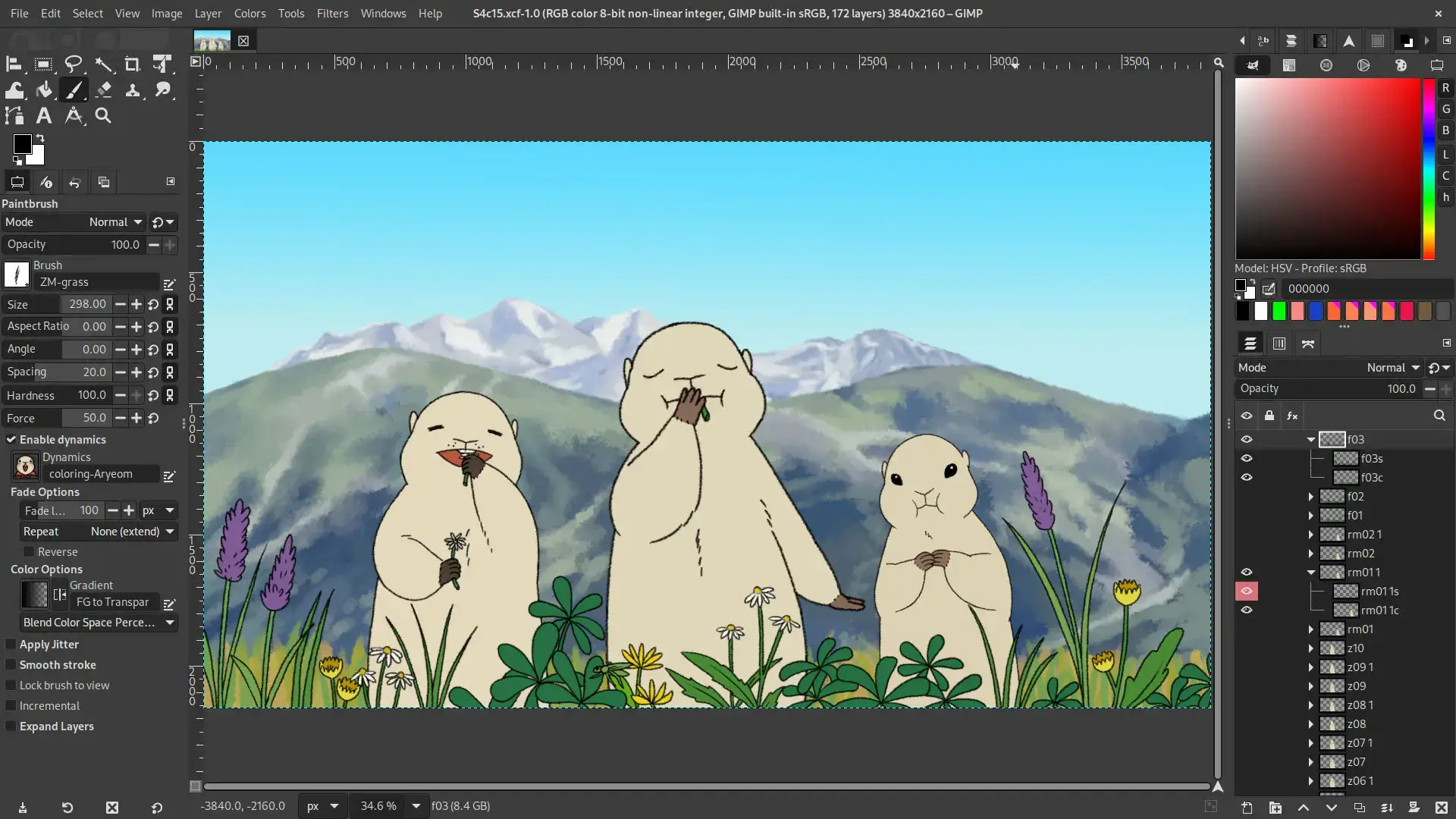

Why Choose It? GIMP is the safest default recommendation for Ubuntu users who want a full desktop photo editor. The current GIMP generation is a major step up from the old 2.10 era, with non-destructive editing improvements, better color handling, stronger file format support, and a modernized plugin system.
- Strengths: Layers, masks, selections, text effects, plugins, PSD support, CMYK-related import/export improvements.
- Limitations: Not a RAW workflow app. Pair it with darktable or RawTherapee for RAW files.
Install Command:
Best For: RAW photo development, photo libraries, metadata, batch export, and non-destructive editing.
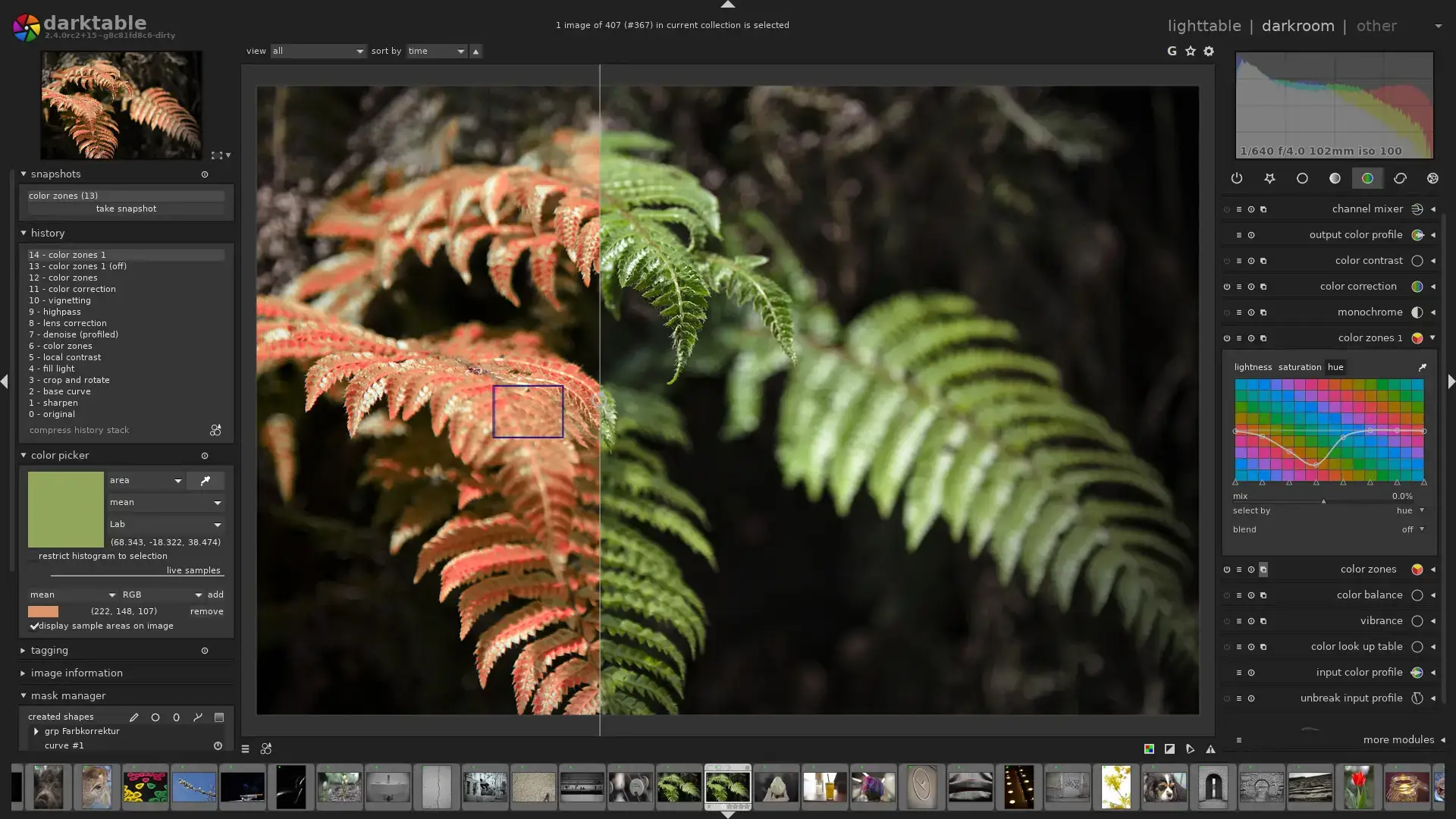
Why Choose It? darktable is the closest open-source answer to a Lightroom-style workflow on Ubuntu. It manages your photo library, applies non-destructive edits, handles RAW files, and exports finished images without overwriting the original file.
- Strengths: Filmic workflow, masks, metadata, tethering support, batch exports, color tools.
- darktable vs RawTherapee: Choose darktable if you want a full photo workflow and library management.
Install Command:
Best For: Photographers who want precise RAW controls without adopting a full library workflow.
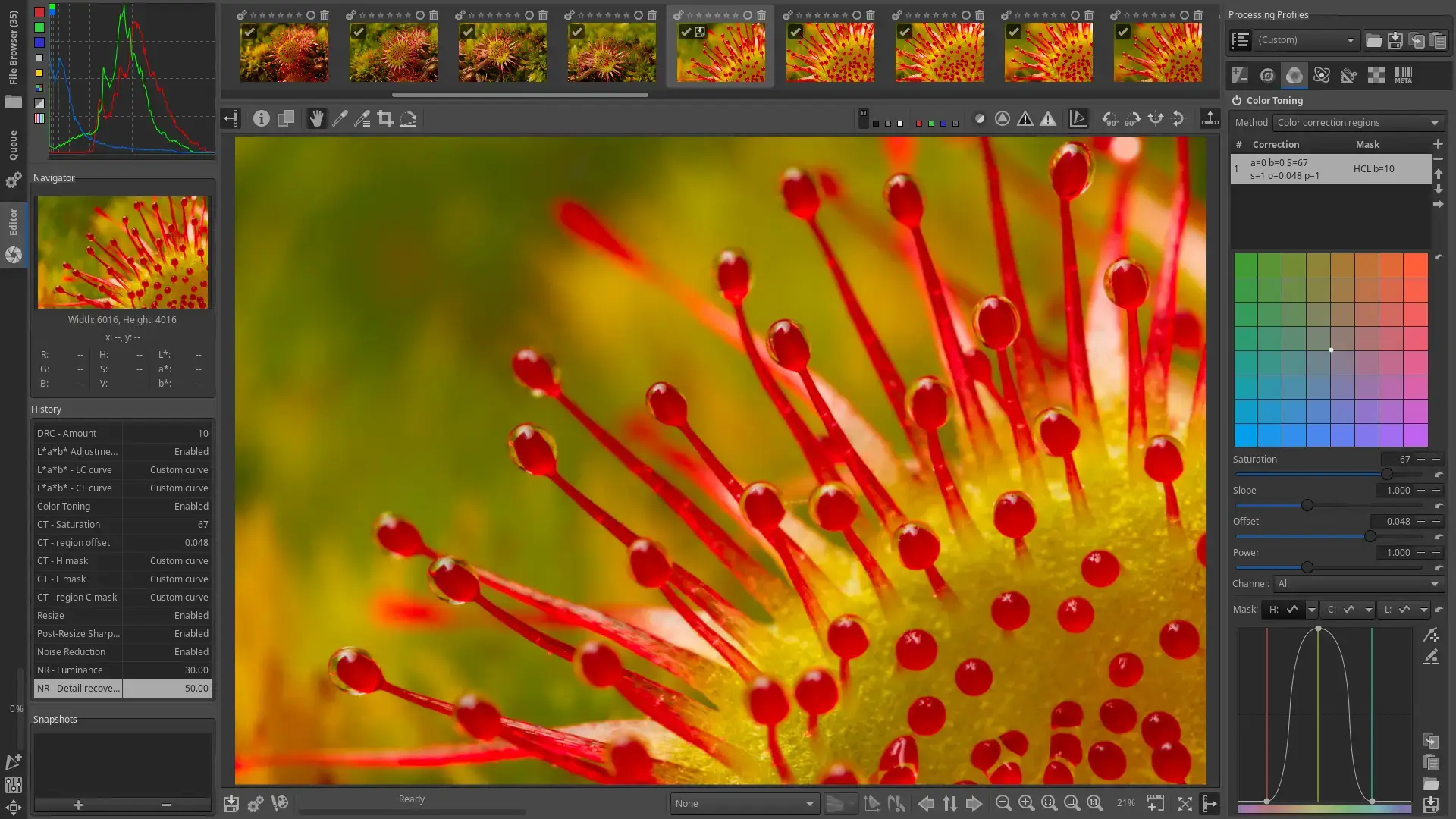
Why Choose It? RawTherapee is a deep RAW processor with strong demosaicing, color, detail, lens, and tone tools. It is less library-focused than darktable, which many users prefer when they want to browse folders and process individual photos carefully.
- Strengths: Fine-grained RAW processing, local folder workflow, strong color and detail controls.
- darktable vs RawTherapee: Choose RawTherapee if you want maximum control per image and less library structure.
Install Command:
Best For: Large photo collections, tagging, metadata, albums, face management, and light editing.
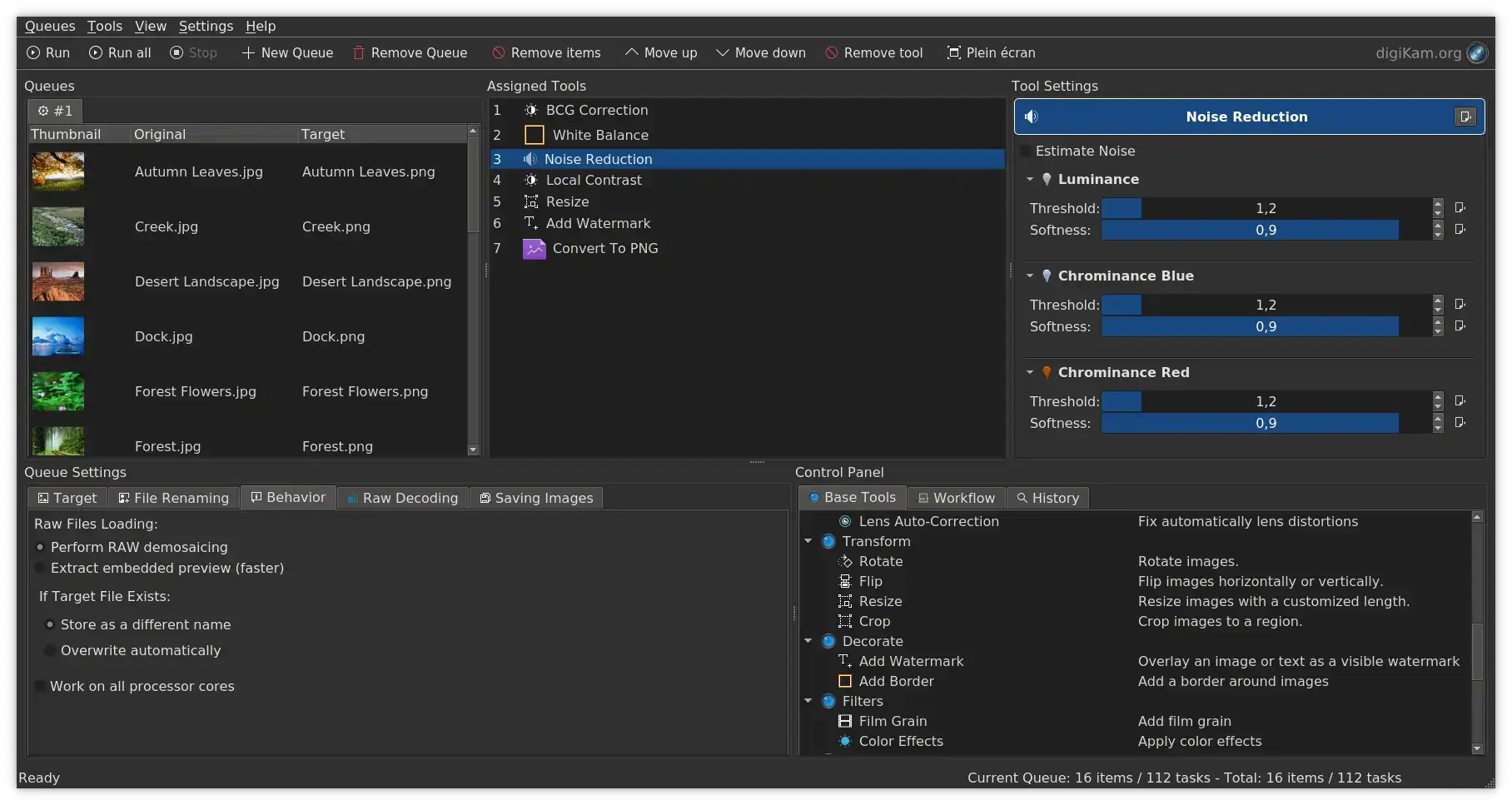

Why Choose It? digiKam is a digital asset manager first and a photo editor second. It is excellent if your real problem is organizing thousands of images, adding tags, working with metadata, sorting albums, and making basic corrections from one place.
- Strengths: Library management, metadata, search, batch tools, RAW support, geolocation.
- Limitations: Not a GIMP replacement for complex retouching.
Install Command:
Best For: Users who want a modern, fast RAW editor and are comfortable with a young project.
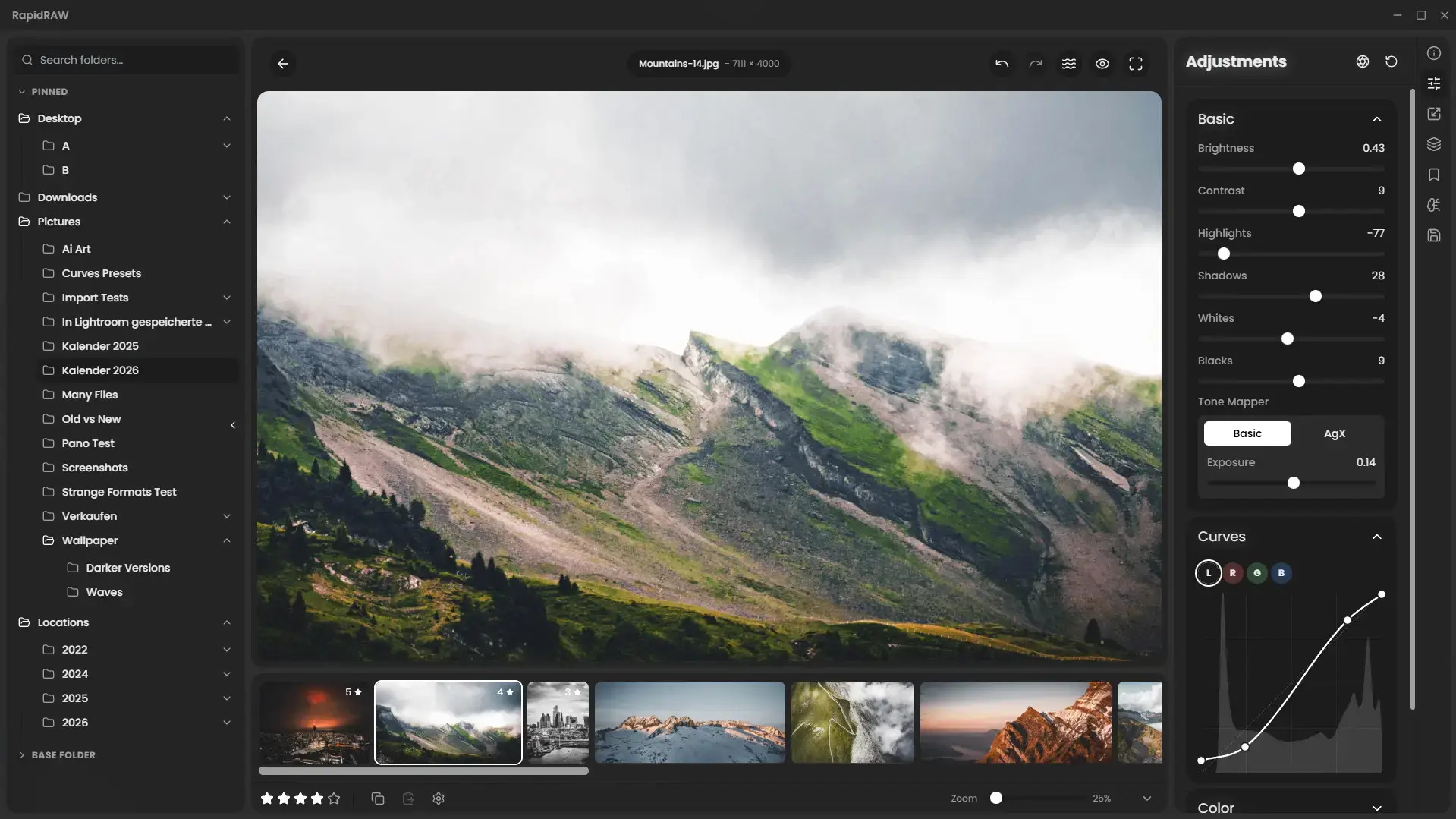

Why Choose It? RapidRAW is one of the more notable newer Linux RAW editors. It aims for a faster, simpler interface than the older tools, with GPU-accelerated editing and active development. It is promising, but still less mature than darktable or RawTherapee.
Install Command:
chmod +x RapidRAW*.AppImage
./RapidRAW*.AppImage
Lightweight Photo Editors and Viewers
These tools are best for quick tasks: cropping, rotating, resizing, browsing folders, reviewing images, and making basic adjustments without opening a heavy editor.
Shotwell
Best for: Beginners who want photo importing, albums, and basic edits in one simple app.
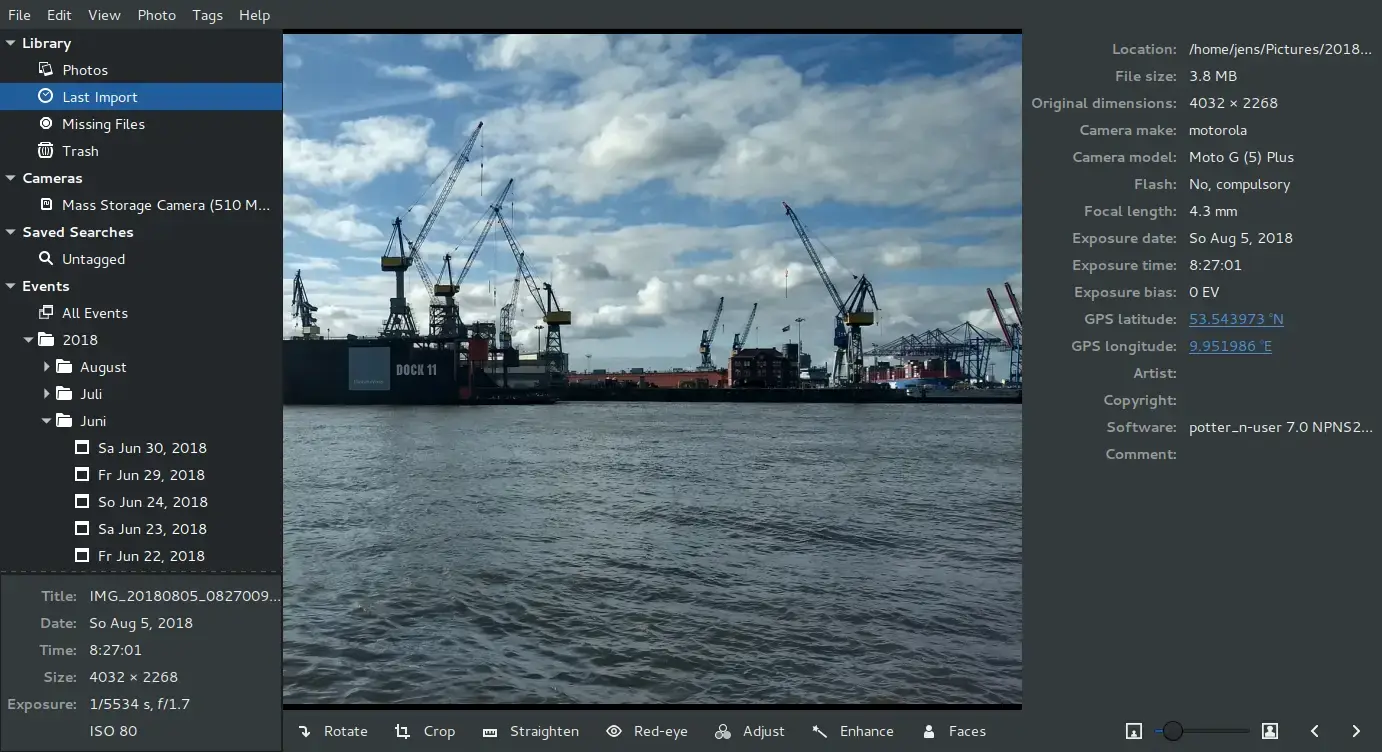

Shotwell is a good first stop for everyday Ubuntu users. It imports photos, organizes events, crops, rotates, adjusts color, and exports images without much setup.
gThumb
Best for: Folder browsing, resizing, format conversion, and fast GNOME-friendly edits.
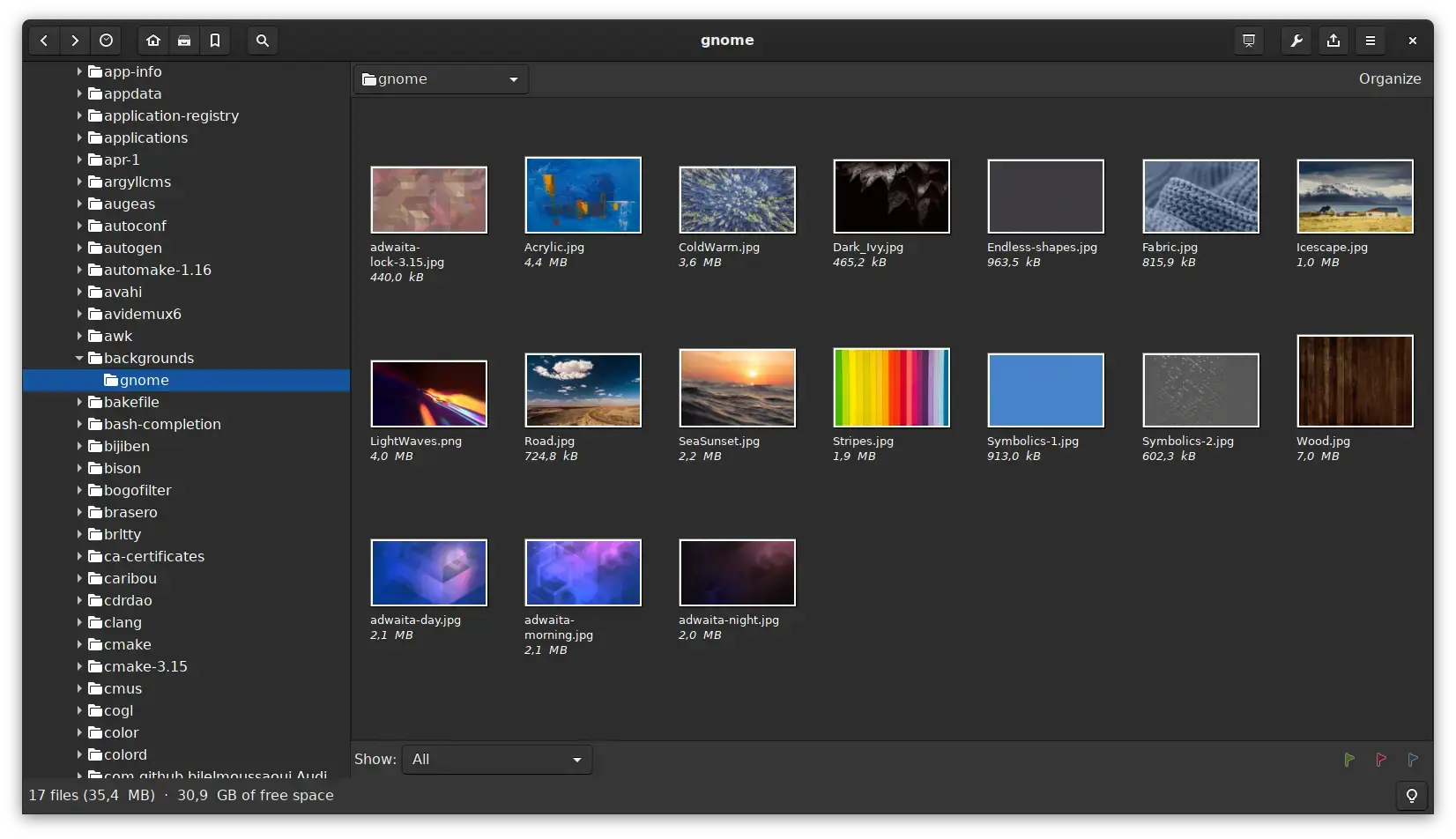

gThumb sits between a viewer and a small editor. It is useful when you want to browse folders quickly and make simple changes without launching GIMP.
Gwenview
Best for: KDE users who want a fast viewer with crop, resize, rotate, markup, and adjustment tools.
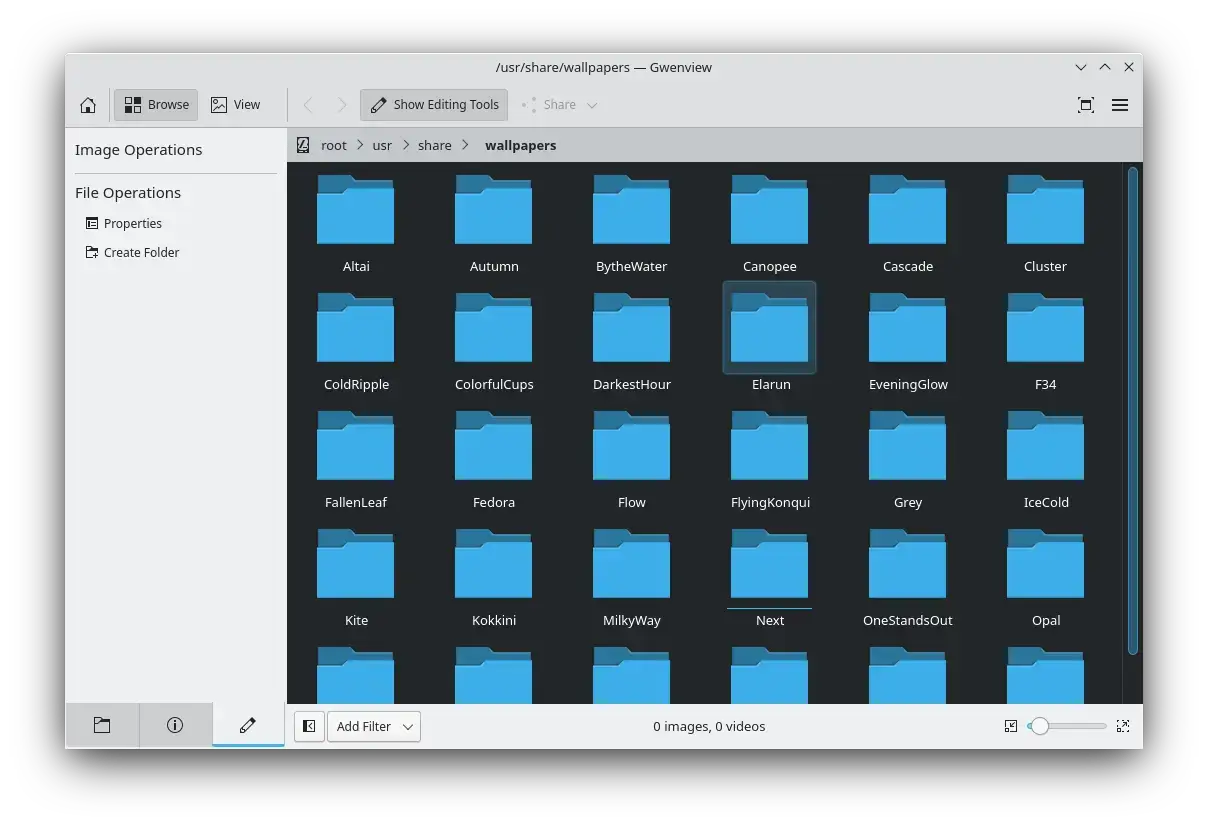

Gwenview is one of the best lightweight tools in KDE. It is fast, polished, actively maintained, and better than a plain viewer for common photo tasks.
Nomacs
Best for: Fast viewing, image comparison, RAW/PSD viewing, and cross-platform workflows.
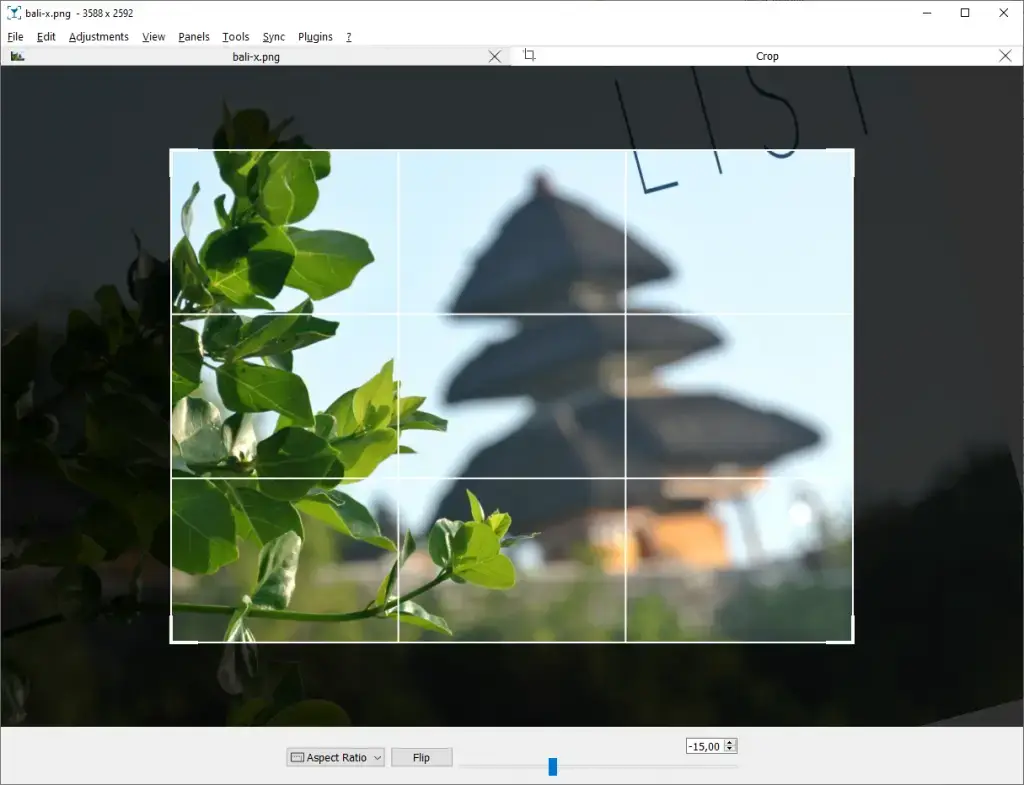

Nomacs is mainly an image viewer, but it includes useful editing and comparison features. It is a good fit if you move between Linux, Windows, and macOS.
Loupe
Best for: Modern GNOME image viewing with light crop, rotate, flip, and metadata support.
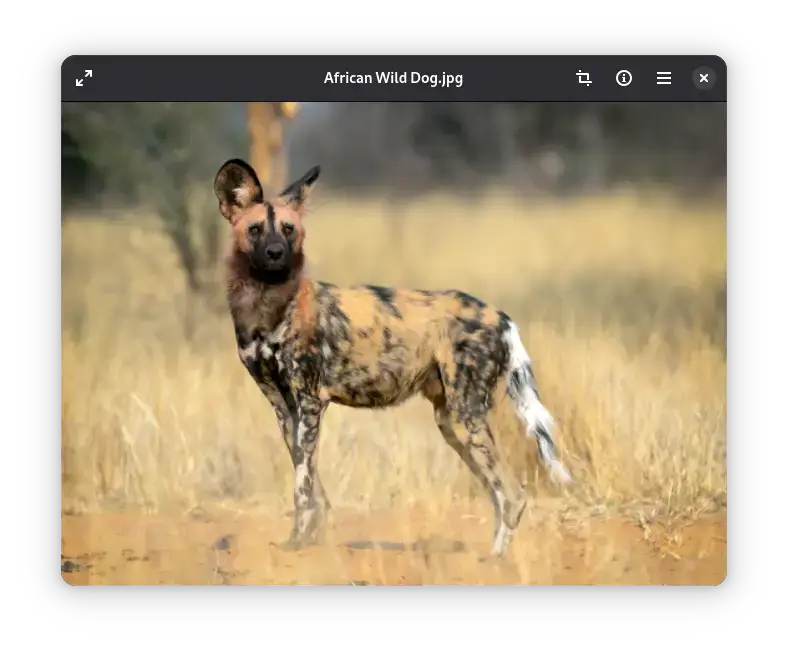

Loupe is the modern GNOME image viewer. It is not a full editor, but it is the better current choice over older basic viewers for quick visual review.
Pinta
Best for: Paint.NET-style quick edits, screenshots, simple layers, and lightweight drawing.
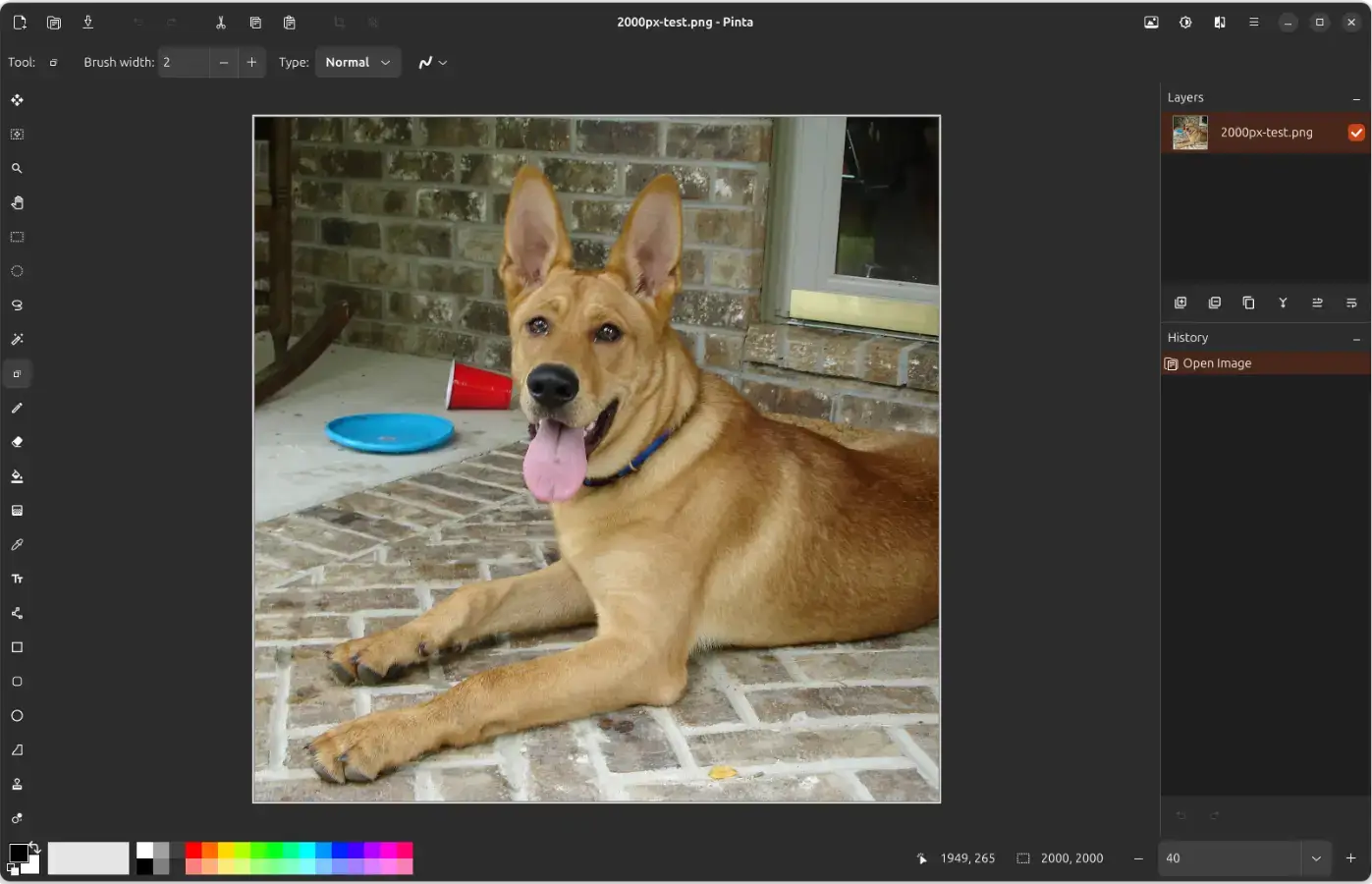

Pinta is easier than GIMP and more capable than a basic viewer. It is not the strongest photography tool here, but it is useful for quick edits and simple graphics.
Browser-Based Photo Editors
These tools run in a browser on Ubuntu. They are useful when you cannot install desktop software, need a quick edit from a Chromebook-style setup, or need to open a PSD file fast.
Photopea
Best for: PSD files, layered editing, masks, text, and Photoshop-style work in a browser.
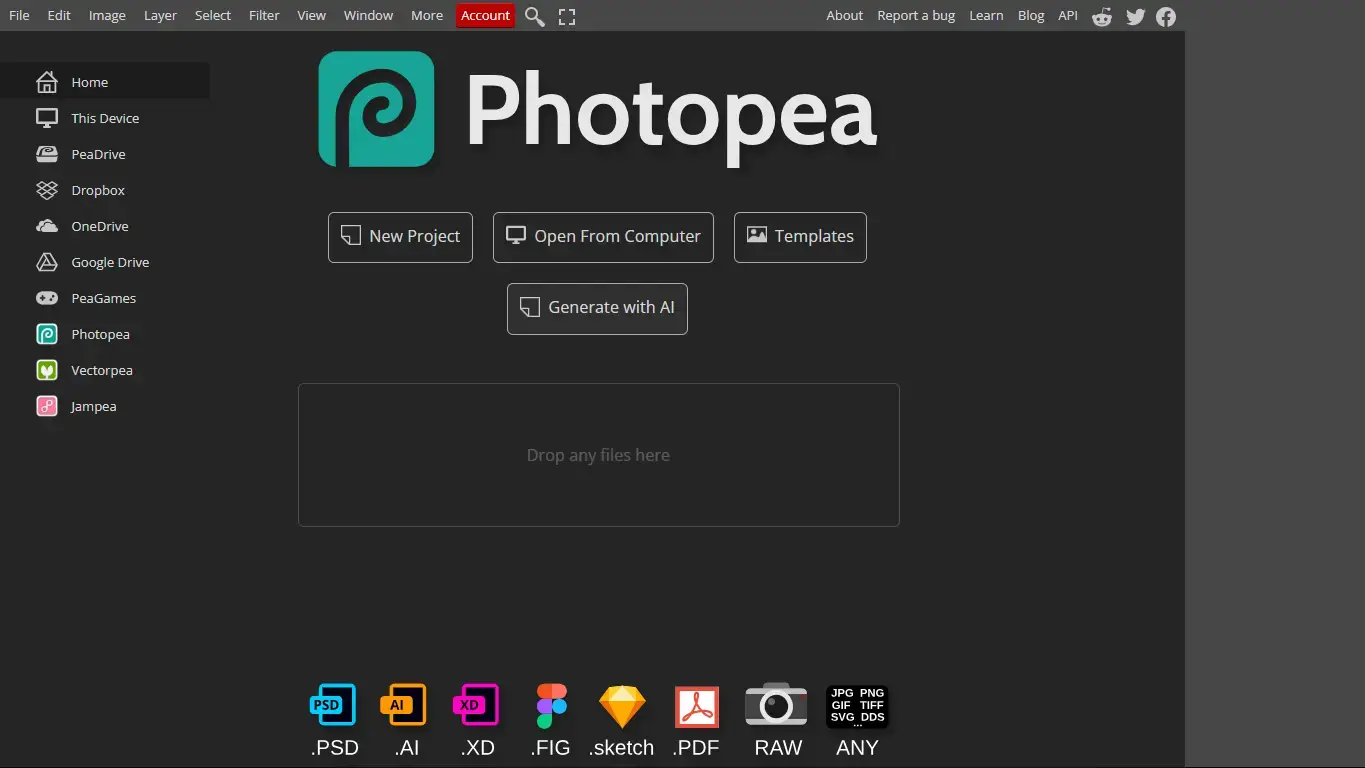

Photopea is the strongest browser editor here. It is free with ads, works without a desktop install, and is especially useful when someone sends you a PSD file.
Pixlr
Best for: Quick browser edits, filters, collages, resizing, and simple graphic work.
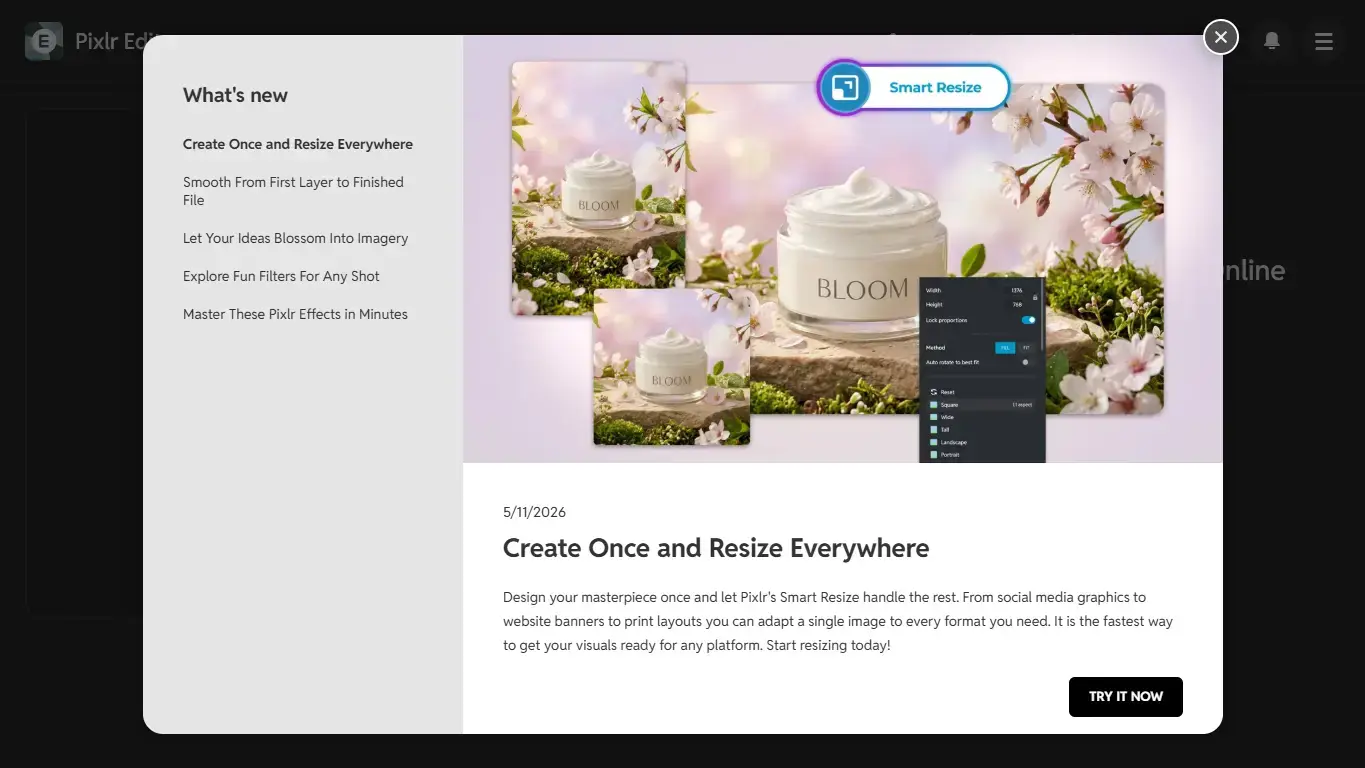
Pixlr now heavily promotes AI features, but its traditional browser editor is still useful for manual edits. Use it for quick browser tasks, not as a darktable replacement.
Canva
Best for: Social graphics, thumbnails, banners, templates, and simple photo adjustments.
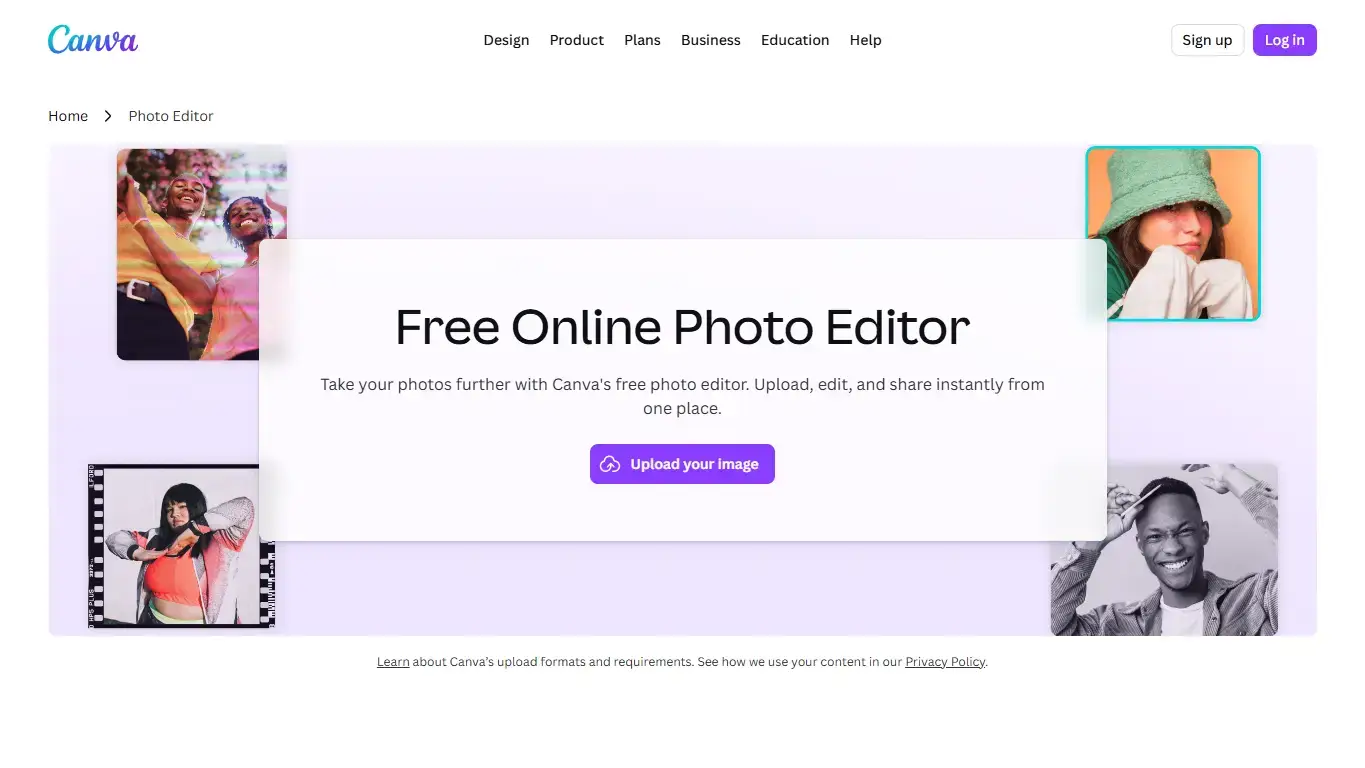
Canva is not a traditional pro photo editor, but it is excellent for turning edited photos into posts, flyers, thumbnails, and simple designs. This recommendation is for its non-AI design and editing features.
Adobe Express
Best for: Simple photo edits, templates, social posts, brand assets, and quick layouts.
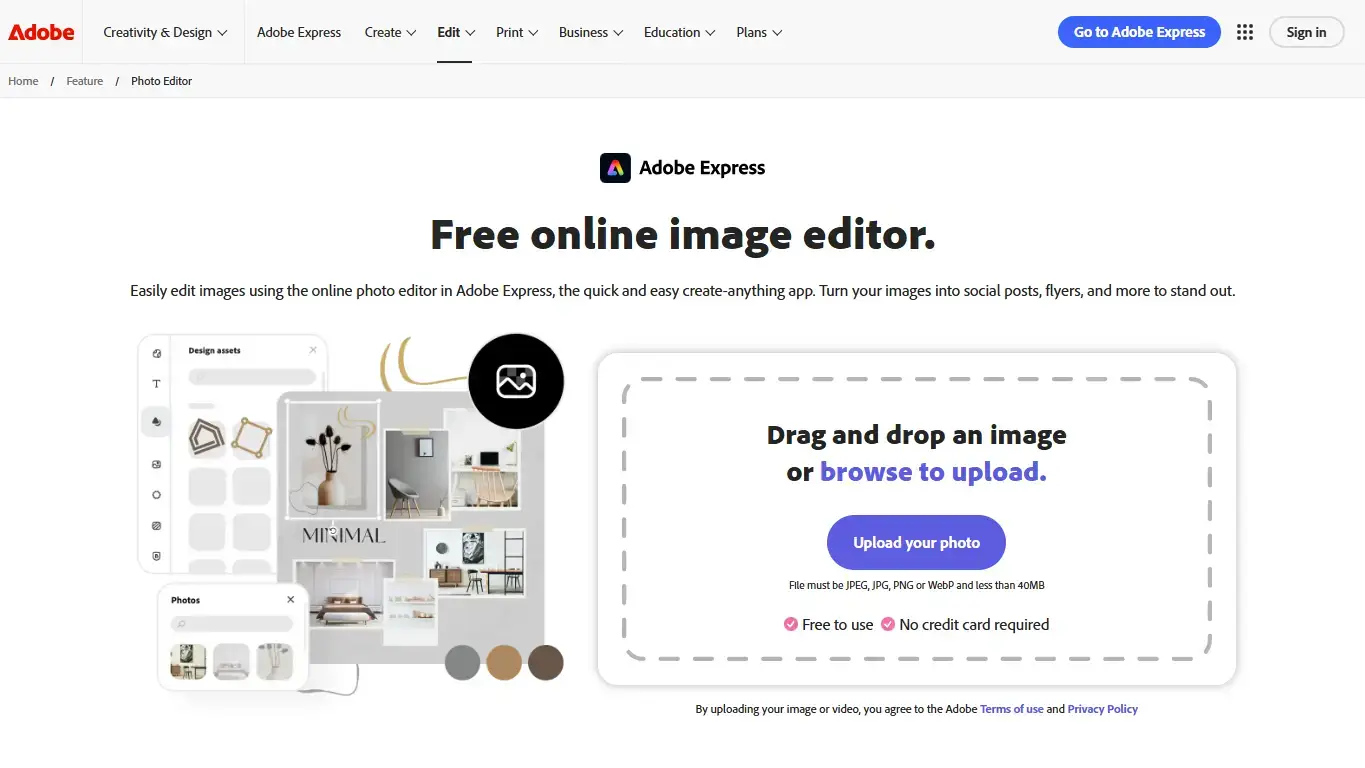
Adobe Express is not Photoshop on Linux, but its free web plan includes standard photo and design tools. Use it for quick creative layouts, not full RAW editing. This entry only covers its non-AI photo and design features.
Fotor
Best for: Easy browser-based filters, crop, resize, collage, text, and basic portrait edits.
Fotor is beginner-friendly and works well for casual edits. It has many AI features now, but this post only counts its traditional photo editor, collage, filter, resize, and text tools.
BeFunky
Best for: Simple online edits, collages, templates, and casual creative effects.
BeFunky is a good low-friction browser editor for users who want quick edits and design extras without learning GIMP. It is more casual than Photopea.
Specialist Photo Tools
These are not direct replacements for GIMP or darktable, but they solve real photo-adjacent jobs on Ubuntu.
Krita
Best for: Digital painting, photo-bashing, texture work, and creative compositing.
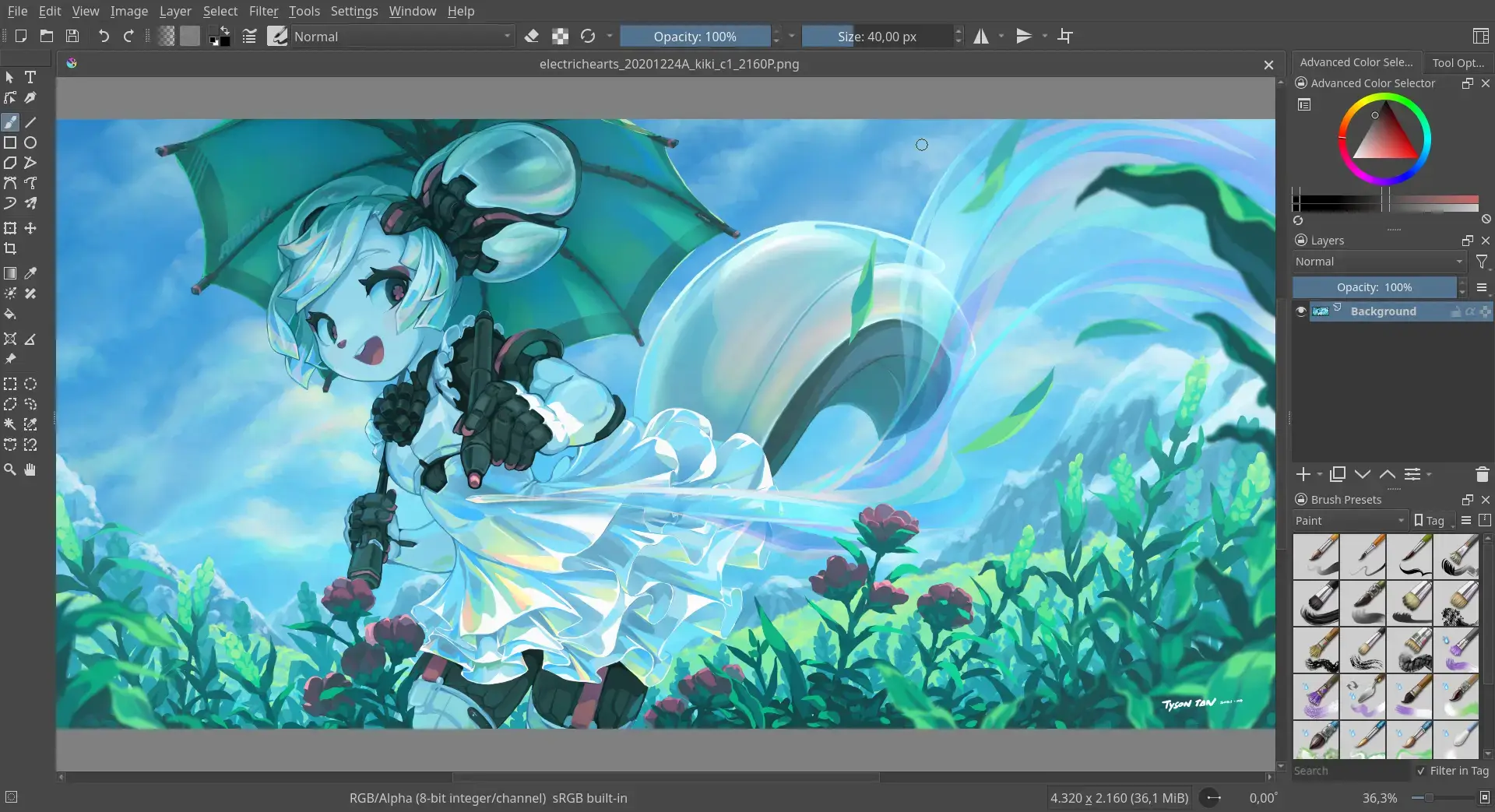

Krita is excellent, but it is primarily a painting app. Use it when brushes, tablets, concept art, and creative composites matter more than traditional photo correction.
Hugin
Best for: Panorama stitching, perspective correction, and wide landscape composites.
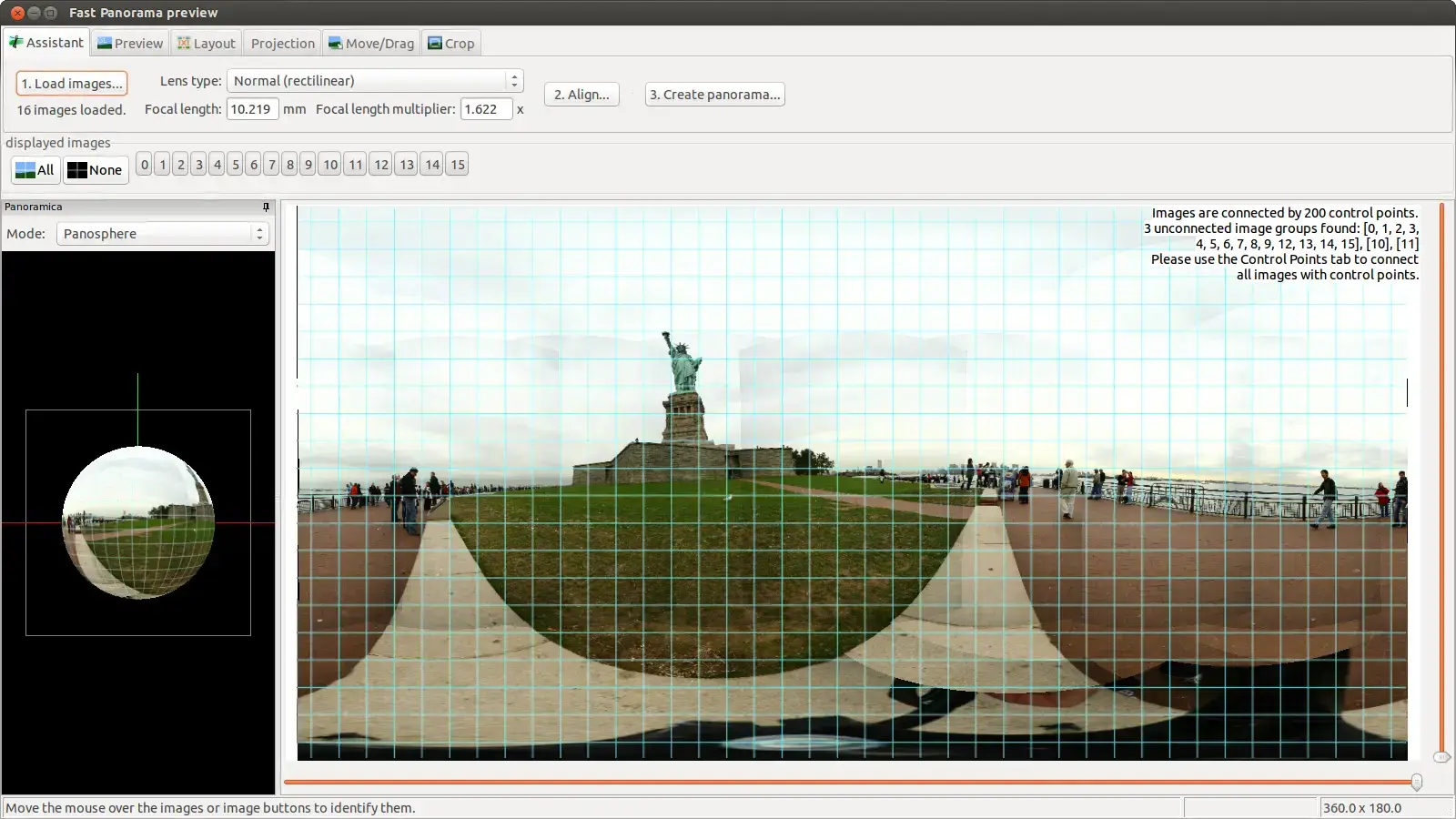

Hugin is the right tool when your job is stitching multiple photos into one panorama. It is actively maintained and still the standard open-source option for this task.
Siril
Best for: Astrophotography processing, stacking, calibration, and scientific image work.
Siril is not a normal portrait or social photo editor. It belongs here because astrophotography is real photo work, and Siril is one of the strongest Linux-native tools for it.
chmod +x Siril*.AppImage
./Siril*.AppImage
Photo Editor Comparison Table
| Tool | Best Use | Install Type | Best For Beginners? |
|---|---|---|---|
| GIMP | Full photo editing and retouching | Flatpak, apt, Snap | Medium |
| darktable | RAW workflow and photo library | apt, Flatpak | Medium |
| RawTherapee | Detailed RAW processing | apt, AppImage | Medium |
| Photopea | PSD and layered browser editing | Browser | Medium |
| Shotwell | Beginner photo management | apt | Yes |
| Hugin | Panorama stitching | apt | Medium |
FAQ
What is the best photo editor for Ubuntu overall?
GIMP is the best overall photo editor for Ubuntu if you want a free desktop app for retouching, layers, masks, selections, text, plugins, and detailed image editing. It is the closest general-purpose Photoshop alternative available natively on Linux.
What is the best RAW photo editor for Ubuntu?
darktable is the best RAW photo editor for most Ubuntu photographers because it combines non-destructive RAW development with photo library tools, metadata, export presets, and a full photography workflow. RawTherapee is better if you want deep RAW controls without a library-first workflow.
Is Photopea good on Ubuntu?
Yes. Photopea is one of the best browser-based photo editors for Ubuntu because it works in any modern browser, opens PSD files, supports layers, and does not require a Linux desktop install. The free version is ad-supported, but it is still useful for quick PSD edits and design work.
Is Krita a good photo editor for Ubuntu?
Krita is excellent for digital painting, concept art, photo-bashing, and creative compositing, but it is not the best traditional photography editor. Use Krita when you want brushes and art tools. Use GIMP for retouching or darktable and RawTherapee for RAW photo development.
Can I edit photos on Ubuntu without installing anything?
Yes. Photopea, Pixlr, Canva, Adobe Express, Fotor, and BeFunky all work in a web browser on Ubuntu. Photopea is the strongest browser option for layered editing and PSD files. Canva and Adobe Express are better for social graphics and simple design layouts.
Which Ubuntu photo editor is best for beginners?
Shotwell, gThumb, Gwenview, Loupe, and Pinta are the easiest options for beginners. They are better for cropping, rotating, resizing, browsing, and quick adjustments. GIMP and darktable are more powerful, but they take longer to learn.
Which tools should I avoid for serious photo editing on Ubuntu?
Avoid treating vector apps, basic image viewers, and AI-only services as replacements for real photo editors. Inkscape is useful for vector design, but not traditional photo editing. Basic viewers are good for quick changes only. Dedicated AI tools are intentionally covered in a separate guide.
Looking for AI photo editors on Ubuntu? This guide focuses on traditional desktop and browser-based editors. A separate UbuntuFree guide will cover AI photo editors and image-generation tools once it is live.
More Ubuntu software guides: Best Web Browsers · Best Software for Ubuntu · Best Media Players · Best Remote Desktop Apps · Best Video Editors for Ubuntu · Best Microsoft Alternatives for Ubuntu