



Ubuntu has excellent open-source media players for video and music. You can use a powerful video player that handles almost any format, or a dedicated music app for your local library. Most of the best options are completely free.
This guide splits the best picks into two clear categories: video players and music players, so you can go straight to what you need. Every entry includes an install command, key features, and a practical tip you can use right away.
Top 3 at a Glance
- VLC: Best all-rounder, plays almost everything, runs on any hardware, no extra media setup needed.
- MPV: Best for advanced users, lightweight, customizable, and tuned for high-quality video.
- Strawberry: Best music player, lossless audio, Last.fm, lyrics, and a clean modern interface.
VLC
MPV
Celluloid
SMPlayer
Haruna
Totem
Music Players
Strawberry
Rhythmbox
Clementine
Lollypop
Parole
Video Players
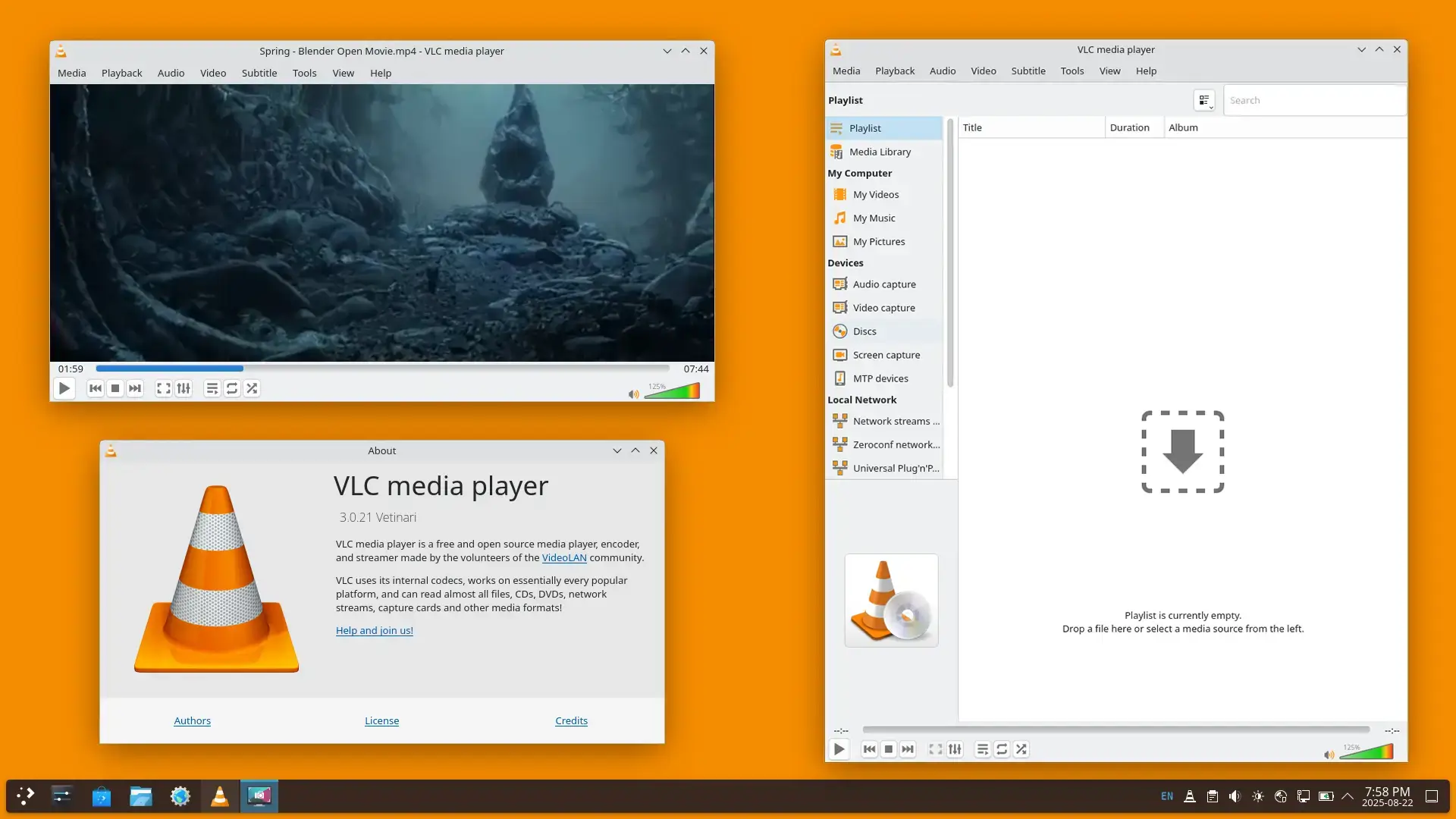

Best For: Anyone who wants one player that handles DVDs, 4K, streams, and unusual formats without extra media setup.
Why Choose It? VLC has been the go-to Linux media player for over two decades because it plays almost everything: MKV, AVI, FLAC, MP4, DVDs, Blu-ray ISOs, network streams, and YouTube URLs. It runs well on old laptops and new desktops, and it rarely asks you to install extra media support.
- Format support: MKV, MP4, AVI, MOV, FLAC, MP3, OGG, and hundreds more
- Smoother playback: Uses your graphics hardware for 4K and 8K video when supported
- Streaming: Play YouTube, Twitch, and network streams directly via Open Network Stream
- Subtitle support: Automatic subtitle download via VLSub extension
- No ads, no tracking: Fully open source, VideoLAN foundation maintained
Quick Tip: In VLC preferences, set hardware decoding to Automatic for smoother 4K playback on supported hardware.
Install Command:
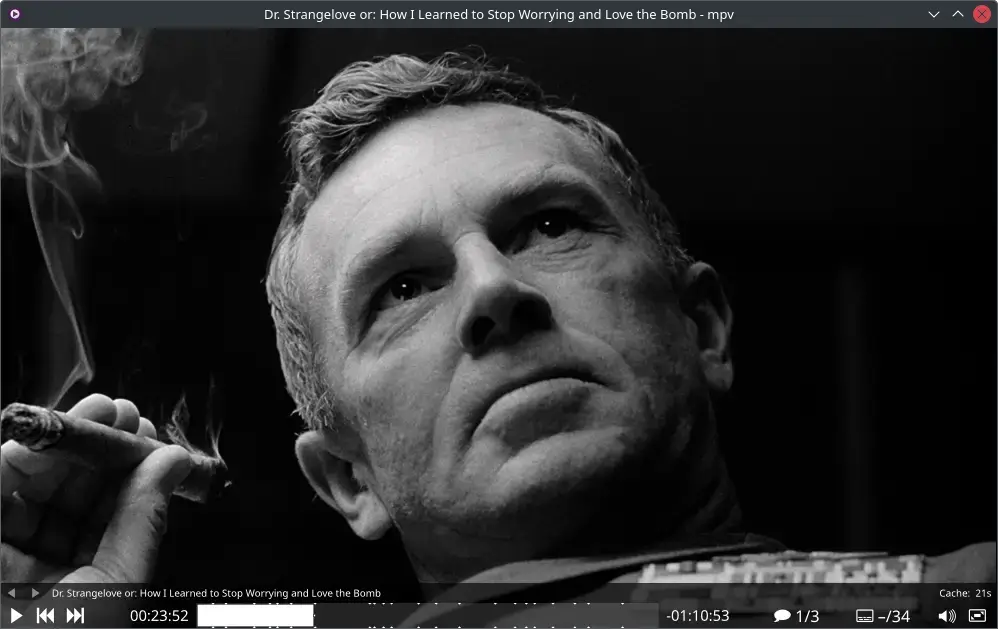

Best For: Advanced users who want maximum video quality, custom controls, and a minimal interface.
Why Choose It? MPV is built for people who care about picture quality and speed. It is lightweight, keyboard-friendly, and can make video look sharper than VLC with the right settings. Celluloid and Haruna both use MPV for playback, so learning MPV also helps you understand those apps.
- High-quality mode: Sharper scaling for lower-resolution videos on larger screens
- Smoother playback: Can use your graphics hardware on supported systems
- Customizable: Add scripts for shortcuts, repeated tasks, and interface tweaks
- Minimal UI: Keyboard and mouse-driven, zero toolbar clutter
- Frame interpolation: Smooth motion via interpolation for high frame rate playback
Quick Tip: Create ~/.config/mpv/mpv.conf and add profile=gpu-hq on one line to enable MPV’s high-quality video profile for all playback.
Install Command:
Best For: GNOME users who want MPV’s playback quality wrapped in a clean, modern GTK4 interface that feels native to Ubuntu’s default desktop.
Why Choose It? Celluloid is the sweet spot between VLC’s ease-of-use and MPV’s performance. It uses MPV under the hood so you get all the video quality benefits, but wraps it in a proper GTK4 app that looks at home on Ubuntu’s GNOME desktop. Touchpad gestures, automatic subtitle downloads, and Wayland support out of the box.
- MPV playback: All of MPV’s playback quality and format support
- GTK4 UI: Native GNOME look and feel with dark mode support
- Subtitle downloads: OpenSubtitles integration built in
- Touchpad gestures: Swipe to seek, pinch to change volume
- Wayland native: Runs without XWayland on Ubuntu’s default session
Quick Tip: Press Ctrl+L mid-playback to open the subtitle search dialog and pull subtitles from OpenSubtitles without leaving the player.
Install Command:
Best For: Binge-watchers and people who frequently switch between local files and YouTube, and want automatic resume across everything.
Why Choose It? SMPlayer’s best feature is that it remembers exactly where you left off in every single file, with no manual bookmarks needed. It also has direct YouTube playback via yt-dlp, a built-in subtitle downloader, and a highly customizable interface with skin support. The Qt-based interface is familiar and well-organized for users coming from Windows media players.
- Auto-resume: Remembers playback position for every file automatically
- YouTube playback: Paste URLs directly, plays via yt-dlp
- Subtitle downloader: Search and download subs without leaving the app
- Skin support: Multiple UI themes available
- MPV/MPlayer playback: Choose your engine in settings
Quick Tip: Press Ctrl+U to open the “Open URL” dialog and paste a YouTube link directly. SMPlayer will play it through yt-dlp at the quality you choose in preferences.
Install Command:
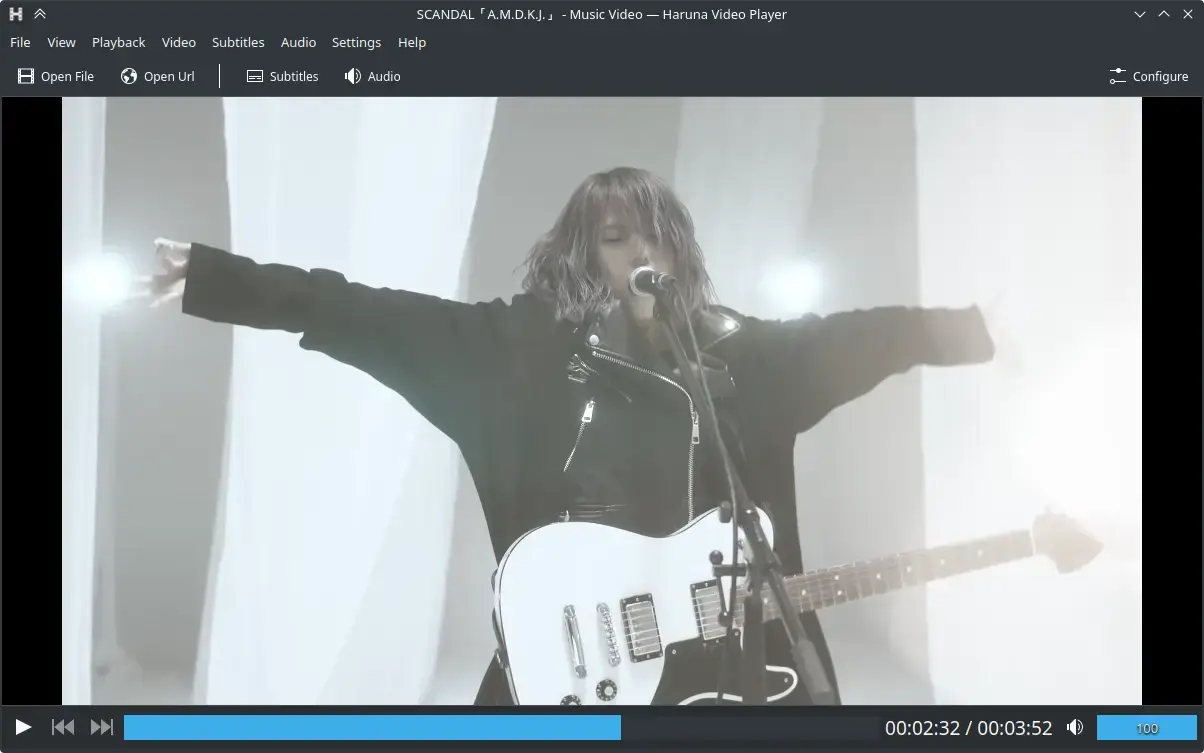

Best For: KDE Plasma users who want a polished, modern MPV-based player that integrates beautifully with the KDE desktop and follows Plasma design guidelines.
Why Choose It? Haruna is KDE’s answer to Celluloid: a modern, well-designed MPV-based player that feels native in KDE Plasma. It is actively maintained by the KDE project, supports playlists and chapters properly, and has a clean adaptive UI that works well on both desktop and larger screens.
- KDE integration: Native Qt/Kirigami design, follows Plasma theme
- MPV playback: Full MPV playback quality and format support
- Playlist manager: Drag-and-drop playlist with chapter support
- Online subtitles: Search and download subtitles in-app
- Keyboard-first design: Comprehensive shortcut support
Quick Tip: Haruna respects your MPV config file at ~/.config/mpv/mpv.conf. If you already use MPV’s high-quality profile, Haruna will use those settings automatically.
Install Command:
Best For: Users who want a simple video player that just works on GNOME, ideal for casual viewing and anyone who dislikes complex settings.
Why Choose It? Totem is the GNOME project’s official video player and the closest thing Ubuntu has to a built-in media app. It is minimal by design: open a file and it plays. It handles common formats well, integrates with GNOME’s file manager and accessibility features, and is perfect for users who just want to watch a video without tweaking anything.
- Media support: Solid format support for common video types
- GNOME integration: Opens directly from Files, respects GNOME dark mode
- Minimal UI: No settings overload, just play and watch
- Chapter support: Works with chapter markers in MKV files
- Plugin system: Extensible via GStreamer plugins if needed
Quick Tip: If Totem won’t play a specific format, install gstreamer1.0-plugins-bad and gstreamer1.0-libav to extend its format support without switching players.
Install Command:
Music Players
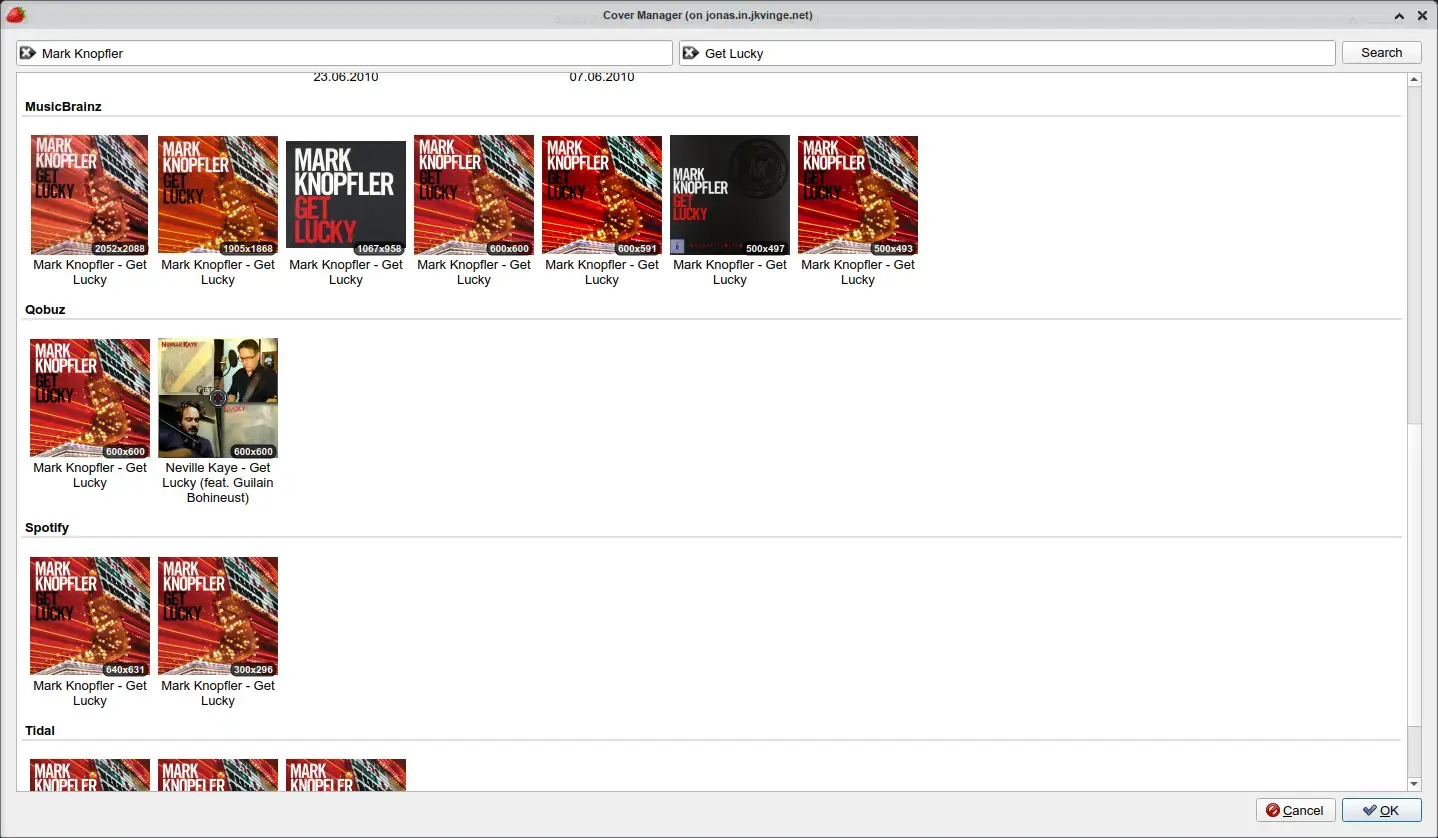

Best For: Music fans with large local libraries who want lossless playback, Last.fm tracking, lyrics, and a modern interface.
Why Choose It? Strawberry is a fork of Clementine that kept everything good and added proper lossless audio support (FLAC, ALAC, WAV), a better audio engine, and a cleaner UI. If you have a large library, FLAC files, Last.fm history, or carefully organized album art, Strawberry is the player to use on Ubuntu right now.
- Lossless support: FLAC, ALAC, WAV, AIFF with proper gapless playback
- Last.fm scrobbling: Built-in scrobbler, no plugins needed
- Lyrics: Automatic lyrics fetching from multiple sources
- Album art: Auto-fetch from MusicBrainz, Last.fm, and local covers
- Equalizer: 10-band EQ with presets
- Streaming sources: Subsonic, Tidal, and local network music servers
Quick Tip: Go to Tools > Settings > Behaviour and enable “Resume playback on startup” so Strawberry picks up exactly where you left off every time you open it.
Install Command:
Best For: Ubuntu newcomers who want the default, well-integrated music experience that comes pre-installed and works reliably without any setup.
Why Choose It? Rhythmbox is Ubuntu’s default music application and has been for years. It is stable, fits GNOME well, and handles the basics: library management, playlists, podcast support, and internet radio. It won’t wow you with features but it will never get in your way either. Good starting point before you decide if you need something more powerful.
- Library management: Auto-scans and organizes your music folder
- Podcast support: Subscribe and manage podcasts from within the app
- Internet radio: Built-in internet radio browser
- GNOME integration: Media keys, notifications, and MPRIS support
- Plugin support: Last.fm, DAAP sharing, ReplayGain via plugins
Quick Tip: Enable the Last.fm plugin via Edit > Plugins to start tracking plays immediately. It is built in and just needs your account details.
Install Command:
Best For: Users who mix local music libraries with streaming services like Spotify, SoundCloud, or Subsonic, and want everything in one classic-style interface.
Why Choose It? Clementine is a classic that earned its reputation by doing a lot: local library management, streaming services, internet radio, podcast support, and remote control via a companion Android/iOS app. It is older than Strawberry and slightly less polished now, but if you want the streaming service integrations and the remote control feature, Clementine is still very capable.
- Streaming integration: Spotify, SoundCloud, Subsonic, Grooveshark support
- Remote control: Control playback from your phone via the Clementine Remote app
- Visualizations: Built-in audio visualizer with multiple modes
- Queue management: Powerful queue and smart playlist system
- CUE sheet support: Great for audiophiles with CUE-based FLAC rips
Quick Tip: Install the free “Clementine Remote” app on your Android phone to control playback, browse your library, and adjust volume from your couch without touching the keyboard.
Install Command:
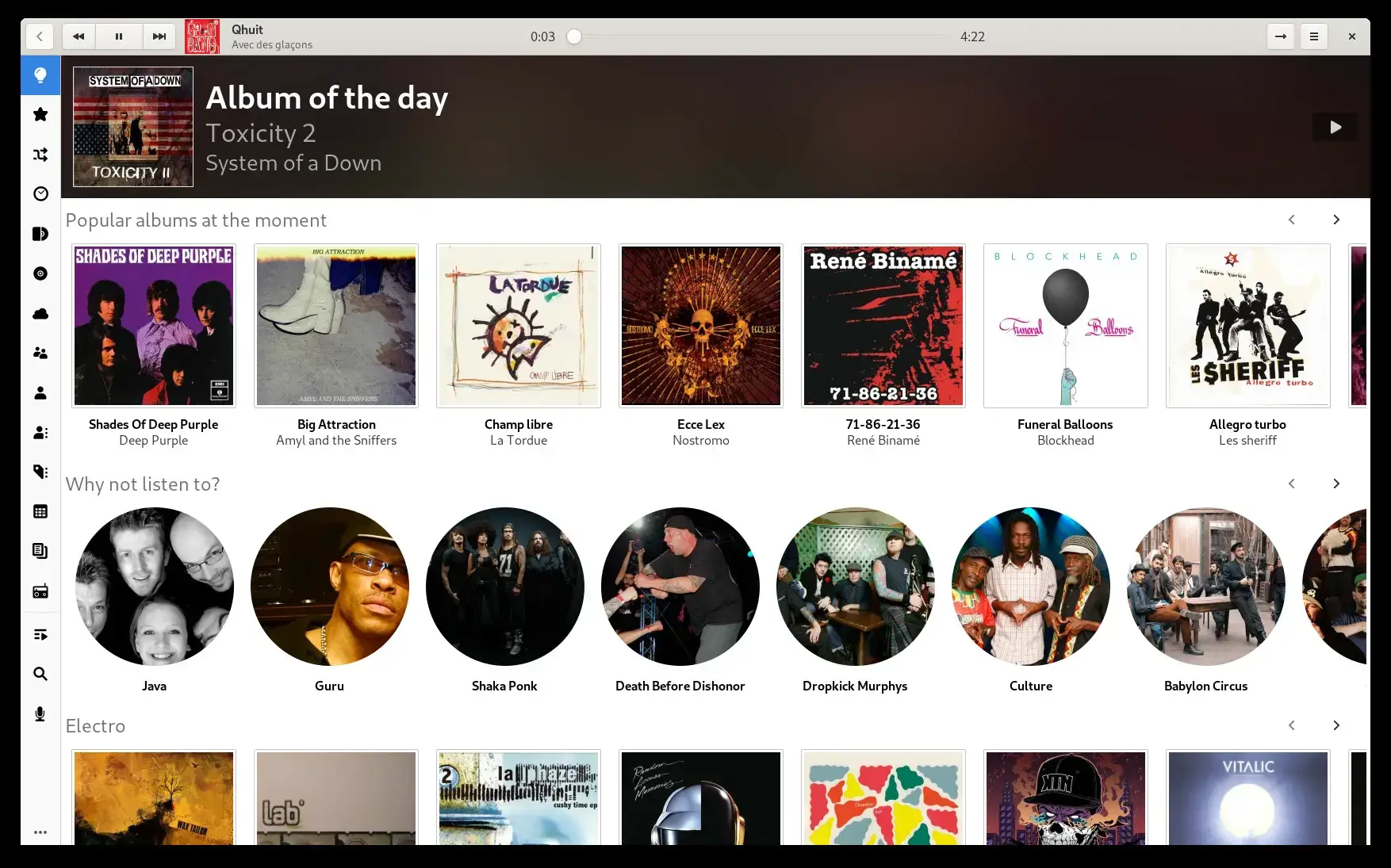

Best For: Users who care about how their music player looks, with a visually rich GNOME music player built around album art with a modern design that feels like a native mobile app on the desktop.
Why Choose It? Lollypop is built for people who browse their music library visually rather than by filename. The interface is built around album art, large cover grids, artist photos, and a party mode that fills your screen with the currently playing album cover. It is one of the best-looking music players on any platform, and it integrates properly with GNOME Shell’s media controls.
- Album art focus: Beautiful cover grid and full-screen party mode
- Artist photos: Auto-fetches artist images for a music-service-style feel
- Last.fm / ListenBrainz: Scrobbling built in for both services
- Lyrics view: Synced and unsynced lyrics display
- ReplayGain: Volume normalization across your library
Quick Tip: Enable “Party mode” from the header bar to make Lollypop display the current album art full-screen. It is great for having music on in the background with a visual.
Install Command:
Best For: Older-computer users or Xfce desktop fans who need a lightweight media player for both audio and video.
Why Choose It? Parole is Xfce’s default media player and one of the lightest full-featured players on Linux. It uses GStreamer for broad format support, starts up almost instantly, and uses very little RAM. If you are on an older machine or running Xubuntu, Parole handles both video and music playback competently without any bloat.
- Very lightweight: Low RAM use, fast startup, and modest CPU use
- Media support: Broad format support through GStreamer plugins
- Video + audio: Handles both in a single simple app
- Plugins: Add extra features when needed
- Xfce native: Fits perfectly on Xubuntu and other Xfce-based desktops
Quick Tip: Install gstreamer1.0-plugins-ugly and gstreamer1.0-libav alongside Parole to unlock MP3, AAC, and most video format support that is not included by default due to licensing.
Install Command:
Quick Comparison Table
| Player | Type | Format Support | Graphics Help | Streaming | Desktop |
|---|---|---|---|---|---|
| VLC | Video + Audio | Universal | Yes | YouTube, RTSP | All |
| MPV | Video | Universal | Yes, high-quality mode | via yt-dlp | All |
| Celluloid | Video | Universal (MPV) | Yes | via MPV | GNOME |
| SMPlayer | Video | Universal (MPV) | Yes | YouTube built-in | All (Qt) |
| Haruna | Video | Universal (MPV) | Yes | via MPV | KDE Plasma |
| Totem | Video | Common formats | Via GStreamer | Limited | GNOME |
| Strawberry | Music | FLAC, MP3, AAC, ALAC | N/A | Subsonic, Tidal | All (Qt) |
| Rhythmbox | Music | Common audio formats | N/A | Internet radio | GNOME |
| Clementine | Music | All audio formats | N/A | Spotify, SoundCloud | All (Qt) |
| Lollypop | Music | Common audio formats | N/A | Last.fm, ListenBrainz | GNOME |
| Parole | Video + Audio | GStreamer support | Via GStreamer | No | Xfce |
Which Player is Right for You?
Install VLC. It is the universal default for a reason: no extra media setup, no configuration required, and it works on almost every file type you will encounter.
Use MPV with profile=gpu-hq in your configuration file. The difference in sharpness and motion clarity versus VLC is noticeable, especially on large screens.
Celluloid for video, Lollypop or Rhythmbox for music. Both are GTK4-native and integrate seamlessly with the GNOME desktop and media keys.
Strawberry is the clear choice, with lossless audio playback, gapless support, Last.fm tracking, and lyrics. It was built specifically for this use case.
Haruna for video, Clementine or Strawberry for music. Haruna integrates with Plasma’s media controls and follows your KDE theme automatically.
Choose Parole for both video and audio. It is the lightest option on this list and starts almost instantly. Pair it with Xubuntu for the best overall low-resource experience.
What is the best media player for Ubuntu overall?
VLC is the best all-around media player for Ubuntu. It plays virtually every video and audio format without extra media setup, can use your graphics hardware for smoother playback, handles streaming URLs, and runs well on both old laptops and high-end workstations. It has been the go-to recommendation for over two decades and remains unbeaten for versatility.
Is MPV better than VLC on Ubuntu?
For video quality, MPV can beat VLC. Its high-quality profile can produce sharper, smoother video on supported hardware. But VLC is easier to use and more beginner-friendly. If you watch a lot of video and care about picture quality, use MPV. If you want something that just works without any configuration, use VLC.
What is the best music player for Ubuntu with Last.fm support?
Strawberry is the best option. It has built-in Last.fm play tracking that works without extra plugins or third-party setup. Rhythmbox and Clementine also support Last.fm via plugins or built-in settings. Lollypop supports both Last.fm and ListenBrainz if you prefer the open-source alternative to Last.fm.
Can I play YouTube videos directly in a media player on Ubuntu?
Yes. VLC and SMPlayer both support playing YouTube URLs directly. Open a network stream and paste the URL. MPV also supports YouTube playback via yt-dlp, which you can install separately. SMPlayer has the most seamless YouTube experience with a dedicated URL input and quality selection built into the interface.
Which media player uses the least RAM on Ubuntu?
MPV and Parole are the lightest options. MPV can run in a minimal windowed mode using under 100MB of RAM for typical video. Parole is similarly lean for both audio and video. If you are on a machine with 2GB RAM or less, these two are your best options for media playback without slowing down other work.
Can VLC use graphics hardware on Ubuntu?
Yes. VLC can use Intel, AMD, and NVIDIA graphics hardware on Ubuntu. In VLC preferences, set hardware decoding to Automatic. This reduces CPU use during 1080p and 4K playback and is recommended on any modern machine with built-in or dedicated graphics.
What happened to Amarok and Banshee, are they still worth using?
Both Amarok and Banshee have largely been replaced by better-maintained alternatives. Amarok is still available and maintained by KDE but has seen slower development. Strawberry or Clementine cover the same use case with more active updates. Banshee development stopped years ago and it is no longer recommended. For new Ubuntu setups, Strawberry is the better choice for serious music library management.
More Ubuntu app guides: Best Audio Editors on Ubuntu · Best Video Editors on Ubuntu · Best Software for Ubuntu · Best Browsers for Ubuntu