


.deb package, the sandboxed Flatpak package via Flathub, or the community Snap package from the Snap Store.

Zoom Workplace handles meetings, webinars, chat, and screen sharing on Linux. Since Zoom is not available in the default Ubuntu repository, you can choose the installation method that works best for you.
This guide provides step-by-step terminal instructions for installing and configuring Zoom on Ubuntu 26.04, 24.04, and 22.04 LTS. We cover the recommended APT installation, Flatpak and Snap methods, resolving common errors, and complete system uninstallation.
If any of these steps fail on your system, please drop a comment below or contact us and we will help you get it resolved.
APT, Flatpak, & Snap Setup Walkthroughs
Configure the Zoom client on your system. Learn how to securely download the official packages, manage system permissions, and completely remove user data.
Three installation paths are available. Review the comparison grid below to select the option that best fits your needs.
Zoom Installation Methods Compared
| Method | Source | Updates | System isolation | Best For |
|---|---|---|---|---|
| APT | Zoom Official | Manual download | Standard system access | Most users wanting the official version. |
| Flatpak (Flathub) | Flathub | Automatic | Strict sandbox | Users who want isolated software. |
| Snap (Snap Store) | Snap Store | Automatic | Strict sandbox | Users who prefer hands-off updates. |
Before proceeding, refresh your system packages to ensure a smooth setup:
sudo apt update && sudo apt upgrade
Method 1: Install Zoom Using APT (Recommended)
The official Zoom package is not available in the default APT repository. You must download the installer directly from Zoom, then use APT to install it securely.
Download the package using the terminal:
wget -O zoom_amd64.deb https://zoom.us/client/latest/zoom_amd64.deb
Verify the downloaded package before installing:
dpkg-deb -f zoom_amd64.deb Version Architecture
Install the downloaded package using APT. This ensures that any required background files are automatically downloaded:
sudo apt install ./zoom_amd64.deb
Security Note: On Ubuntu 26.04 and 24.04, the Zoom package automatically configures its own system security profile. Do not create a custom security profile unless specifically required.
Method 2: Install Zoom via Flatpak
The Flatpak version runs in an isolated container. It is maintained by the community rather than Zoom directly.
If Flatpak is installed, ensure Flathub is added, then install Zoom:
sudo flatpak remote-add --if-not-exists flathub https://dl.flathub.org/repo/flathub.flatpakrepo
sudo flatpak install flathub us.zoom.Zoom -y
Method 3: Install Zoom via Snap Store
The Zoom Snap package automatically updates in the background. It is maintained by the community and is highly reliable.
Run the snap install command in your terminal:
sudo snap install zoom-client
How to Launch Zoom on Ubuntu
Launch Zoom from your desktop application menu, or use the command that matches your installation method:
For APT installations:
zoom
For Flatpak installations:
flatpak run us.zoom.Zoom
For Snap installations:
snap run zoom-client
How to Update the Zoom APT Package
Because the official Zoom .deb package does not add a remote repository to your system, it will not update automatically when you run apt upgrade. You must manually download and install the latest version over your existing installation.
Run the following combined command to fetch the newest installer and upgrade your client without losing your settings:
wget -O zoom_amd64.deb https://zoom.us/client/latest/zoom_amd64.deb && sudo apt install ./zoom_amd64.deb
Fixing Screen Sharing on Ubuntu (Wayland)
Ubuntu 22.04, 24.04, and 26.04 use the Wayland display server by default. Zoom sometimes struggles to capture screens under Wayland due to strict security boundaries. If your screen sharing is blank or freezing, you can force Zoom to use its Wayland share mode.
Open the Zoom configuration file using the Nano text editor:
nano ~/.config/zoomus.conf
Locate the line that says enableWaylandShare=false and change it to:
enableWaylandShare=true
Save the file by pressing Ctrl+O, then Enter, and exit with Ctrl+X. Restart Zoom to apply the fix.
Enable Hardware Acceleration
To reduce CPU usage and improve video quality during large meetings, ensure hardware acceleration is enabled for the client.
Open the Zoom client and navigate to your Settings gear icon. Select the Video tab, then click the Advanced button at the bottom. Check the boxes for:
- Enable hardware acceleration for video processing
- Enable hardware acceleration for sending video
- Enable hardware acceleration for receiving video
How to Completely Uninstall Zoom and Remove User Data
If you want to remove Zoom, follow the cleanup instructions below that correspond to your active installation format. The first command removes the application, and the second command permanently deletes your local settings and data.
For APT:
sudo apt remove zoom
sudo apt autoremove
For Flatpak:
sudo flatpak remove us.zoom.Zoom -y
sudo flatpak uninstall --unused -y
For Snap:
sudo snap remove --purge zoom-client
Uninstalling the software leaves configuration folders on your system. To clear these directories and permanently delete your local settings, run this command:
rm -rf -- "$HOME/.zoom" "$HOME/.config/zoomus.conf" "$HOME/.cache/zoom" "$HOME/snap/zoom-client" "$HOME/.var/app/us.zoom.Zoom"
Note: Back up any local chat logs or recordings you need before running this command. Cloud recordings stored in your Zoom account are not affected.
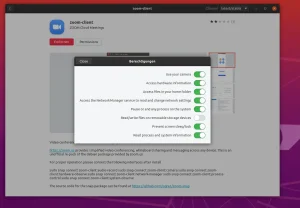
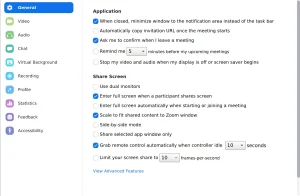
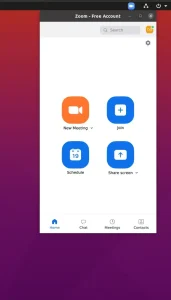
Zoom Interface Screenshots
Get a preview of Zoom running natively on the Ubuntu desktop environment.



Use the links below to access official documentation guides and community forums for Zoom troubleshooting:
Frequently Asked Questions
Why isn’t Zoom in the default Ubuntu repository?
Zoom is proprietary software and is not included in the default Ubuntu repository. You must download the official package from Zoom first, then install it locally by running: sudo apt install ./zoom_amd64.deb.
How do I fix broken dependencies when installing Zoom?
If you installed Zoom and encountered dependency errors, run sudo apt --fix-broken install to let APT automatically fetch and install any missing required files.
Is there an official Snap package for Zoom?
The Zoom snap package is published by the community. It offers easy automatic updates in the background, making it a great alternative to the manual download method.
Can I install Zoom on ARM devices using these methods?
The terminal methods described are for standard 64-bit systems. For ARM devices, you may need to use the Zoom web browser client instead.
Does Zoom fully support older Ubuntu versions?
Yes, the Zoom desktop client and the installation methods provided fully support older Long Term Support releases like Ubuntu 22.04 and 24.04.
Related communication apps: Install Microsoft Teams on Ubuntu · Install Discord on Ubuntu · Install Slack on Ubuntu