


PlayOnLinux is a graphical frontend for Wine that creates isolated virtual drives (Wine prefixes) for each Windows application you install.
Instead of configuring a single shared Wine environment, PlayOnLinux lets you run different Windows programs with their own Wine versions, libraries, and settings – preventing conflicts between applications that need different configurations.
This guide provides step-by-step terminal instructions for installing and configuring PlayOnLinux on Ubuntu 26.04, 24.04, and 22.04 LTS. We cover both installation methods, the critical Python compatibility fix required on Ubuntu 24.04, Wine prefix management, application installation workflows, and clean system uninstallation.
If any of these steps fail on your system, please drop a comment below or contact us and we will help you get it resolved.
Run Windows Apps with Managed Wine Prefixes
Set up PlayOnLinux on your Ubuntu system to create isolated Wine environments for Windows software. Learn how to install via Flatpak or APT, manage virtual drives, and resolve common Python compatibility errors.
Choosing the correct installation format determines which Ubuntu releases are supported and how PlayOnLinux receives updates. The Flatpak package works on all current Ubuntu LTS versions, while the APT package is limited to Ubuntu 24.04 and 22.04. Review the comparison grid below to select the method that fits your system.
PlayOnLinux Installation Methods Compared
Review the two available installation methods to evaluate Ubuntu version support, update mechanisms, and container isolation behavior.
| Method | Source channel | Ubuntu Version Matrix | Sandbox isolation | Integration & Notes |
|---|---|---|---|---|
| Flatpak (Flathub) | Flathub Container Registry | 26.04: ✓ 24.04: ✓ 22.04: ✓ |
Broad host access (Wine needs filesystem, audio, graphics) | Recommended. v4.4, consistent across all Ubuntu LTS releases. Bundles its own Wine runtime. |
| APT Multiverse | Ubuntu Multiverse Repository | 26.04: ✗ (removed) 24.04: v4.3.4 22.04: v4.3.4 |
None (native system access) | Lighter footprint, uses system Wine. Requires python3-pyasyncore fix on Ubuntu 24.04. |
Method 1: Install PlayOnLinux via Flatpak (Flathub)
Flatpak is the recommended installation method because it works on all current Ubuntu LTS releases, including Ubuntu 26.04 where no APT package exists. The Flathub build of PlayOnLinux (v4.4) bundles its own Wine runtime components, so it does not depend on a separate system-level Wine installation. Because Wine-based applications require broad access to filesystem, audio, and graphics hardware, the PlayOnLinux Flatpak uses wider permissions than typical sandboxed applications.
If Flatpak is not yet configured on your computer, install the daemon package via APT:
sudo apt update && sudo apt install flatpak -y
Add the official Flathub remote server to query and pull application packages:
flatpak remote-add --if-not-exists flathub https://dl.flathub.org/repo/flathub.flatpakrepo
Fetch and install PlayOnLinux from the Flathub registry. The first installation downloads the application plus its Freedesktop and Wine runtime components, so it may take longer than a standard APT package:
flatpak install flathub com.playonlinux.PlayOnLinux4 -y
Confirm that the installed Flatpak application reference matches PlayOnLinux:
flatpak info --show-ref com.playonlinux.PlayOnLinux4
Method 2: Install PlayOnLinux via APT (Ubuntu 24.04 and 22.04 Only)
The native APT package provides a lighter installation footprint because it uses shared system libraries and your existing system Wine installation. However, this method is only available on Ubuntu 24.04 and 22.04 – the playonlinux package has been removed from the Ubuntu 26.04 repositories entirely. If you are running Ubuntu 26.04, use Method 1 (Flatpak) above.
Do not attempt sudo apt install playonlinux on Ubuntu 26.04. The package has no installation candidate on that release and APT will return an error. Use the Flatpak method instead.
PlayOnLinux resides in the Multiverse component. Most desktop installations have it enabled by default, but on minimal or server-based setups you may need to add it manually:
sudo add-apt-repository multiverse -y
Update your APT repository indexes to fetch the latest package definitions:
sudo apt update
On Ubuntu 24.04, Python 3.12 removed the legacy asyncore module that PlayOnLinux depends on. You must install the python3-pyasyncore compatibility package alongside PlayOnLinux to prevent a startup crash:
sudo apt install playonlinux python3-pyasyncore -y
On Ubuntu 22.04:
Ubuntu 22.04 ships Python 3.10 which still includes the asyncore module natively. The standard install command is sufficient:
sudo apt install playonlinux -y
Check the installation state and verify the installed package version:
apt-cache policy playonlinux
How to Launch PlayOnLinux on Ubuntu
PlayOnLinux requires an active graphical session (X11 or Wayland) to render its interface. You can launch the application from the desktop application grid or execute startup commands inside a terminal window.
Open your desktop application grid, type PlayOnLinux in the search bar, and click the application icon. For Flatpak installations, you may need to log out and log back in if the icon does not appear immediately after the first install.
Open your terminal using the shortcut key combination Ctrl+Alt+T and run the launch command matching your installation type:
For APT installations:
playonlinux
For Flatpak container builds:
flatpak run com.playonlinux.PlayOnLinux4
How to Use PlayOnLinux on Ubuntu
Once PlayOnLinux launches, it may download or refresh its internal script database on first run. Allow this process to complete before installing any Windows software so the application has the most current installer scripts available.
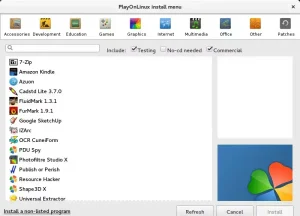
PlayOnLinux maintains a library of preconfigured installation scripts for popular Windows software. To install a supported application:
1. Click Install in the main toolbar.
2. Browse the categories or search for the application you need.
3. Select the entry and follow the installation wizard prompts.
4. Provide the Windows installer file (.exe or .msi) when the wizard requests it.
If your Windows application does not appear in the script library, click the Install a non-listed program link at the bottom of the install menu. This creates a new Wine prefix from scratch and launches a generic wizard where you can specify the Windows installer file, target Wine version, and architecture (32-bit or 64-bit). Manual installs require more familiarity with Wine configuration, but they work for any Windows executable.
PlayOnLinux can download and manage multiple Wine versions independently of your system’s default Wine package. Navigate to Tools > Manage Wine Versions to install specific Wine releases. This is useful when a Windows application requires a newer or older Wine branch than the system default. Each Wine prefix can be configured to use a different Wine version through the Configure panel.
Interface Screenshots
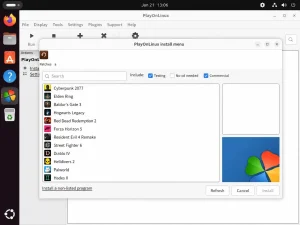
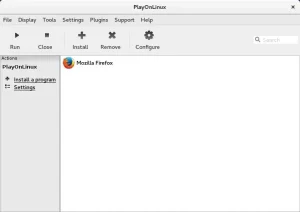
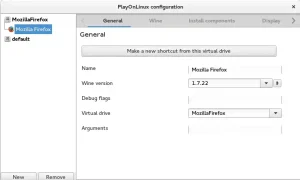
Below are a few examples of the PlayOnLinux interface running natively on the Ubuntu desktop:
Troubleshooting Common PlayOnLinux Issues
This section documents the most common errors users encounter when installing or launching PlayOnLinux on Ubuntu, along with their solutions.
This error is expected on Ubuntu 26.04 because the playonlinux package has been removed from the repositories for that release:
E: Package 'playonlinux' has no installation candidate
Solution: Use the Flatpak installation method (Method 1). If you see this error on Ubuntu 24.04 or 22.04, it means the Multiverse repository is disabled. Enable it with: sudo add-apt-repository multiverse && sudo apt update
Ubuntu 24.04 ships Python 3.12, which removed several legacy standard library modules including asyncore. PlayOnLinux depends on this module and will crash at startup with a traceback error if it is missing:
ModuleNotFoundError: No module named 'asyncore'
Solution: Install the compatibility package that restores the removed module:
sudo apt install python3-pyasyncore -y
Many older Windows programs require 32-bit Wine libraries that are not installed by default on 64-bit Ubuntu systems. For APT-based installations on Ubuntu 24.04 or 22.04, enable the i386 architecture and install the 32-bit Wine package:
sudo dpkg --add-architecture i386
sudo apt update
sudo apt install wine32 -y
Note: The Flatpak package includes its own Wine runtime with built-in 32-bit compatibility, so you do not need to install host-side wine32 for Flatpak installations.
Preconfigured installation scripts can break when a Windows software vendor changes their download URL, installer version, or distribution method. First, try refreshing the script list inside PlayOnLinux. If the script still fails, visit the PlayOnLinux community forums to check for that specific application, or use the Install a non-listed program option and provide the Windows installer file manually.
How to Completely Uninstall PlayOnLinux and Remove User Data
If you want to remove PlayOnLinux, follow the cleanup instructions below that correspond to your active installation format. These steps purge the system packages, remove leftover dependencies, and delete local user configuration files and Wine prefixes.
Remove the PlayOnLinux binaries using the package manager that matches your current installation:
For APT installations:
sudo apt remove playonlinux -y
sudo apt autoremove --purge -y
If you installed python3-pyasyncore only for PlayOnLinux on Ubuntu 24.04, remove it separately:
sudo apt remove python3-pyasyncore -y
For Flatpak installations:
flatpak uninstall com.playonlinux.PlayOnLinux4 -y
flatpak uninstall --unused -y
Uninstalling the software does not remove your Windows applications, Wine prefixes, or configuration settings. These are stored in your home directory. To perform a complete cleanup, delete the directories that correspond to your installation method:
## Clean native APT configuration and Wine prefixes
rm -rf ~/.PlayOnLinux

## Clean Flatpak application caches
rm -rf ~/.var/app/com.playonlinux.PlayOnLinux4
Deleting the ~/.PlayOnLinux directory permanently removes all your installed Windows applications, saved Wine prefixes, and their registry data. Back up any important files inside these prefixes before running the cleanup commands.
Use the links below to access community forums, official documentation, and the project website for PlayOnLinux troubleshooting and support:
Frequently Asked Questions
Is PlayOnLinux available in the Ubuntu 26.04 APT repositories?
No. The playonlinux package has been removed from the Ubuntu 26.04 package repositories and has no APT installation candidate. You must install PlayOnLinux via Flatpak from Flathub on Ubuntu 26.04.
How do I fix the “No module named asyncore” error on Ubuntu 24.04?
Ubuntu 24.04 uses Python 3.12, which removed the legacy asyncore module that PlayOnLinux requires. Install the compatibility package by running: sudo apt install python3-pyasyncore. PlayOnLinux will launch normally after this package is installed.
Can I install PlayOnLinux using Snap on Ubuntu?
No. There is no official or maintained Snap package for PlayOnLinux. The two supported installation methods are the native APT package from the Multiverse repository (Ubuntu 24.04 and 22.04 only) and the Flatpak package from Flathub (all Ubuntu LTS versions).
What is the difference between PlayOnLinux and plain Wine?
Wine translates Windows system calls into Linux equivalents, but it uses a single shared configuration by default. PlayOnLinux creates separate Wine prefixes (virtual drives) for each Windows application, so different programs can use different Wine versions, libraries, and settings without conflicting with each other.
Is PlayOnLinux still actively maintained in 2026?
PlayOnLinux 4.x receives limited maintenance updates. The project is stable but no longer under active feature development. For users who need a more modern Wine management frontend with broader game compatibility, Lutris and Bottles are actively maintained alternatives.
Related gaming and Wine guides: Install Wine on Ubuntu · Install Lutris on Ubuntu · Install Steam on Ubuntu · Steam Link Setup Guide