

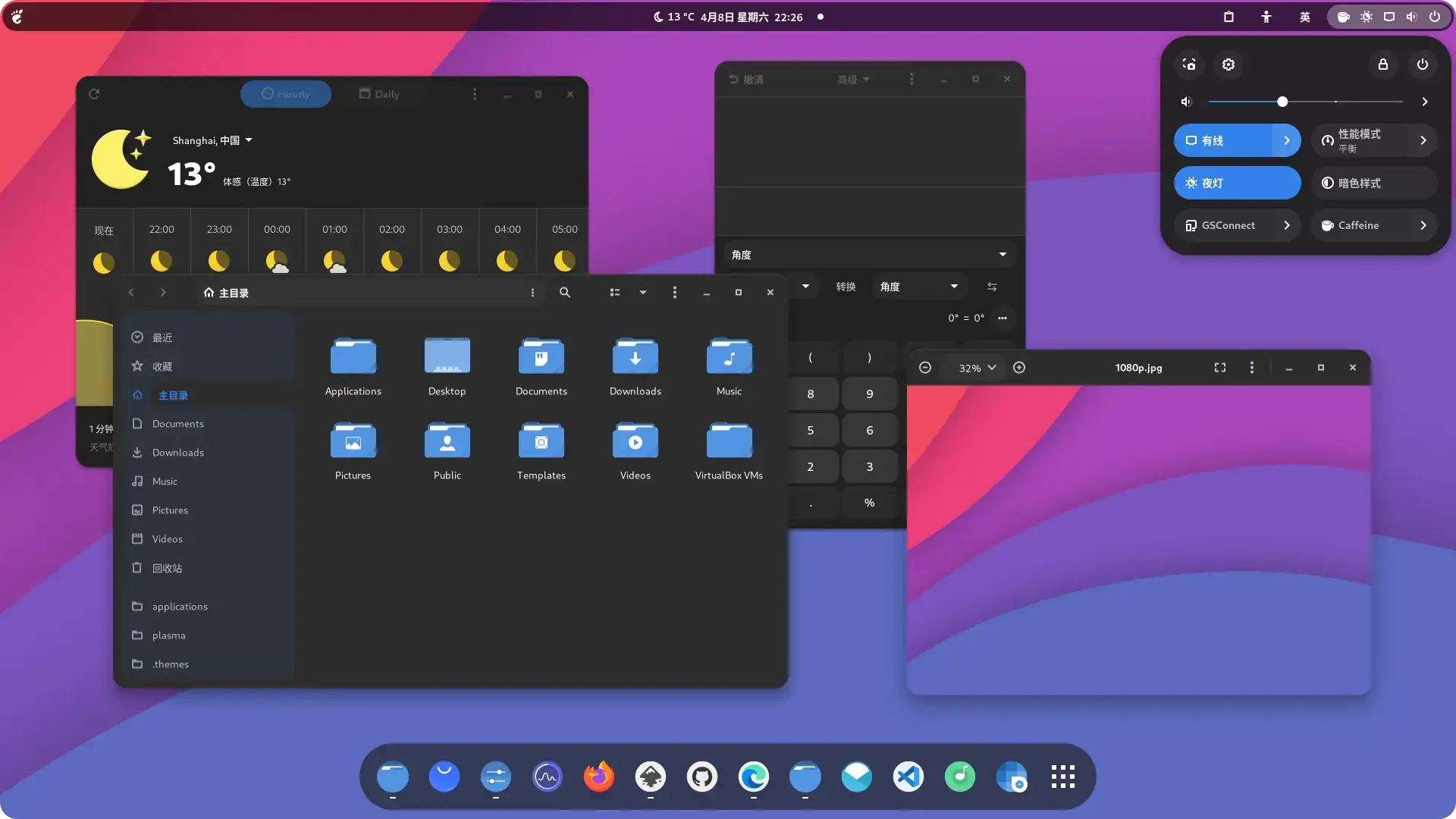

Orchis is available on GitHub and OpenDesktop, and you can install it on Ubuntu by cloning the repo and running a simple script. It is a clean Material Design theme that changes how your window borders, buttons, menus, and GNOME Shell panel look. With 10+ accent colors and both light and dark modes, it works with nearly any desktop setup. Below we have instructions on how to get it up and running, screenshots and bonus terminal commands to unlock more features.
Feel free to leave a comment or contact us directly for any feedback or help.
Quick Facts
How to Install Orchis on Ubuntu
You can install Orchis on Ubuntu by cloning the GitHub repo and running the install script. Here is how.
Step 1: Install the Required Packages
Orchis needs a few packages to build properly. Run this first to make sure everything is in place.
sudo apt install gtk2-engines-murrine sassc gnome-themes-extraStep 2: Clone and Install Orchis
Clone the repo and run the install script. By default it installs all light and dark variants with the blue accent.
git clone https://github.com/vinceliuice/Orchis-theme.git
cd Orchis-theme
./install.sh
Step 3: Pick a Color (Optional)
Want a different accent color? Use the -t flag with your color choice. Use all to install every color at once.
./install.sh -t purple
./install.sh -t all
Apply the Theme
Open GNOME Tweaks (install it with sudo apt install gnome-tweaks if you do not have it), go to Appearance, and select Orchis or any of its variants under the Applications and Shell dropdowns.
Screenshots
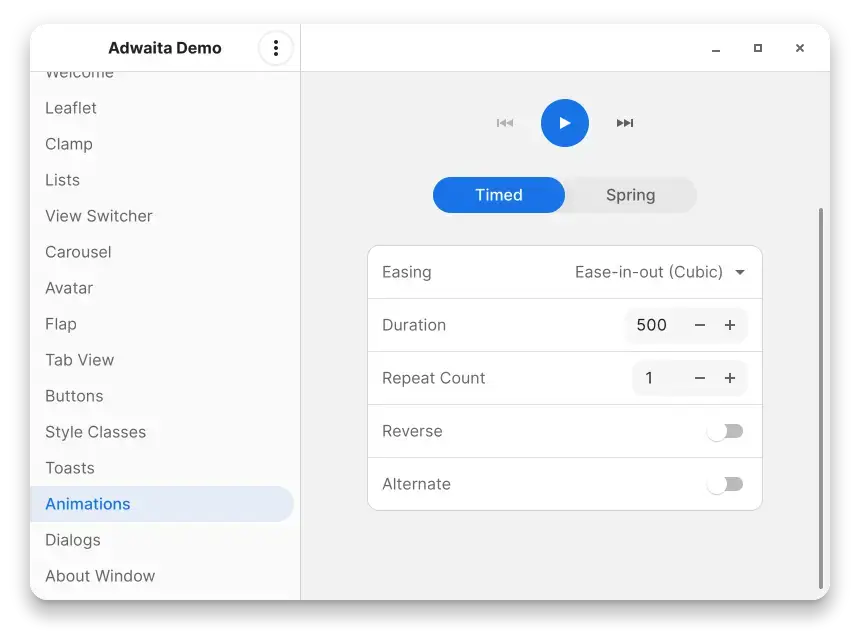
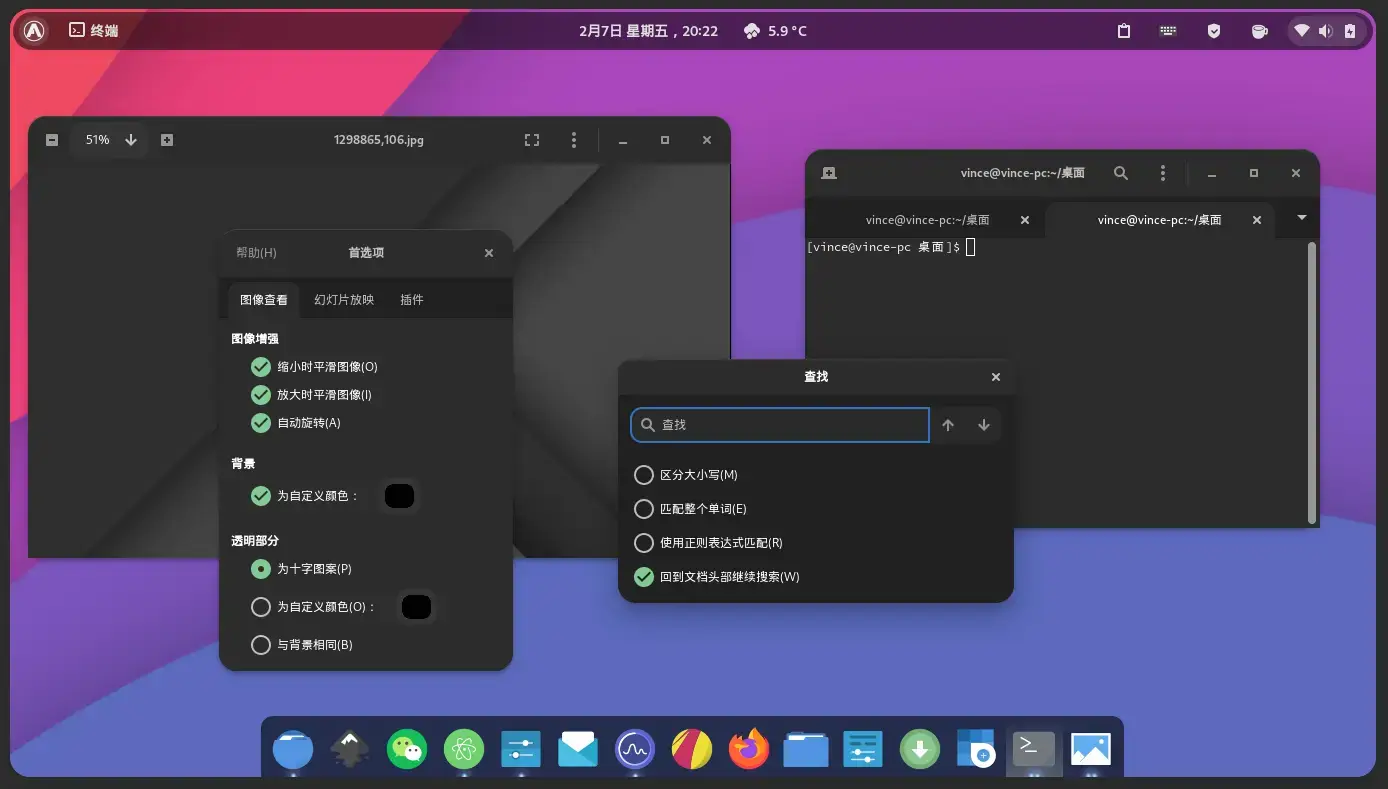
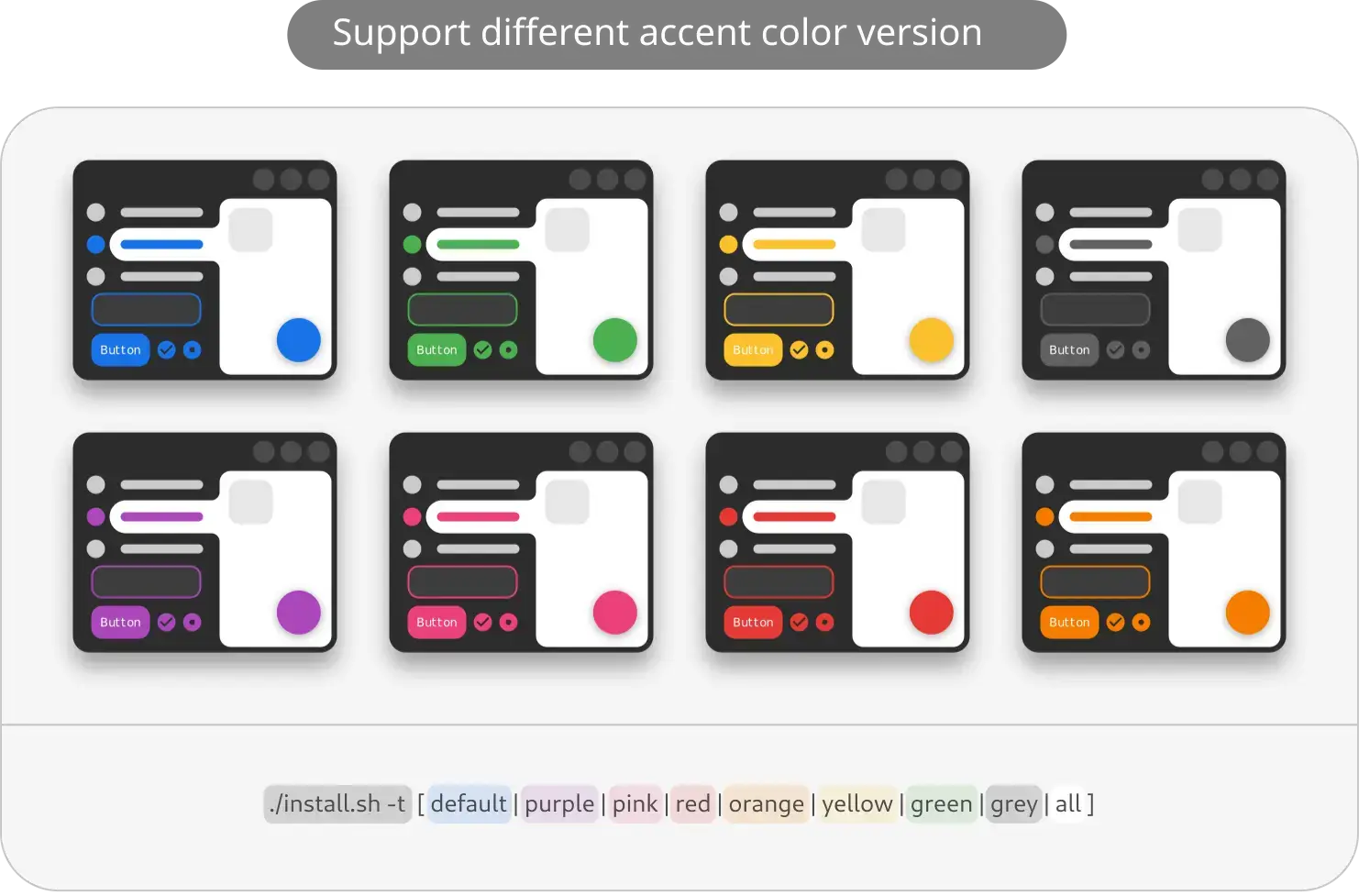
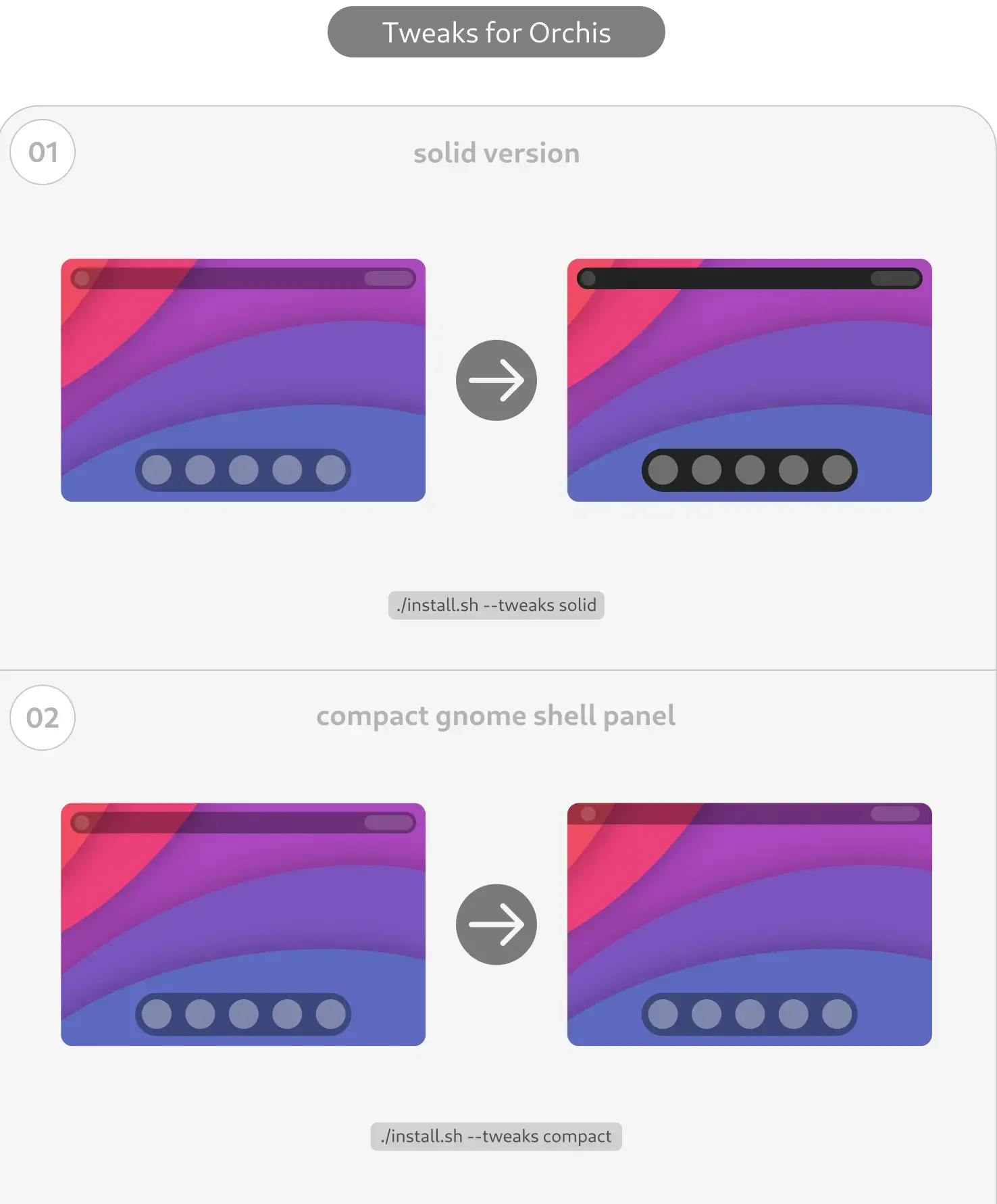
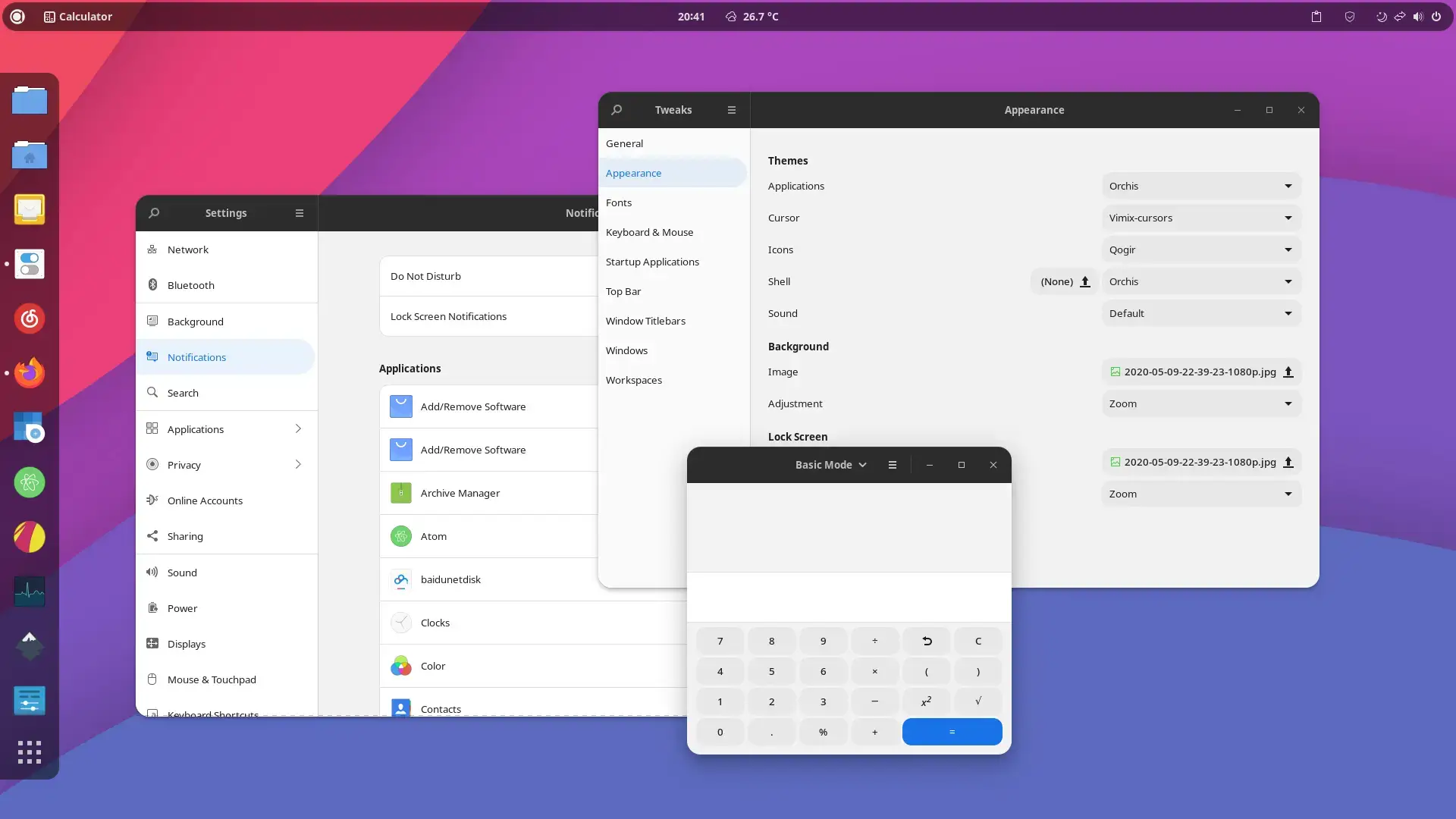
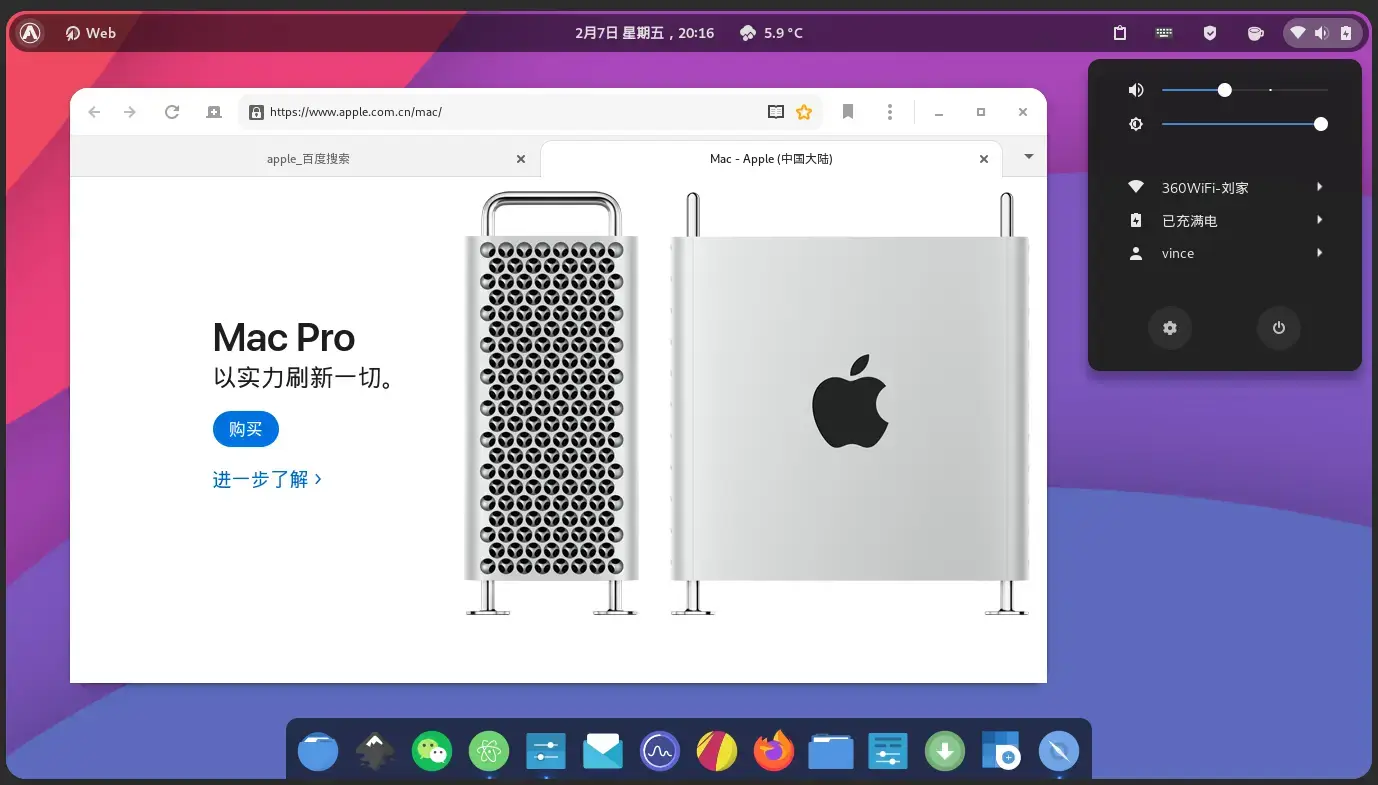
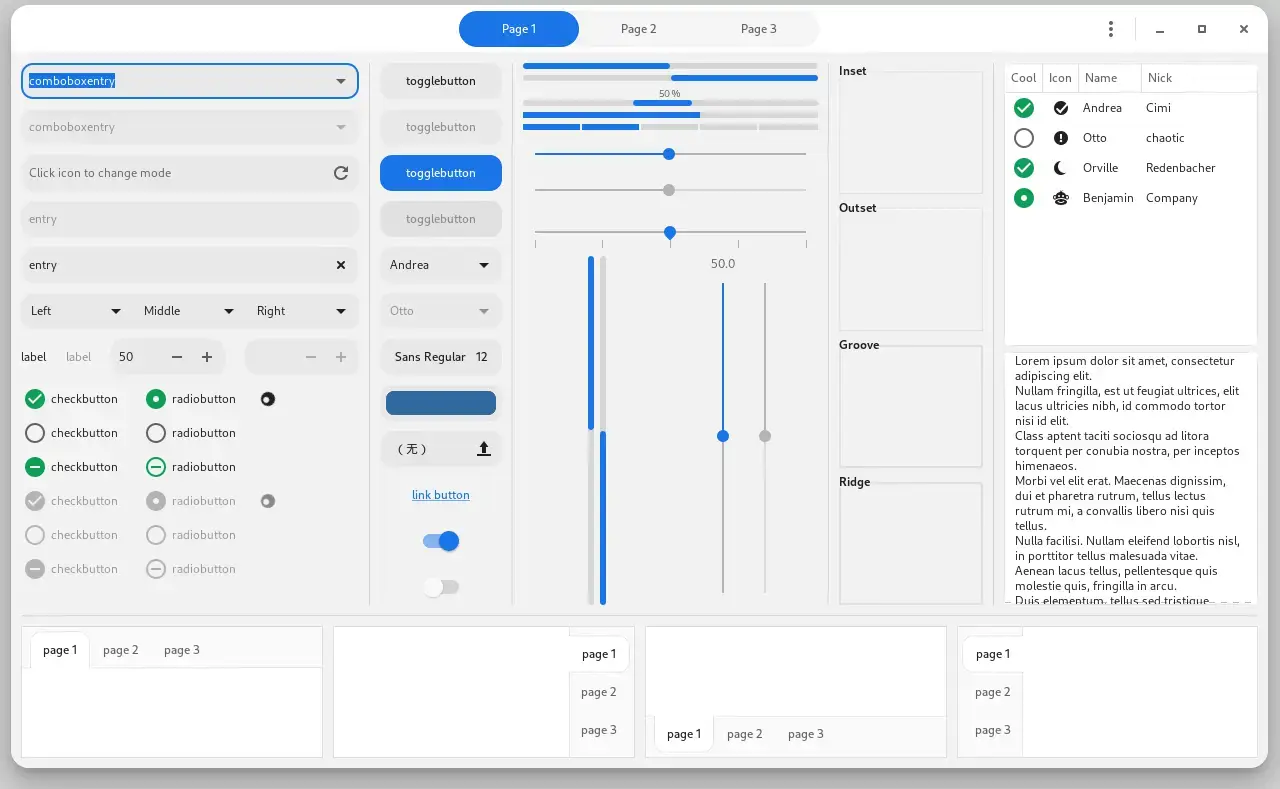
What Makes Orchis Worth Installing?
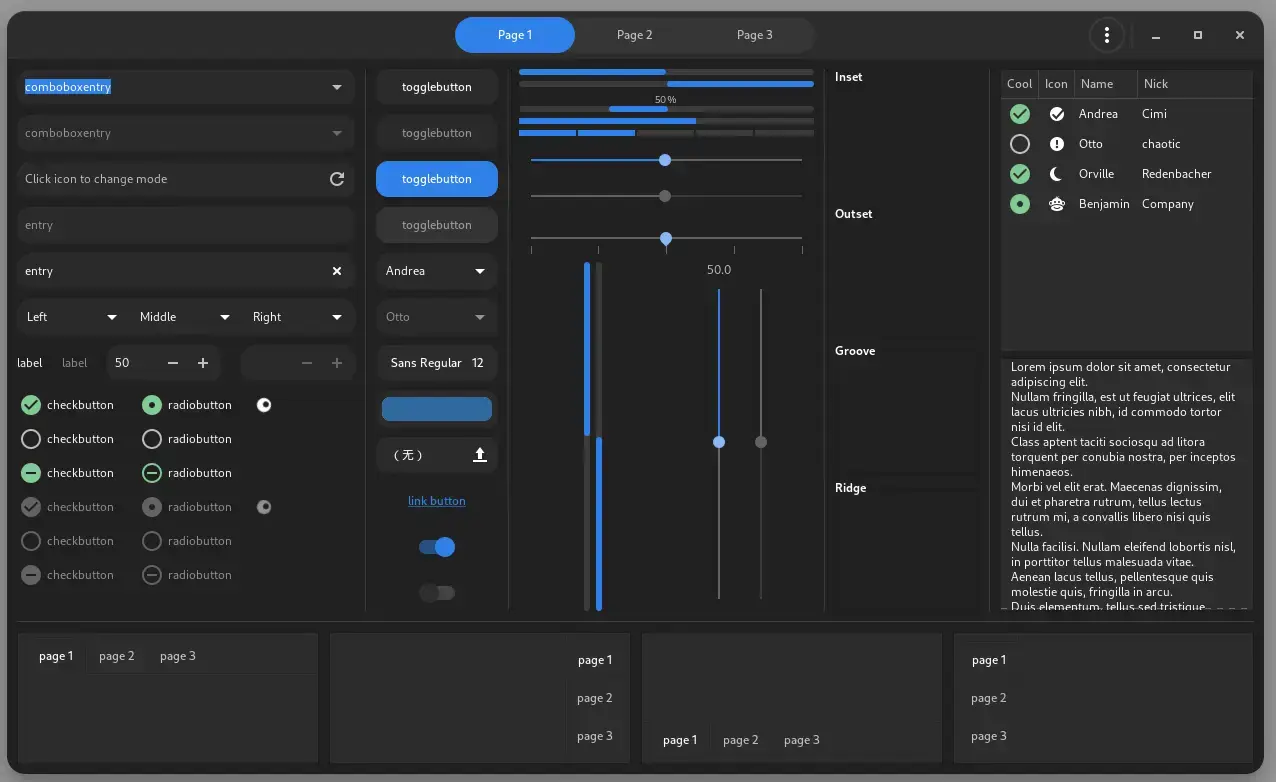
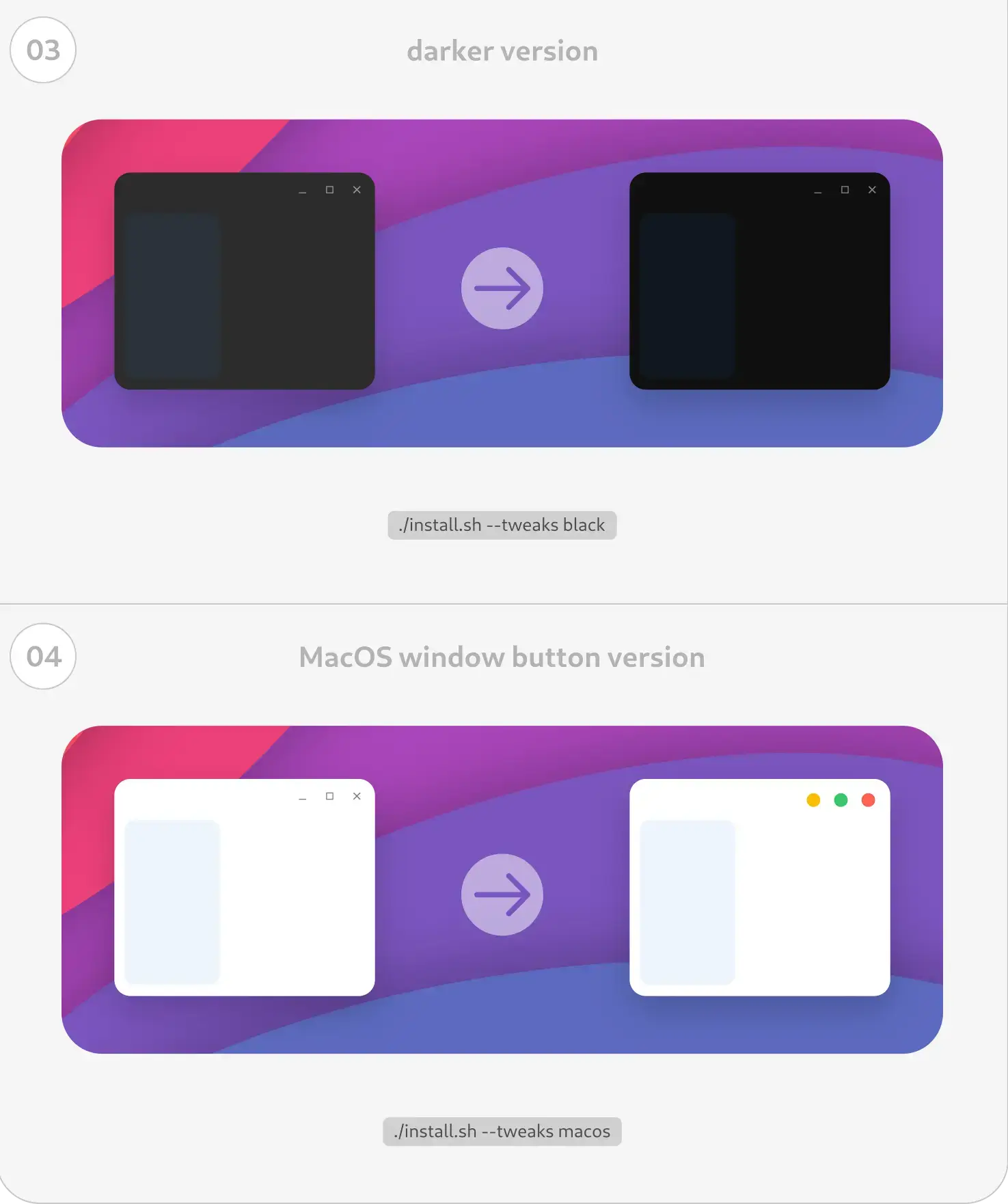
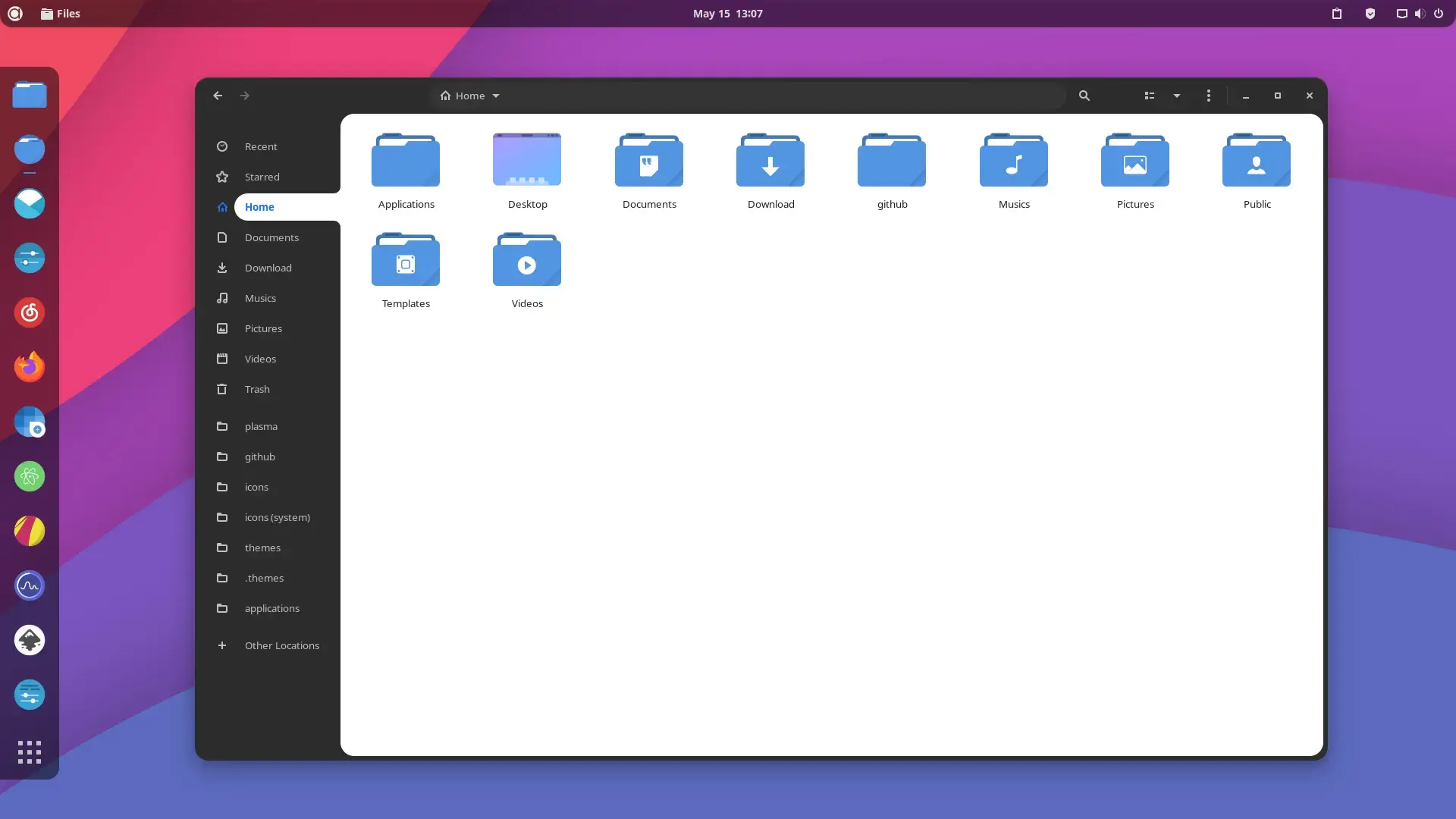
Orchis is one of the cleanest Material Design themes you can get on Linux. Everything from the title bars to the right-click menus to the GNOME top bar gets a smooth, modern makeover. It comes with 10 accent colors, three brightness modes (standard, light, dark), and tweaks for macOS-style window buttons, compact panels, and Nord or Dracula color schemes. It also has a built-in fix for libadwaita apps, which means newer GNOME apps like Settings and Files will actually follow your theme instead of ignoring it.
✓ 10 Accent Colors ✓ Light + Dark + Compact ✓ Libadwaita Fix ✓ GNOME Shell Theme ✓ 700 Commits
Bonus: Fix Libadwaita Apps
Newer GNOME apps (like Settings, Files, and Text Editor) use libadwaita and ignore regular GTK themes. Orchis includes a one-command fix that links the theme to your GTK4 config folder so these apps follow Orchis too.
./install.sh -l           # Link default light version
./install.sh -c dark -l   # Link dark version
Download Orchis GTK Theme
Get the latest version from any of these official sources.
Frequently Asked Questions
How do I install Orchis theme on Ubuntu?
Clone the GitHub repository with git clone https://github.com/vinceliuice/Orchis-theme.git, then run ./install.sh inside the folder. This installs all light and dark variants to your themes directory.
Does Orchis theme work on Ubuntu 24.04 and 26.04?
Yes. Orchis works on Ubuntu 24.04 and Ubuntu 26.04. It supports GNOME Shell 38 through 48 and works with both GTK3 and GTK4 apps through its libadwaita link.
What accent colors does Orchis include?
Orchis includes default (blue), purple, pink, red, orange, yellow, green, teal, and grey color variants. You can install one color or all of them at once.
Does Orchis support libadwaita apps?
Yes. Run ./install.sh -l to link the Orchis gtk-4.0 theme to your config folder. This makes libadwaita apps like Settings and Nautilus use the Orchis style instead of the default look.
Is Orchis GTK theme still maintained?
Yes. Orchis is actively maintained by vinceliuice on GitHub with nearly 700 commits and 27 releases. The latest release was in April 2026.
More Ubuntu Customization Guides
Pair Orchis with a matching icon theme or cursor for a fully polished desktop.