


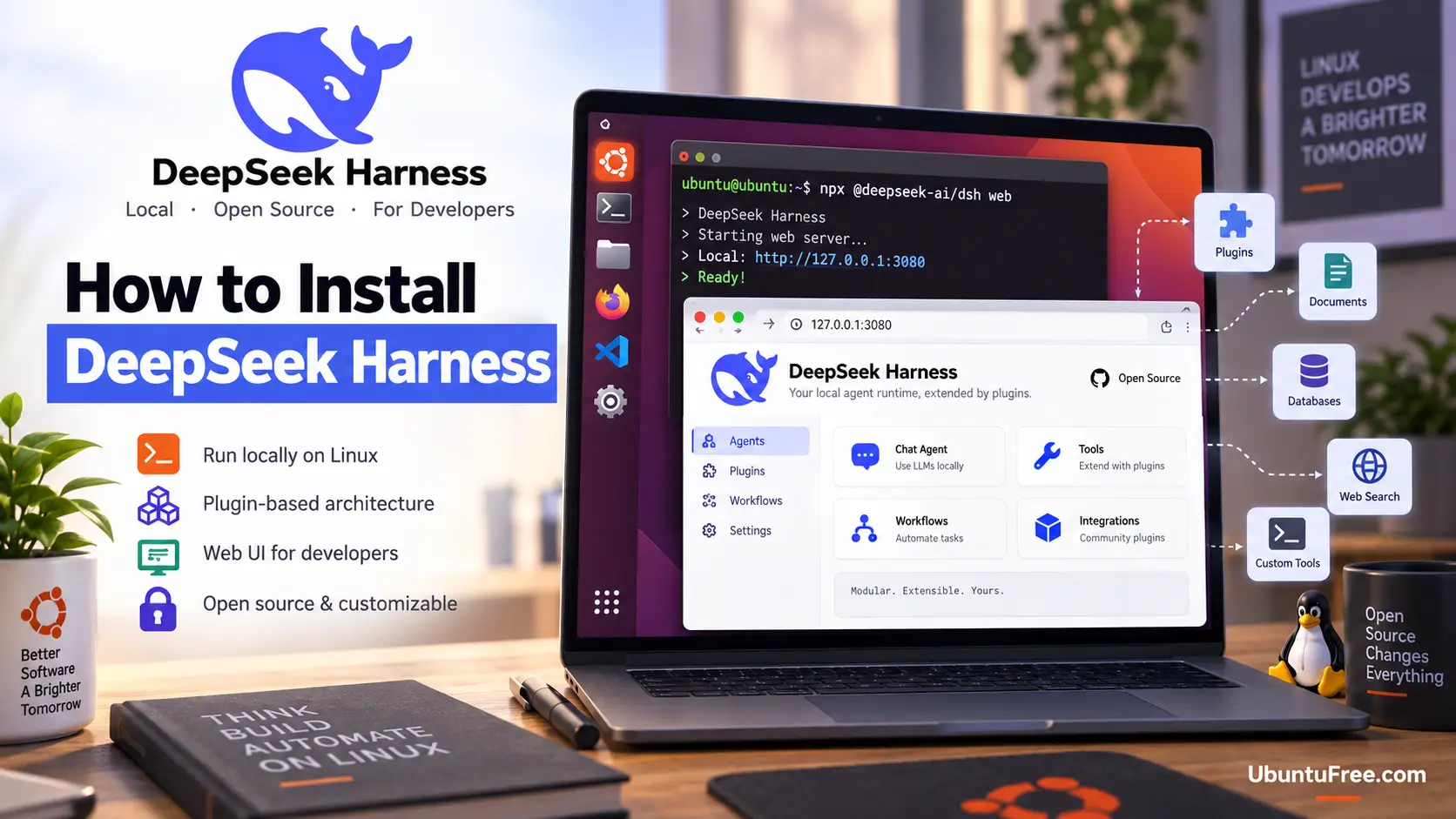
Install DeepSeek Harness on Ubuntu
To install DeepSeek Harness on Ubuntu, install Node.js, then run npx @deepseek-ai/dsh web and open http://127.0.0.1:3080. There is nothing to compile and nothing to add to your system directories.
Out of the box it wants a paid DeepSeek API key. It does not need one. This guide points it at a model running in Ollama on the same machine, so nothing is billed and nothing leaves your computer.
sudo needed for dsh itself. It runs from your home directory.Install DeepSeek Harness on Ubuntu
Two steps, and neither of them installs anything into your system directories. Everything lives in your home folder and removing it is one command.
Step 1: Install Node.js
DeepSeek Harness is a Node.js program. The version in Ubuntu’s own repositories is usually too old, and the project builds its releases on Node 24, so install a current version with nvm instead. nvm keeps Node inside your home directory, which means no sudo and nothing for apt to argue with later:
curl -o- https://raw.githubusercontent.com/nvm-sh/nvm/v0.40.7/install.sh | bash
source ~/.bashrc
nvm install 24
Check what you ended up with. Anything from 24 upwards is a safe place to be:
mike@ubuntu:~$ node -v
v24.21.0Run node -v first. If it already prints 22.19 or higher, skip this step entirely. The project does not publish a minimum version, but its own releases are built on Node 24, so that is the version least likely to surprise you.
Step 2: Start dsh and Add a Workspace
Move into the project folder you want the agent to work in first, because dsh treats the directory you start it from as its default location. Then start it:
mike@ubuntu:~$ cd ~/projects/my-app
mike@ubuntu:~/projects/my-app$ npx @deepseek-ai/dsh web
The first run downloads the package, which takes a minute. When it finishes it prints the address. Open http://127.0.0.1:3080 in your browser.
A fresh interface has no workspace selected, and the composer stays disabled until you pick one. Nothing on screen tells you this, so it reads like a broken install when it is not.
Click Choose workspace, add the directory you started dsh in, and select it. The message box comes alive straight away.
At this point the agent works, but it is pointed at DeepSeek’s paid cloud API and has no key. The next section fixes that without spending anything.
Point It at a Local Model, Not the Cloud
This is the part almost nothing else written about dsh covers. The built in providers are all paid cloud APIs, but the custom provider route will happily talk to Ollama on your own machine, and Ollama speaks the protocol dsh expects.
dsh does not serve models. It contains no model serving code at all, so it cannot download or run one. Something else has to be doing that, and on Ubuntu that something is usually Ollama. Our guide to installing Ollama on Ubuntu covers it in full.
You also need a model pulled and ready. This guide uses deepseek-r1:8b, a 5.2 GB download covered in our guide to installing DeepSeek on Ubuntu. Any model Ollama can run works the same way, including Llama.
Step 3: Add Ollama as a Custom Provider
Check Ollama is answering on the address dsh will use. Use the IP, not the word localhost, because that is what you will type into the form:
mike@ubuntu:~$ curl http://127.0.0.1:11434/v1/models
mike@ubuntu:~$ ollama list
NAME                ID              SIZE      MODIFIED
deepseek-r1:8b      28f8fd6cdc67    5.2 GB    2 hours ago
Now open Settings, then Models, then Add a custom provider, and fill it in like this:
ollama, lowercase. This one is permanent, so pick it deliberately.http://127.0.0.1:11434/v1openai-completionslocal. Ollama ignores it, but dsh refuses to work without one.ollama list printed, tag included. deepseek-r1:8b, not deepseek-r1.40960, with max output tokens 8192. Step 4 explains why.There is a Fetch available models button that asks the endpoint what it serves. Ollama answers it, so use it rather than typing model names by hand. Save, then pick the model from the model picker. Selecting it is what makes it the default, so configuring the provider alone is not enough.
The form writes to ~/.dsh/settings.yaml, and you can write the same thing yourself. The adapters re-read it on the next request, so nothing needs restarting:
llm-pi-ai:
  providers:
    ollama:
      displayName: Ollama
      apiKeyEnv: OLLAMA_API_KEY
      api: openai-completions
      baseURL: http://127.0.0.1:11434/v1
      models:
        - id: deepseek-r1:8b
          contextWindow: 40960
          maxTokens: 8192
agent-default-model:
  provider: ollama
  model: deepseek-r1:8b
Written this way the key comes from an environment variable instead, so export OLLAMA_API_KEY=local has to be set before you start dsh.
Step 4: Fix the Context Window
This is the step that separates a working setup from a maddening one. An agent sends far more text than a chat does: the system prompt, the tool definitions, the files it has read and everything it has already said. Ollama’s default context window can be as low as 4,096 tokens, and when the conversation outgrows it the oldest part is silently dropped.
The agent does not warn you. It just starts forgetting what it was doing, repeating work, or losing the file it read two steps ago. Start the Ollama server with a larger window:
mike@ubuntu:~$ OLLAMA_CONTEXT_LENGTH=40960 ollama serveThe number in the YAML and the number Ollama is actually running with have to agree. Declaring 40,960 in dsh while Ollama serves 4,096 does not raise an error, it just truncates. Declaring more than your hardware can hold gives you token limit errors instead. On a 12 to 16 GB graphics card, 40,960 is a sensible place to start.
If you would rather watch someone do this, the video below walks through the same job. It was recorded on an earlier release, so a few screens have moved since, but the idea and the settings are the ones above.

What DeepSeek Harness Actually Does


A model on its own can only produce text. A harness is what turns that into something that can do work: it gives the model tools, runs the commands it asks for, keeps the conversation, remembers the plan, and asks you before doing anything it should not decide alone.
dsh is built on a plugin framework called Cordis, and the phrase the project uses is that everything is a plugin. Models, tools, skills, sessions, sandboxes, storage, scheduling and the interface itself are all plugins mounted side by side. There is no privileged core to work around, which is why the plugin ecosystem below is as large as it is.
It coordinates a model that something else is running. That is why it sits above Ollama rather than competing with it.
Before you send the first message, check which mode the agent is in. The picker sits at the top of the composer and the four modes give the model very different amounts of rope:

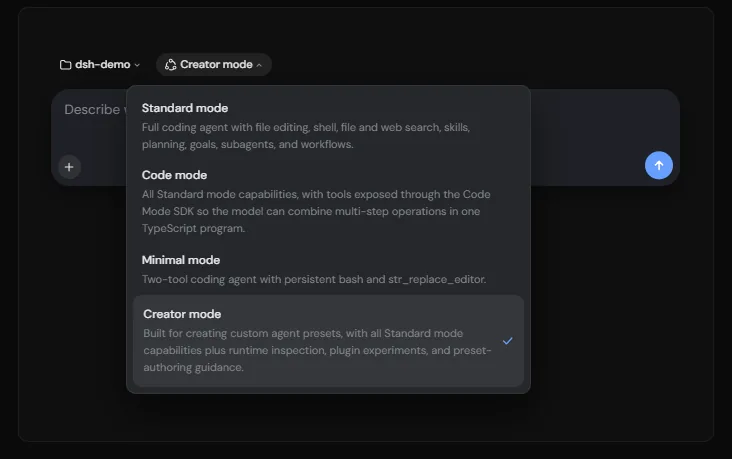
Standard is the right default. Minimal is worth knowing about for a local model: it reduces the agent to a persistent shell and a file editor, which means a far smaller system prompt and far less pressure on a context window that a small model does not have much of.
Make It Do More With Plugins
Plugins are not a side feature here, they are the design. A stock install already mounts well over a hundred of them, and you can see the lot under Settings, then Plugins, where each one can be switched off individually.

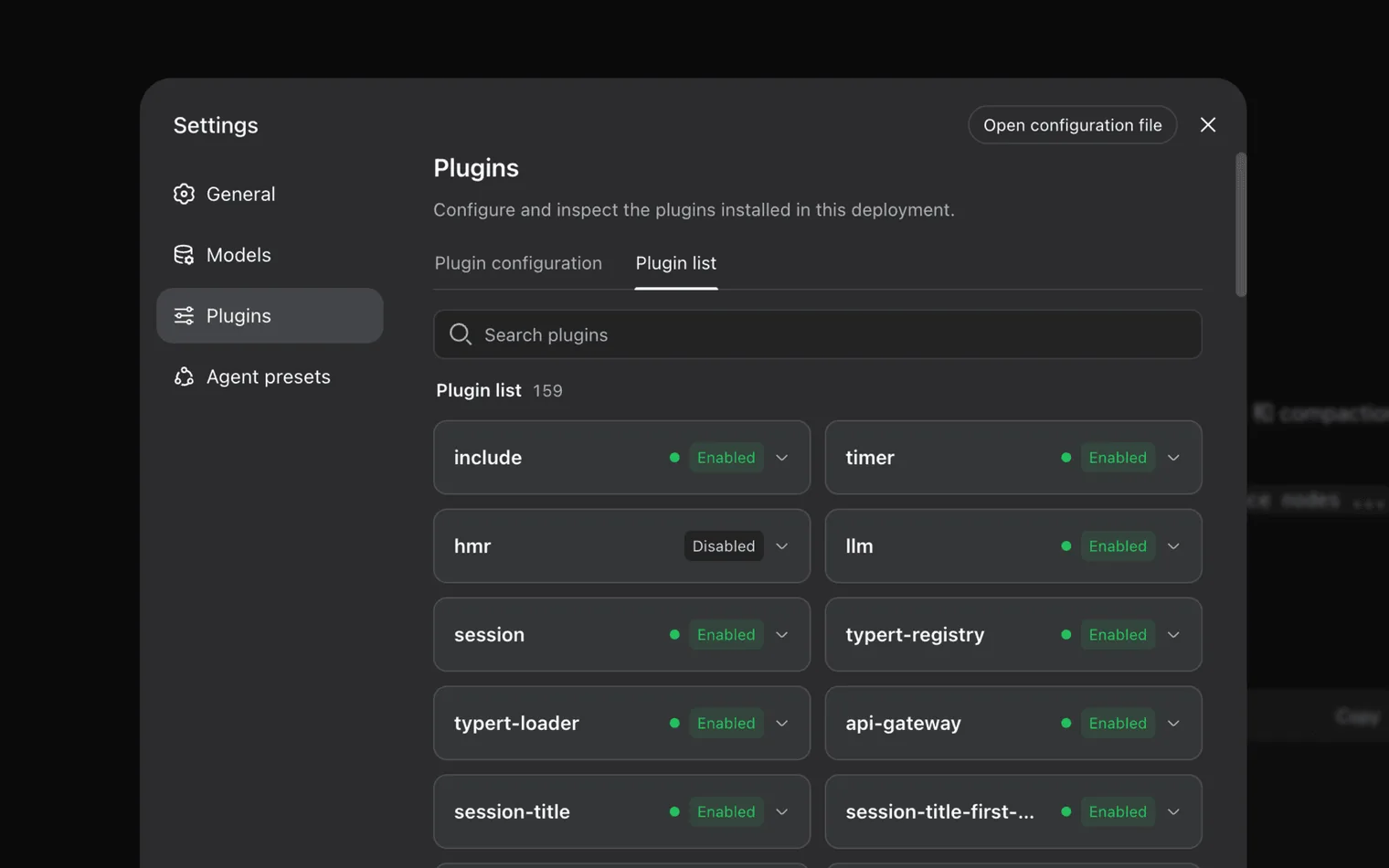
Installing a community plugin is one command. It adds the package to your web profile, which lives in ~/.dsh/profiles/web, and the shipped web profile reloads its configuration live, so there is nothing to restart:
mike@ubuntu:~$ dsh plugin --profile web add dsh-marketInstalling one runs somebody else’s program on your machine with your permissions. It can read your files, use your credentials and reach the network, and the approval prompts you see for the agent’s own tool calls do not sandbox plugin code. Being popular is not a security review. Read the source of anything you do not recognise, and try unfamiliar plugins somewhere that is not holding your keys.
Which DeepSeek Harness Plugins to Try
Each name below links to its repository, where you will find the exact package name to put after add in the command above. Star counts are from the time of writing and the ecosystem is young, so treat these as a starting point rather than a canon.


A plugin market inside the interface, so you can browse and install the rest without going back to the terminal. Install this one first and the others get easier.

Shows what is actually in the context window and how it is filling up. The most useful one on this list if you are running a local model, because a small model runs out of room long before a cloud one does.

Wraps the whole thing in a desktop application instead of a browser tab, which suits anyone who would rather not keep a tab open all day. The largest community project in the ecosystem.

Tracks and checks what is being published across the plugin ecosystem. Given the warning above, something that looks at plugins before you install them is worth having.

Puts the interface on your phone by scanning a code, while the model keeps running on the machine at home. A neat fit for a desktop with a graphics card in it.

Connects the agent to messaging apps, Telegram, Slack, Discord and others, so you can send it a job from wherever you are and read the answer later.
One warning about finding your own. The plugin topic on GitHub is being used by projects with no connection to dsh at all, because it is currently a popular tag. Sorting that page by stars puts image uploaders and database tools above real plugins, so read what a project actually does before installing it.
See Exactly What the Agent Did
An agent that edits files and runs commands is only worth trusting if you can check its work. Every session has a Trajectory tab next to the chat, and it lists each step in order: what the model was thinking, which tool it called, what it passed in and what came back.
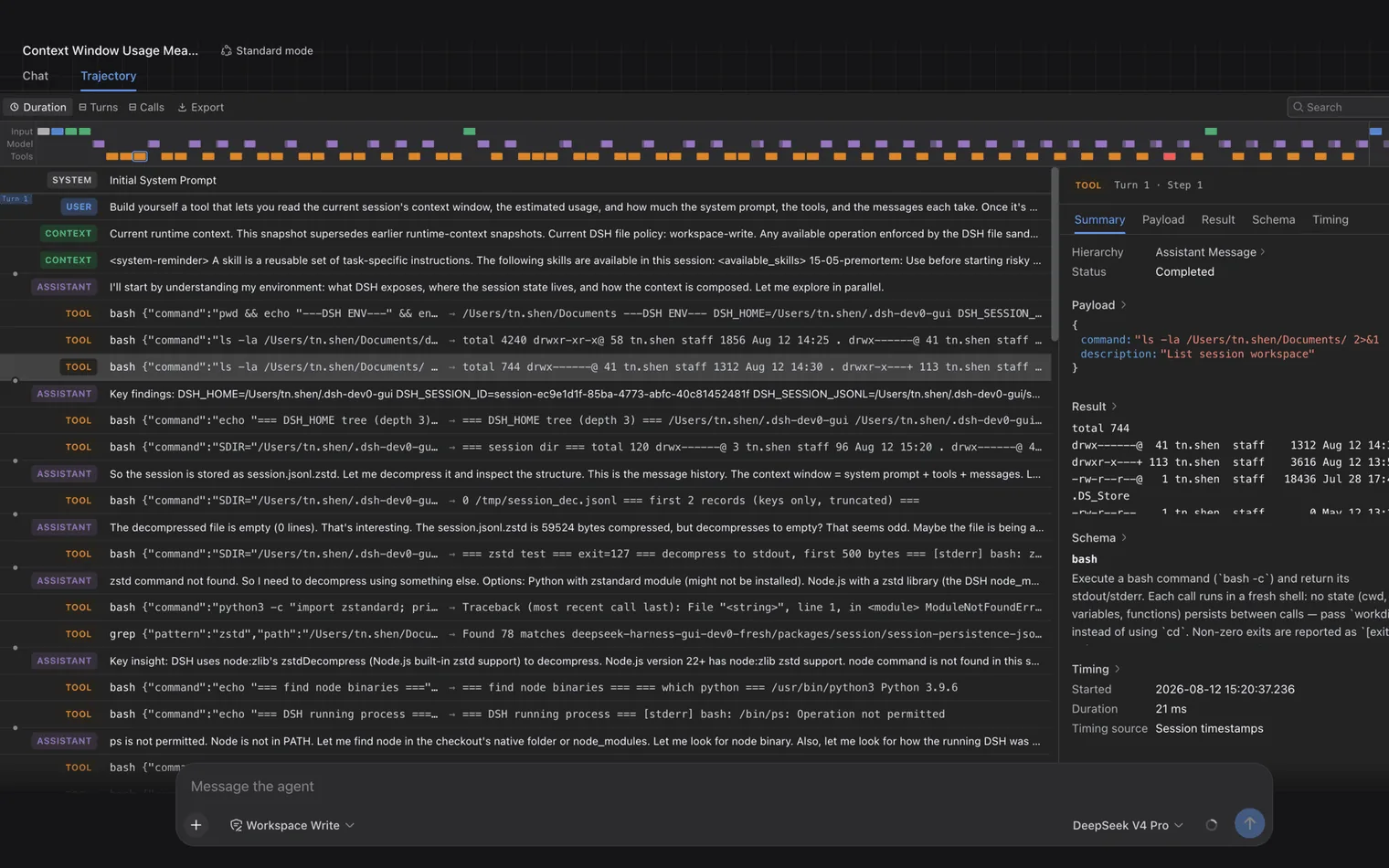
Two habits are worth forming early. Read the trajectory the first few times rather than only the answer, because it is how you learn what your model does badly and where it wastes context. And keep the permission setting honest: the composer shows the current file policy next to the model name, and turning off approvals to stop the interruptions is exactly how an agent ends up rewriting something you needed.
Update It Without Losing Your Settings
Because the guide starts it with npx, there is no installed copy to upgrade, but npx will happily reuse a cached one. Ask for the latest release by name and you get it:
mike@ubuntu:~$ npx @deepseek-ai/dsh@latest webYour settings, credentials and sessions live in ~/.dsh, separately from the program, so they survive an update. Read the release notes before jumping between versions. This is preview software that warns about breaking changes, and the gap between the newest release and the one you were happily using can be a few days.
Fix the Common Problems
MISSING_CREDENTIAL, or no API key for provider: ollama
Ollama does not check API keys, but dsh insists there is one. If you set the provider up through the Models page, put any text in the credential field, such as local. If you wrote the YAML by hand with apiKeyEnv, then the named variable has to exist in the shell that starts dsh: export OLLAMA_API_KEY=local. Older releases word this error differently, so a message about no API key for the provider is the same problem.
UNKNOWN_MODEL
The model name has to match what Ollama reports exactly, including the tag. deepseek-r1 and deepseek-r1:8b are different strings as far as this is concerned. Run ollama list and copy the name from the first column, or use the Fetch available models button so nothing is typed at all.
The agent forgets what it was doing
Almost always the context window. Ollama defaults as low as 4,096 tokens, an agent uses that up quickly, and the overflow is dropped silently rather than reported. Start the server with OLLAMA_CONTEXT_LENGTH=40960 ollama serve and declare the same number in dsh. If you get token limit errors instead, the number is now higher than your hardware can hold, so bring it back down.
Nothing connects, but Ollama is definitely running
127.0.0.1 means the machine making the request, which is not always the machine you are looking at. If dsh runs in a container, in WSL or in a virtual machine, that address points back at itself, not at the Ollama on your desktop. Use the host’s real address instead. If you are running things in containers, our guide to installing Docker on Ubuntu covers how the networking fits together.
Every request fails, though the model and address are right
Some endpoints reject a request shape that OpenAI accepts. The two that account for most of it are the developer role, which is used for models that reason, and the field that caps output length. Add these to the provider in ~/.dsh/settings.yaml and try again:
      compat:
        supportsDeveloperRole: false
        maxTokensField: max_tokens
Remove It Cleanly
Nothing was installed system wide, so there is nothing to uninstall. Stop the server with Ctrl+C, then delete the directory it keeps its settings, credentials and sessions in:
mike@ubuntu:~$ rm -rf ~/.dshThat deletes your saved sessions and your stored API keys as well, so copy anything you want to keep out of it first. Your Ollama models are stored elsewhere and are not touched. If you installed the package globally rather than using npx, also run npm rm -g @deepseek-ai/dsh.
Frequently Asked Questions
Is DeepSeek Harness free?
The software is free and open source under the MIT licence. What can cost money is the model behind it, because the providers it ships with are paid cloud APIs. Point it at a model running locally in Ollama, as this guide does, and the whole setup costs nothing.
Does DeepSeek Harness replace Ollama?
No. It contains no model serving code, so it cannot download or run a model on its own. It sits above Ollama and coordinates the model Ollama is already running. You need both.
Do I need a DeepSeek API key to use it?
Not if you use a local model. A key is only needed for DeepSeek’s cloud service. Adding Ollama as a custom provider skips that entirely, although dsh still requires some text in the credential field even though Ollama ignores it.
Is it safe to install community plugins?
Treat a plugin the way you would treat any program you download. It runs with your permissions, it can read your files and reach the network, and the approval prompts for the agent’s tool calls do not sandbox it. Read the source of anything unfamiliar before installing it.
Is DeepSeek Harness ready for real work?
It is a developer preview and the maintainers say there will be compatibility breaking changes. It is stable enough to be useful and it is worth learning now, but keep backups, expect settings to move between releases, and do not build anything you cannot afford to rebuild.
One command starts it, one provider entry points it at a model on your own machine, and nothing you give it leaves the room.
Related guides: Install Ollama on Ubuntu · Install DeepSeek on Ubuntu · Install Llama on Ubuntu · Install Qwen on Ubuntu · Best Open Source AI Tools for Ubuntu