


Resolute Raccoon
A free, open source Linux distro built for education. GNOME 50 desktop, age-group learning profiles, and tools for every level from preschool to university. Supported until April 2029.
What Is Edubuntu?
Edubuntu is the official Ubuntu flavor built for education. Where standard Ubuntu gives you a general-purpose desktop, Edubuntu adds a library of educational software and a dedicated administration tool that lets teachers or IT staff apply age-appropriate application profiles to each student account.
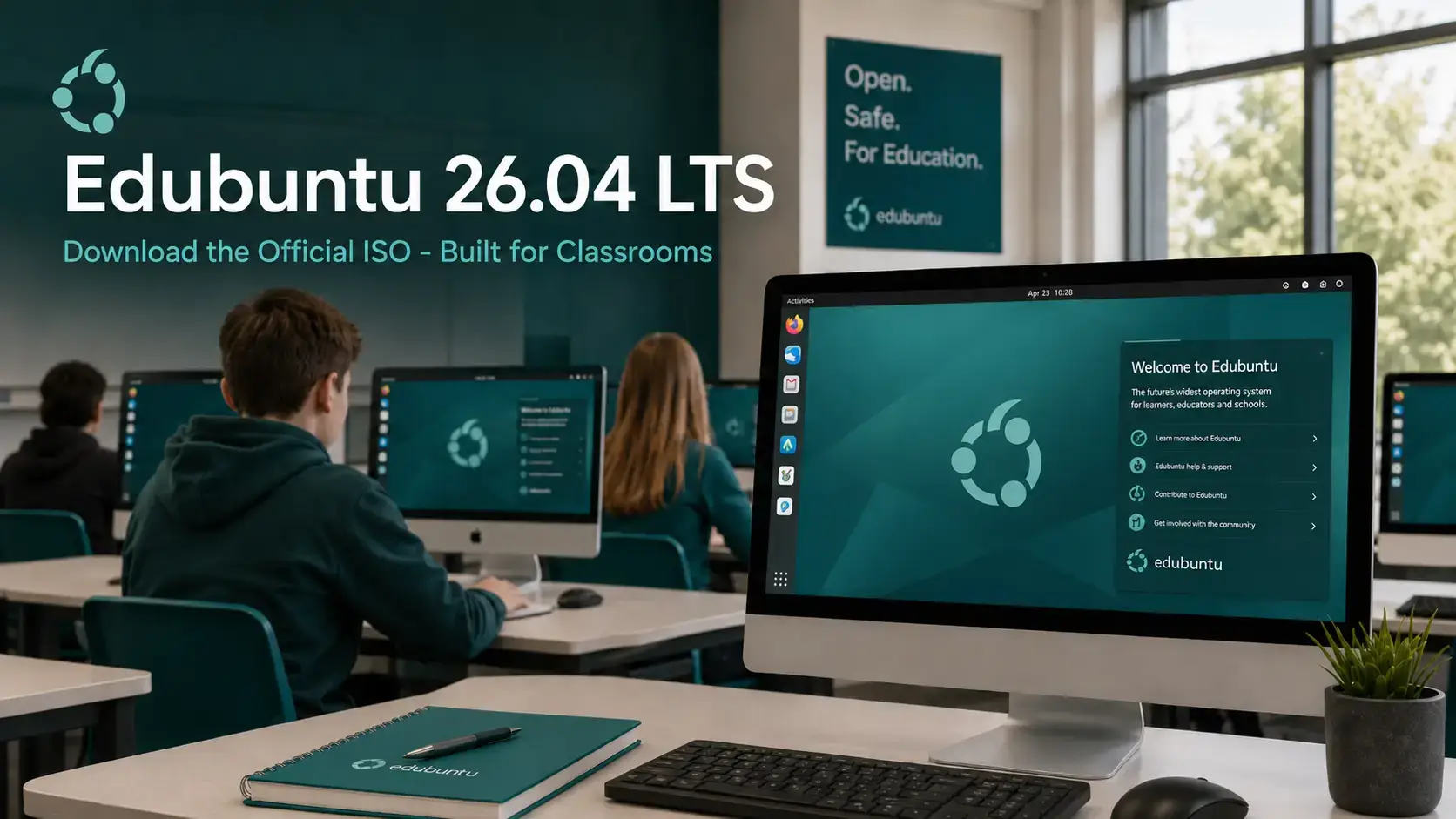
It uses GNOME 50 as its desktop environment on a Wayland session by default. The accent color for this release is Yaru Prussian Teal – a muted, calm teal chosen to match the new education-themed wallpapers that ship in 26.04. It is a deliberate shift away from the Ubuntu orange of the base system, giving Edubuntu its own visual identity in the classroom.
It shares the same Ubuntu base and security update schedule as standard Ubuntu. You get the reliability of a mainstream distribution with an education-focused setup on top. It runs on standard 64-bit PCs and has a separate preinstalled image for Raspberry Pi hardware.
Download Edubuntu 26.04 LTS
The links below go directly to cdimage.ubuntu.com, Canonical’s official image server for Ubuntu flavors. Two images are available: the standard 64-bit PC ISO and a dedicated preinstalled image for Raspberry Pi boards.
Size: 7.4 GB
Desktop: GNOME 50
Filename: edubuntu-26.04-desktop-amd64.iso
Size: 5.5 GB
Format: Preinstalled SD card image (.img.xz)
Filename: edubuntu-26.04-preinstalled-desktop-arm64+raspi.img.xz
What’s New in Edubuntu 26.04
This LTS brings GNOME 50, a rewritten installer and admin tool, several new default applications, and the new Yaru Prussian Teal visual identity. For the complete changelog, see the official Edubuntu 26.04 release notes.
The Edubuntu Installer and Menu Administration tools were completely rewritten in Python, replacing the old shell scripts. They now auto-detect your desktop and launch either a GTK4 or Qt6 interface. A Cockpit module adds web-based remote administration – configure age-group profiles across your entire classroom network from a browser. Both tools are now available in 21 languages, including Arabic, Chinese (Simplified), Hindi, French, German, Spanish, Portuguese, Japanese, Korean, and Ukrainian – making Edubuntu a realistic option for non-English-speaking schools for the first time.
GNOME 50 “Tokyo” brings several improvements that matter specifically in a school setting. Parental controls now include screen time limits and bedtime schedules – administrators can set daily limits per user account and automatically lock the screen when a limit is reached. The Orca screen reader received a redesigned preferences window with global settings, automatic language switching, and Wayland Mouse Review support – a meaningful step for inclusive classrooms. The Files app loads thumbnails faster, uses less memory, and supports multiple file type filters in search. A new Reduced Motion toggle in Settings lets you dial down UI animations – useful for students who find motion distracting or uncomfortable.
Edubuntu 26.04 also adopts the Yaru Prussian Teal accent color – a new visual identity designed alongside the education-themed wallpapers in this release. It replaces the Ubuntu orange and gives Edubuntu its own distinct look.
Thunderbird replaces Geary for email (better compatibility with Microsoft 365 accounts widely used in schools). GNOME Showtime replaces Totem for video. Rhythmbox replaces GNOME Music. Foliate is added as a GTK4 e-book reader for digital textbooks. GNOME Notes replaces Gnote for note-taking.
Arduino IDE is now included for secondary and tertiary students learning embedded systems and robotics. GChemPaint provides a 2D chemical structure editor for chemistry coursework. Raspberry Pi Imager is included for Pi project work. Paperboy adds a GTK4 news reader for media literacy and current-events discussions in secondary and tertiary profiles.
How to Verify Your Download (SHA256)
Always verify your ISO before writing it to a USB drive. This confirms the file downloaded completely and was not corrupted or tampered with.
SHA256SUMS file to the same folder as your ISO.Run the checksumOn Linux or macOS:
sha256sum edubuntu-26.04-desktop-amd64.iso
On Windows (PowerShell):
Get-FileHash edubuntu-26.04-desktop-amd64.iso -Algorithm SHA256
AMD64 ISO:
e2255cca689450e368d504fbbc28a2b8086f3e871d5364ca14409391e6985ac3
Raspberry Pi Image:
285b0edd4b919a935f97f08df5eb6413ac524d87c3bcd5c325b99a5642978937
How to Install Edubuntu 26.04
The installation steps differ depending on whether you are using a standard PC or a Raspberry Pi.
edubuntu-26.04-preinstalled-desktop-arm64+raspi.img.xz file. Use Raspberry Pi Imager or Balena Etcher to write it to a 64 GB or larger SD card.sudo rpi-eeprom-update on an existing Pi OS install first if needed.Educational Software Included
Edubuntu installs a base set of applications suitable for general use, then lets the Edubuntu Installer apply additional packages by age group. Here is what is available across the different learning profiles.
| Application | Age Group | Purpose |
|---|---|---|
| GCompris | Preschool / Primary | Educational activities for ages 2-10: maths, science, reading, games |
| TuxPaint | Preschool / Primary | Drawing and painting tool designed for young children |
| Gradebook | Primary / Secondary / Tertiary | Student grade tracking and management |
| Paperboy | Secondary / Tertiary | GTK4 news reader for media literacy and current-events discussion |
| Foliate | Secondary / Tertiary / Teaching | GTK4 e-book reader for digital textbooks (EPUB and PDF) |
| Arduino IDE | Secondary / Tertiary | Embedded systems and robotics programming |
| GChemPaint | Secondary / Tertiary | 2D chemical structure editor for chemistry coursework |
| LibreOffice | All age groups | Word processing, spreadsheets, and presentations |
Edubuntu 26.04 LTS is free to download and use. Direct link to the official ISO on Canonical’s image server.
Tips for Getting Started
Once installed, these steps will help you get the most out of Edubuntu in a classroom or home learning setup.
Open Edubuntu Installer from the applications menu. Select the appropriate profile for each user – preschool, primary, secondary, or tertiary. This installs the right applications and applies suitable menu restrictions automatically.
Open Edubuntu Menu Administration to restrict terminal access for non-admin users. In a school setting, this prevents students from accessing the command line or making system changes while still giving them access to all their learning applications.
If you are setting up a full computer lab, use the built-in Cockpit web module. Open a browser, connect to the Cockpit address on each machine, and configure age-group settings remotely across your entire network – no need to sit at each computer individually.
Beyond the age-group profiles, Edubuntu includes subject metapackages you can install individually. The music metapackage adds fmit, Solfege, Minuet, and Pianobooster. The teaching metapackage adds Auto Multiple Choice for exam creation. Install only what you need to keep the system lean.
The Ubuntu welcome app branding does not match Edubuntu in this release. The Edubuntu team is working on a fix. It is cosmetic only and does not affect functionality. Raspberry Pi 5 users with an EEPROM version older than 11 FEB 2025 will be unable to boot – update your bootloader on an existing install before flashing the Edubuntu image. For all other known issues, see the Ubuntu 26.04 release notes as Edubuntu inherits all base Ubuntu known issues.
System Requirements
Edubuntu 26.04 is designed to run well on school hardware, including older machines. The figures below are from the official release notes and are the authoritative source – the edubuntu.org download page lists a higher figure, but the release notes are the correct reference.
- CPU: 2 GHz dual-core 64-bit
- RAM: 4 GB (8 GB recommended)
- Storage: 30 GB (15 GB minimal install)
- Display: 1024 x 768
- USB: 16 GB drive for installation
- Models: Pi 3, Pi 4, Pi 5, CM4, Zero 2 W
- Storage: 64 GB SD card minimum
- Pi 5 EEPROM: 11 FEB 2025 or later
- Format: Preinstalled image, no USB needed
Frequently Asked Questions
Can I try Edubuntu 26.04 without installing it?
Yes. When you boot from the USB installer, choose “Try Edubuntu” on the welcome screen. This loads a live session directly from the USB drive without touching your hard disk. You can test the desktop and educational software as long as you like, then restart to return to your current system.
What is the difference between Edubuntu and standard Ubuntu?
Edubuntu uses the same Ubuntu base and gets the same security updates, but adds a curated library of educational software and the Edubuntu Installer – a tool that lets administrators apply age-group profiles (preschool, primary, secondary, or tertiary) to each user account. Standard Ubuntu ships no educational tools by default. If you are setting up computers for a classroom or school, Edubuntu saves significant configuration time.
Does Edubuntu work on a Raspberry Pi?
Yes. Edubuntu 26.04 provides a dedicated preinstalled image for Raspberry Pi hardware – specifically the Pi 3, Pi 4, Pi 5, Compute Module 4, and Zero 2 W. You write the image to a 64 GB or larger SD card and it boots directly. No ISO or USB installer is needed for Raspberry Pi. Note that the Pi 5 requires a bootloader version of 11 FEB 2025 or later.
How long is Edubuntu 26.04 supported?
Edubuntu 26.04 LTS receives 3 years of free security updates, until April 2029. This is standard for Ubuntu flavors. The main Ubuntu Desktop release receives 5 years, but official flavors receive 3. For most school deployments, 3 years is a practical planning horizon that aligns well with hardware refresh cycles.
Can I run Edubuntu 26.04 inside a virtual machine?
Yes. Edubuntu 26.04 works inside VirtualBox, VMware, and QEMU/KVM. Use the AMD64 ISO for Intel and AMD computers. After installing, add VirtualBox Guest Additions or open-vm-tools for better display resolution and clipboard sharing.
How do I create a bootable USB from the ISO file?
On Windows, use Rufus and select the ISO file. On macOS or Linux, use Balena Etcher. Both are free. Select your USB drive carefully as all data on it will be erased during the process. The Edubuntu ISO is 7.4 GB, so you need a 16 GB or larger USB drive.
Can I upgrade from Edubuntu 24.04 LTS to 26.04 without reinstalling?
Yes. Upgrades from Edubuntu 24.04 LTS are expected to be enabled with the release of 26.04.1 LTS in August 2026. Upgrades from 25.10 are available shortly after release. Back up your home folder and any important files before upgrading. The full upgrade process is covered in the upgrade guide linked in the footer below.
More Edubuntu 26.04 guides: What’s New · Upgrade Guide · Wallpapers · Ubuntu Cinnamon 26.04 · Ubuntu Studio 26.04