


The default terminal in Ubuntu works well, but switching to a better one is the fastest way to speed up your daily work. A good terminal helps you run more commands at once, stay organized, and get things done faster.
Ubuntu 26.04 LTS is faster and smoother, so modern terminals run great on it. In this guide, we compare the best terminal emulators for Ubuntu, grouped by style, so you can find the one that fits how you work.
Do you prefer a simple and fast screen or a smart AI workspace? Let us know your favorite in the comments below.
Level up your command line. We checked 5 install sources for every single terminal emulator in this guide to deliver verified setup commands for GPU-accelerated, tiling, and AI-powered interfaces.
Jump to a Category
🔲 Tiling & Layouts
🚀 GPU-Accelerated
🤖 AI & Collaborative
🕹️ Drop-Down & Specialized
📊 19 Terminal Emulators Comparison Table
This table lists every terminal emulator analyzed in this guide, alongside verified package details across 5 distinct installation channels. Every package status has been validated to prevent broken repository errors during setup.
📊 Click to View 19 Terminals Comparison Table
| Name | APT (Ubuntu Universe) | .deb (Official Site) | PPA (Official Repository) | Flatpak (Flathub) | Snap (Snapcraft) | Notes / Package Names |
|---|---|---|---|---|---|---|
| GNOME Terminal | YES (gnome-terminal) | NO | NO | NO | NO | Ubuntu default terminal; stable legacy VTE engine. |
| Konsole | YES (konsole) | NO | NO | YES (org.kde.konsole) | YES (konsole) | Default KDE Plasma terminal; highly extensible settings. |
| Ptyxis | YES (ptyxis) | NO | NO | YES (app.devsuite.Ptyxis) | NO | Next-gen GNOME terminal; optimized for Podman and toolbox. |
| Terminator | YES (terminator) | NO | YES (ppa:gnome-terminator/ppa) | NO | NO | Classic split-pane tiling manager. Has PPA for newer versions. Full Guide |
| Tilix | YES (tilix) | NO | NO | NO | NO | GTK3 tiling layout. No official Flathub or Snapcraft builds. |
| Black Box | YES (blackbox-terminal) | NO | NO | YES (com.raggesilver.BlackBox) | NO | GTK4-native beautiful terminal emulator. Ideal GNOME look. |
| Alacritty | YES (alacritty) | NO | NO | NO | YES (alacritty – unofficial) | Minimalist GPU-accelerated terminal. Snap maintained by Snapcrafters. |
| Kitty | YES (kitty) | NO | NO | NO | NO | Fast GPU terminal with tabs/splits; custom binary installer exists. |
| WezTerm | NO (uses custom repo) | YES (official download) | NO | YES (com.github.wezfurlong.wezterm) | NO | Rust-based multiplexer with Lua scripting. No official Snap. |
| Ghostty | NO | NO | NO | NO | YES (ghostty) | Zig-based GPU terminal. Snap published by core dev Ken VanDine. |
| Foot | YES (foot) | NO | NO | NO | NO | Fast Wayland-native minimalist terminal. Keyboard driven. |
| Warp | NO | YES (official download) | NO | NO | NO | AI command assistant and blocks. Closed-source, download from warp.dev. |
| Wave | NO | YES (official download) | NO | NO | YES (waveterm) | AI workspace with web widgets. Official classic Snap is “waveterm”. |
| Guake | YES (guake) | NO | NO | NO | YES (guake – unofficial) | GTK-based drop-down. Snap is outdated/unmaintained. Use APT. |
| Yakuake | YES (yakuake) | NO | NO | YES (org.kde.yakuake) | YES (yakuake) | KDE’s drop-down terminal client. Highly customizable. |
| Tabby | NO (uses custom repo) | YES (official download) | NO | NO | NO | Customizable Electron shell with integrated connection manager. |
| Hyper | NO | YES (official download) | NO | NO | NO | JavaScript/HTML/CSS terminal by Vercel. Custom plug-in system. |
| Xfce Terminal | YES (xfce4-terminal) | NO | NO | NO | NO | Default Xfce lightweight terminal. Low RAM usage. |
| Terminology | YES (terminology) | NO | NO | YES (org.enlightenment.Terminology) | YES (terminology) | Media-rich Enlightenment terminal. Snap is official (Boris Faure). |
💻 Default & Standard Terminals

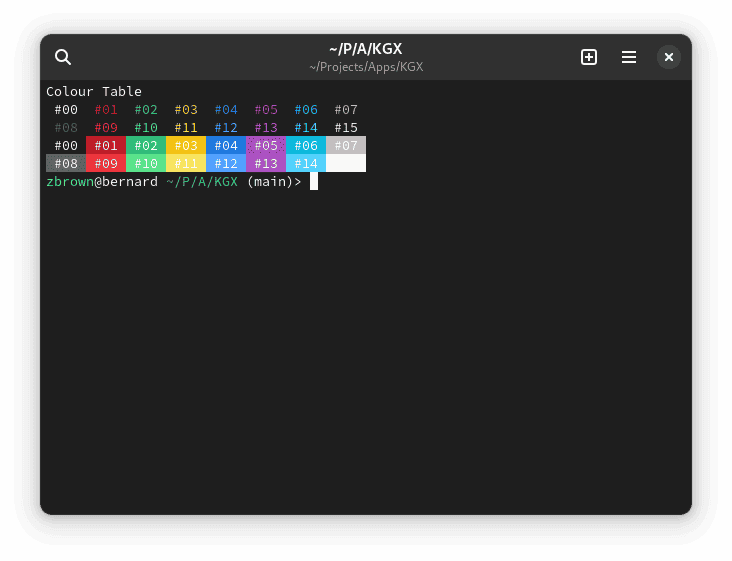
Best For: Out-of-the-box system administration, simple desktop scripts, and users who want absolute stability.
Why Choose It? GNOME Terminal is the default command-line client on Ubuntu’s primary desktop. Since it uses the stable VTE widget library and integrates deeply with the GNOME session shell, it runs without configuration, handles desktop shortcut schemes out of the box, and uses almost no idle RAM.
- Integration: Inherits your desktop system theme, mouse gestures, and system fonts automatically
- Profiles: Supports custom tab naming and background color profiles
- Detections: Built-in link detection for URLs and email addresses
- Launch: Compatible with standard Ctrl+Alt+T shortcut launch
Quick Tip: Use profiles (Preferences > Profiles) to set up separate colors or configurations for local work and SSH remote work to prevent execution mistakes on remote systems.
Install Command:

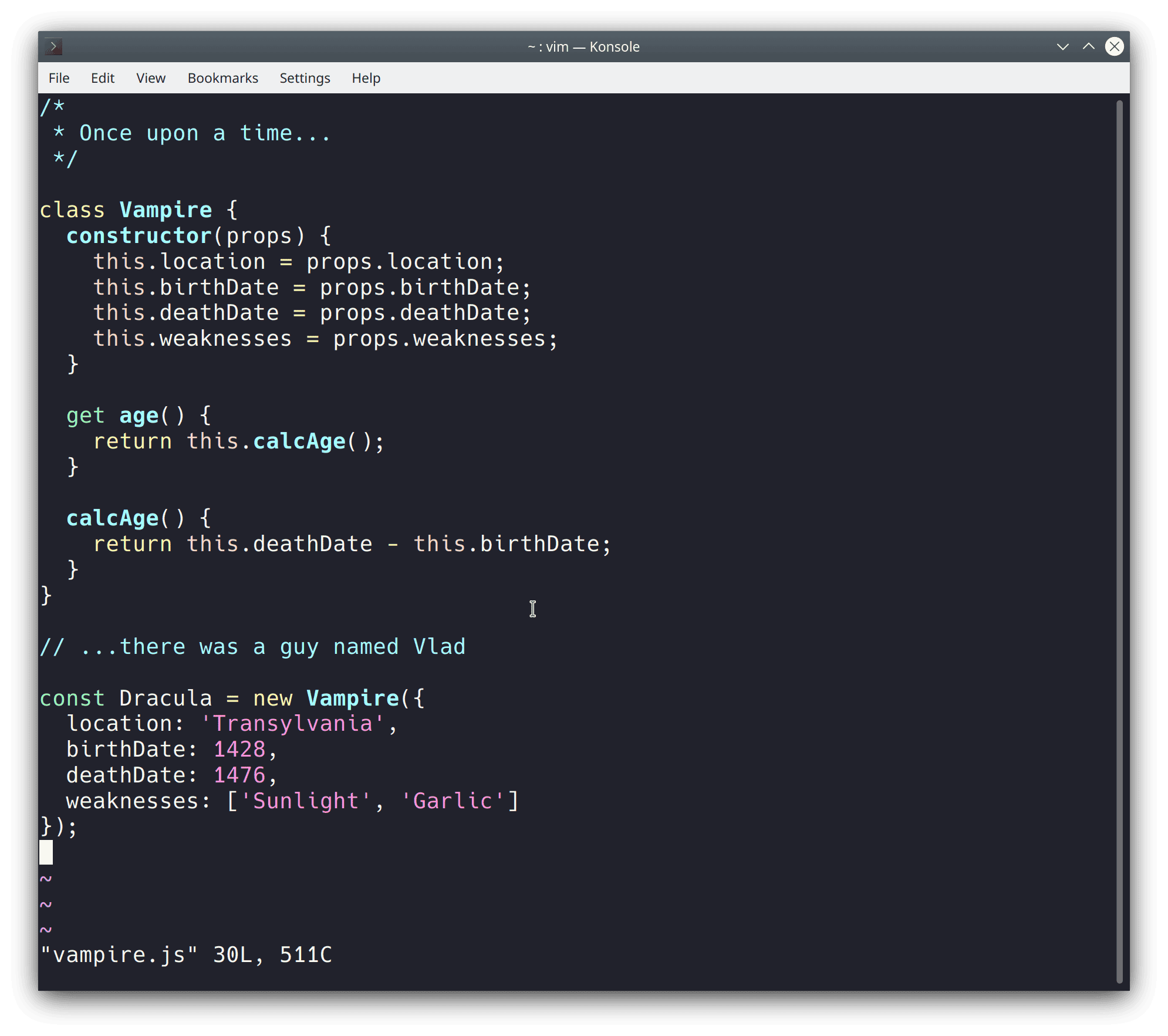
Best For: KDE Plasma desktop users, power users needing split panes natively, and developers utilizing complex profiles.
Why Choose It? Konsole is the Qt-based default terminal for KDE. It is significantly more customizable than GNOME Terminal. It supports native tab splitting, folder bookmarks, inline terminal search, and HTML output exporting without requiring custom shell configurations.
- Splits: Split tabs vertically or horizontally within the same window
- Layouts: Save and load layout templates for recurring multi-server tasks
- Export: Export terminal output buffer history to HTML or text files
- Shortcuts: Fully scriptable profile switching and shortcut maps
Quick Tip: Use “Ctrl+( or Ctrl+)” to split the terminal viewport instantly without opening a separate shell tab.
Install Command:

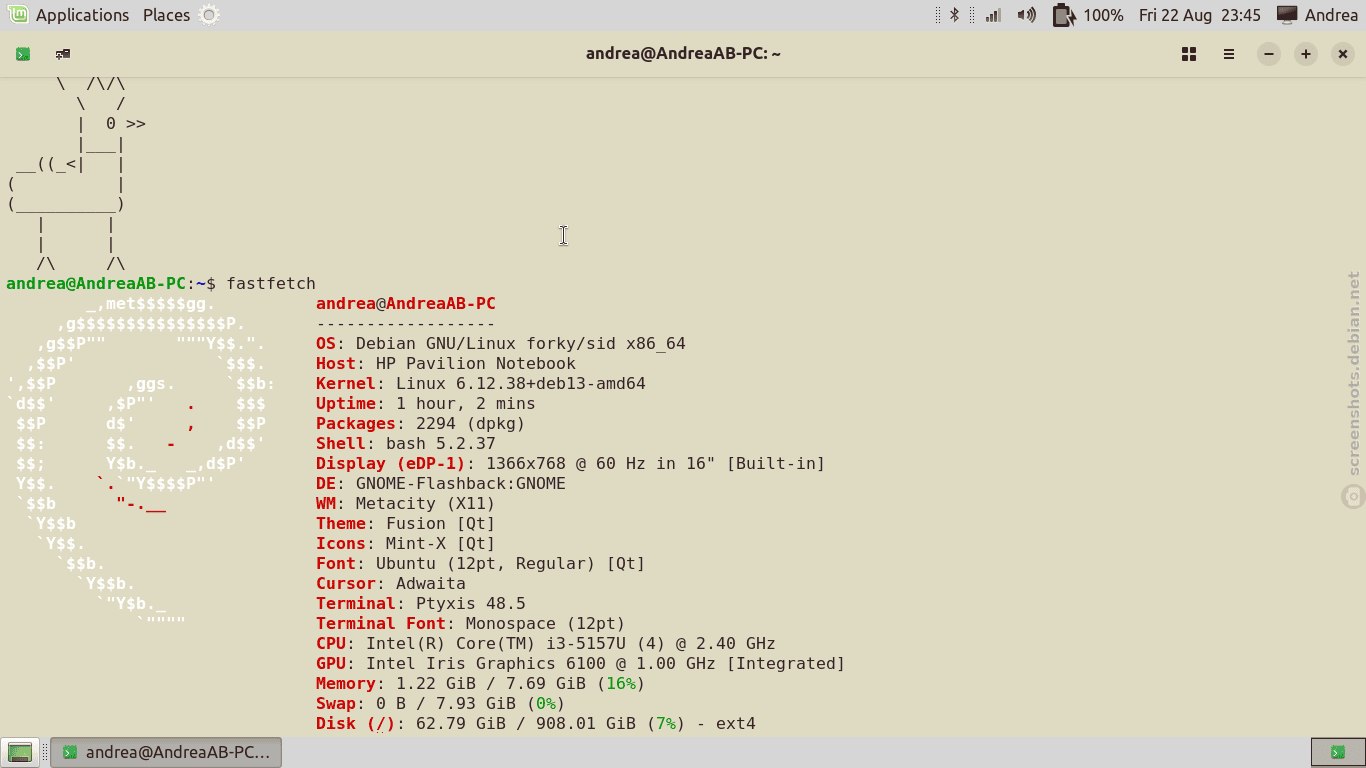
Best For: Flatpak and sandbox developers, Podman/Distrobox users, and modern GNOME desktop enthusiasts.
Why Choose It? Ptyxis is designed to replace GNOME Console. It features built-in support for container environments (Podman, Toolbox, Distrobox), letting you launch container environments directly in new tabs with one click, automatically adjusting shell paths and styling.
- Containers: Automatic detection and launching of local container shells
- Design: Built with GTK4 and Libadwaita for modern UI styling
- Rendering: Advanced hardware-accelerated text rendering via VTE changes
- Colors: Per-tab color profiles mapping to separate development sandboxes
Quick Tip: Click the header drop-down next to the tab selector to spawn a terminal inside any active Distrobox container instantly without needing manual shell attach commands.
Install Command:
🔲 Tiling & Layout Terminals
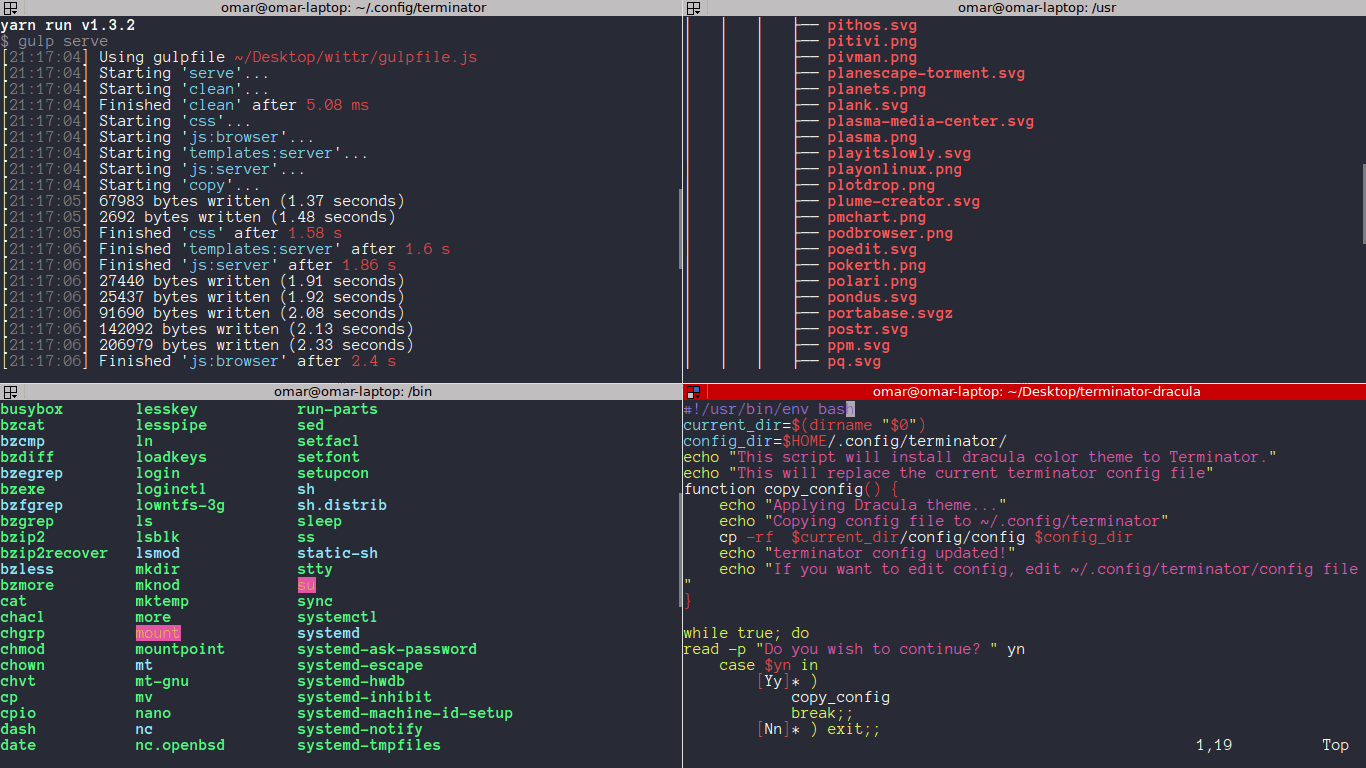
Best For: Sysadmins running multiple logs side by side, database operators, and multitasking developers.
Why Choose It? Terminator remains a developer favorite. It lets you arrange multiple resizable terminals in a tiling grid. It includes advanced profile management, custom keyboard shortcut bindings, and support for running broadcast commands across all active cells simultaneously.
- Grid Tiling: Split windows horizontally and vertically as many times as needed
- Broadcasting: Broadcast typing inputs to all open terminals or selected groups
- Customizing: Highly detailed configurations for layout states and colors
- Profiles: Clean profile definitions for separate user tasks
Quick Tip: Use Ctrl+Shift+E to split the screen vertically, and Ctrl+Shift+O to split horizontally.
Install Command:

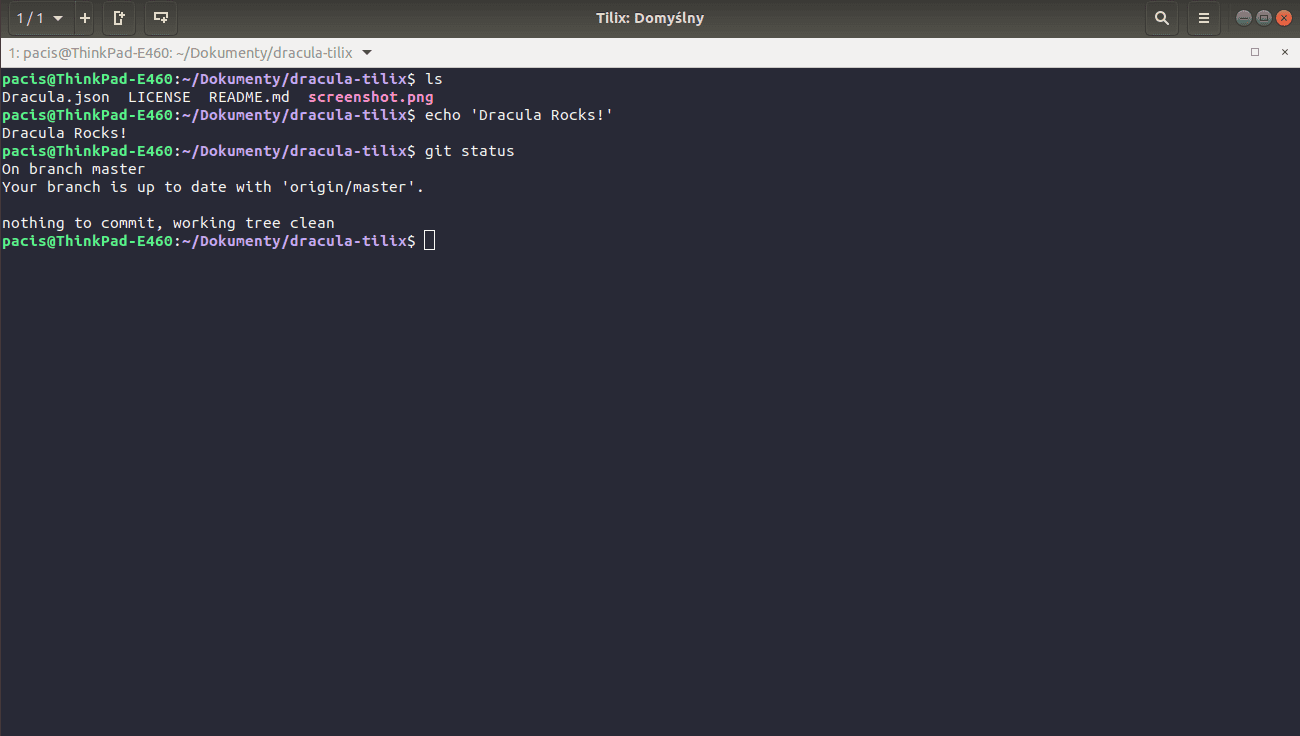
Best For: Desktop multitasking developers, GSettings customization users, and fans of clean GNOME styling.
Why Choose It? Tilix uses GTK3 guidelines. It allows you to split terminals and rearrange them by dragging and dropping tabs. It integrates with GNOME’s styling and supports custom color themes, tab synchronization, and links handling natively.
- Drag-and-Drop: Reposition split panes visually with a mouse
- Input sync: Synchronized terminal input across active layouts
- GNOME settings: Deep configuration mappings with standard GNOME GSettings schemas
- Triggers: Hyperlink triggers and notification badge overlays
Quick Tip: Save your split-pane layouts via the profile sidebar, letting you launch custom dev environments with a single menu click.
Install Command:

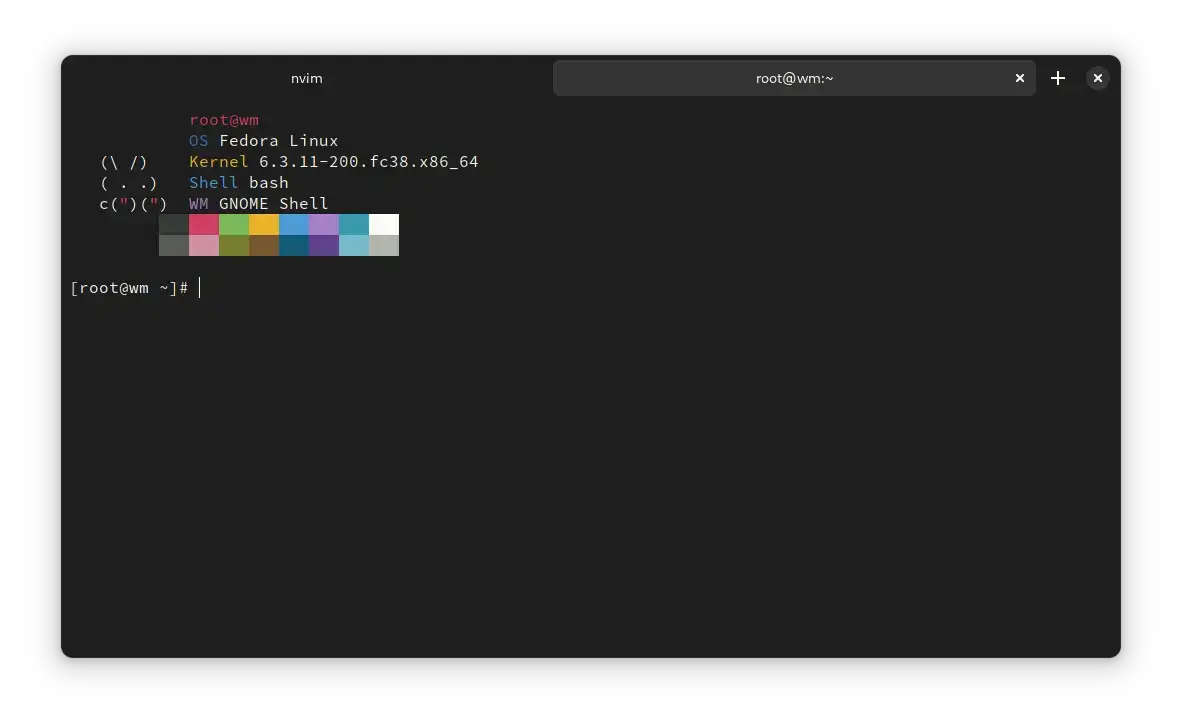
Best For: Users who want a modern, visually stunning terminal that integrates seamlessly with GNOME dark themes.
Why Choose It? Black Box is a free and open-source terminal built on GTK4 and Libadwaita. It delivers an extremely clean interface with header bar integration, easy copy-pasting, custom padding options, and built-in themes that automatically adapt to light and dark modes.
- Modern Engine: Built on GTK4 and Libadwaita for native GNOME integration
- Visual Customization: Supports full header-bar hiding, custom padding, and transparent background profiles
- Advanced UX: Integrated search, custom font controls, and easy tab reordering
- Safe Paste: Warns when pasting commands containing newlines or suspicious scripting syntax
Quick Tip: Use the “Easy Focus” feature in settings to automatically hide the window decorations and title bar for a truly distraction-free workspace.
Install Commands:
flatpak install flathub com.raggesilver.BlackBox# Install via APT (Ubuntu Universe)
sudo apt install blackbox-terminal
🚀 GPU-Accelerated Terminals

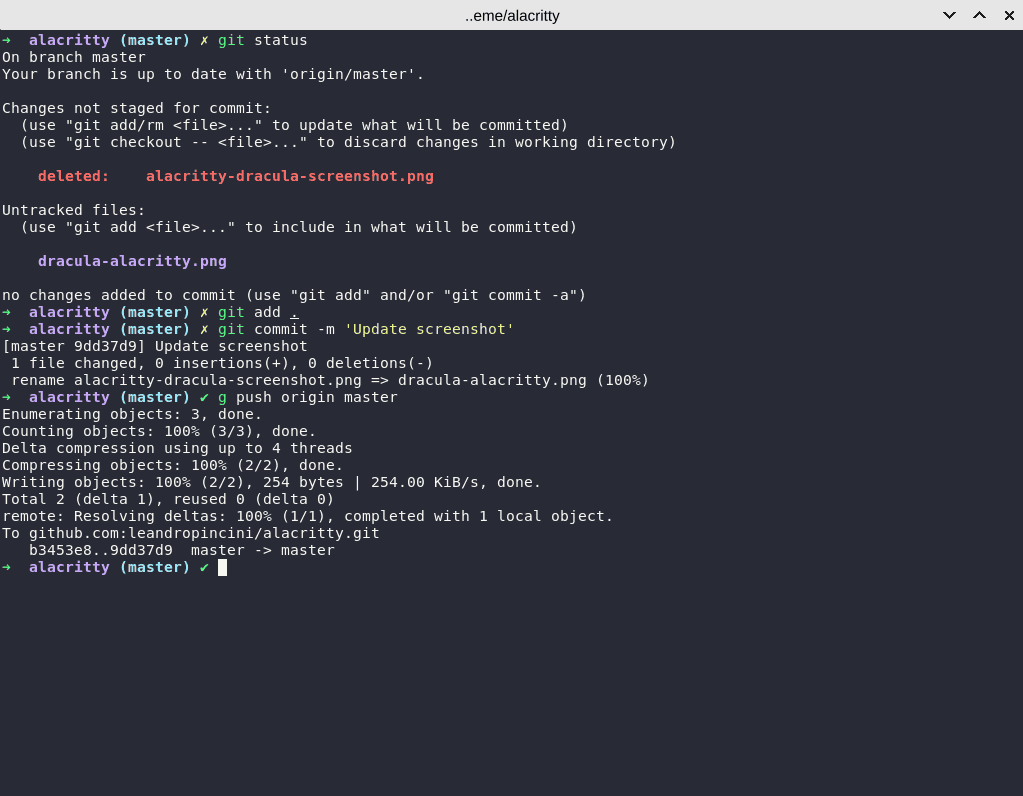
Best For: Terminal purists, users handling large command outputs, and developers using window managers (i3/Sway).
Why Choose It? Alacritty focuses on performance and simplicity. By offloading font rendering and scroll buffers to your GPU (via OpenGL), it delivers zero input latency. It skips features like tabs or splits, delegating them to tools like tmux.
- GPU Speed: Offloads rendering overhead to the graphics card
- Lightweight: Minimal memory footprint and low launch time latency
- Config: YAML/TOML file configurations for layout and color preferences
- VI Mode: Includes VI-mode interface selection bindings
Quick Tip: Alacritty handles settings through its configuration file (typically at ~/.config/alacritty/alacritty.toml). Changes are reloaded live without needing to restart the application.
Install Command:

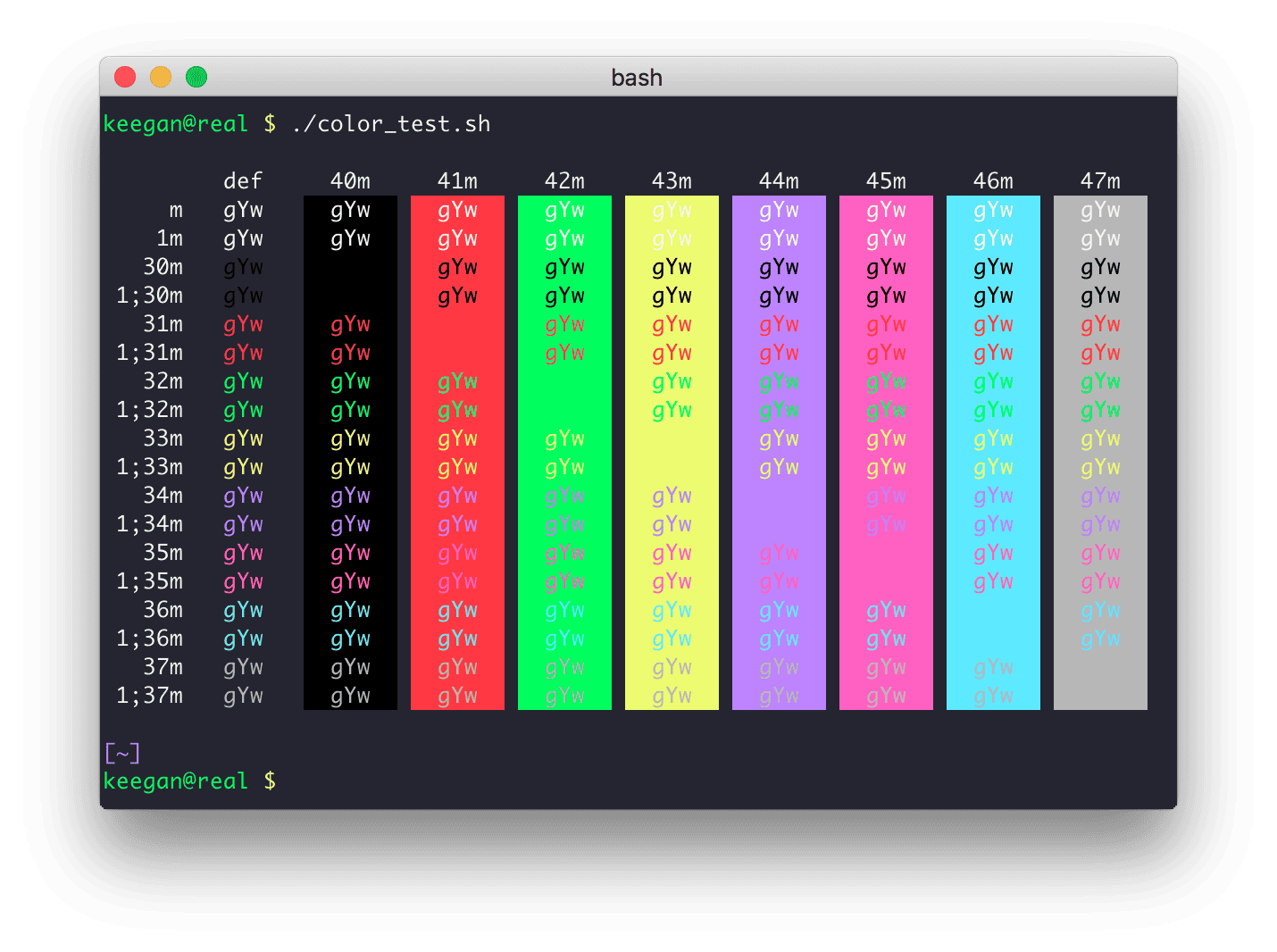
Best For: Graphics developers, users rendering images directly in terminal (icat), and keyboard-centric power users.
Why Choose It? Kitty bridges the gap between speed and functionality. It uses OpenGL for GPU rendering, while offering tabs, split panes, and shell layouts. It features a shell script framework called “Kittens” that enables inline graphics, unicode input, and terminal side-by-side diff previews.
- Graphics: Displays high-resolution graphics and media in terminal via the ICAT protocol
- Kittens: “Kittens” scripting extension framework for helper utilities
- Layouts: Fully keyboard-controllable window layout arrangements
- Font shape: Hardware-level ligatures and font shaping support
Quick Tip: Use Kitty’s built-in diff program by running kitty +kitten diff file1 file2 for a fast, color-coded, side-by-side file comparison.
Install Command:

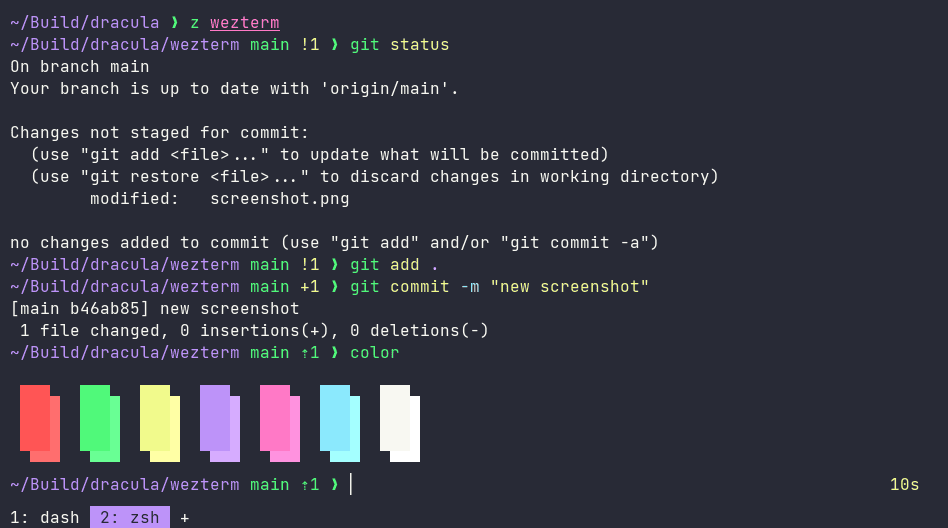
Best For: Advanced developers who want custom layouts scripted in Lua, tmux-like multiplexing natively, and cross-platform consistency.
Why Choose It? WezTerm is a GPU-accelerated terminal emulator and multiplexer. It uses Lua for configuration, allowing you to script everything from color palettes to SSH socket connections. It handles multiplexing, tabs, and splits natively without needing external process wrappers.
- Multiplexing: Manage panes, workspaces, and persistent SSH sessions natively
- Lua script: Lua configuration system for advanced custom script hooks
- GPU render: Fully GPU-accelerated graphics rendering pipeline
- Fonts: Excellent support for ligatures, font fallbacks, and emojis
Quick Tip: Because WezTerm’s multiplexer operates natively, you can detach from a local session, reboot, and reattach to your exact terminal workspace layout using internal socket states.
Install Commands (via Official .deb download):
sudo apt install ./wezterm-20240203-110809-5046ae22.ubuntu22.04.amd64.deb

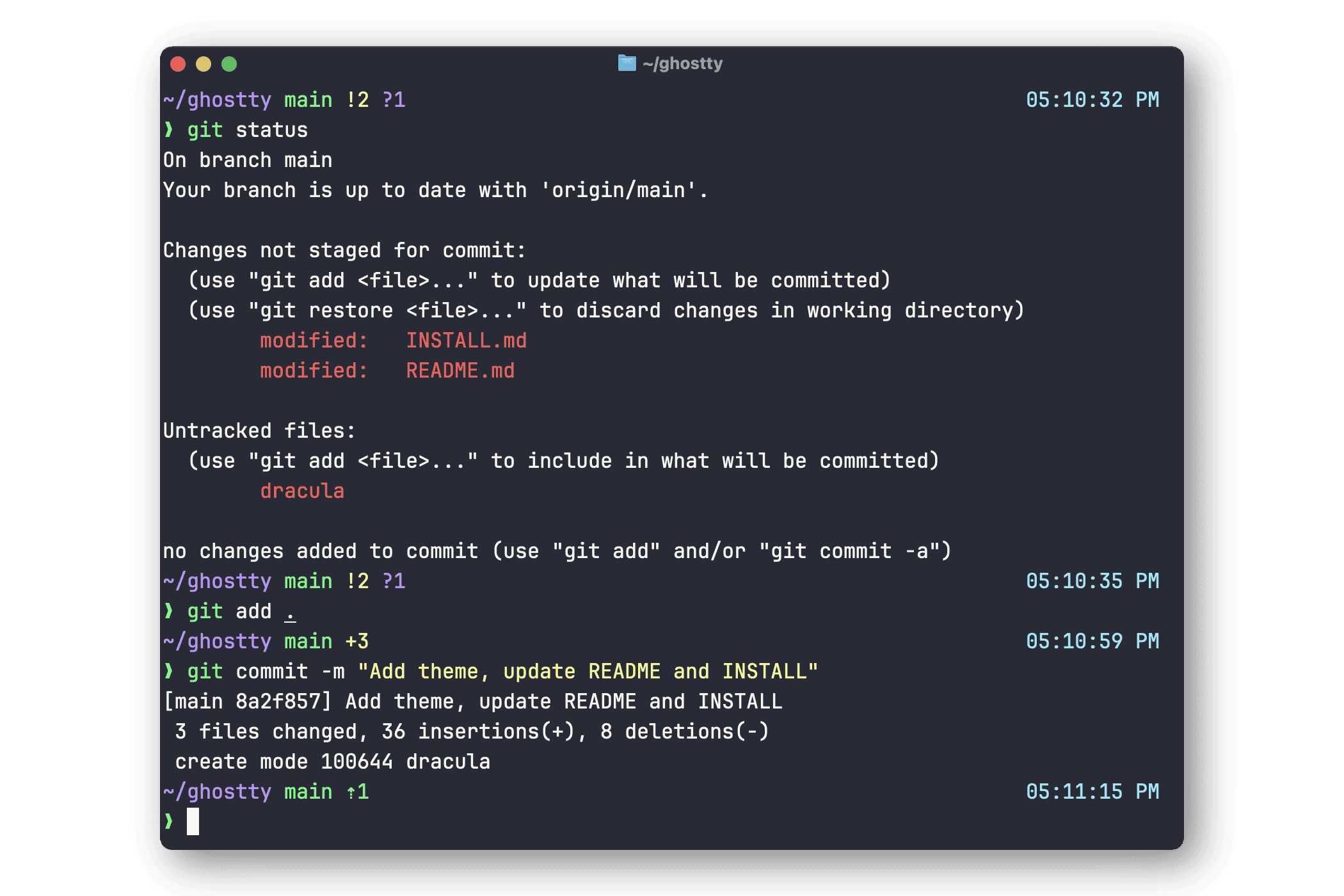
Best For: System developers seeking low-latency rendering, fans of clean typography, and early adopters of Zig-compiled software.
Why Choose It? Ghostty is a newer GPU-accelerated terminal emulator compiled in Zig. It focuses on low input lag, correct VTE escape sequences, and a native desktop presentation. While originally popular on macOS, its Linux build has grown rapidly and is now available on Ubuntu via Snapcraft.
- Zig Engine: Fast, type-safe execution wrapper with minimal overhead
- GPU render: Direct GPU text rendering and font atlas allocation
- Tiling: Clean, native terminal split panes and profile layouts
- Config: Highly standard configuration bindings without massive dependency chains
Quick Tip: Use Ghostty’s custom Snap build (which utilizes classic confinement to allow access to shell environments) for a fast, auto-updating setup on Ubuntu.
Install Command:

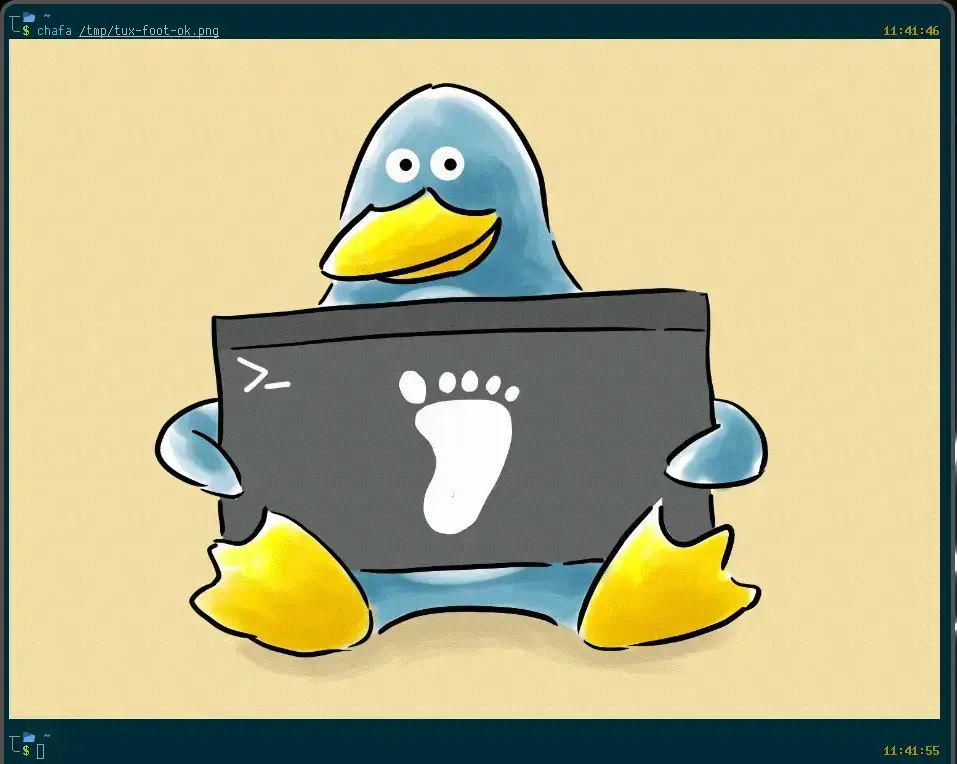
Best For: Wayland users who want an extremely fast, lightweight, and keyboard-driven terminal emulator that has zero bloat.
Why Choose It? Foot is a fast, lightweight, and minimalistic terminal emulator designed specifically for Wayland compositor environments. It does not run on X11 at all. By utilizing efficient sub-pixel rendering, DMA-BUF image sharing, and a client-server daemon mode, it keeps memory footprint tiny and render speeds blazing fast.
- Wayland Native: Direct Wayland window integration (no XWayland/X11 layers)
- Daemon Mode: Run a background terminal server to launch client windows instantly with under 2MB RAM per terminal
- Font Rendering: High-performance text rendering with fallback support and sub-pixel antialiasing
- Keyboard Driven: Scrollback navigation, URL launching, and tab management are fully controllable via custom hotkeys
Quick Tip: Use the command foot --server to launch the background daemon, and then open new terminal windows instantly with footclient.
Install Command:
🤖 AI & Collaborative Terminals

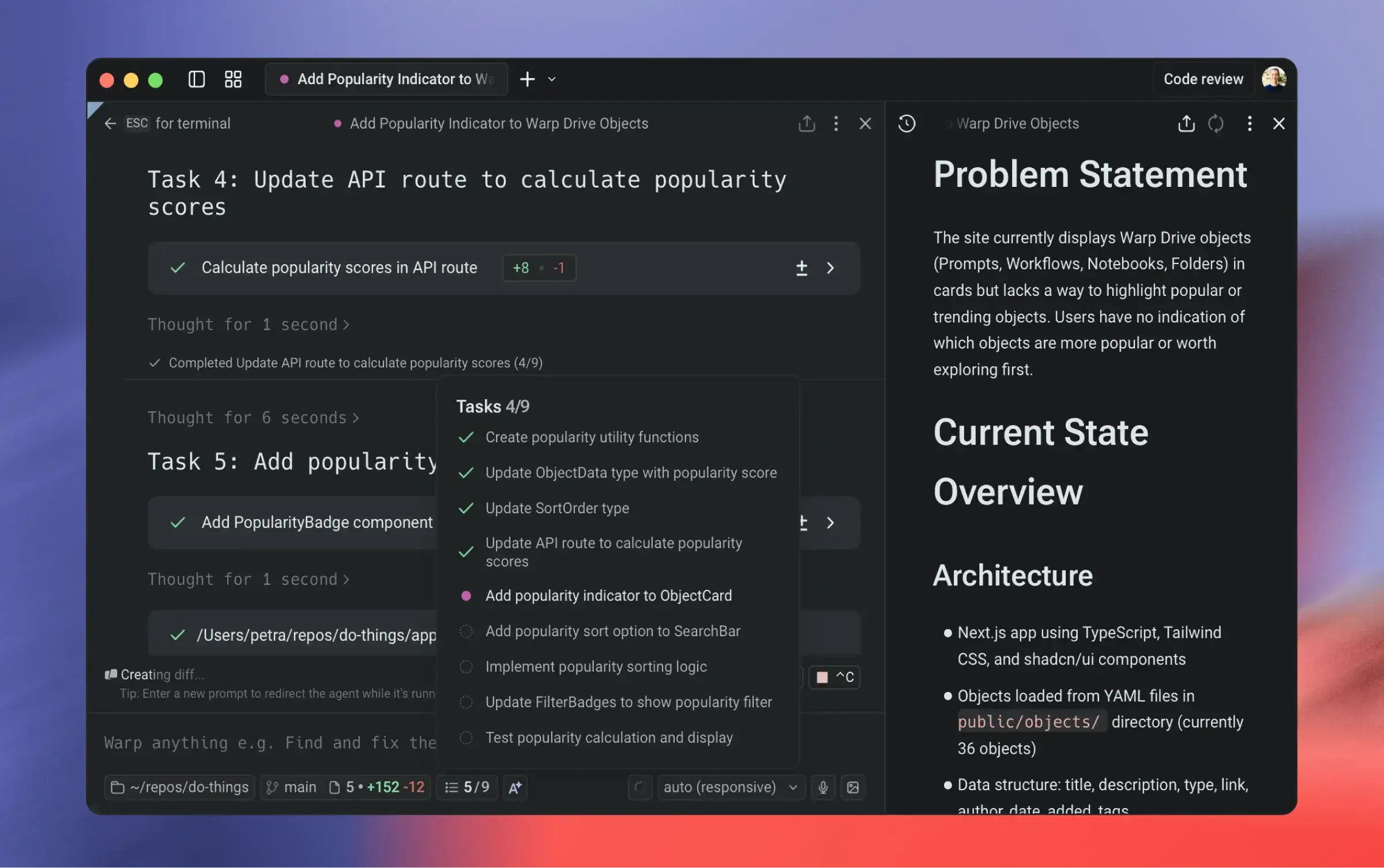
Best For: Developers wanting IDE-like autocompletion, teams sharing commands, and AI-assisted troubleshooting.
Why Choose It? Warp re-imagines the command-line interface. It treats commands and their output as separate blocks, making scroll navigation and output copying easier. It features AI command search, integrated AI explanation wrappers, and collaborative “Warp Drive” sheets for team operations.
- AI Assistant: Generate commands from plain English descriptions natively
- Blocks: Command blocks keep inputs and outputs grouped together
- UX: Modern text-editor behavior with mouse cursor placement
- Collaboration: “Warp Drive” lets teams store and share markdown notebooks
Quick Tip: Press `#` to open the AI command search, type what you want in plain English (e.g. “find files larger than 100MB”), and Warp will translate it into a shell command instantly.
Install Commands (via Official .deb download):
sudo apt install ./warp-terminal_0.2026.07.16_amd64.deb


Best For: Modern web developers who want to avoid context switching between terminals, browsers, and file managers.
Why Choose It? Wave Terminal (distributed as `waveterm`) is an open-source development workspace. It lets you run terminal commands while tiling HTML-based widgets like file browsers, web preview panes, and system visualizers directly inside the workspace window.
- Widgets: Tile file managers, web browsers, and media previews alongside shell panes
- AI Assist: Built-in AI chat prompt mapping to local and remote command workflows
- Persistence: Persistent connection states that survive local network drops
- Electron: Electron-wrapped sandboxing with customizable layout templates
Quick Tip: Use Wave’s built-in file preview widget to inspect markdown files or web pages directly next to your active CLI terminal panel.
Install Command:
🕹️ Drop-Down & Specialized Terminals

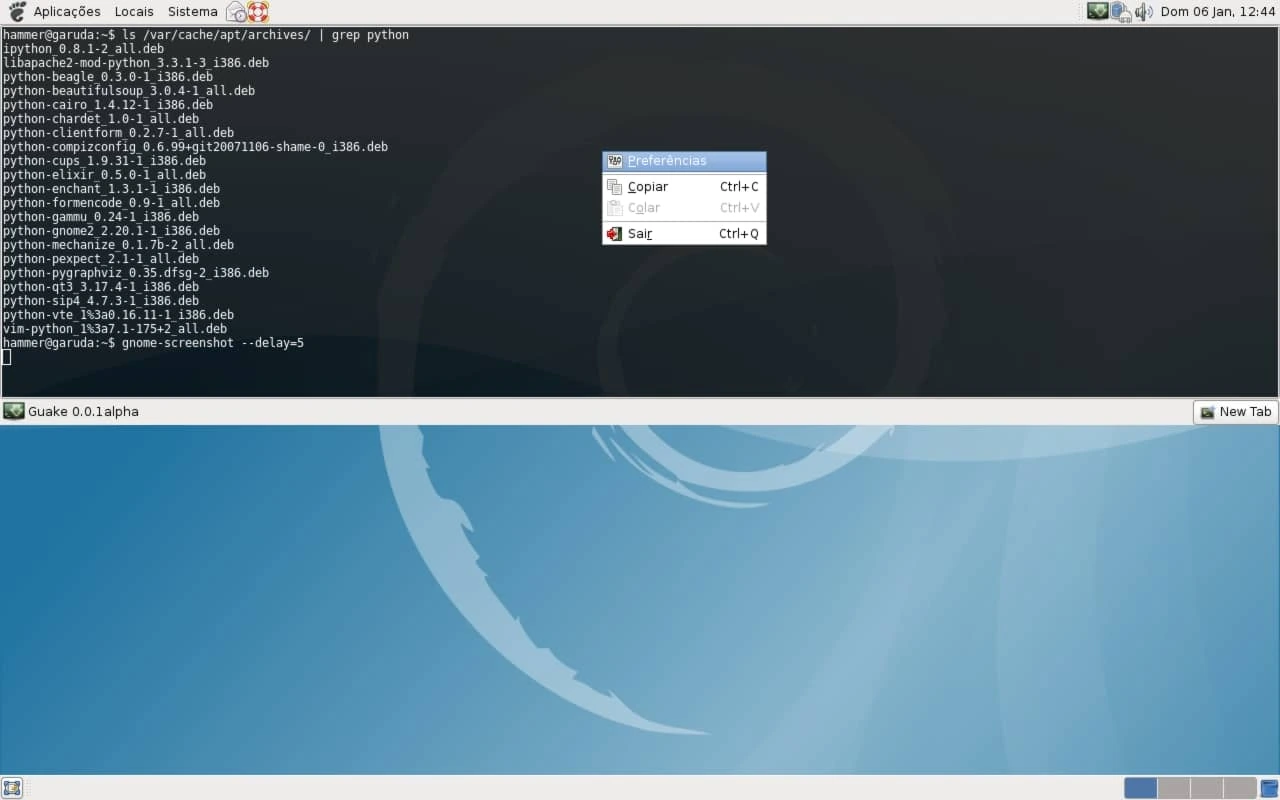
Best For: Developers who need to quickly execute commands and instantly return to their work without managing windows.
Why Choose It? Guake runs silently in the background. Pressing `F12` slides it down from the top of the viewport instantly. Pressing `F12` again hides it, preserving screen space. It supports multiple tabs, transparency configurations, and custom global hotkeys.
- Toggle: Slides down instantly via global keybinds
- Custom layout: Supports full width layouts, transparency, and background animations
- Tabs: Per-tab custom profile settings and startup script definitions
- Framework: GTK3 framework integrated with modern desktop settings
Quick Tip: Use the Preferences menu to enable “Hide on lose focus” so Guake automatically disappears when you click back onto your web browser or IDE.
Install Command:

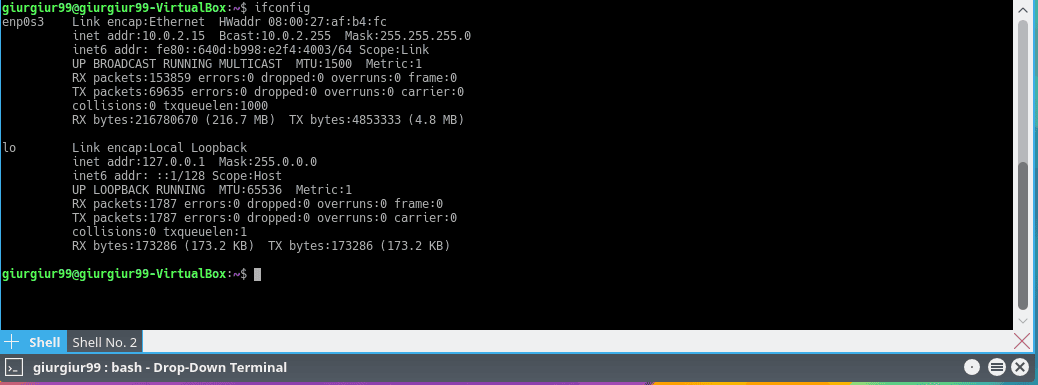
Best For: KDE Plasma desktop users who want a feature-rich, customizable drop-down terminal that opens instantly with F12.
Why Choose It? Yakuake is a drop-down terminal emulator based on KDE Konsole technology. It runs silently in the background and slides down from the top of the screen when you press F12. It supports multi-tab splitting, customizable skins, and profiles, making it one of the most powerful drop-down clients available.
- Konsole Engine: Inherits all the performance, profiles, and customization settings of Konsole
- Custom Skins: Support for graphic styling skins to change the look and behavior of the window
- Layout Splits: Split active tabs vertically or horizontally into terminal grids
- D-Bus control: Can be scripted and controlled programmatically via D-Bus commands
Quick Tip: Set up custom width and height slide animations in the Window Settings to control exactly how quickly Yakuake slides into view.
Install Commands:
sudo apt install yakuake# Install via Flatpak
flatpak install flathub org.kde.yakuake

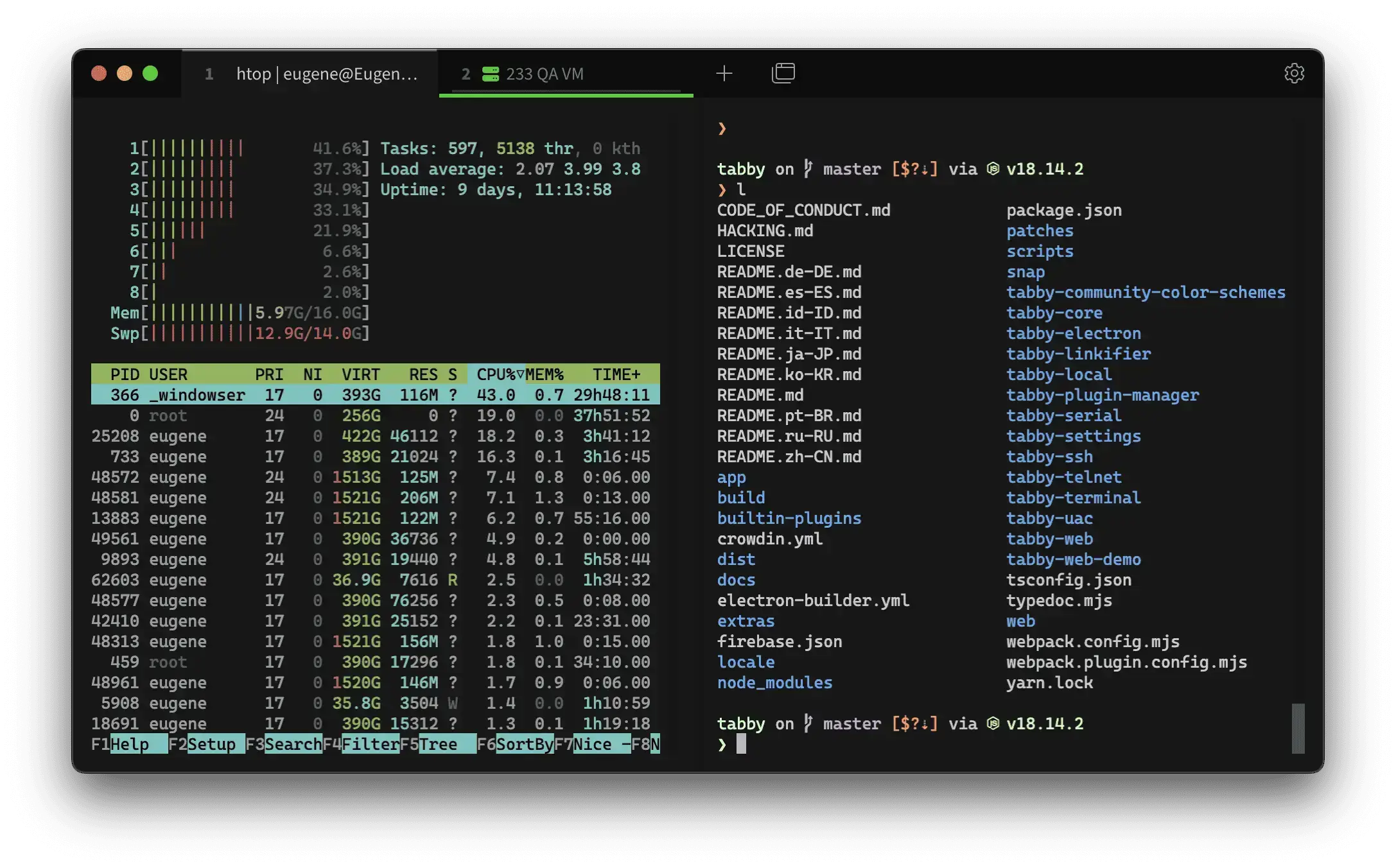
Best For: Sysadmins managing dozens of remote servers, users wanting built-in SFTP transfers, and fans of highly stylized themes.
Why Choose It? Tabby is a modern terminal emulator built on Electron. It features a built-in connection manager for SSH, Telnet, and serial connections. It includes tab state preservation, auto-complete directories, integrated SFTP file uploading, and a vast library of user themes.
- Connections: Save and manage SSH keys, secrets, and server endpoints natively
- SFTP: Built-in SFTP client transfers files visually without leaving the terminal
- Recovery: Tab state recovery: Automatically restores open tabs and paths after crashes
- Plugins: Highly extensible plugins library for custom scripts
Quick Tip: Use Tabby’s integrated SFTP panel to drag and drop files from your Ubuntu desktop directly into your remote SSH folder workspace.
Install Commands (via Official .deb download):
sudo apt install ./tabby-1.0.207-linux-x64.deb

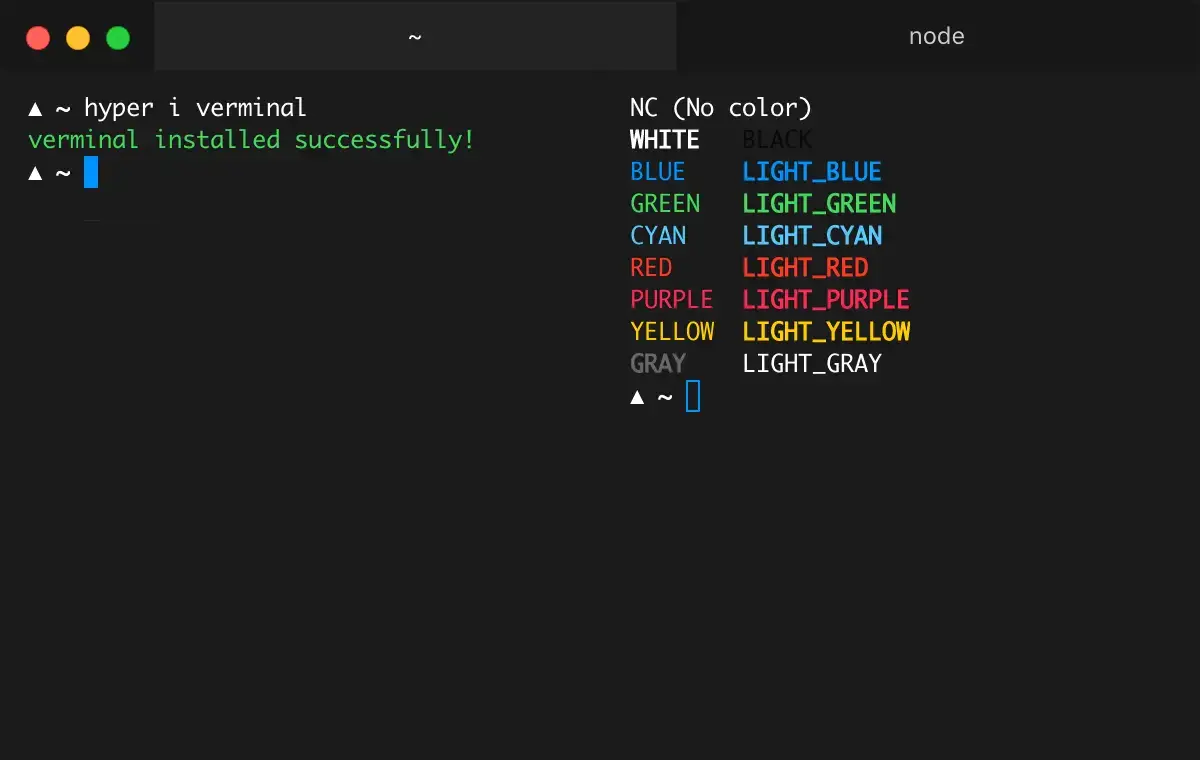
Best For: Web developers who want to write terminal extensions and plugins using standard JavaScript and CSS.
Why Choose It? Hyper is built on web technologies by Vercel. It is extremely extensible. You can customize the look, layouts, and shortcuts using simple JSON configs and CSS overrides, or install plugins from npm to add tabs, overlays, or theme effects.
- Web Tech: Built on Electron, HTML5, CSS3, and JavaScript
- Plugins: Plugin management framework utilizing npm packages
- Config: Simple JSON configuration file (
~/.hyper.js) - Library: Rich theme library and customizable hotkey binds
Quick Tip: Install the popular `hyperpower` plugin to add particle explosions and screen shake effects each time you type in the command line.
Install Commands (via Official .deb download):
sudo apt install ./hyper_3.4.1_amd64.deb

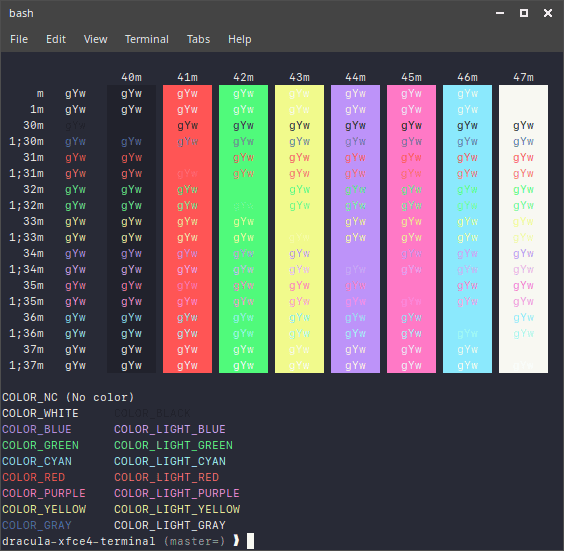
Best For: Users with older computers or low RAM specs, and fans of clean, minimal window layouts.
Why Choose It? Xfce Terminal is a lightweight terminal emulator designed primarily for the Xfce desktop environment. It uses the VTE widget library to provide a fast command shell while requiring significantly fewer system resources than GNOME Terminal or Konsole. It supports tabs, custom colors, background transparency, and drop-down mode settings.
- Resource-Friendly: Uses minimal CPU and RAM idle states, making it ideal for budget systems
- Tabbed layout: Standard multi-tab layout operations with drag-and-drop support
- Visual options: Set custom backgrounds, transparent gradients, or solid colors
- VTE stability: Inherits high terminal compatibility from the stable VTE toolkit library
Quick Tip: You can run Xfce Terminal as a drop-down client by launching it with the command parameter xfce4-terminal --drop-down.
Install Command:

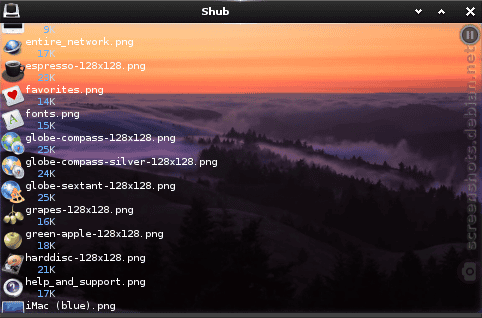
Best For: Fans of the Enlightenment desktop environment, and users who want media-rich commands displaying images/videos inline.
Why Choose It? Terminology is built on Enlightenment Foundation Libraries (EFL). It supports displaying images, videos, and PDF previews inline directly inside the terminal window. It handles splitting, layout configurations, and custom visual effects smoothly.
- Media Rich: Display images, play audio/video, and preview PDFs inline
- Splits: Multiple tab splits and layout configurations natively
- Visuals: Highly customized terminal themes and background assets
- Compatibility: Runs on X11, Wayland, and directly in the framebuffer
Quick Tip: Use the tycat command (e.g. tycat photo.jpg) to view high-resolution images directly inline inside your terminal viewport.
Install Command:
🔄 How to Update and Upgrade Terminal Emulators
Keeping your terminal emulator updated is critical for security, package fixes, and new features. Here is how to update and upgrade all terminals covered in this guide based on their installation methods.
Method 1: APT Packages (Standard Repos & PPAs)
Terminals installed via the standard Ubuntu repositories or PPAs (such as GNOME Terminal, Konsole, Ptyxis, Terminator, Tilix, Black Box, Alacritty, Kitty, Foot, Tilda, Guake, Terminology) update alongside your regular system packages. Run:
sudo apt update && sudo apt upgrade -y
Method 2: Snap Packages
Snap packages (like Ghostty, Wave, Guake, Cool Retro Term, Terminology) auto-update in the background. To check for updates manually or upgrade snaps immediately, execute:
sudo snap refresh
Method 3: Flatpak Packages
Terminals installed via Flathub (such as Konsole, Ptyxis, Black Box, WezTerm, Terminology) can be updated using the flatpak utility command wrapper. Run:
flatpak update
Method 4: Manual .deb Packages
Applications installed via manual `.deb` files (such as Warp, Wave, Tabby, Hyper) do not update automatically. You must download the latest `.deb` package file from their official website and reinstall it to apply updates:
sudo apt install ./package-name.deb
❓ Frequently Asked Questions
What is the fastest terminal emulator for Ubuntu?
GPU-accelerated terminals like Alacritty, Kitty, Ghostty, and WezTerm are the fastest. By offloading text rendering to your graphics card, they eliminate scrolling latency and minimize CPU overhead during heavy CLI output.
Can I run multiple terminals in one window on Ubuntu?
Yes. Tiling terminal emulators like Terminator and Tilix let you split your workspace horizontally and vertically in a grid. Multiplexers like WezTerm also support splits and tabs natively, while standard terminals require tools like tmux.
Does Warp terminal support Ubuntu?
Yes. Warp provides an official .deb package for Ubuntu. It is a closed-source but highly popular AI-powered terminal featuring collaborative command blocks and integrated AI troubleshooting.
What is the best drop-down terminal for Ubuntu?
Guake and Tilda are the top choices. They run in the background and slide down from the top of the screen instantly with a single keystroke (like F12), making them ideal for quick command execution.
Is Ptyxis installed by default on Ubuntu?
Ptyxis is the default terminal emulator on GNOME-based Ubuntu flavors beginning with recent releases. It features first-class container integration for Toolbox, Podman, and Distrobox out of the box.
How do I change my default terminal on Ubuntu?
Run the command “sudo update-alternatives –config x-terminal-emulator” in your terminal and enter the selection number of the terminal emulator you want to set as default.
More Ubuntu developer guides: Terminator Terminal Emulator Setup · Set Default Terminal Emulator · Install VS Code on Ubuntu · Install PowerShell on Ubuntu · Install Sublime Text on Linux · Install Android Studio on Ubuntu