



Sublime Text is a fast, lightweight code editor known for its instant startup times, smooth performance, and keyboard shortcut support. While other tools like Visual Studio Code are heavier and take longer to load, Sublime Text focuses on speed, keeping your window responsive even when editing hundreds of files at once.
This guide walks you through installing Sublime Text on Ubuntu 24.04 and 26.04 LTS. We cover the official repository setup, Snap and Flatpak packages, and how to configure settings like font scaling, package control, and plugins. If you run into any installation errors or repository security key issues, please drop a comment below or contact us for support. We are always here to help you get your development environment running.
APT, Snap & Flatpak Complete Guide
Configure Sublime Text on your Ubuntu system. Compare native repository performance against containerized sandboxes, set up Package Control, and run the verified terminal setup scripts.
Different installation methods provide different levels of system isolation, package verification, and update delivery speeds. Choosing the right layout ensures Sublime Text integrates smoothly with your developer tools and OS paths.
Sublime Text Installation Methods Compared
Use the table below to compare sandboxing, update mechanisms, performance, and official vendor support status.
| Method | Sandboxed | Security Key | Updates | Maintained By |
|---|---|---|---|---|
| Native APT (Recommended) | No (Direct performance) | Official Repository Key | System Updates (APT) | Sublime HQ (Official) |
| Official Snap | No (Needs system access) | Snap Store Key | Automatic Background | Snapcrafters (Community) |
| Flatpak | Yes (Isolated Sandbox) | Flathub Build Key | System Updates (Flatpak) | Community (Deprecated) |
Method 1: Install Sublime Text via Official APT Repository (Recommended)
Using the official APT repository is the installation method recommended by the developers. Installing native packages directly onto your system ensures the fastest startup speed, better interface theming, and lets you open files directly from the terminal using the subl command. By adding the repository, future updates are handled directly through Ubuntu’s standard system updates.
Modern Ubuntu installations (starting with 24.04 and 26.04) use a new repository file layout called DEB822. This format separates security keys and download addresses into clear, labeled lines inside a .sources file. This replaces the older single-line repository format to prevent repository security issues.
Ensure the directory for external repository security keys exists on your system. This directory stores verified GPG keys to protect your software installation pipeline:
sudo mkdir -p /etc/apt/keyrings
Import the developer’s public GPG signing key to verify package authenticity. This ensures that the Sublime Text package you install is original, unaltered, and signed directly by Sublime HQ:
wget -qO- https://download.sublimetext.com/sublimehq-pub.gpg | sudo tee /etc/apt/keyrings/sublimehq-pub.asc > /dev/null
Create the modern DEB822 sources list configuration file. This modern format replaces the older single-line entry with a clean, structured key-value layout that isolates repository permissions:
echo -e "Types: deb\nURIs: https://download.sublimetext.com/\nSuites: apt/stable/\nSigned-By: /etc/apt/keyrings/sublimehq-pub.asc" | sudo tee /etc/apt/sources.list.d/sublime-text.sources > /dev/null
Update your local package metadata so that your system detects the newly added repository, then run the installer command:
sudo apt update
sudo apt install sublime-text -y
Method 2: Install Sublime Text via Snap (Official)
The Snap package is built and maintained by community contributors (Snapcrafters) and verified by the Snap Store. Because text editors need direct access to your folders and files to edit code, the Snap package for Sublime Text requires classic confinement. This permission allows the editor to open and save files outside the standard application sandbox.
Using Snap provides automatic background updates and easy installation. However, startup speed can be slightly slower than the native repository method because of how Snap packages load files when opening.
Run the snap command in your terminal to fetch and unpack the editor package:
sudo snap install sublime-text --classic
Method 3: Install Sublime Text via Flatpak (Flathub)
Flatpak is another packaging option on Ubuntu. The Flatpak version com.sublimehq.SublimeText is community-maintained and runs in an isolated sandbox. Flatpak is not recommended for Sublime Text because its strict sandbox limits the editor’s ability to access your system’s compilers, folders, and development runtimes. If you prefer to use Flatpak, you can install it using the commands below.
Because Flatpak runs the application in an isolated environment, Sublime Text will have trouble finding compilers (like GCC or Clang), language files (like Python, Node.js, or Rust), and system terminal tools. Settings files and plugins may also fail to sync properly. For coding and software development, the native repository package is highly recommended.
First, install the flatpak utility, add the Flathub repository, and run the installer command:
sudo apt update
sudo apt install flatpak -y
sudo flatpak remote-add --if-not-exists flathub https://dl.flathub.org/repo/flathub.flatpakrepo
flatpak install flathub com.sublimehq.SublimeText -y
Step 4: Enable Package Control and Developer Plugins
To turn Sublime Text into a powerful development environment, install Package Control. It manages plugins, themes, and snippets directly inside the editor.
1. Launch Sublime Text.
2. Open the menu bar and click on Tools.
3. Select Install Package Control at the bottom of the menu.
Once installed, a popup will confirm completion. Open the Command Palette by pressing Ctrl + Shift + P and type Package Control: Install Package to search for plugins.
Recommended Productivity Plugins
Provides rapid HTML and CSS abbreviation expansions. Just type `ul>li*3` and press Tab to generate structured code instantly.
Displays icons in the editor gutter indicating added, modified, or deleted lines compared to your local Git repository.
Extends the sidebar file tree with useful operations, letting you create, rename, delete, duplicate, or open files with external apps.
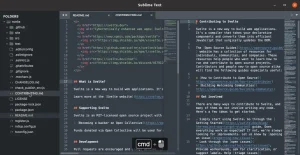
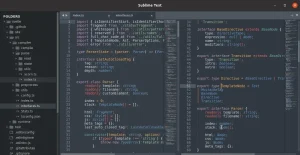
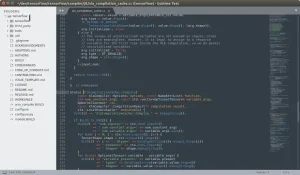
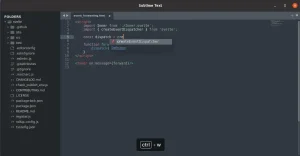
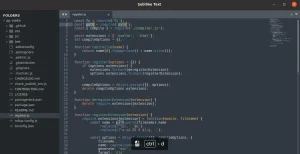
Sublime Screenshots
Troubleshooting Common Setup Issues
If you run into interface or update errors, use the solutions below to resolve them.
On high-resolution monitors or laptops using screen scaling, Sublime Text’s icons and text may look extremely small. You can force the interface to scale manually in your settings file:
1. Open Sublime Text.
2. Go to Preferences > Settings. This opens two settings files side by side.
3. Add the scaling line to the right pane (your User settings) and save the file:
"ui_scale": 1.5
If the Sublime Text repository has been registered on your system more than once, Ubuntu will show duplicate warnings when checking for updates. Clean up these old source files using the terminal:
sudo rm -f /etc/apt/sources.list.d/sublime-text.list
sudo rm -f /etc/apt/sources.list.d/extrepo_sublime*.sources
sudo apt update
If a broken plugin, incorrect setting, or visual error prevents Sublime Text from opening or loading, you can reset the editor by deleting your configuration folders. This removes custom files and returns the application to its original state:
# For Native APT Installation
rm -rf ~/.config/sublime-text ~/.cache/sublime-text

# For Snap Store Installation
rm -rf ~/snap/sublime-text

# For Flatpak Installation
rm -rf ~/.var/app/com.sublimehq.SublimeText
Note: Running this command deletes your preferences, window sessions, and installed plugins. Open Sublime Text again to regenerate the default files.
How to Uninstall Sublime Text from Ubuntu
If you need to remove the software or revert system repository configurations, select the uninstallation commands matching your installation method.
1. For the Native APT Repository Method:
Remove the package files, delete the repository source file and the GPG key, and refresh your system’s software list:
sudo apt purge sublime-text -y
sudo rm -f /etc/apt/sources.list.d/sublime-text.sources
sudo rm -f /etc/apt/keyrings/sublimehq-pub.asc
sudo apt update
2. For the Snap Store Package:
Remove the snap package and clear all associated system caches:
sudo snap remove --purge sublime-text
3. For the Flatpak Package:
Uninstall the Flatpak package and delete its container folders:
flatpak uninstall com.sublimehq.SublimeText -y
rm -rf ~/.var/app/com.sublimehq.SublimeText
Optional: Clear Personal Settings and Cache Folders:
The standard package removal commands do not delete your personal project files, settings, or plugins. To permanently remove all Sublime Text user configuration and cache directories, run the command below:
rm -rf ~/.config/sublime-text ~/.cache/sublime-text
Frequently Asked Questions
Is Sublime Text free to use on Ubuntu?
Sublime Text is free to download and evaluate for an unlimited time, but a license must be purchased for continued use. There is no enforced time limit or feature restriction during evaluation.
How do I upgrade Sublime Text on Ubuntu?
If you installed Sublime Text via the APT repository, you can update it using Ubuntu’s standard package updater or by running sudo apt update && sudo apt install –only-upgrade sublime-text in your terminal. For Snap, run sudo snap refresh sublime-text.
How do I fix small icons and text on high DPI monitors in Sublime Text?
Open Sublime Text, navigate to Preferences > Settings, and add “ui_scale”: 1.5 (or another decimal scale factor like 1.25 or 2.0) to your User settings JSON file, then save it.
Can I use my license key on Linux if I bought it on Windows/macOS?
Yes, Sublime Text licenses are per-user rather than per-machine or per-platform. You can use a single license key across any supported operating systems (Linux, Windows, macOS) and machines where you are the primary user.
Why am I getting duplicate repository warnings during apt updates?
This happens if the Sublime Text repository has been registered in multiple configuration files, such as a legacy /etc/apt/sources.list.d/sublime-text.list and the modern .sources file. Remove the old duplicate files and refresh APT to fix the warnings.
- Sublime Text Linux Repository Documentation – Official guides and updates on Sublime Linux versions.
- Package Control Directory – The central directory of packages, plugins, and themes for Sublime Text.
- UbuntuFree Support & Contact Page – Contact our team directly if you experience system errors.
More developer application guides: Best Ubuntu Code Editors · Google Antigravity Setup · Docker CE Installation · How to install FFMpeg on Ubuntu