



KTorrent is a highly customizable BitTorrent client developed by the KDE community. Built using the Qt toolkit, it integrates smoothly with modern Linux desktop environments.
KTorrent includes advanced features such as sequential downloading, IP filtering, queue management, global and per-torrent bandwidth limits, magnet link handling, and a built-in search engine. Frequently rated as a solid choice for users seeking control over active downloads, it provides power-user configuration options while maintaining a clean, accessible layout.
This guide provides step-by-step terminal instructions for installing and configuring KTorrent on Ubuntu 26.04, 24.04, and 22.04 LTS. We cover native package setup, Snap integration, sandboxed Flatpak filesystem permissions, default magnet link association commands, remote Web Interface configuration, and clean system uninstallation.
If any of these steps fail on your system, please drop a comment below or contact us and we will help you get it resolved.
APT, Flatpak, & Snap Setup Walkthroughs
Configure the KTorrent download client on your system. Learn how to add repositories, manage directory sandbox permissions, set default magnet links, and enable the built-in remote web server.
Choosing the correct installation format affects how KTorrent integrates with system directories, sandbox constraints, and how frequently it receives update releases. Review the comparison grid below to select the option that best fits your requirements.
KTorrent Installation Methods Compared
Review the installation choices below to evaluate release updates, containment levels, filesystem access permissions, and desktop integration capabilities.
| Method | Source channel | Ubuntu Version Matrix | Sandbox isolation | Integration & Limits |
|---|---|---|---|---|
| APT Universe | Ubuntu Universe Repository | 26.04: v25.12.3 24.04: v23.08.5 22.04: v21.12.3 |
None (Native system access) | Full disk access, standard theme integration, lightweight footprint. |
| Flatpak (Flathub) | Flathub Container Registry | All releases: v26.04.0 (Upstream) | Strict sandbox restriction | Requires manual permission commands to access custom downloads drives. |
| Snap (Snap Store) | Snapcraft Store (Official KDE) | All releases: v26.04.0 (Upstream) | Strict snap confinement | Auto-updates enabled, built-in access to standard home partitions. |
Method 1: Install KTorrent via the Ubuntu Universe Archive (APT)
Installing KTorrent through the default APT package manager is the standard method for users looking for native performance and clean system integration. Because KTorrent resides in Ubuntu’s Universe repository, the package uses shared system library elements and matches your system’s desktop theme naturally. Runtimes are updated automatically alongside your standard system software updates.
Since stable LTS releases prioritize system package freezes, the version available in the APT repositories tracks the version freeze at release time. Ubuntu 22.04 LTS carries KTorrent v21.12.3, Ubuntu 24.04 LTS carries KTorrent v23.08.5, and Ubuntu 26.04 LTS features KTorrent v25.12.3. If you require the absolute latest release version, use the Flatpak or Snap methods instead.
Most desktop editions have Universe enabled. On minimal installations or server packages, ensure it is added to your software sources:
sudo add-apt-repository universe -y
Update your APT repository indexes to fetch the package definitions:
sudo apt update
Install KTorrent from the Universe archive. If you are running a non-KDE desktop environment like GNOME, APT will automatically download the necessary Qt and KDE libraries required to execute the client interface:
sudo apt install ktorrent -y
Check the installation state and verify the installed package version using the policy tool:
apt-cache policy ktorrent
Method 2: Install KTorrent via Flatpak (Flathub)
If you prefer running sandboxed applications or want the absolute latest upstream release version of KTorrent on older Ubuntu releases, Flatpak is the recommended choice. By isolating KTorrent from system configuration directories, the application runs within a containerized environment. This containment increases download footprint due to runtime overrides, but prevents dependency changes on host systems.
Because Flatpak containers strictly isolate file read/write permissions, KTorrent cannot write outside standard folders like ~/Downloads. If you intend to save download files to external hard drives or custom folder partitions, you must apply filesystem overrides as shown in Step 4 below.
If Flatpak is not yet configured on your computer, install the daemon package via APT:
sudo apt update && sudo apt install flatpak -y
Add the official Flathub remote server to query and pull application packages:
flatpak remote-add --if-not-exists flathub https://dl.flathub.org/repo/flathub.flatpakrepo
Fetch and install the verified build of KTorrent from Flathub:
flatpak install flathub org.kde.ktorrent -y
By default, KTorrent’s Flatpak wrapper cannot save downloads outside your primary ~/Downloads folder. To grant the container full write access to external drives or custom directories (for example, a secondary drive mounted at /media/DataStorage), run this override command in your terminal:
flatpak override --user --filesystem=/media/DataStorage org.kde.ktorrent
Replace /media/DataStorage with the actual absolute path to your custom downloads folder.
Method 3: Install KTorrent via the Snap Store
For users who want a simple, sandboxed container package that updates automatically in the background, Snap is a highly reliable option. Unlike the Flatpak package, which requires a separate repository registration, Snap support is built directly into Ubuntu. The KTorrent snap package is officially published and maintained by KDE, ensuring you receive stable updates on all LTS releases.
Open your terminal using the shortcut key combination Ctrl+Alt+T and run the snap command:
sudo snap install ktorrent
After installation, the desktop environment will register the new snap directories, and KTorrent will appear in your application listings.
How to Launch and Configure KTorrent on Ubuntu
KTorrent requires an active graphical session (X11 or Wayland) to render its interface. You can launch the application from the desktop launcher or execute startup commands inside a terminal window.
Open your desktop application grid, type KTorrent in the search search bar, and click the application icon to start the graphical client.
Run the launch command matching your selected installation type:
For APT installation builds:
ktorrent
For Flatpak container builds:
flatpak run org.kde.ktorrent
For Snap package builds:
snap run ktorrent
If your web browser does not send magnet links to KTorrent automatically, you can establish the default system MIME handler association manually by executing this command:
xdg-mime default org.kde.ktorrent.desktop x-scheme-handler/magnet
Feature Spotlight: Enabling KTorrent Remote Web Interface (WebUI)
KTorrent features a built-in remote management plugin that operates its own lightweight web server. This allows you to monitor downloads, add magnet links, and adjust download limits using a standard web browser on a separate device without needing external software packages like Apache or Nginx.
Launch the KTorrent interface, click on Settings in the top menu bar, and select Configure KTorrent. In the left-hand category menu, click on Plugins. Scroll down the plugin listing, locate the entry labeled WebInterface, and select the checkbox next to it to activate the module.
After enabling the plugin, click on the new Web Interface settings tab that appears in the configuration window’s left pane. In the settings section, choose a Web Server Port (port 8080 is the standard default). Next, set a secure Username and Password in the login settings fields to block unauthorized access to your torrent transfers, then click Apply.
Open a web browser on the host system and navigate to http://localhost:8080 (or your custom port) to check your setup. If you plan to connect from another computer on the same local network, open the target port in your system firewall (UFW) by running:
sudo ufw allow 8080/tcp
Advanced Setup: Network Connection Ports and UFW Rules
To achieve optimal downloading and seeding speeds, KTorrent needs to accept incoming network connections from other peers. By default, KTorrent uses port 6881 for standard TCP and UDP traffic, and utilizes standard ports for DHT network discovery. If you run a strict firewall on Ubuntu, you must open these ports to prevent connection bottlenecks.
Open the TCP and UDP port range in the Ubuntu Uncomplicated Firewall (UFW) to allow active client connections:
sudo ufw allow 6881/tcp
sudo ufw allow 6881/udp
Note: You can verify your active connection port configuration inside KTorrent by navigating to Settings > Configure KTorrent > Network.
Security Feature: Enabling the IP Filter Blocklist
To improve your privacy and security while downloading, you can enable KTorrent’s built-in IP Filter plugin. This module allows you to load database blocklists of known malicious or unwanted IP addresses, preventing KTorrent from establishing active connections with them.
Navigate to Settings > Configure KTorrent. Select Plugins from the left-hand menu, locate the IP Filter plugin in the list, check the box to enable it, and click Apply.
Click the new IP Filter settings option in the left pane of the configuration window. In the plugin settings panel, specify the URL or local path of your PeerGuardian-compatible blocklist file, and click the download or convert button to convert it for active filter blocking.
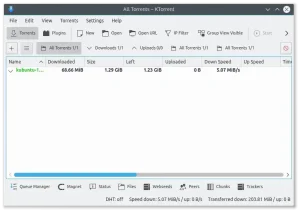
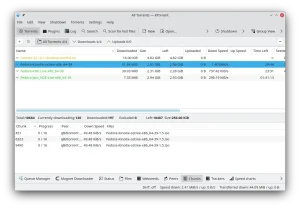
KTorrent Screenshots
How to Completely Uninstall KTorrent and Remove Cache Files
If you want to remove KTorrent, follow the cleanup instructions below that correspond to your active installation format. These steps purge the system packages, remove repository records, and delete local user cache settings.
Remove the KTorrent binaries using the package manager that handles your current installation:
For APT installations:
sudo apt remove ktorrent -y
sudo apt autoremove --purge -y
For Flatpak installations:
flatpak uninstall org.kde.ktorrent -y
flatpak uninstall --unused -y
For Snap installations:
sudo snap remove ktorrent
Uninstalling the software leaves configuration folders on your drive to protect download histories. To clear these directories, execute the commands matching your system package setup:
# Clean native APT configuration files
rm -rf ~/.config/ktorrentrc ~/.local/share/ktorrent

# Clean Flatpak application caches
rm -rf ~/.var/app/org.kde.ktorrent

# Clean Snap configuration directories
rm -rf ~/snap/ktorrent
Use the links below to access community forums, source code repositories, and official documentation guides for KTorrent troubleshooting:
Frequently Asked Questions
Is KTorrent available in the default Ubuntu repositories?
Yes, KTorrent is available in Ubuntu’s default universe repository. You can install it using the native package manager by running: sudo apt update && sudo apt install ktorrent -y.
How do I resolve permission errors when downloading to custom directories in Flatpak?
Because Flatpak packages run inside a sandboxed container, filesystem access is restricted. To grant KTorrent permission to write to custom directories or external hard drives, run: flatpak override --user --filesystem=/path/to/directory org.kde.ktorrent.
Is there an official Snap package for KTorrent?
Yes, there is an official KTorrent snap package published and maintained directly by KDE. You can install it on any system running snapd by executing: sudo snap install ktorrent.
How do I associate magnet links with KTorrent in the Ubuntu terminal?
To configure KTorrent as the default handler for magnet links on your system, open your terminal and run the MIME association command: xdg-mime default org.kde.ktorrent.desktop x-scheme-handler/magnet.
How do I enable remote web access for KTorrent?
Launch KTorrent, go to Settings > Configure KTorrent > Plugins, and enable the WebInterface plugin. A Web Interface tab will appear in the settings menu where you can configure the web server port, set a username, and establish a password.
Related torrent guides: Best Torrent Clients On Ubuntu · Install qBittorrent on Ubuntu · Install Deluge on Ubuntu