



Install Claude Desktop on Ubuntu
To install Claude Desktop on Ubuntu, add Anthropic’s apt repository and run sudo apt install claude-desktop. There is no file to download and no installer to click through, on x86_64 or arm64 alike.
That is a real difference from most desktop apps on Ubuntu. Because the app arrives from a signed repository rather than as a one-off package, new versions come down with your ordinary system updates and you never go looking for a newer build. This guide adds the repository, installs the app, signs you in, and gets Cowork’s virtual machine running when the tab comes up grey. If a step does not work on your system, leave a comment below or contact us and we will help you sort it out.
Install Claude Desktop on Ubuntu
Three steps, five minutes. This needs Ubuntu 22.04 or later, because the package wants a version of the C library that Ubuntu 20.04 does not have.
Step 1: Download Anthropic’s signing key
Open a terminal with Ctrl + Alt + T and fetch the key into the folder apt keeps trusted keys in:
mike@ubuntu:~$ sudo curl -fsSLo /usr/share/keyrings/claude-desktop-archive-keyring.asc https://downloads.claude.ai/claude-desktop/key.ascSilence means it worked. The command prints nothing on success and a line starting curl: when it does not.
If the shell answers command not found, you are on a trimmed-down install that has neither tool yet. Fetch both, then run the command above again:
mike@ubuntu:~$ sudo apt install curl gnupgStep 2: Add the repository and install
Write the repository into apt’s list of sources. This is one long line, so copy it rather than typing it:
mike@ubuntu:~$ echo "deb [arch=amd64,arm64 signed-by=/usr/share/keyrings/claude-desktop-archive-keyring.asc] https://downloads.claude.ai/claude-desktop/apt/stable stable main" | sudo tee /etc/apt/sources.list.d/claude-desktop.listThe signed-by part is the whole point of the exercise. It ties this one repository to that one key, so nothing else on your system gains any trust from it. That is the same arrangement Google Chrome and Visual Studio Code use on Ubuntu, and it is why a vendor repository set up this way is not the same risk as pasting in an unknown PPA.
Then refresh apt and install:
mike@ubuntu:~$ sudo apt update && sudo apt install claude-desktopLet it install the packages it recommends. Among them are QEMU and some firmware, which look unrelated to a chat app and are not: they are what Cowork runs on. Saying no here, or installing with --no-install-recommends, gives you an app with one tab permanently greyed out.
Step 3: Launch and sign in
Press the Super key, type Claude, and press Enter. From a terminal the command is claude-desktop.
Sign in the way you sign in to Claude anywhere else, with your account or your organisation’s single sign-on. There is no API key box, and that catches people out often enough to have its own short section below.

The same install on a Linux desktop, followed by the Cowork fix covered further down this page.
Installing Without the Repository
Most readers should skip this section. It is for the two situations where the repository route is not available: a machine whose network blocks the repository, and a machine where policy says no third-party apt sources.
The package itself still comes from the same place. This command reads the repository index, finds the newest package for your architecture, and downloads just that file into the current folder:
mike@ubuntu:~$ curl -fLO "https://downloads.claude.ai/claude-desktop/apt/stable/$(curl -s "https://downloads.claude.ai/claude-desktop/apt/stable/dists/stable/main/binary-$(dpkg --print-architecture)/Packages" | grep '^Filename: pool/main/c/claude-desktop/claude-desktop_' | sort -V | tail -n 1 | cut -d' ' -f2)"Then install it from the folder it landed in:
mike@ubuntu:~$ sudo apt install ./claude-desktop_*.debInstalling the file still adds the repository. The package registers /etc/apt/sources.list.d/claude-desktop.list on its own, which is exactly what you want if you only took this route because a download was easier, and exactly what you do not want if the whole point was to avoid the repository.
To stop that, create /etc/default/claude-desktop containing the line CLAUDE_DESKTOP_ADD_REPO="false" before you install. The trade is that nothing will ever update the app again: you repeat the download by hand, or you add the repository later and go back to normal.
Sign In and What You Need
Sign in with your Claude account, or with your organisation’s single sign-on. It is the same account you use on the web, and your conversations follow you between them.
What will not work is an API key from the Claude Console. This is worth saying plainly because the people most likely to install a desktop app on Ubuntu are often the same people who already have an API key in a terminal somewhere, and it is a reasonable guess that the app would take one. It does not. If billing through the API is what you want, that is the command-line tool’s job, not this app’s.
The app costs nothing to install. What you can do inside it follows whatever Claude plan your account is on, exactly as it does on the web, and there is no separate charge or separate tier for Linux.
What the App Does
This is not the website in a window. It is the same application Anthropic ships on macOS and Windows, with three things in it: ordinary chat, Claude Code for working in your repositories, and Cowork for longer jobs you hand over and come back to.

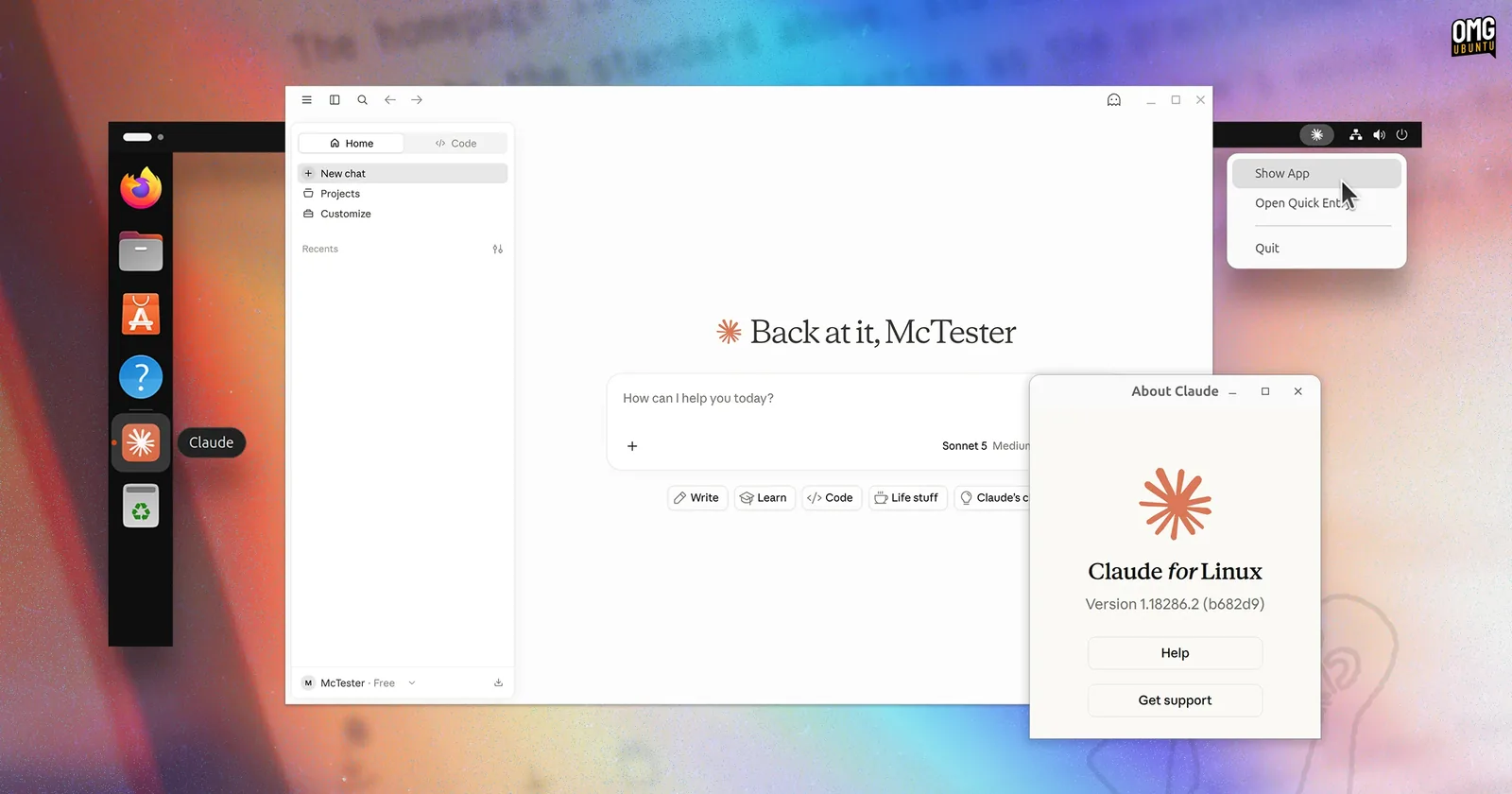
Two things in that picture are worth pointing at. The tray icon is a real desktop integration, not a window that vanishes when you close it: Show App brings it back and Quick Entry opens a small box you can type into without hunting for the window. And the app knows what build it is, which matters more than usual here, because on Linux you do not update it yourself and the version number is how you check that apt has been doing its job.
Inside, the parts a developer will care about are the ones borrowed from Claude Code: several sessions at once, changes shown as a diff you approve or reject rather than applied behind your back, a terminal and an editor in the same window, and a live preview of whatever you are building. Everything you type is answered by Anthropic’s servers. Nothing in this app runs a model on your own machine, and a file it reads is a file that is sent.
Cowork Runs in a Virtual Machine
On Linux, Cowork starts a virtual machine on your computer and does its work inside that. This is the part of the app with real requirements, and it is why a chat application pulled in QEMU during the install.
The reason is straightforward once you see it. Cowork is for jobs you hand over and walk away from, where Claude runs commands and edits files for a while without you watching each step. Doing that directly on your desktop means an agent with your permissions and your home directory. Doing it in a virtual machine means a boundary you did not have to build, with only the folders you share crossing it. The QEMU packages are not an optional extra, they are the wall.
Four things have to be true before the tab will open.
One, hardware virtualization has to be turned on in your firmware. On most machines bought in the last decade it already is. On some it is off by default, and it is called Intel VT-x, AMD-V or sometimes just “virtualization” in the firmware settings you reach by holding a key at boot.
Two, the QEMU packages have to be present, and which ones depends on your architecture:
| Architecture | Packages Cowork needs |
|---|---|
| x86_64, which apt calls amd64 | qemu-system-x86, ovmf, virtiofsd |
| arm64 | qemu-system-arm, qemu-efi-aarch64, virtiofsd |
A normal apt install claude-desktop brings these in as recommended packages, so on an ordinary desktop install they are already there. On Ubuntu 22.04 there is no virtiofsd package at all, and the app carries its own copy for that case, so nothing is missing on 22.04 even though the package list looks short.
Three, your user has to be in the kvm group. This is the requirement most likely to bite, because it looks satisfied when it is not:
mike@ubuntu:~$ sudo usermod -aG kvm $USERThen log out and back in. Group membership is decided when you log in, so the change does nothing until you do. And join the group even if you already have access to /dev/kvm: some desktop environments hand the logged-in user that one device without the group, but Cowork also opens /dev/vhost-vsock, and only members of the group can open that.
Four, the vhost_vsock kernel module has to be loaded, which is what lets the app talk to the machine it started. Load it now, and tell the system to load it at every boot:
mike@ubuntu:~$ sudo modprobe vhost_vsock


mike@ubuntu:~$ echo vhost_vsock | sudo tee /etc/modules-load.d/vhost_vsock.conf
The app checks all four of these once, when it starts. Installing a package or joining a group while it is open changes nothing on screen. Close it and open it again after installing anything, and log out and back in after joining the group. A grey Cowork tab that you have already fixed is almost always an app that has not been restarted.
When Cowork Will Not Start
The Cowork tab tells you which requirement it is missing. Each message below is the app’s own wording, so match yours to the heading and take the fix under it. Restart the app afterwards in every case.
Cowork requires hardware virtualization (KVM)
FIX Turn virtualization on in your firmware settings, not in Ubuntu.
Nothing you install will fix this one, because the processor feature the virtual machine needs is switched off below the operating system. Restart, hold the key your machine uses to reach its firmware settings, and look for Intel VT-x, AMD-V, SVM or a plain Virtualization switch, usually under an advanced or CPU section. Turn it on, save, and boot back into Ubuntu.
Cowork requires QEMU
FIX Install the packages the message lists, then restart the app.
The app shows you the exact apt install command for your machine, so use that. On an ordinary x86_64 desktop it comes to this:
mike@ubuntu:~$ sudo apt install qemu-system-x86 ovmf virtiofsdThese normally arrive with the app. Seeing this message means recommended packages were skipped: either you installed with --no-install-recommends, or you are on a minimal or server image that is configured to skip them for everything. On Ubuntu 22.04 leave virtiofsd out of that command, because the package does not exist there and the app brings its own.
Claude doesn’t have permission to use virtualization (/dev/kvm)
FIX sudo usermod -aG kvm $USER and then log out and back in.
Virtualization is available on this machine, your user is just not allowed to use it. The group is where that permission lives, and logging out is not optional: your session was given its groups when it started and will not pick up a new one until you start a new session. A reboot works too if you would rather.
You can confirm it took effect before reopening the app:
mike@ubuntu:~$ groups


mike@ubuntu:~$ mike adm cdrom sudo dip plugdev kvm lpadminCowork requires the vhost_vsock kernel module
FIX sudo modprobe vhost_vsock, then restart the app.
The module is how the app and the virtual machine talk to each other. modprobe loads it for this boot only, so make it permanent or you will be back here after your next restart:
mike@ubuntu:~$ echo vhost_vsock | sudo tee /etc/modules-load.d/vhost_vsock.confOne case cannot be fixed at all, and the app says so rather than letting you try: a kernel with no module directory under /lib/modules has nothing to load. That is normal inside containers and on ChromeOS’s Linux environment, where the kernel is not yours to change. Chat and Claude Code still work there. Cowork does not, and no amount of installing will change it.
Other Things That Go Wrong
NO_PUBKEY BAA929FF1A7ECACE
FIX The key is missing or wrong. Run Step 1 again, then sudo apt update.
This reads like a repository fault and it is not. Apt found the repository perfectly well and refused to trust what was in it, because the key at the path in your sources line is not the key that signed those packages. Two things cause it: a download that quietly returned a web page instead of a key, which happens behind a hotel or office network, and a keyring path typed slightly differently in the two commands. Copy both commands rather than typing them and this does not come up.
E: Unable to locate package claude-desktop
FIX Run sudo apt update, then install again.
Nine times out of ten this is a missed refresh. Apt does not notice a repository you added since the last update, so installing straight after adding the source finds nothing. If refreshing does not fix it, check the source file actually has something in it:
mike@ubuntu:~$ cat /etc/apt/sources.list.d/claude-desktop.listAn empty or missing file means the long echo command did not land, so run it again. A file that looks right leaves one more thing to rule out: run dpkg --print-architecture. Anything other than amd64 or arm64 has no package to find, and that is the answer rather than a fault.
Depends: libc6 (>= 2.34) but it is not installable
FIX Upgrade the machine. Ubuntu 22.04 or later, or Debian 12 or later.
This one has no workaround worth having. Ubuntu 20.04 ships version 2.31 of the C library and the app needs 2.34, and replacing the C library by hand on a working system is how you end up with a machine that will not boot. If 20.04 is where you are, the upgrade path to 22.04 is the fix. There is also a command-line version of Claude Code that runs in far more places, and on an old machine that is the better answer.
Running as root without –no-sandbox is not supported
FIX Start it as yourself. Never with sudo.
Installing needs sudo. Running does not, and the app refuses rather than starting with the safety features that protect you from what it renders switched off. Do not reach for the flag in that message. It is the app naming the thing it will not do without, not a suggestion. Close the root terminal and launch Claude from your applications menu like anything else.
The Quick Entry keyboard shortcut does nothing
FIX Use the tray menu’s Open Quick Entry, or log in to an X11 session.
A global shortcut is a key press that reaches an application while you are in a different one, and on Wayland an application cannot simply take one. It has to ask the desktop through a portal called GlobalShortcuts, and whether that exists depends on the desktop you are running rather than on the app. On X11 the shortcut works without any of this.
If it matters enough to change sessions for, pick Ubuntu on Xorg from the gear icon on the login screen after entering your username. Otherwise the tray menu does the same job with one more click, and this is the kind of gap that closes with a normal update.
How Updates Reach You
You do not update this app, and it does not update itself. There is no updater inside it on Linux, no “a new version is available” box, and nothing to download when a new build ships. Your system brings it, along with everything else.
mike@ubuntu:~$ sudo apt update && sudo apt upgradeUbuntu’s own Software Updater picks it up too, so if you already let that run there is genuinely nothing to do. This is the reason the repository route is worth the extra two commands over downloading a file: with the repository, a newer version is a thing that happens to you. Without it, it is a thing you have to remember.
If you want to know what you are running, the About dialog in the tray menu names the build, and apt will tell you the same thing:
mike@ubuntu:~$ apt policy claude-desktopRemove It Cleanly
Removing the app is one command, and then one judgement call about the repository.
mike@ubuntu:~$ sudo apt remove claude-desktopThat takes the repository entry and key the package registered with it. Which sounds like the end of it, and on one of the two install routes it is. Here is the part that catches people, and it depends on how you installed:
If you installed the .deb directly, the package added the repository itself, so removing the package takes it away again. You are finished.
If you followed the steps at the top of this page, you wrote that source file yourself, and nothing written by hand is removed by apt. It is still there, still being checked every time you update, pointing at an app you no longer have. Take it out yourself:
mike@ubuntu:~$ sudo rm /etc/apt/sources.list.d/claude-desktop.list


mike@ubuntu:~$ ls /etc/apt/sources.list.d/claude-desktop.list


ls: cannot access '/etc/apt/sources.list.d/claude-desktop.list': No such file or directory
That second command is the proof, and a missing file is the answer you want. Nothing you wrote in the app is stored on your machine, so none of this deletes a conversation. They live in your Claude account and removing the app does not touch them.
One optional tidy-up. If you never use QEMU for anything else, the virtual machine packages that came in with the app are still installed, and sudo apt autoremove will offer to take them. Read what it lists before agreeing. If you run virtual machines by any other means, you want to keep them.
Helpful Resources
Frequently Asked Questions
Is Claude Desktop free to install on Ubuntu?
The app costs nothing to install and there is no separate charge or separate tier for the Linux version. What you can do inside it depends on the Claude plan your account is on, exactly as it does on the web, so the app is not the thing that decides what you get. You do need an account: there is no way to use it signed out.
Does it work offline, or run a model on my own machine?
No to both. Every message is sent to Anthropic’s servers and answered there, so the app does nothing at all without an internet connection, and anything it reads on your machine is sent along with your question. The virtual machine that Cowork runs is a boundary around what Claude is allowed to touch on your computer, not a model running locally. If running a model on your own hardware is what you want, that is a different kind of tool entirely.
Is the Linux app finished, or should I wait?
The Linux version arrived in June 2026 with a beta label, and what that has meant in practice is an app that works for daily use with three gaps against macOS and Windows: Computer Use, dictation, and a Quick Entry shortcut that needs help on Wayland. All three are covered in this guide and none of them stops you chatting, writing code or using Cowork. Because it installs through apt, waiting buys you nothing anyway: whatever improves arrives on your machine with your normal system updates whether you installed today or next month.
Can it control my desktop the way it does on Mac and Windows?
Not on Linux. Computer Use, where Claude clicks and types in your other applications, is a macOS and Windows feature, and voice dictation is missing for the same reason. What Linux has instead is the part most people install this for: chat, Claude Code working inside your own repositories with changes shown as a diff you approve, and Cowork for longer jobs.
Why does Cowork need a virtual machine on Linux?
Cowork is for work you hand over and leave running, which means Claude executing commands and changing files without you approving each one. Running that directly on your desktop would give it your permissions and your home directory. Running it inside a virtual machine that the app starts with QEMU and KVM puts a boundary around it, and only the folders you share cross that boundary. This is why installing a chat application also installs QEMU, and why the Cowork tab has requirements the rest of the app does not.
Which Ubuntu versions does it support?
Ubuntu 22.04 and later, which covers 26.04, 24.04 and 22.04, plus Debian 12 and later. Ubuntu 20.04 genuinely cannot run it: the package needs a newer C library than 20.04 ships and apt says so rather than installing something broken. Other Debian-based distributions that are new enough usually work but are not tested. On Fedora, RHEL or Arch there is no desktop package at all, and the command-line version of Claude Code is the supported route.
Anthropic’s own desktop app for Ubuntu and Debian, on x86_64 and arm64, from a signed repository.
Related guides: Install ChatGPT on Ubuntu · Install Visual Studio Code on Ubuntu · More AI guides for Ubuntu