



Slack is one of the most widely used team messaging platforms for workplaces and developer communities.
The desktop client provides real-time messaging, file sharing, voice and video calls, threaded conversations, and deep integrations with tools like GitHub, Jira, Google Drive, and Trello. It is available for 64-bit (amd64) Ubuntu systems.
This guide provides step-by-step terminal instructions for installing and configuring Slack on Ubuntu 26.04, 24.04, and 22.04 LTS. We cover the official Snap package, the native .deb installer with automatic APT repository setup, the community Flatpak, launch configuration, Wayland screen sharing fixes, troubleshooting, and clean system uninstallation.
If you run into any issues, feel free to leave a comment below or contact us. We are always here to help.
Snap, .deb, & Flatpak Setup Walkthroughs
Set up the Slack desktop client on your Ubuntu system. Learn how to choose the right package format, install from official sources, configure launch options, and troubleshoot common display and permissions issues.
sudo apt upgrade commands.Choosing the correct installation format affects how Slack handles updates, interacts with system permissions, and stores local configuration data. Review the comparison grid below to select the option that best fits your workflow.
Slack Installation Methods Compared
Review the installation choices below to evaluate update behavior, containment model, filesystem access, and desktop integration.
| Method | Source Channel | Update Behavior | Containment | Integration & Limits |
|---|---|---|---|---|
| Snap (Snap Store) | Snap Store (Official Slack) | Automatic background updates | Classic (full system access) | Simplest method. Full file access, standard theme integration. |
| .deb Package | slack.com (Official Download) | APT repo auto-registered, updates via apt upgrade | None (Native system access) | Native integration, lightest footprint. Adds official APT source automatically. |
| Flatpak (Flathub) | Flathub (Community-Maintained) | Automatic via flatpak update | Strict sandbox | Isolated container. Requires overrides for external file access. Larger disk footprint. |
Method 1: Install Slack via the Official Snap Store
The Snap package is the simplest way to install Slack on Ubuntu. It is officially published and maintained by Slack, updates automatically in the background, and works on all supported Ubuntu LTS releases without additional configuration. Because the Slack snap uses classic confinement, it has full access to your home directory and system resources, identical to a native .deb installation.
Open your terminal using the shortcut key combination Ctrl+Alt+T and run the snap installation command. The --classic flag is required because Slack needs full system access to function properly:
sudo snap install slack --classic
Confirm that Slack was installed correctly by checking the snap package listing:
snap list slack
After installation, Slack will appear in your application menu. Snap handles all future updates automatically, so you do not need to manually check for new versions.
Method 2: Install Slack via the Official .deb Package
If you prefer a native system package that integrates directly with your Ubuntu desktop, downloading the official .deb installer from the Slack website is the recommended approach. When you install the .deb file, it automatically registers Slack’s official APT repository on your system. This means future updates arrive through your standard sudo apt upgrade commands without requiring a manual re-download.
Open a web browser and navigate to the official Slack Linux downloads page at slack.com/downloads/linux. Click the .deb (64-bit) download button. The file will save to your ~/Downloads directory.
Alternatively, you can download the latest .deb package directly from your terminal using wget:
wget -O ~/Downloads/slack.deb "https://slack.com/downloads/instructions/linux?ddl=1&build=deb"
Navigate to your Downloads folder and install the package using APT. Using apt install instead of dpkg -i automatically resolves any missing dependency packages:
sudo apt install ~/Downloads/slack-desktop-*.deb
If the installation reports any unmet dependency errors, run the following command to resolve them automatically:
sudo apt --fix-broken install
Check the installation state and verify the installed package version using the APT policy tool:
apt-cache policy slack-desktop
The .deb installer adds a file at /etc/apt/sources.list.d/slack.list that points to Slack’s official Packagecloud repository. When you run sudo apt update && sudo apt upgrade in the future, Slack will update alongside your other system packages.
Method 3: Install Slack via Flatpak (Flathub – Community)
If you prefer running applications inside a sandboxed container or want to keep Slack isolated from your system configuration, Flatpak is an alternative option. The Flatpak build runs within a containerized environment with restricted filesystem access by default.
The Slack Flatpak package on Flathub (com.slack.Slack) is community-maintained and is not officially published or verified by Slack. It receives regular updates from community contributors, but it is not supported by Slack’s engineering team. If you require an officially supported installation, use the Snap or .deb methods above.
If Flatpak is not yet configured on your computer, install the daemon package via APT:
sudo apt update && sudo apt install flatpak -y
Add the official Flathub remote server to query and pull application packages:
flatpak remote-add --if-not-exists flathub https://dl.flathub.org/repo/flathub.flatpakrepo
Fetch and install the community build of Slack from Flathub:
flatpak install flathub com.slack.Slack -y
By default, the Flatpak sandbox restricts Slack from accessing directories outside your home folder. To grant access to external drives or custom project directories, apply a filesystem override:
flatpak override --user --filesystem=/path/to/directory com.slack.Slack
Replace /path/to/directory with the actual absolute path you want Slack to access (for example, /media/Projects).
How to Launch Slack on Ubuntu
After installation, Slack registers a desktop launcher automatically on all methods. You can start the application from your desktop environment or directly from the terminal.
Open your desktop application grid (press the Super key), type Slack in the search bar, and click the application icon to start the client.
Run the launch command matching your selected installation type:
For Snap and .deb installations:
slack
For Flatpak container installations:
flatpak run com.slack.Slack
Interface Screenshots
See what the Slack desktop client looks like running on the Ubuntu desktop.
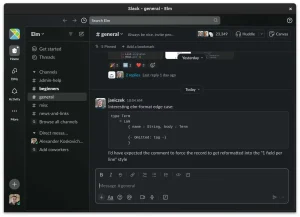

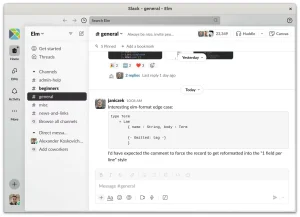

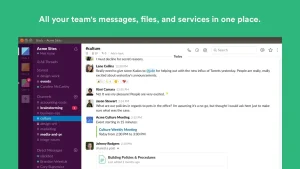
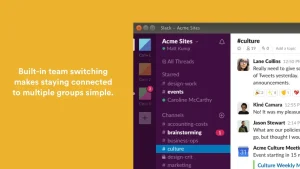
Troubleshooting Common Issues
Below are common issues you might run into when installing or running Slack on Ubuntu, along with their solutions.
This is typically caused by GPU hardware acceleration conflicts, particularly on systems with older NVIDIA or Intel integrated graphics. To launch Slack with hardware acceleration disabled, run:
slack --disable-gpu
If this fixes the issue and you want to make it permanent, edit the Slack .desktop launcher file and add --disable-gpu to the Exec= line.
If Slack notifications are not showing up on your GNOME desktop, check that the Do Not Disturb mode is disabled in your system notification settings. Also verify that Slack is listed as an allowed notification source by opening Settings > Notifications and ensuring Slack is toggled on.
For the Snap version, you may also need to grant the notifications permission explicitly:
sudo snap connect slack:desktop
Slack supports screen sharing on Wayland through the PipeWire media framework, which is included by default on Ubuntu 22.04 and later. If screen sharing fails or shows a black screen, ensure the required desktop portal packages are installed:
sudo apt install xdg-desktop-portal xdg-desktop-portal-gnome pipewire -y
After installing these packages, log out and log back in (or reboot) for the portal services to activate. If the issue persists, switching to an X11/Xorg session from the login screen is a reliable fallback.
How to Completely Uninstall Slack and Remove Cache Files
If you want to remove Slack from your system, follow the cleanup instructions below that correspond to your active installation method. These steps remove the application, clean up repository records, and delete local user cache and configuration files.
Uninstall Slack using the package manager that handles your current installation:
For Snap installations:
sudo snap remove slack
For .deb installations:
sudo apt remove slack-desktop -y
sudo apt autoremove --purge -y
For Flatpak installations:
flatpak uninstall com.slack.Slack -y
flatpak uninstall --unused -y
If you installed the .deb package, Slack added an APT repository source file and a GPG signing key to your system. Remove both to clean up your package sources:
sudo rm /etc/apt/sources.list.d/slack.list
sudo rm /usr/share/keyrings/slack-archive-keyring.gpg
sudo apt update
Uninstalling the application leaves configuration folders on your drive to protect login sessions and workspace history. To clear these directories completely, run the commands matching your installation method:
# Clean native .deb configuration files
rm -rf ~/.config/Slack

# Clean Snap configuration directories
rm -rf ~/snap/slack

# Clean Flatpak application caches
rm -rf ~/.var/app/com.slack.Slack
Use the links below to access official documentation, community forums, and support channels for Slack on Linux:
Frequently Asked Questions
Is Slack available in the default Ubuntu repositories?
No, Slack is not included in the standard Ubuntu APT repositories. You must install it using the official Snap package from the Snap Store, the official .deb installer from slack.com/downloads/linux, or the community-maintained Flatpak from Flathub.
What is the difference between the Snap and .deb versions of Slack?
The Snap version auto-updates silently in the background and runs with classic (non-sandboxed) confinement. The .deb version integrates natively with your Ubuntu system and adds an official APT repository for automatic updates through your standard system package manager. Both are officially published by Slack.
Can I install Slack on ARM-based Ubuntu devices?
No. Slack only distributes official Linux packages for 64-bit x86 (amd64) systems. There is no official ARM64 build for Linux. If you are running Ubuntu on a Raspberry Pi or ARM-based laptop, use the Slack web app at app.slack.com in your browser instead.
How do I fix Slack showing a blank or white screen on launch?
This is typically caused by GPU hardware acceleration conflicts. Launch Slack from the terminal with the flag disabled by running: slack --disable-gpu. If that resolves the issue, you can make it permanent by editing the .desktop launcher file.
Does Slack support screen sharing on Ubuntu Wayland sessions?
Yes, Slack supports screen sharing on Wayland through the PipeWire media framework, which is included by default on Ubuntu 22.04 and later. If screen sharing fails, ensure the xdg-desktop-portal and xdg-desktop-portal-gnome packages are installed on your system.
Related messaging guides: Install Microsoft Teams on Ubuntu · Install Discord on Ubuntu · Install Zoom on Ubuntu · Install Signal on Ubuntu