


If you want a simple, GNOME-style music player that focuses on your local library, GNOME Music is still around and still useful. I used to use it when I wanted something lightweight and clean-looking, without a lot of extra buttons.
That said, it is not the most powerful music player on Linux. If you want better library tools, more features, or streaming-focused apps, see our roundup here: Best music players on Ubuntu.
What GNOME Music is good for
- Playing music stored on your PC (local files)
- Browsing albums, artists, and playlists in a clean GNOME layout
- Keeping things simple, especially on the GNOME desktop
What is GNOME Music?
GNOME Music is the official music app from the GNOME Project. It is designed to help you play and organize your local music collection in a clean, modern interface.
It works best when your music is stored in a normal folder layout (for example, ~/Music) and your files have proper tags (artist, album, track name). If your files have messy tags, any music player will struggle, and GNOME Music is no exception.
Main features
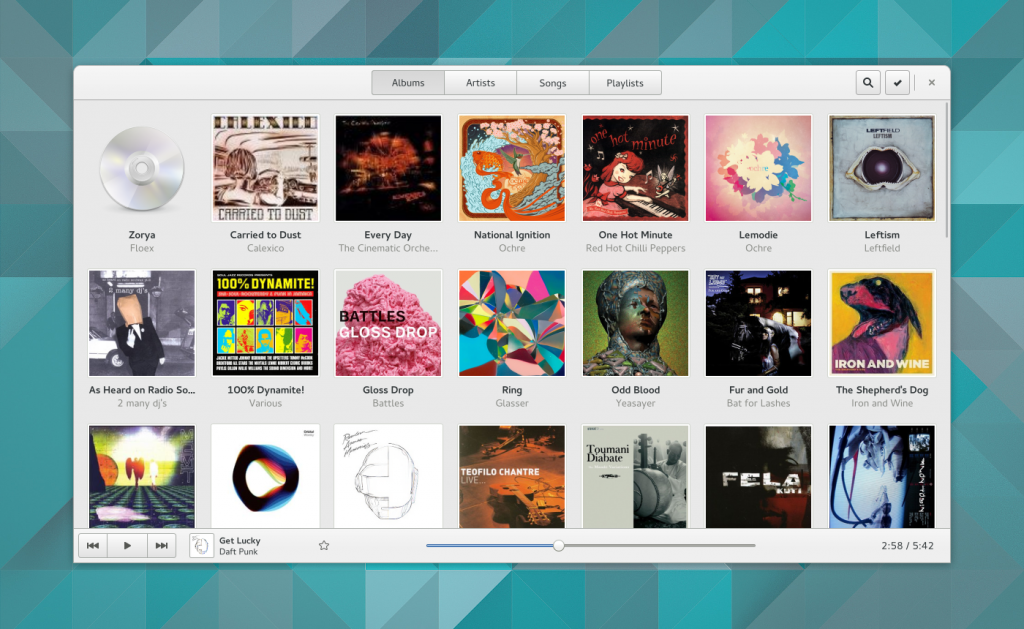
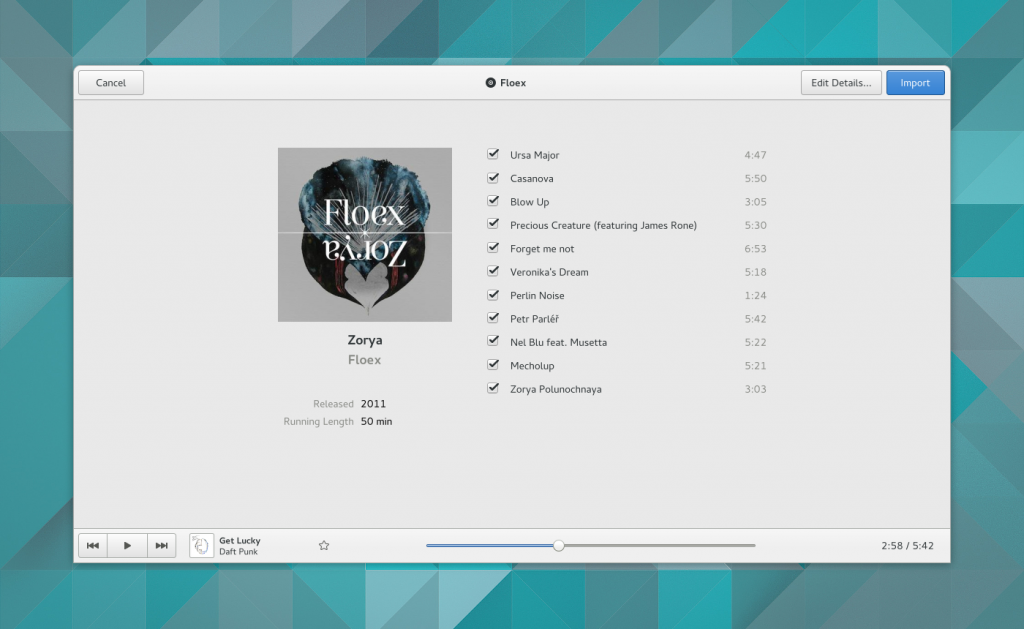
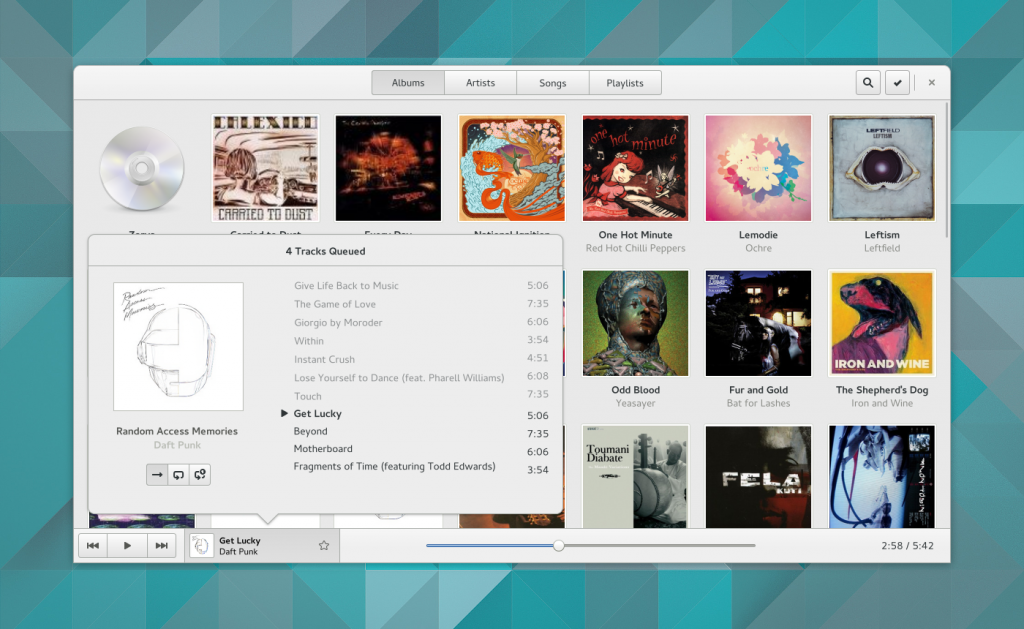
- Library view: Browse by artists, albums, and songs
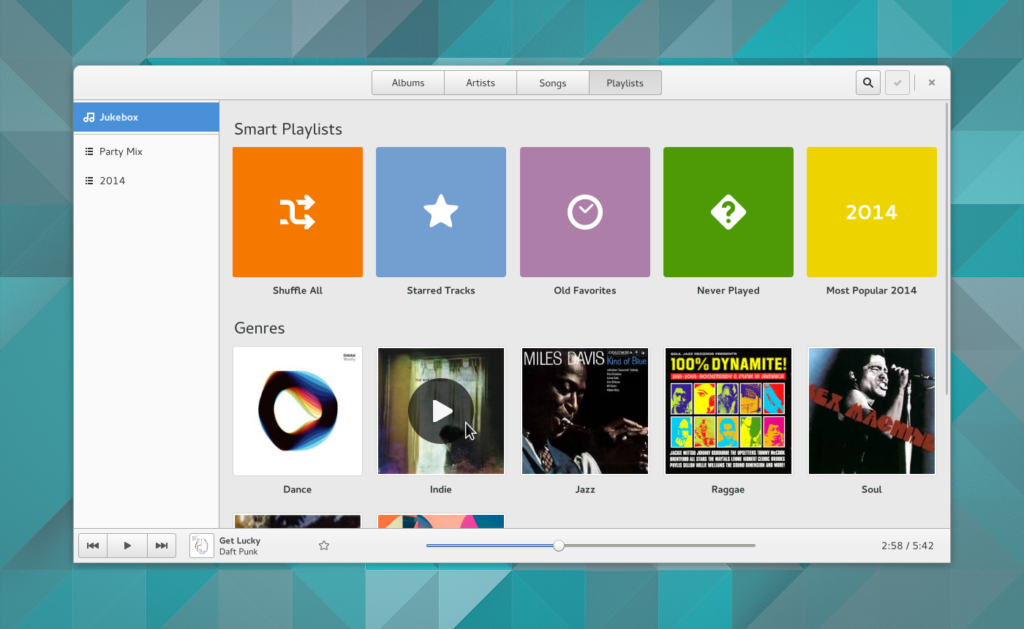
- Playlists: Create your own playlists
- Automatic playlists: Handy playlists generated from your library
- Search: Find tracks quickly
- Now Playing view: Simple playback controls and queue
- GNOME look and feel: Fits nicely on Ubuntu GNOME and other GNOME-based desktops
Screenshots
Download links
How to install GNOME Music on Ubuntu
On Ubuntu, you usually have two good options: install it as a DEB package (APT) or install it as a Flatpak. Flatpak sometimes gives you a newer version, but it can require a few extra setup steps.
Option 1: Install with APT (simple Ubuntu method)
1) Update your package list
sudo apt update2) Install GNOME Music
sudo apt install gnome-musicAfter installing, open GNOME Music from your Applications menu. Put your music files in ~/Music (or your preferred music folder), then give it a moment to index your library.
Option 2: Install via Flatpak (good if you want the Flathub build)
If you do not already use Flatpak on Ubuntu, you will need to install Flatpak and enable Flathub first.
1) Install Flatpak
sudo apt update
sudo apt install flatpak
2) Add Flathub
sudo flatpak remote-add --if-not-exists flathub https://flathub.org/repo/flathub.flatpakrepo3) Install GNOME Music from Flathub
flatpak install flathub org.gnome.MusicLaunching the Flatpak version:
flatpak run org.gnome.MusicImportant note about Flatpak and Tracker
GNOME Music uses the GNOME indexing service (Tracker) to build your library. On some systems, the Flatpak build may not work properly unless your system has a recent Tracker version available. If the app opens but your library stays empty, jump to the troubleshooting section below.
Install on other Linux distros (quick commands)
Ubuntu is the main focus here, but if you are on another distro, these quick commands can help.
Fedora
sudo dnf install gnome-musicArch Linux
sudo pacman -S gnome-musicFirst-time setup tips
- Use a normal music folder: Start with
~/Musicif you are not sure. - Give it a moment: Large libraries may take time to show up the first time.
- Fix your tags if needed: If albums look broken, your MP3/FLAC tags might be messy.
How to uninstall GNOME Music
If you tried it and decided to remove it, here are the quick uninstall commands.
Uninstall the APT version on Ubuntu
sudo apt remove gnome-musicIf you also want to remove unused dependencies installed with it:
sudo apt autoremoveUninstall the Flatpak version
flatpak uninstall org.gnome.MusicFedora
sudo dnf remove gnome-musicArch Linux
sudo pacman -R gnome-musicTroubleshooting
GNOME Music opens, but no songs show up
This is often an indexing issue. GNOME Music relies on Tracker to find and organize your library. Try these quick checks:
- Make sure your music is actually in your Music folder (or wherever your system expects it).
- If you installed the Flatpak version, try the APT version instead (or vice versa). On some systems, one method behaves better than the other.
- If you use Flatpak and your library is empty, confirm your system has a modern Tracker service available.
Flatpak permissions: GNOME Music cannot see my files
Flatpak apps can be sandboxed. If GNOME Music cannot see your music folder, check that it has permission to access your files. A common solution is using a Flatpak permissions tool like Flatseal.
Flatseal on Flathub (optional tool)
I want something simpler than a library-based player
If you just want to double-click audio files and play them, a minimal file player can feel better than a library app. GNOME also has a simple audio player app (Decibels) designed for that style.
Final thoughts
GNOME Music is not trying to be everything. It is for people who like a clean interface, keep music locally, and want a player that feels at home on GNOME. If that is your use case, it does the job.
Want better options?
If you are after stronger features, better library management, or more flexibility, see our updated list here: Best music players on Ubuntu.